
Bmax X15
Bmax X15 Laptop User Manual
Modelo: X15
Introdución
This manual provides comprehensive instructions for the setup, operation, and maintenance of your Bmax X15 laptop. Please read this manual carefully before using your device to ensure proper functionality and longevity.
Produto rematadoview
Fronte View

The Bmax X15 features a vibrant 15.6-inch Full HD display, providing clear and crisp visuals for all your computing needs.
Teclado e Touchpad

Equipped with a full-sized keyboard including a numeric keypad and a large 4.7-inch multi-touch touchpad for comfortable and efficient input.
Side Profile e Portos

The slim design incorporates essential ports including two USB 3.0 ports, a Micro HDMI output, a DC power input, and a headphone jack for versatile connectivity.
Traseira View

The Bmax X15 features a durable metal back cover, enhancing both its aesthetic appeal and structural integrity.
Configuración
Encendido inicial
- Cargar a batería: Before first use, connect the included power adapter to the laptop's DC port and a power outlet. Allow the battery to charge fully. The charging indicator light will typically change color or turn off when fully charged.
- Encendido: Open the laptop lid and press the power button, usually located on the top right of the keyboard area.
- Configuración de Windows: Follow the on-screen prompts to complete the Windows 10 Pro setup. This includes selecting your language, region, connecting to a Wi-Fi network, and creating a user account.
Conexión de periféricos
- Dispositivos USB: Connect USB mice, keyboards, or external drives to the USB 3.0 ports on the sides of the laptop.
- Pantalla externa: Use a Micro HDMI cable to connect the laptop to an external monitor or TV. Ensure the external display is set to the correct input source.
- Dispositivos de audio: Conecta uns auriculares ou altofalantes externos á toma de son de 3.5 mm.
- Tarxeta MicroSD: Insert a Micro-SD card into the designated slot for additional storage.
Instrucións de funcionamento
Uso do teclado e do panel táctil
The Bmax X15 features a responsive keyboard and a large touchpad. The touchpad supports multi-touch gestures for enhanced navigation. Refer to Windows settings for customizing touchpad gestures.
Configuración de visualización
The 15.6-inch Full HD IPS display offers excellent clarity. You can adjust display settings such as brightness, resolution, and scaling through Windows Display Settings.
Ampliación de almacenamento
Expandable M.2 SSD Slot
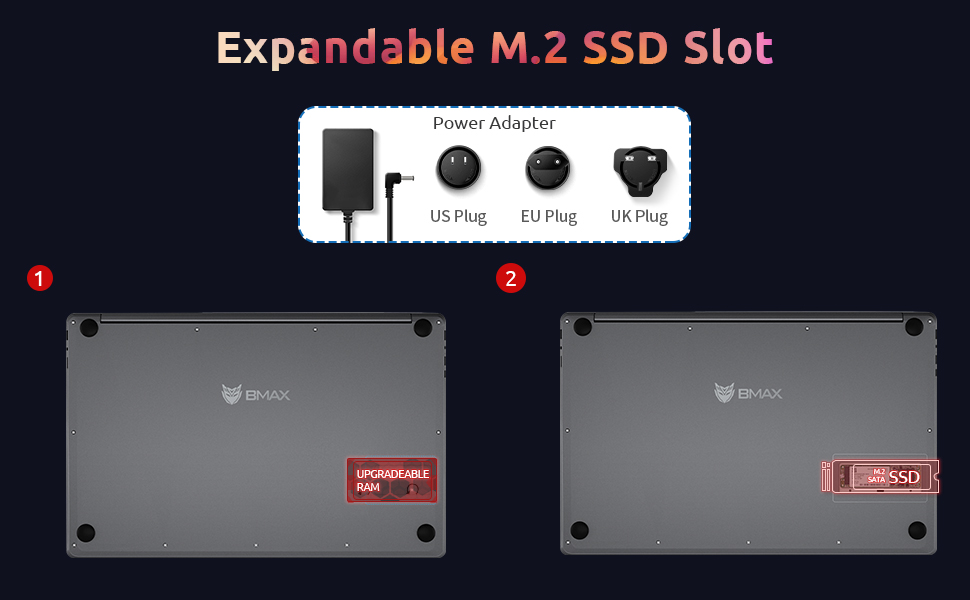
The Bmax X15 comes with a 256GB SSD and supports further storage expansion via an M.2 SATA SSD slot. This allows for significant upgrades to your storage capacity.
Mantemento
Limpeza
- Pantalla: Use un pano suave e sen pelusa lixeiramente damplimpa con auga ou cun limpador de pantallas. Non pulverice líquido directamente sobre a pantalla.
- Teclado e chasis: Usa un pano suave e seco. Para a sucidade persistente, un pano lixeiramente seco.amp pódese usar un pano, garantindo que non entre líquido nas aberturas.
- Portos: Use aire comprimido para limpar con coidado o po dos portos.
Coidado da batería
- Evite descargar completamente a batería con frecuencia.
- Store the laptop in a cool, dry place if not used for extended periods, with the battery charged to about 50%.
- Use only the original Bmax power adapter.
Actualizacións de software
Regularly check for and install Windows updates to ensure system stability, security, and optimal performance. Go to Configuración > Actualización e seguranza > Actualización de Windows.
Resolución de problemas
| Problema | Causa posible | Solución |
|---|---|---|
| O portátil non se acende. | Low battery; Power adapter issue; Hardware fault. | Ensure power adapter is securely connected and outlet is working. Allow battery to charge for at least 30 minutes before attempting to power on again. |
| A pantalla está en branco ou parpadea. | Incorrect display settings; Driver issue; Hardware fault. | Preme Fn + F1 (or relevant display toggle key) to cycle through display modes. Update graphics drivers. Restart the laptop. |
| Problemas coa conexión wifi. | Wi-Fi adapter off; Router issue; Driver issue. | Ensure Wi-Fi is enabled in Windows settings. Restart your router. Update network drivers. |
| Rendemento lento. | Too many programs running; Low storage space; Malware. | Close unnecessary applications. Free up disk space. Run a virus scan. Consider upgrading SSD or RAM if consistently slow. |
Especificacións
| Característica | Detalle |
|---|---|
| Modelo | Bmax X15 |
| Procesador | Intel Celeron N4120 Quad Core (up to 2.6 GHz) |
| RAM | 8 GB DDR4 |
| Almacenamento | 256 GB SSD (Expandable via M.2 SATA SSD slot) |
| Mostrar | 15.6-inch Full HD (1920x1080) IPS |
| Gráficos | Gráficos Intel UHD 600 (integrados) |
| Sistema Operativo | Windows 10 Pro (Supports Linux OS) |
| Conectividade sen fíos | Wi-Fi 802.11ac, Bluetooth |
| Portos | 2x USB 3.0, 1x Micro HDMI, 1x DC Power, 1x 3.5mm Headphone Jack, 1x Micro-SD Card Reader |
| Webleva | 0.3 MP |
| Duración da batería | Ata 5 horas (uso típico) |
| Dimensións (LxWxH) | 14.8 x 9.6 x 0.8 polgadas |
| Peso | 4.4 libras |
Garantía e Soporte
Bmax offers a worry-free 30-day return policy and a 12-month warranty for the X15 laptop. For technical support or warranty claims, please refer to the contact information provided with your product packaging or visit the official Bmax support websitio.
O servizo de atención ao cliente está dispoñible os 7 días da semana, as 24 horas do día.
Para obter máis información, pode visitar o Bmax Store on Amazon.
Documentos relacionados - X15
 |
Manual do usuario e especificacións dos auriculares sen fíos X15 Guía completa para os auriculares sen fíos X15, que abrangue o funcionamento, a carga, os detalles do produto, a resolución de problemas e o cumprimento da normativa FCC. Aprende a emparellalos, usar as funcións de música e chamadas e manter os auriculares. |
 |
Manual de usuario e guía de instalación do mini PC BMAX This is the official user manual and installation guide for the BMAX Mini PC, model B8 A Pro. It provides detailed instructions for initial setup, hardware upgrades including M.2 SSD, 2.5-inch HDD/SSD, and RAM installation. It also covers product overview, important safety information, FCC compliance, smart recovery, and mounting options. |
 |
Manual do usuario dos auriculares sen fíos X15 TWS Manual do usuario dos auriculares sen fíos X15 TWS, que abrangue o funcionamento, o emparellamento, os controis táctiles e a resolución de problemas. |
 |
Manual de usuario e guía de instalación do mini PC BMAX Manual de usuario completo para o BMAX Mini PC, que abrangue a configuración inicial, a configuración do idioma, a instalación do hardware (SSD M.2, disco duro/SSD de 2.5 polgadas, módulos de memoria) e o ambiente de recuperación. Inclúe información sobre o cumprimento da normativa FCC e avisos de seguridade. |
 |
X15 极速双模真无线蓝牙耳机 - 用户说明书 X15 极速双模真无线蓝牙耳机 (V5.1) 用户说明书,介绍产品特点、双模式切换(游戏/音乐)、蓝牙 5.1 连接、IPX4 防水、触控操作及常见问题解答。 |
 |
X15 TWS Wireless Bluetooth Headphones User Manual User manual and technical specifications for the X15 TWS Wireless Bluetooth Headphones, including pairing instructions, touch control functions, and charging details. |
Ask a question about this manual
Ask about setup, troubleshooting, compatibility, parts, safety, or missing instructions. Manuals+ will review the question and use this page’s manual context to help answer it.