
Introdución
The Montech Fighter 500 is an ATX mid-tower computer gaming case designed for optimal airflow and component visibility. It features a mesh 3D front panel, a tempered glass side panel, and pre-installed Rainbow LED fans. This manual provides essential information for setting up, operating, maintaining, and troubleshooting your Montech Fighter 500 case.
Características do produto
- Cheo View Panel lateral de vidro temperado: Allows for a clear view of internal components and lighting effects.
- Fine Metal Mesh Front Panel: Designed for maximum airflow to keep components cool.
- Unique M Modeling Architecture: Distinctive front panel design.
- Dazzling Rainbow Fans: Four pre-installed 120mm LED Rainbow fans provide cooling and aesthetic lighting.
- Excellent Dust Resistance: Features a magnetic top vent screen for easy cleaning and dust prevention.
Instrucións de configuración
1. Preparación do caso
Carefully unbox the Montech Fighter 500 case. Remove the tempered glass side panel by unscrewing the thumb screws, typically located at the rear corners of the panel. Place the case on a stable, flat surface.

Imaxe: Interior view of the Montech Fighter 500 case, highlighting the spacious layout for component installation.
2. Instalación da placa base
The Montech Fighter 500 supports ATX, Micro ATX, and Mini-ITX motherboards. Install the necessary standoffs onto the motherboard tray according to your motherboard's form factor. Carefully place your motherboard onto the standoffs and secure it with screws.
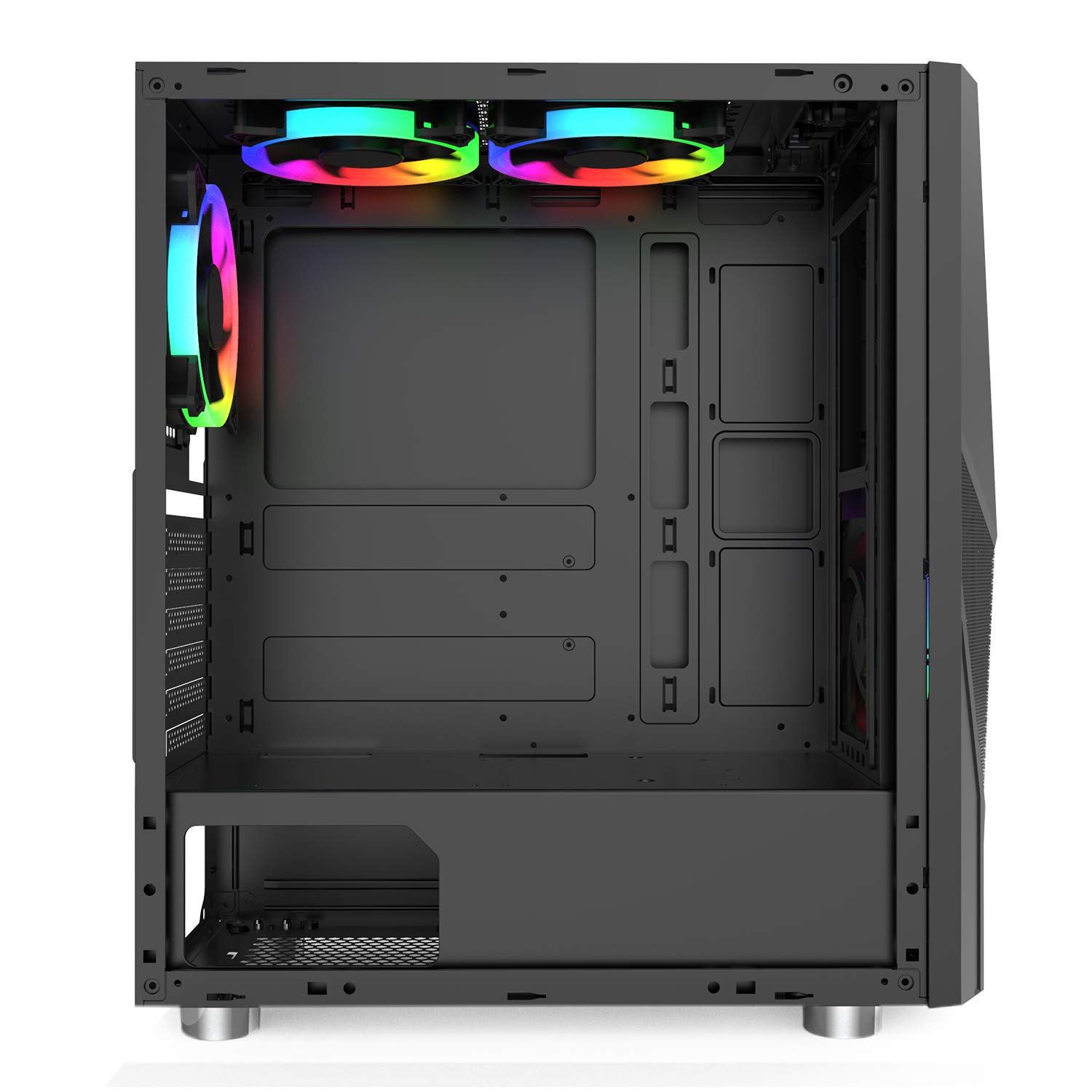
Image: Side interior view of the case, illustrating the motherboard mounting area and cutouts for cable management.
3. Instalación da fonte de alimentación (PSU)
The PSU mounts at the bottom of the case. Slide your ATX power supply into the designated compartment from the rear of the case and secure it with screws.

Imaxe: Parte inferior view of the case, highlighting the PSU mounting area and its dedicated ventilation.
4. Instalación da unidade
The case provides 4 internal bays for 3.5-inch hard drives. Locate the drive cages and install your storage devices as per the case's design, typically using trays or direct mounting with screws.
5. Fan and Cooling System
The Montech Fighter 500 comes with four pre-installed 120mm Rainbow LED fans. Ensure all fan cables are properly connected to your motherboard or a fan controller for power and lighting control.
6. Conexións do panel frontal
Connect the front panel cables (USB 2.0 x 2, audio, power switch, reset switch, LED indicators) to the corresponding headers on your motherboard. Refer to your motherboard manual for correct pin assignments.

Imaxe: Traseira view of the case, detailing the expansion slots and rear fan mount.
Instrucións de funcionamento
Once all components are installed and connected, and the side panel is re-secured, your Montech Fighter 500 case is ready for operation. The pre-installed Rainbow LED fans will illuminate upon system power-on, providing both cooling and visual effects. The mesh front panel and bottom mesh ensure consistent airflow for optimal component temperatures.

Imaxe: Fronte view of the Montech Fighter 500, demonstrating the mesh design and the visual effect of the Rainbow LED fans.
Mantemento
Un mantemento regular axuda a garantir un rendemento óptimo e unha maior duración dos compoñentes do teu PC.
Limpeza do filtro de po
The Montech Fighter 500 features a magnetic top vent screen for dust resistance. Periodically remove this filter, clean it with compressed air or a soft brush, and reattach it. The bottom mesh filter for the PSU should also be cleaned regularly.

Imaxe: Arriba view of the case, illustrating the magnetic dust filter for easy removal and cleaning.
Limpeza xeral
Use un suave, damp cloth to clean the exterior surfaces of the case, including the tempered glass panel. Avoid abrasive cleaners. For interior cleaning, use compressed air to remove dust from fans and components.
Resolución de problemas
- O sistema non se acende: Double-check all power connections, including the PSU to the wall, PSU to motherboard, and front panel power switch cable to the motherboard header.
- Fans Not Spinning/Lighting: Ensure fan power cables are securely connected to the motherboard or fan controller. Verify that the fan headers are enabled in the BIOS/UEFI settings if applicable.
- Problemas de sobrequecemento: Confirm that all case fans are spinning correctly and oriented for proper airflow (intake/exhaust). Ensure dust filters are clean and not obstructing airflow.
- Os portos USB non funcionan: Check the front panel USB cables are correctly connected to the motherboard's USB headers.
For more complex issues related to specific components (motherboard, CPU, GPU), refer to their respective user manuals or contact the component manufacturer's support.
Especificacións
| Característica | Especificación |
|---|---|
| Marca | Montech |
| Nome do modelo | Fighter 500 |
| Tipo de caso | Torre media |
| Compatibilidade da placa base | ATX, Micro ATX, Mini ITX |
| Cor | Negro |
| Material do recinto | Vidro, Metal |
| Método de arrefriamento | Aire |
| Número de fans | 4 (Pre-installed) |
| Tamaño do ventilador | 120 milímetros |
| Total de portos USB | 5 (2x USB 2.0, 3x other) |
| Internal Bays Quantity | 4 (for 3.5-inch drives) |
| Factor de forma do disco duro | 3.5 polgadas |
| Tipo de montaxe da fonte de alimentación | Montaxe inferior |
Garantía e Soporte
For warranty information and technical support, please refer to the documentation included with your purchase or visit the official Montech websitio. Garda o comprobante de compra para reclamacións de garantía.