
1. Introdución
Thank you for choosing the Rampage KB-R95 X-TITAN Gaming Mechanical Keyboard. This manual provides essential information for setting up, operating, maintaining, and troubleshooting your new keyboard. Please read this manual thoroughly before use to ensure optimal performance and longevity of your device.
2. Contido do paquete
- Rampage KB-R95 X-TITAN Gaming Mechanical Keyboard
- Manual de usuario
3. Produto rematadoview
O Rampage KB-R95 X-TITAN is a full-size mechanical gaming keyboard designed for performance and durability. It features responsive Red mechanical switches and customizable Full RGB LED backlighting, providing a dynamic gaming experience.
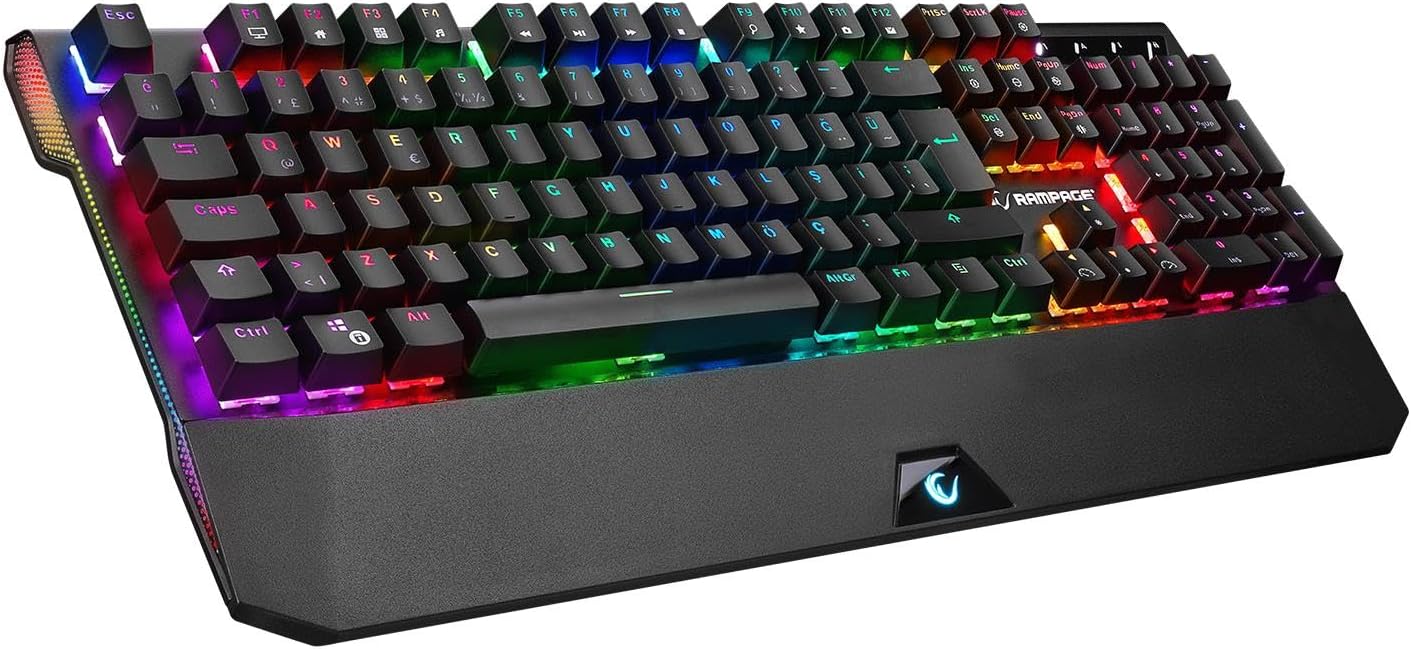
Figure 3.1: The Rampage KB-R95 X-TITAN Gaming Mechanical Keyboard showcasing its full RGB backlighting.
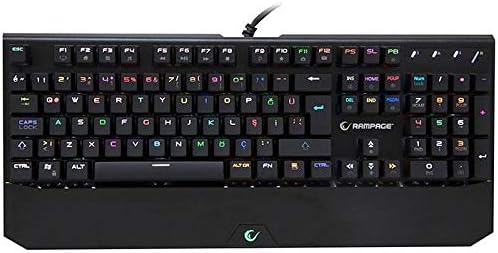
Figura 3.2: De arriba abaixo view illustrating the standard QWERTY layout of the KB-R95 X-TITAN keyboard.
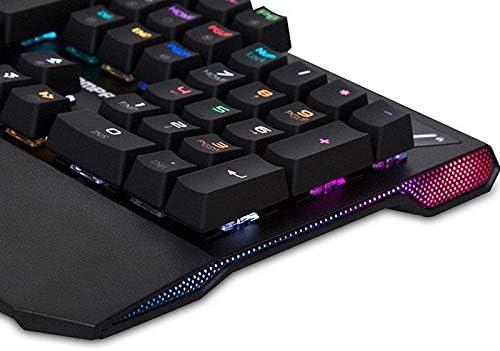
Figure 3.3: Detail of the integrated RGB lighting strip along the side of the keyboard, enhancing its aesthetic appeal.
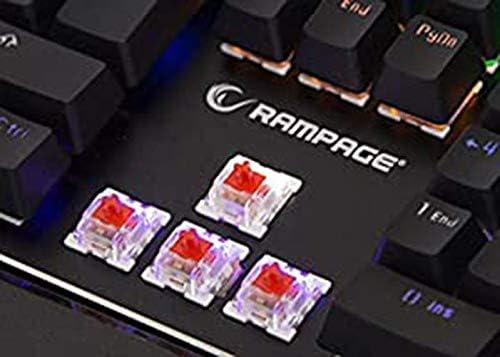
Imaxe 3.4: Primeiro plano view of the Red mechanical switches, known for their linear feel and quick response.
4. Configuración
- Descomprimir o teclado: Retire con coidado o teclado da súa embalaxe.
- Conectar ao ordenador: Plug the USB connector of the keyboard into an available USB port on your computer (desktop or laptop).
- Instalación de controladores: Your operating system (Windows, macOS, Linux) should automatically detect and install the necessary drivers. No additional software installation is typically required for basic functionality.
- Listo para usar: Unha vez instalados os controladores, o teclado estará listo para usar.
5. Instrucións de funcionamento
5.1 Funcións básicas do teclado
The KB-R95 X-TITAN functions as a standard QWERTY keyboard for typing and general computer use.
5.2 Control de iluminación RGB
The keyboard features various RGB lighting modes and customization options. Use the Function (Fn) key in combination with specific keys to adjust the lighting:
- Fn + PrtSc (Print Screen): Percorrer os diferentes efectos de iluminación RGB.
- Fn + Bloq Despr: Adjust the brightness of the backlighting (typically 5 levels).
- Fn + Pause Break: Change the speed of dynamic lighting effects.
- Fn + Frecha arriba/abaixo: Adjust backlight brightness (alternative).
- Fn + Frecha esquerda/dereita: Adjust lighting effect direction or color.
5.3 Teclas multimedia e de función
Utilize the Function (Fn) key in conjunction with the F-keys for multimedia control and other shortcuts:
- Fn+F1: O meu ordenador
- Fn+F2: busca
- Fn+F3: Calculadora
- Fn+F4: Reproductor multimedia
- Fn+F5: Pista anterior
- Fn+F6: Próxima pista
- Fn+F7: Reproducir/Pausa
- Fn+F8: Pare
- Fn+F9: Silenciar
- Fn+F10: Baixar o volume
- Fn+F11: Subir volume
- Fn+F12: Bloquear o teclado
- Tecla Fn + Win: Bloquear/Desbloquear a tecla de Windows (evita pulsacións accidentais durante o xogo).
6. Mantemento
Un mantemento axeitado garante a lonxevidade e o rendemento do teu teclado.
- Limpeza: Use a soft, dry cloth to wipe the surface of the keyboard. For dust and debris between keycaps, use compressed air. Avoid using harsh chemicals or abrasive materials.
- Verquidos: In case of a liquid spill, immediately unplug the keyboard from your computer. Turn it upside down to drain as much liquid as possible. Allow it to dry completely for at least 24-48 hours before plugging it back in. Do not use a hairdryer as excessive heat can damage components.
- Almacenamento: Garda o teclado nun lugar fresco e seco, lonxe da luz solar directa e de temperaturas extremas.
7 Solución de problemas
If you encounter issues with your Rampage KB-R95 X-TITAN keyboard, refer to the following common solutions:
- O teclado non responde:
- Asegúrate de que o cable USB estea conectado correctamente tanto ao teclado como ao ordenador.
- Tenta conectar o teclado a un porto USB diferente.
- Reinicia o teu ordenador.
- Proba o teclado noutro ordenador para determinar se o problema é do teclado ou do ordenador.
- A iluminación RGB non funciona ou está atascada:
- Asegúrate de que o teclado estea conectado correctamente.
- Tenta cambiar polos modos de iluminación usando Fn + PrtSc.
- Axusta o brillo usando Fn + Bloqueo de desprazamento or Fn + Frecha arriba/abaixo.
- Unplug and replug the keyboard to reset its lighting controller.
- Chaves que non se rexistran:
- Clean the affected key area with compressed air to remove any debris.
- Se unha tecla específica falla constantemente, pode indicar un problema de hardware.
8. Especificacións
| Característica | Especificación |
|---|---|
| Marca | Rampidade |
| Modelo | KB-R95 X-TITAN |
| Conectividade | USB |
| Tipo de cambio | Interruptores mecánicos vermellos |
| Iluminación | Full RGB LED |
| Dispositivos compatibles | Portátil, PC |
| Disposición do teclado | Gaming (QWERTY) |
9. Garantía e soporte
For warranty information and technical support, please refer to the warranty card included with your product or visit the official Rampidade websitio. Garde o recibo da compra como xustificante de compra para reclamacións de garantía.