
Introdución
The Hyper Drive GEN2 12-in-1 USB-C Docking Station is designed to expand the connectivity of your USB-C enabled laptop or tablet. This docking station provides a comprehensive solution for connecting multiple peripherals, external displays, and power delivery through a single USB-C port. It supports high-speed data transfer, multiple 4K video outputs, and efficient power charging for enhanced productivity.
Características do produto
The Hyper Drive GEN2 12-in-1 USB-C Docking Station offers a wide array of ports and capabilities:
- Dual HDMI 4K60Hz HDR: Connect up to two external displays with stunning 4K resolution at 60Hz, supporting High Dynamic Range (HDR) for vibrant visuals.
- DisplayPort 4K60Hz: Connect an additional external display via DisplayPort, also supporting 4K resolution at 60Hz.
- USB-C Power Delivery (PD) 100W: Charge your host laptop or tablet with up to 100W of power through the dedicated USB-C PD port.
- 2x USB-A 10Gbps (USB 3.1 Gen 2): Experience ultra-fast data transfer speeds for compatible USB-A devices.
- 2x USB-A 2.0: Connect standard USB peripherals such as keyboards, mice, or printers.
- Gigabit-Ethernet: Enjoy stable and high-speed wired network connectivity.
- MicroSD UHS-II (300MB/s): Fast data transfer for MicroSD cards, ideal for photographers and videographers.
- SD UHS-II (300MB/s): Fast data transfer for standard SD cards.
- Conector de audio de 3.5 mm: Connect headphones or speakers for audio output.

Figura 1: Fronte view of the Hyper Drive GEN2 12-in-1 USB-C Hub, highlighting MicroSD, SD, 3.5mm Audio, and two USB-A 10Gbps ports.
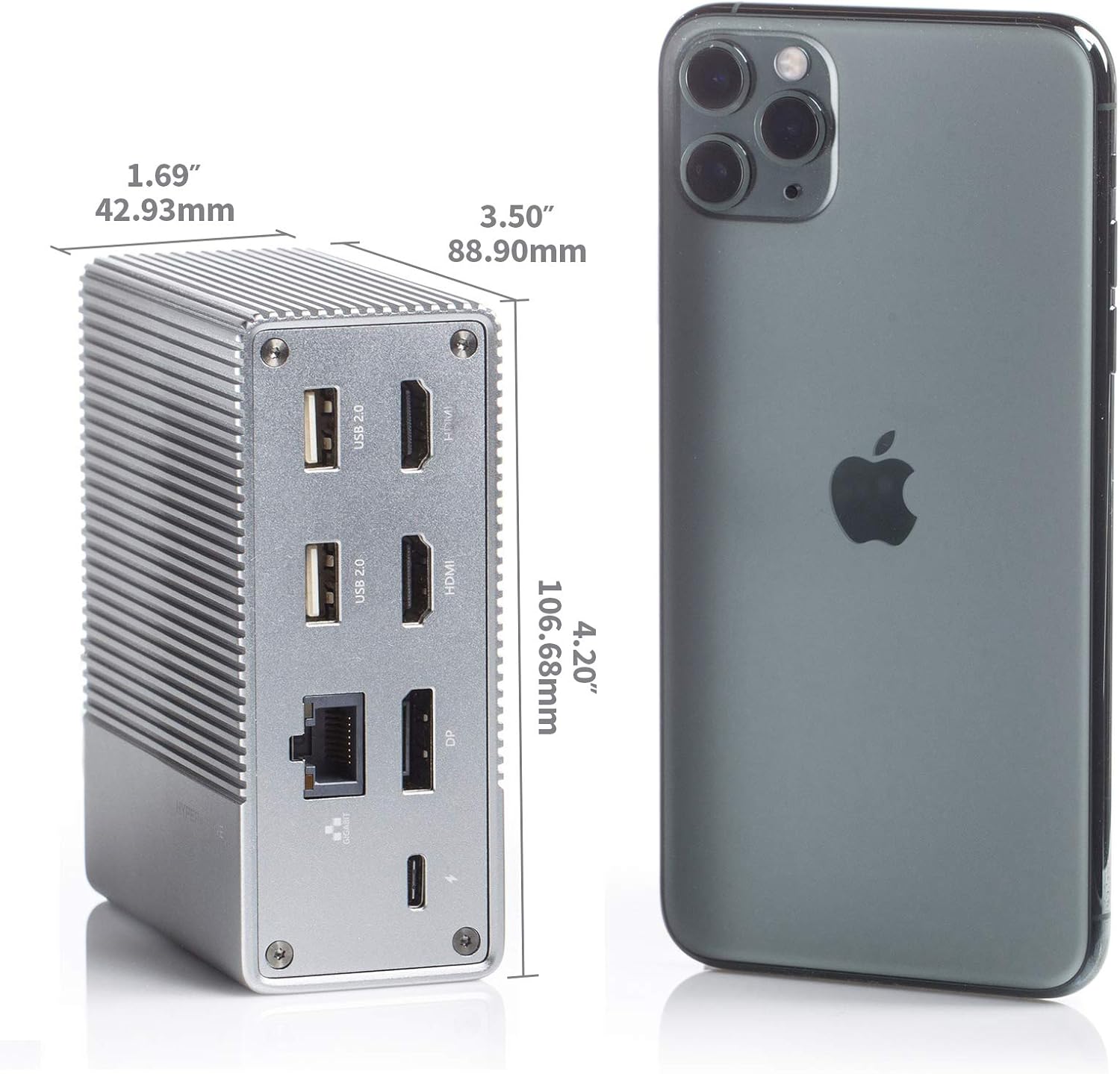
Figura 2: Traseira view of the Hyper Drive GEN2 12-in-1 USB-C Hub, highlighting USB-C Power Delivery, Gigabit Ethernet, DisplayPort, two HDMI, and two USB-A 2.0 ports.
Guía de configuración
- Conectar ao dispositivo anfitrión: Plug the integrated USB-C cable from the docking station into an available USB-C port on your laptop or tablet. Ensure the USB-C port on your host device supports DisplayPort Alternate Mode (Alt Mode) and Power Delivery for full functionality.
- Conexión de alimentación (opcional pero recomendada): For optimal performance and to charge your host device, connect your laptop's USB-C power adapter to the USB-C PD port on the docking station. The docking station supports up to 100W power delivery.
- Conectar pantallas externas:
- Connect your HDMI monitors to the HDMI ports on the docking station.
- Connect your DisplayPort monitor to the DisplayPort on the docking station.
Nota: For macOS, only one extended display is supported with the same image on all external displays at 4K60Hz. Windows/Chrome OS supports Multi-Stream Transport (MST) for up to three extended displays.
- Conectar periféricos: Plug your USB devices (keyboard, mouse, external drives), Ethernet cable, and audio devices into the corresponding ports on the docking station.
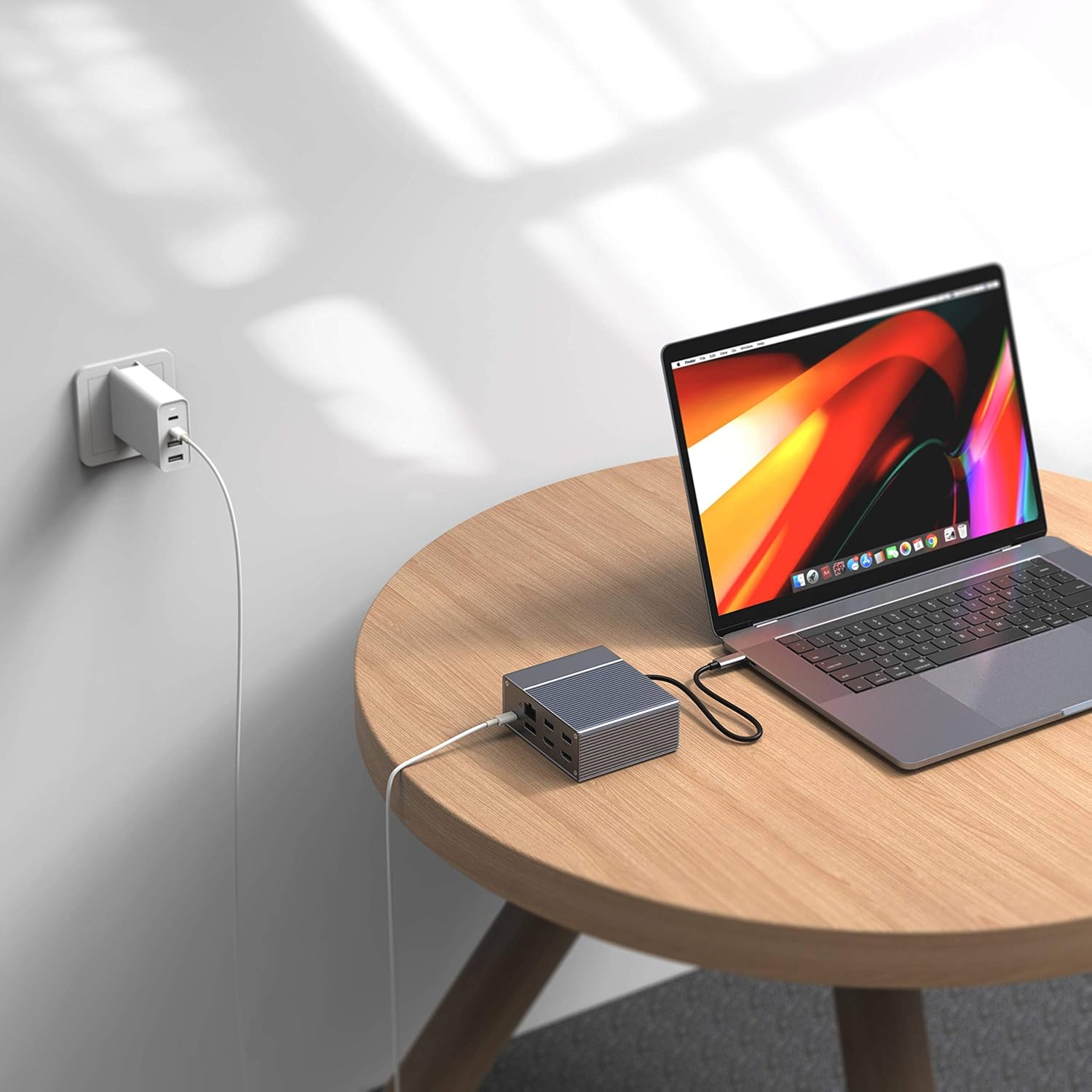
Figure 3: Laptop connected to the docking station and a power adapter for charging.
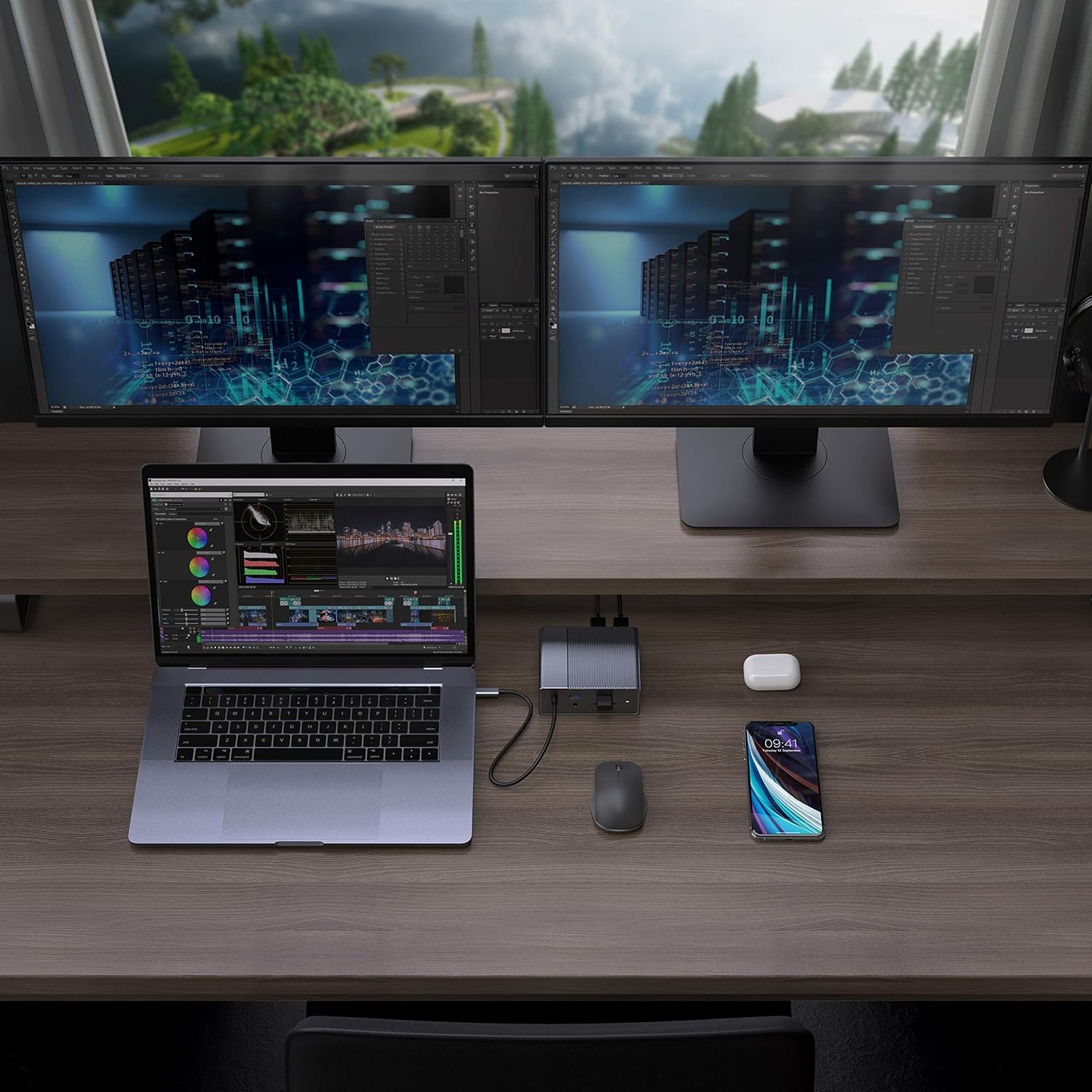
Figure 4: A typical setup showing a laptop connected to the docking station with multiple peripherals and external displays.
Instrucións de funcionamento
Modos de visualización
A estación de acoplamento admite varias configuracións de pantalla dependendo do sistema operativo:
- macOS: Supports one extended display with the same image mirrored across all external displays at 4K60Hz. macOS does not support Multi-Stream Transport (MST) for independent extended displays.
- Windows/Chrome OS: Supports Multi-Stream Transport (MST), allowing for up to three extended displays with independent content at 4K60Hz.

Figure 5: Illustration of display modes for macOS (mirror mode) and Windows (mirror and extended modes) using the docking station.
Data Transfer and Power Delivery
- USB-A 10Gbps Ports: Use these ports for high-speed data transfer with compatible external hard drives, SSDs, or other USB 3.1 Gen 2 devices.
- Portos USB-A 2.0: Ideal for connecting standard peripherals like keyboards, mice, or USB flash drives where high-speed data transfer is not critical.
- SD/MicroSD Card Slots: Insert your memory cards for quick access and transfer of photos and videos at up to 300MB/s (UHS-II speeds).
- Porto USB-C PD: Connect your laptop's power adapter to this port to charge your laptop while using the docking station. This port also supports data transfer.
Vídeo 1: Rematado oficialmenteview of the HyperDrive GEN2 USB-C Hub, demonstrating its speed, power, and various port functionalities.
Mantemento
- Keep the docking station in a clean, dry environment.
- Evite expoñer o dispositivo a temperaturas extremas ou á luz solar directa.
- Limpar o exterior cun pano suave e seco. Non empregar produtos de limpeza líquidos nin aerosois.
- Asegúrese de ventilar adecuadamente o dispositivo para evitar o sobreenriquecido.
Resolución de problemas
- No display output or flickering screen:
- Asegúrate de que o porto USB-C do teu dispositivo anfitrión sexa compatible co modo alternativo de DisplayPort.
- Comproba todas as conexións dos cables (USB-C ao host, HDMI/DP aos monitores).
- Try a different HDMI or DisplayPort cable.
- Verify your monitor input settings are correct.
- For macOS, remember that only one extended display is supported, with other external displays mirroring the extended one.
- Dispositivos USB non recoñecidos:
- Reconnect the USB device to the docking station.
- Try a different USB port on the docking station.
- Ensure the docking station is properly connected to your host device.
- If using high-power USB devices, ensure the docking station is connected to a power source via its USB-C PD port.
- O portátil non carga:
- Ensure your laptop's original USB-C power adapter is connected to the USB-C PD port on the docking station.
- Verify that your laptop supports USB-C Power Delivery.
- Check the power adapter and cable for any damage.
Especificacións
| Característica | Especificación |
|---|---|
| Modelo | GEN2 12-in-1 USB-C Hub |
| Marca | Hiper |
| Portos HDMI | 2x HDMI 4K60Hz HDR |
| DisplayPort | 1x DisplayPort 4K60Hz |
| Porto PD USB-C | 1x USB-C entrega de potencia 100 W |
| Portos de datos USB-A | 2x USB-A 10Gbps (USB 3.1 Gen 2), 2x USB-A 2.0 |
| Ethernet | 1x Gigabit Ethernet |
| Lectores de tarxetas | 1x MicroSD UHS-II (300MB/s), 1x SD UHS-II (300MB/s) |
| Jack de audio | 1 x conector de audio de 3.5 mm |
| OS compatible | macOS, Windows, Chrome OS |
| Peso do elemento | 480.8 gramos |
| UPC | 817110014519 |
Garantía e Soporte
For warranty information and technical support, please refer to the official Hyper websitio web ou póñase en contacto co servizo de atención ao cliente. Garde o recibo de compra para reclamacións de garantía.
Soporte en liña: www.hyper.com/support