
1. Introdución
This manual provides instructions for the EBTOOLS Ultra Slim Bluetooth Keyboard with Touchpad. This device is designed for portability and compatibility with various operating systems, enhancing productivity across multiple devices.
2. Produto rematadoview
2.1 Contido do paquete
- EBTOOLS Ultra Slim Bluetooth Keyboard with Touchpad
- Cable de carga USB
- Manual de usuario (este documento)
2.2 Características principais
- Deseño ultrafino: Measures 6.2mm (0.24 inches) thick for enhanced portability.
- Panel táctil integrado: Provides mouse functionality for navigation.
- Ampla compatibilidade: Supports Android, iOS, and Windows operating systems.
- Batería de longa duración: Built-in 280mAh rechargeable Li-polymer battery offers up to 90 hours of continuous working time on a full charge.
- Rango efectivo: Operates wirelessly up to 10 meters (33 feet) via Bluetooth 3.0.
- "X" Scissor Switch Mechanism: Designed for quiet and comfortable typing with responsive keys.
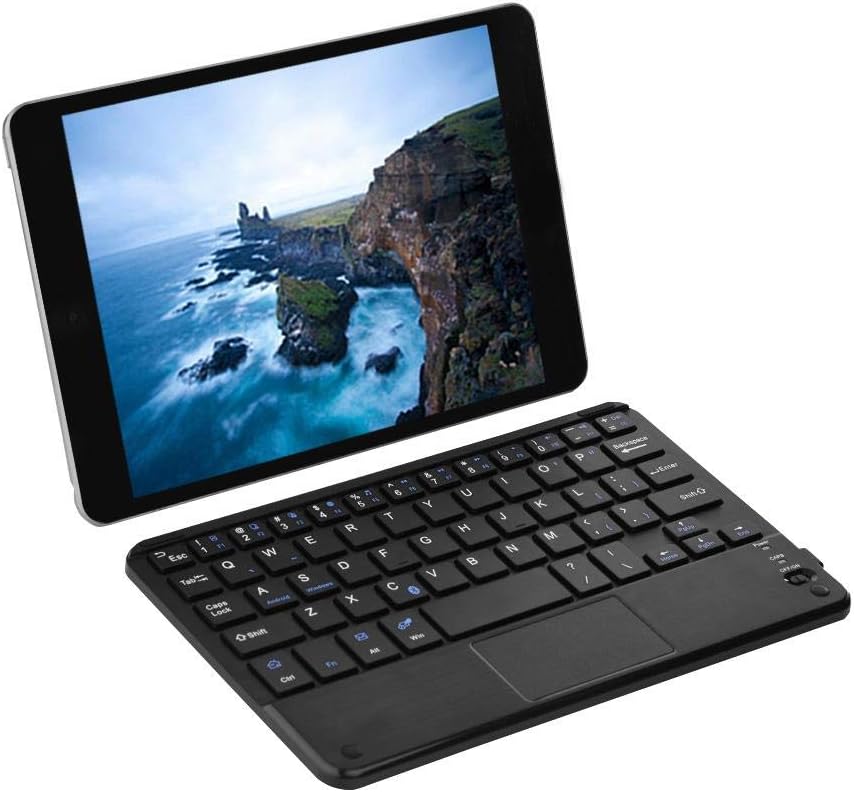
Figure 1: EBTOOLS Ultra Slim Bluetooth Keyboard paired with a tablet.
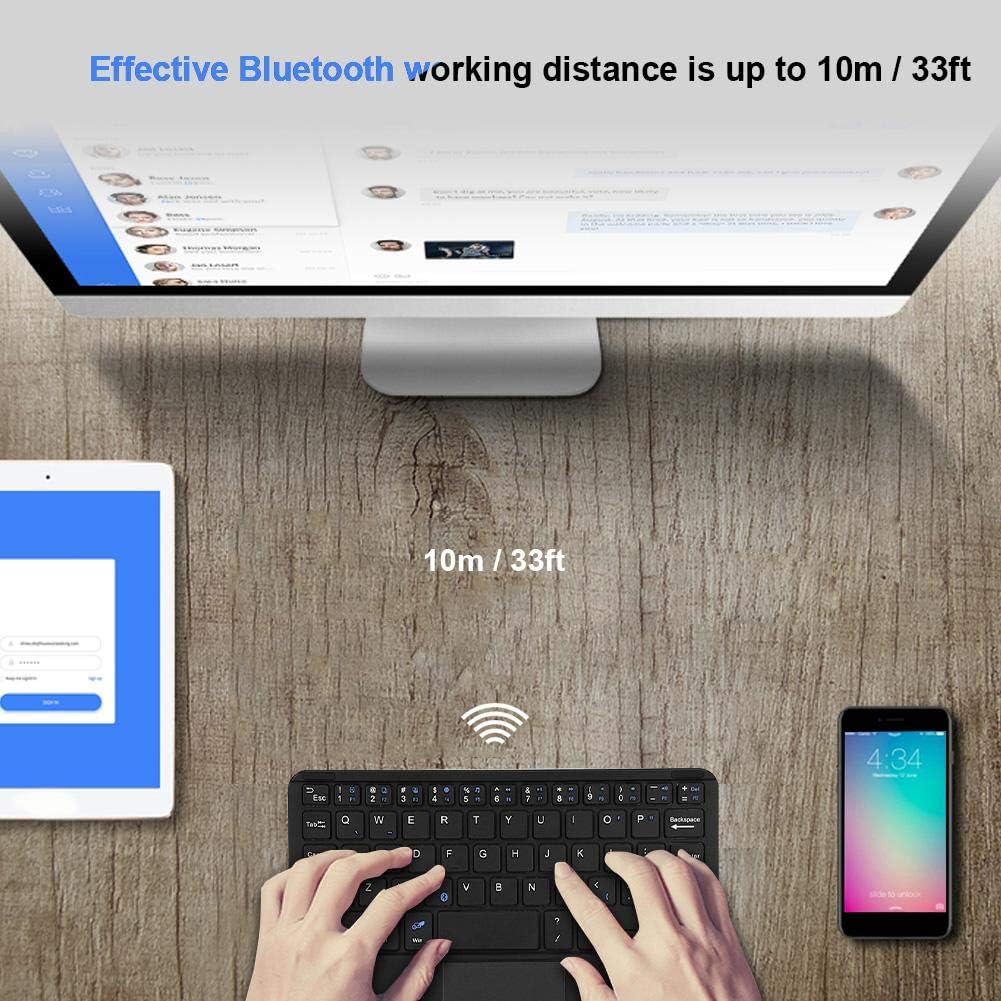
Figura 2: De arriba abaixo view of the EBTOOLS Bluetooth keyboard, highlighting the layout and integrated touchpad.

Figura 3: Lateral view of the EBTOOLS Bluetooth keyboard showing its ultra-thin 6.2mm profile.
3. Configuración
3.1 Carga do teclado
- Locate the micro USB charging port on the keyboard.
- Connect the provided USB charging cable to the keyboard and a USB power source (e.g., computer USB port, USB wall adapter).
- The charging indicator light will illuminate. Once fully charged, the light will typically change color or turn off.
- Unha carga completa proporciona aproximadamente 90 horas de uso continuo.
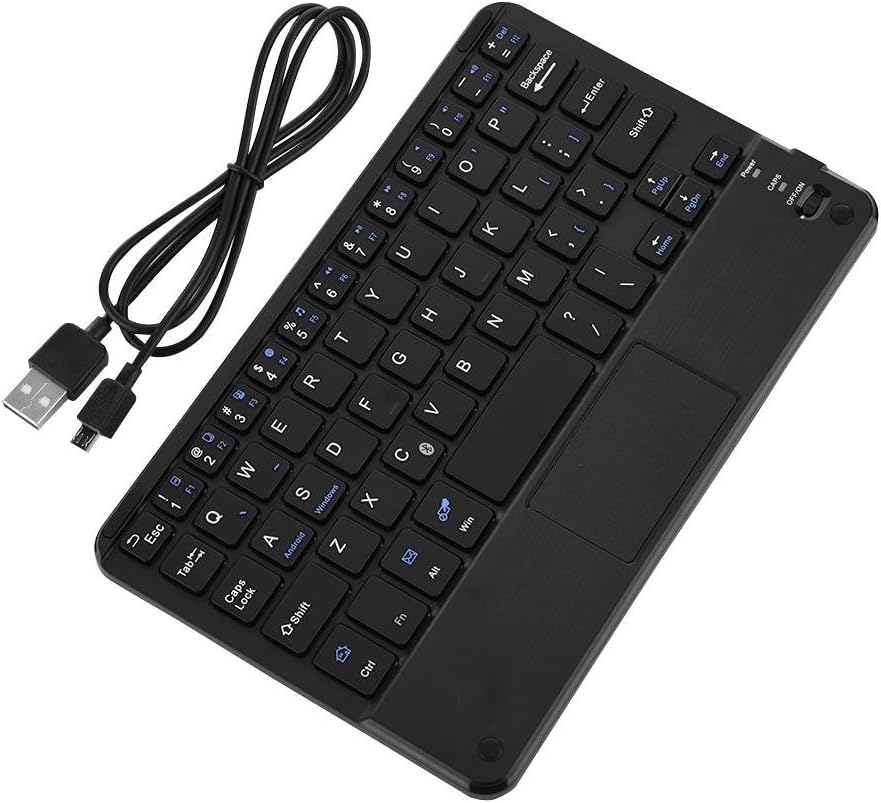
Figure 4: Keyboard battery and charging indication.
3.2 Emparejamento Bluetooth
Follow these steps to pair your EBTOOLS Bluetooth Keyboard with your device:
- Encendido: Slide the power switch on the keyboard to the 'ON' position. The power indicator light will turn on briefly.
- Entrar no modo de emparellamento: Preme o Fn + C keys simultaneously. The Bluetooth indicator light will start blinking, indicating the keyboard is in pairing mode.
- Activa o Bluetooth no teu dispositivo: On your PC, tablet, or smartphone, go to the Bluetooth settings and ensure Bluetooth is enabled.
- Busca Dispositivos: Your device will scan for available Bluetooth devices. Look for 'Bluetooth Keyboard' or a similar name in the list.
- Conectar: Select the keyboard from the list. Your device may prompt you to enter a pairing code displayed on your screen. Type this code on the EBTOOLS keyboard and press Entra.
- Confirmación: Once successfully paired, the Bluetooth indicator light on the keyboard will stop blinking and turn off, and your device will show the keyboard as connected.

Figure 5: Keyboard in use, demonstrating effective Bluetooth range.
4. Instrucións de funcionamento
4.1 Mecanografía básica
The keyboard functions like a standard QWERTY keyboard. Simply type as you would on any other keyboard.
4.2 Uso do panel táctil
The integrated touchpad allows for cursor control. Use standard gestures for navigation:
- Toque cun só dedo: Fai clic co botón esquerdo.
- Toque con dous dedos: Right-click (functionality may vary by operating system).
- Desprazamento con dous dedos: Desprázate cara arriba ou abaixo.
4.3 teclas de función
The keyboard includes function keys (F1-F12) and multimedia keys. To activate the secondary functions printed in blue on the keys, press and hold the Fn key, then press the desired function key.
4.4 Conmutación do sistema
The keyboard supports multiple operating systems. To optimize key functions for your specific OS, use the following combinations:
- Fn + Android: Para dispositivos Android.
- Fn + Windows: Para dispositivos Windows.
- Fn + iOS: For iOS devices (iPad, iPhone).

Figura 6: Compatibilidade con varios sistemas operativos e dispositivos.
5. Especificacións
| Característica | Especificación |
|---|---|
| Número de modelo | EBTOOLSrua15pxtdg |
| Tecnoloxía de conectividade | Bluetooth 3.0 |
| Distancia de operación | Ata 10 metros (33 pés) |
| Tipo de batería | Li-polímero recargable |
| Capacidade da batería | 280 mAh |
| Tempo de traballo continuo | Aproximadamente 90 horas |
| Sistemas compatibles | Android, iOS, Windows |
| Dimensións do produto | 7.87 x 4.96 x 0.24 polgadas (20 x 12.6 x 0.62 cm) |
| Peso do elemento | 6.6 onzas (187 gramos) |
| Material | Plástico |
6 Solución de problemas
6.1 O teclado non se conecta
- Comprobar a potencia: Asegúrate de que o teclado estea acendido e que a batería teña suficiente carga.
- Volver entrar no modo de emparellamento: Turn off the keyboard, then turn it on and press Fn + C para volver entrar ao modo de vinculación.
- Dispositivo Bluetooth: Verify that Bluetooth is enabled on your device and it is discoverable.
- Esquecer o dispositivo: If previously paired, try 'forgetting' or 'unpairing' the keyboard from your device's Bluetooth settings and then re-pair.
- Distancia: Asegúrate de que o teclado estea dentro dun rango de funcionamento de 10 metros do teu dispositivo.
6.2 As teclas non responden
- Nivel de batería: The battery might be low. Charge the keyboard fully.
- Reconexión: Desconecta e volve conectar a conexión Bluetooth.
- Modo do sistema: Ensure the correct system mode (Android, Windows, iOS) is selected using Fn + OS key.
6.3 Touchpad Not Working
- Compatibilidade do sistema: Touchpad functionality can sometimes be limited or behave differently on certain operating systems or applications.
- Reiniciar: Tenta reiniciar tanto o teclado como o dispositivo conectado.
7. Mantemento
- Limpeza: Usa un pano suave e seco para limpar a superficie do teclado. Para a sucidade persistente, limpa lixeiramenteampEnxágüe o pano con auga ou unha solución de limpeza suave. Evite a humidade excesiva.
- Almacenamento: Garda o teclado nun lugar fresco e seco, lonxe da luz solar directa e de temperaturas extremas.
- Evitar líquidos: Do not expose the keyboard to liquids, as this can cause damage.
- Manipular con coidado: Evite deixar caer o teclado nin sometelo a impactos fortes.
8. Garantía e soporte
EBTOOLS products are designed for reliability and performance. For any questions, technical support, or warranty inquiries, please refer to the contact information provided with your purchase or visit the official EBTOOLS websitio. Garde o comprobante de compra para reclamacións de garantía.