
1. Introdución
Thank you for choosing the iClever GK08 Wireless Keyboard and Mouse Combo. This full-size keyboard with a numeric keypad and a silent mouse offers a stable 2.4 GHz connection, USB-C recharging, and dual-layout compatibility for Mac and Windows systems. This manual provides detailed instructions to help you set up, operate, and maintain your new device.
2. Información de seguridade
- Manteña o dispositivo lonxe da auga, do lume e das altas temperaturas.
- Non intente desmontar nin modificar o dispositivo.
- Use só o cable USB-C fornecido para cargar.
- Evite deixar caer ou someter o dispositivo a fortes impactos.
- Desfágase das baterías e dos compoñentes electrónicos de forma responsable segundo a normativa local.
3. Guía de configuración
3.1 Contido do paquete
- iClever GK08 Wireless Keyboard
- iClever Wireless Mouse
- USB-A Nano Receiver (stored inside the mouse)
- Cable de carga USB-C
- Washable Dust Cover
- Manual de usuario
3.2 Carga inicial
Before first use, ensure both the keyboard and mouse are fully charged.
- Connect the provided USB-C charging cable to the keyboard's USB-C port (located on the top edge).
- Conecta o outro extremo do cable a unha fonte de alimentación USB (por exemplo, un porto USB do ordenador ou un adaptador de parede USB).
- The charging indicator light on the keyboard will illuminate during charging and turn off when fully charged.
- For the mouse, connect the USB-C cable to its charging port. The mouse also has an indicator light.
- A full charge takes approximately 2 hours and provides up to 45 days of use for the keyboard.
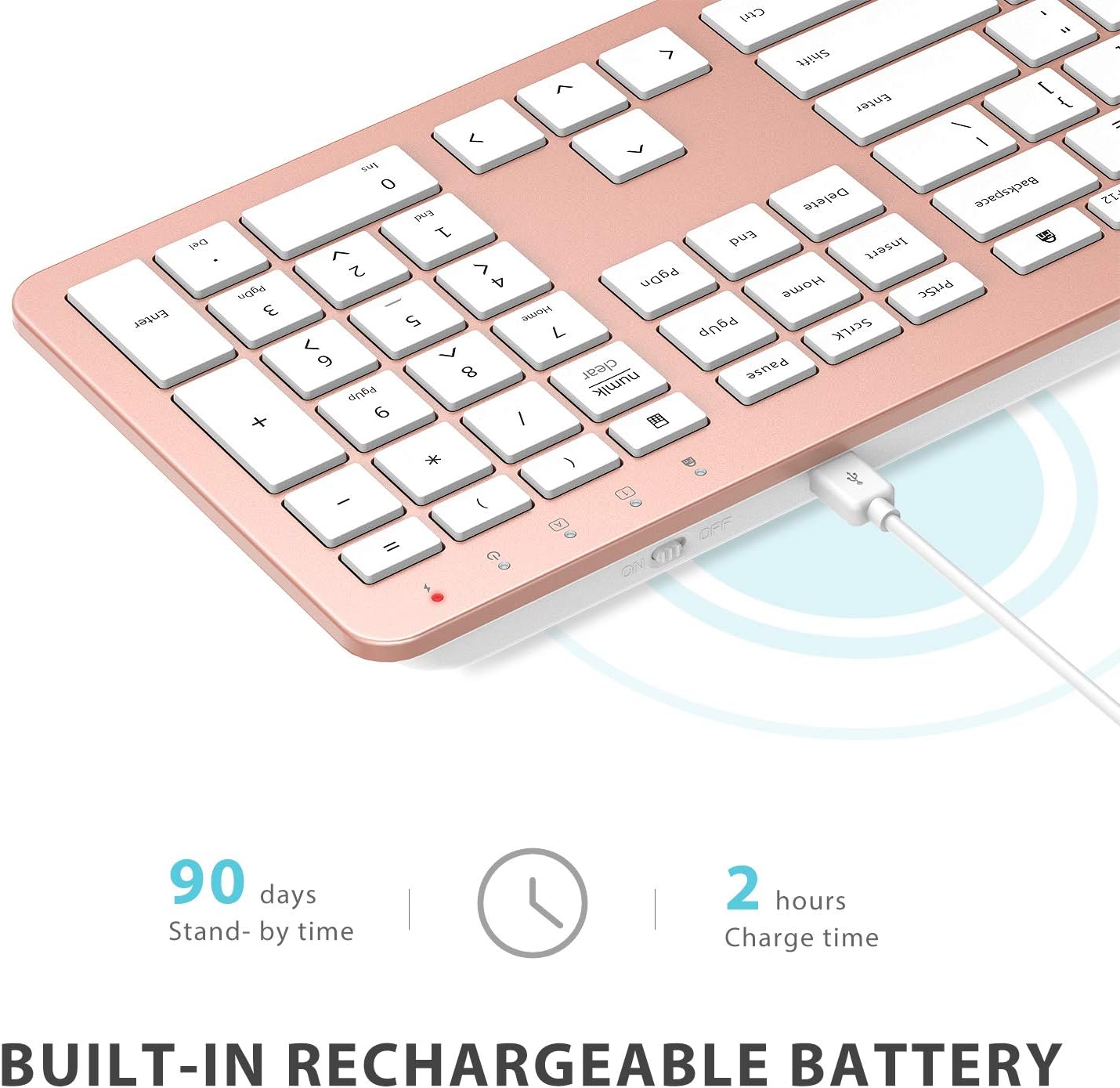
Image: The iClever GK08 keyboard connected to a USB-C charging cable, illustrating the charging process and battery life indicators.
3.3 Connecting to Your Computer (2.4 GHz Wireless)
The keyboard and mouse connect via a single 2.4 GHz USB-A nano receiver.
- Locate the USB-A nano receiver. It is typically stored in a compartment on the underside of the mouse.
- Plug the nano receiver into an available USB-A port on your computer.
- Turn on the keyboard using the ON/OFF switch (usually on the top edge).
- Turn on the mouse using the ON/OFF switch (located on the underside).
- Your computer should automatically detect and install the necessary drivers. The devices are ready for use once recognized.
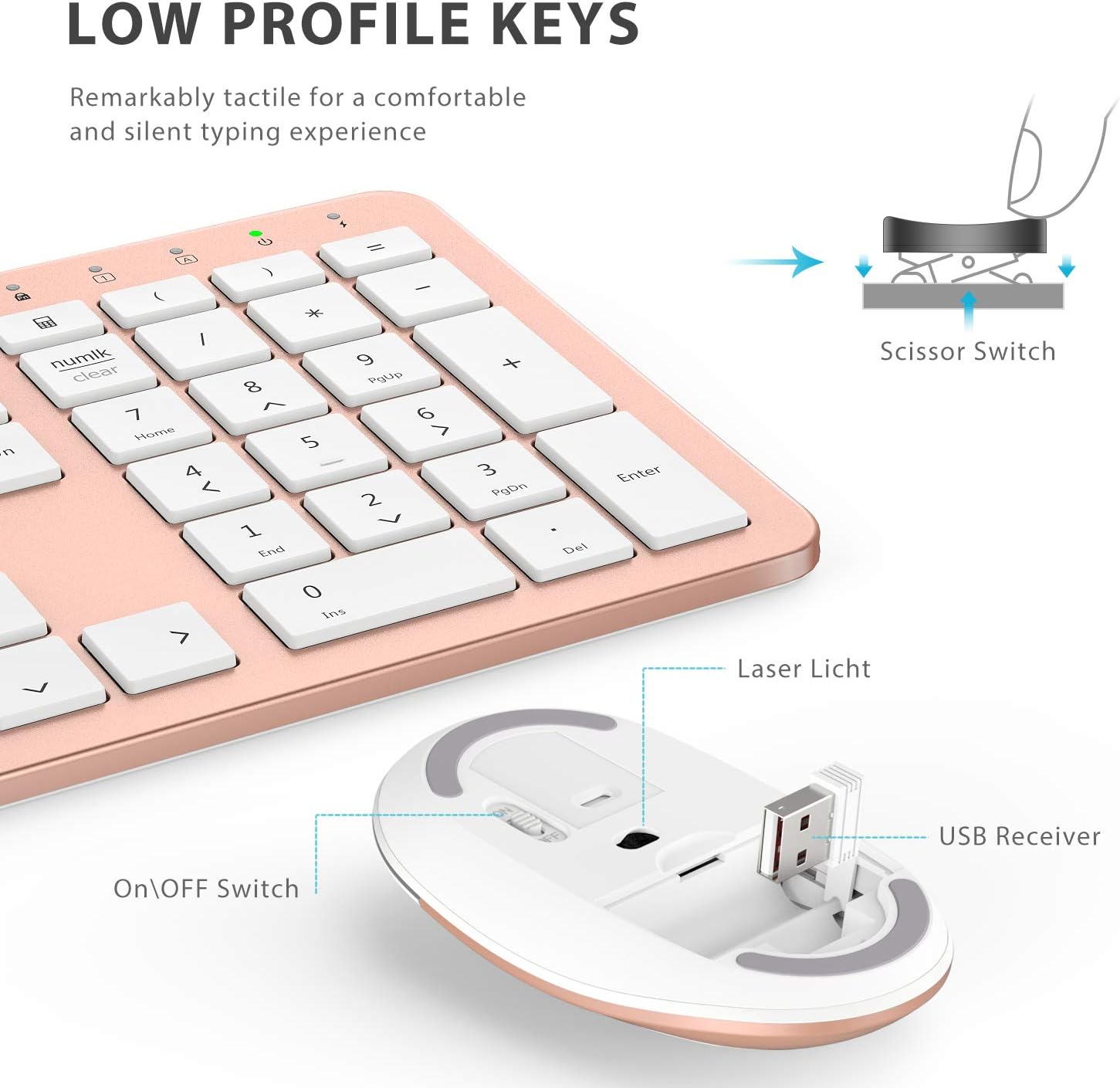
Imaxe: Primeiro plano view of the iClever mouse, highlighting the compartment where the USB nano receiver is stored for convenience.
3.4 Comprobación de compatibilidade
This combo requires an available USB-A port for the nano receiver. For newer Macs with only USB-C ports, a USB-C to USB-A adapter (not included) is required. It is compatible with:
- Windows 10/11 PC & laptop
- macOS desktops / notebooks with USB-A port (e.g., iMac Retina 4K/5K, MacBook Air/Pro ≤ 2017)
- Chrome OS

Image: A visual representation emphasizing the requirement of a USB-A port for the 2.4G wireless receiver, with a note about USB-C adapters for newer devices.
4. Instrucións de funcionamento
4.1 Funcións do teclado
- Deseño de tamaño completo: The keyboard features a 110-key layout with a dedicated numeric keypad for efficient data entry.
- Teclas silenciosas con interruptor de tesoira: Enjoy a comfortable and quiet typing experience with low-profile keys that produce less than 50 dB of sound.
- Media Shortcuts: Access common media functions directly from the keyboard.
- Dual-Layout Compatibility: The keyboard has clearly printed Mac and PC legends.
Switching Between Mac and Windows Layouts:
- Para Windows: Prema Fn + W to activate Win, Alt, NumLK functions.
- Para Mac OS: Prema Fn + Q to activate Alt (Option), Cmd, Clear functions.

Image: The iClever GK08 keyboard displaying the dual Mac and Windows key legends, with instructions for switching between operating system layouts using the Fn key combinations.
4.2 Funcións do rato
- Clic silencioso: The mouse is designed for quiet operation, minimizing distractions.
- DPI axustable: The mouse features 3 adjustable DPI levels (800/1200/1600) to customize cursor sensitivity. Press the DPI button (usually located near the scroll wheel) to cycle through the settings.

Image: A visual demonstrating the quiet operation of the iClever mouse and the three adjustable DPI settings (800, 1200, 1600) for varied precision needs.
4.3 Auto-Sleep Feature
To conserve battery life, both the keyboard and mouse will enter an auto-sleep mode after 10 minutes of inactivity. To wake them up, simply press any key on the keyboard or move the mouse.
Video: A seller-provided video demonstrating the plug-and-play functionality and long battery life of the iClever Wireless Keyboard and Mouse. This video highlights the ease of setup and extended usage between charges.
5. Mantemento
- Limpeza: Use un suave, damp cloth to clean the surfaces of the keyboard and mouse. Avoid harsh chemicals.
- Funda antipolvo: Utilize the included washable dust cover to protect the keyboard from dust and spills when not in use.
- Almacenamento: When not in use for extended periods, turn off both devices to conserve battery. Store the USB receiver inside the mouse.
6 Solución de problemas
- Sen conexión:
- Ensure both keyboard and mouse are turned ON.
- Verify the USB nano receiver is securely plugged into a working USB-A port on your computer.
- Try plugging the receiver into a different USB-A port.
- Check if the devices are charged.
- Conexión intermitente ou con atraso:
- Ensure the devices are within the 33 ft / 10 m operating range of the receiver.
- Avoid placing the receiver near strong interference sources (e.g., other wireless devices, large metal objects).
- Re-pair the devices by unplugging and re-plugging the receiver.
- Keyboard Not Typing Correctly (Mac/Windows):
- Ensure you have selected the correct operating system layout using Fn + W para Windows ou Fn + Q para Mac.
- O cursor do rato salta ou é inexacto:
- Axusta a configuración de DPI usando o botón DPI do rato.
- Asegúrate de que o sensor do rato estea limpo e libre de obstrucións.
- Usa o rato sobre unha superficie axeitada (que non sexa moi reflectante nin transparente).
7. Especificacións
| Característica | Detalle |
|---|---|
| Marca | iClever |
| Número de modelo | GK08 |
| Cor | Ouro rosa |
| Tecnoloxía de conectividade | 2.4 GHz wireless (USB-A nano receiver) |
| distancia wireless | Ata 33 pés / 10 m |
| Disposición do teclado | QWERTY, Full-size 110-key with Numpad |
| Tipo de chave | Scissor Switch (Quiet typing < 50 dB) |
| Fonte de enerxía | Rechargeable Lithium Ion Battery (Keyboard) |
| Porto de carga | USB-C |
| Tempo de carga | Aprox. 2 horas |
| Battery Life (Keyboard) | Ata 45 días (uso típico) |
| Configuración de DPI do rato | 800/1200/1600 DPI |
| Sistemas operativos compatibles | Windows 8/10/11, macOS, Chrome OS |
| Características especiais | Dual Mac/Windows layout, 10-min auto-sleep, Washable dust cover |
8. Garantía e soporte
iClever products typically come with a standard manufacturer's warranty. Please refer to the warranty card included in your product packaging or visit the official iClever websitio web para obter información detallada sobre os termos e condicións da garantía.
For technical support, troubleshooting assistance, or any product-related inquiries, please contact iClever customer service through their official websitio web ou a información de contacto proporcionada na documentación do produto.
Soporte en liña: www.iclever.com/support