
Introdución
Thank you for choosing the BENGOO KM-1 Wireless Gaming Mouse. This manual provides detailed instructions on how to set up, operate, and maintain your mouse to ensure optimal performance and longevity. The KM-1 mouse features a lightweight honeycomb shell, 2.4G wireless technology, adjustable DPI settings, and customizable RGB lighting, designed for a comfortable and responsive gaming experience.
Contido do paquete
- Mouse inalámbrico para xogos BENGOO KM-1
- Receptor USB
- Cable de carga USB
Configuración
1. Conectando o rato
- Locate the USB receiver, typically stored in a compartment on the underside of the mouse.
- Plug the USB receiver into an available USB port on your computer (PC, Laptop, Mac).
- Turn on the mouse using the ON/OFF switch located on the underside. The mouse will automatically connect to the receiver.
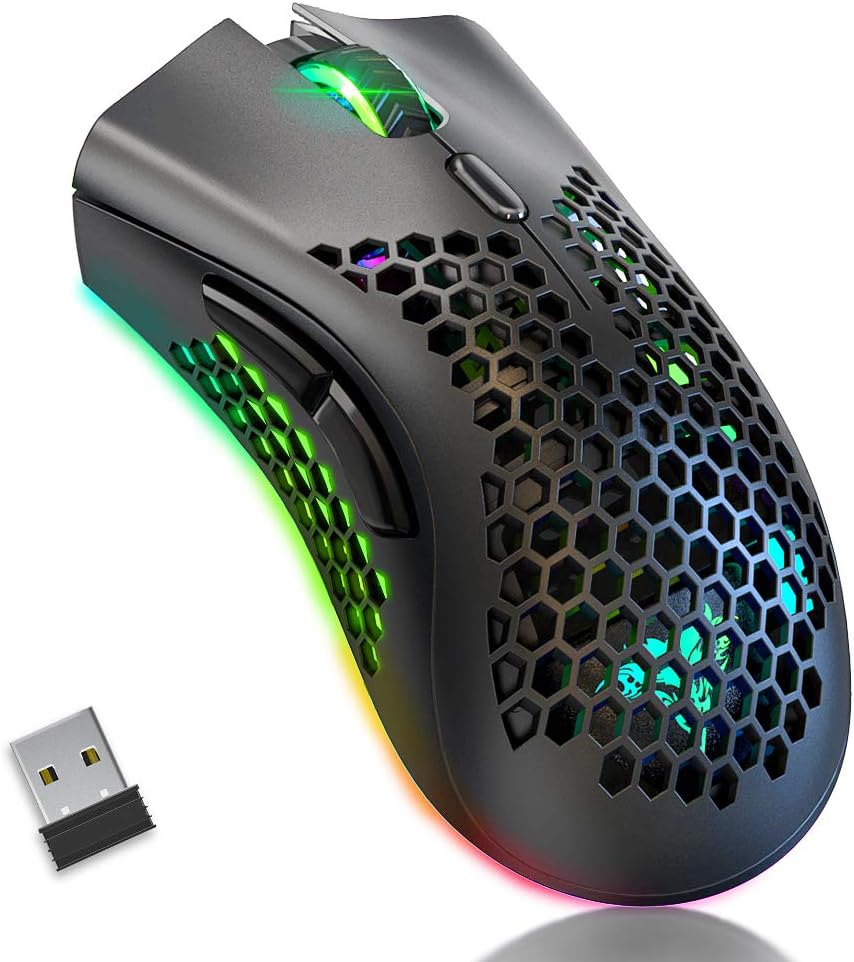
Image: The BENGOO KM-1 Wireless Gaming Mouse shown alongside its compact USB receiver, ready for connection.
The 2.4G wireless technology provides a stable connection with a range of up to 10 meters, ensuring no delays or interference during use.
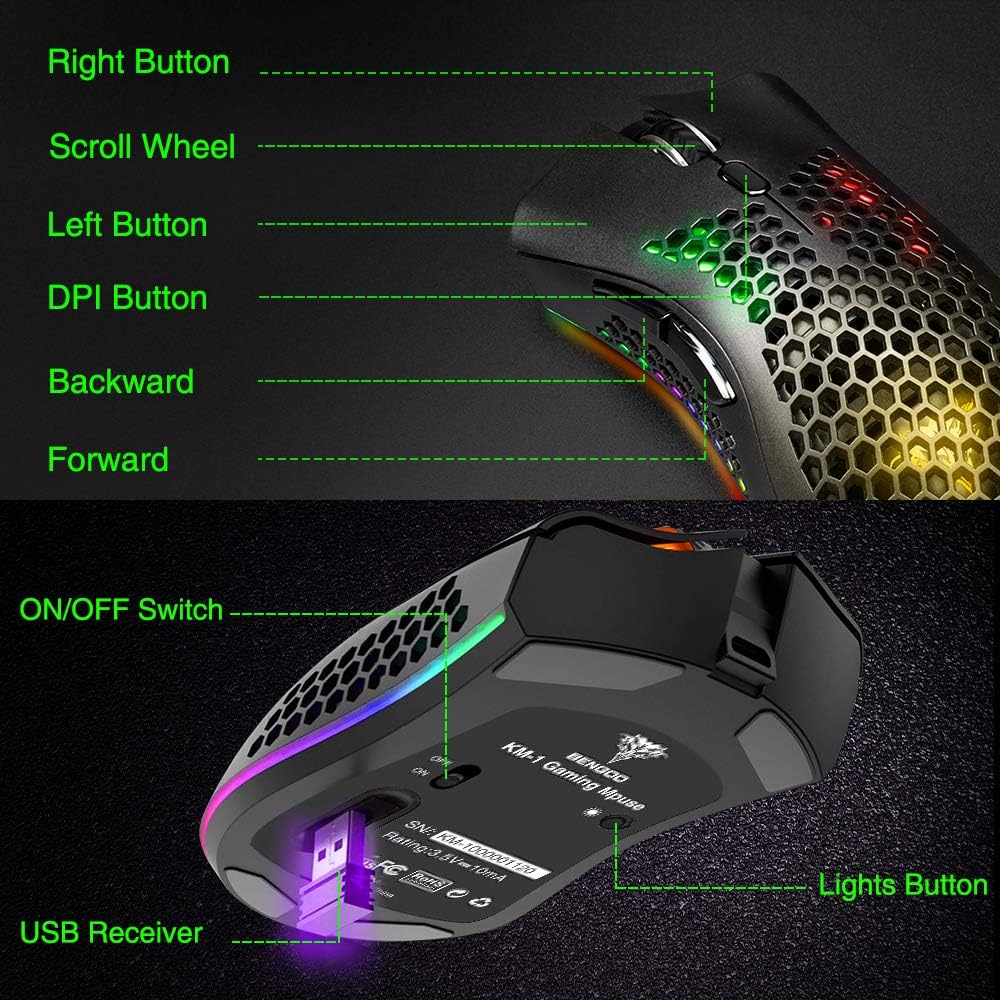
Image: A visual representation illustrating the 10-meter wireless operating range of the mouse from a computer.
2. Cargar o rato
The KM-1 mouse is rechargeable. When the battery is low, the mouse cursor may move slowly, unstably, or stop moving. Connect the included USB charging cable to the mouse and a USB power source to charge. The mouse can be used while charging.
Image: The BENGOO KM-1 mouse connected to a USB cable, indicating its rechargeable capability.
Instrucións de funcionamento
1. Funcións dos botóns
The KM-1 mouse is equipped with six programmable buttons for enhanced control:
- Botón esquerdo: Función estándar do clic esquerdo.
- Botón dereito: Función estándar do clic dereito.
- Roda de desprazamento: Scrolls pages up and down; can also be pressed for middle-click functionality.
- Botón DPI: Axusta a sensibilidade do rato (DPI).
- Botón de avance: Navega cara adiante web navegadores ou file exploradores.
- Botón Atrás: Navega cara atrás en web navegadores ou file exploradores.

Image: A detailed diagram highlighting and labeling each of the six buttons on the BENGOO KM-1 Wireless Gaming Mouse.
2. Axuste de DPI
The mouse features 3 adjustable DPI (Dots Per Inch) settings for precise control. Press the DPI button to cycle through the following sensitivities:
- 800 DPI
- 1600 DPI
- 3200 DPI

Image: A visual demonstrating the adjustable DPI settings (800-1600-3200) for the BENGOO KM-1 mouse, allowing users to customize cursor speed.
3. Control da iluminación RGB
The KM-1 mouse features Chroma RGB lighting. To activate the lights, ensure the mouse is turned on. Press the LED button (located on the underside near the ON/OFF switch) repeatedly to cycle through different lighting effects:
- Modo arco da vella
- Modo de transmisión
- Modo de respiración
- Pure Mode (Solid Color)
- Luces apagadas

Image: A display of the various RGB lighting modes available on the BENGOO KM-1 mouse, including Rainbow, Stream, Breathing, and Pure modes.
4. Deseño ergonómico
The mouse features a lightweight honeycomb shell design, which provides a comfortable grip and promotes airflow, keeping the palm cool during extended use. This design contributes to a soft feeling and excellent gaming experience.

Imaxe: Primeiro plano view of the BENGOO KM-1 mouse, emphasizing its unique lightweight honeycomb shell design.
Mantemento
Limpeza
Para limpar o rato, use un pano suave e seco. Para a sucidade persistente, dóreo lixeiramente.ampen the cloth with water. Avoid using harsh chemicals or abrasive materials, as these can damage the mouse's surface or internal components. Ensure no liquid enters the honeycomb perforations.
Coidado da batería
To prolong battery life, avoid fully discharging the mouse frequently. Charge the mouse when the low battery indicator appears or when performance degrades. Store the mouse in a cool, dry place when not in use for extended periods.
Resolución de problemas
- O rato non responde:
- Asegúrate de que o receptor USB estea conectado correctamente a un porto USB que funcione.
- Check if the mouse is turned on using the ON/OFF switch.
- Carga o rato se a batería está baixa.
- Asegúrate de que o rato estea dentro do alcance sen fíos de 10 metros do receptor.
- Cursor moves slowly or erratically:
- This often indicates a low battery. Charge the mouse fully.
- Asegúrate de que o sensor do rato estea limpo e libre de residuos.
- Tenta axustar a configuración de DPI.
- As luces RGB non funcionan:
- Asegúrese de que o rato estea acendido.
- Press the LED button to cycle through the lighting modes.
- Comproba o nivel da batería.
- Problemas de compatibilidade:
- The mouse is compatible with Windows (98/2000/ME/NT/XP/VISTA/7/8/10/11) and macOS. No specific drivers are required.
If you encounter issues not listed here, please refer to the manufacturer's support resources.
Especificacións
| Característica | Detalle |
|---|---|
| Marca | BENGOO |
| Modelo | KM-1 |
| Tecnoloxía de conectividade | 2.4G Wireless, USB (for charging) |
| Detección de Movemento | Óptica |
| DPI axustable | 800 / 1600 / 3200 |
| Botóns | 6 (Esquerda, Dereita, Roda de desprazamento, DPI, Adiante, Atrás) |
| Características especiais | Lightweight Honeycomb Shell, RGB LED Lights, Rechargeable, Ergonomic Design |
| Compatibilidade | Windows, macOS |
| Peso do elemento | 12.3 onzas |
| Dimensións do produto | 13.78 x 13.78 x 7.87 polgadas |
| Fonte de enerxía | Alimentado por batería |
Garantía e Soporte
For warranty information and customer support, please refer to the documentation included with your product or visit the official BENGOO websitio. Conserve o recibo de compra para reclamacións de garantía.
Vídeos oficiais de produtos
No relevant official product videos with 'creator_type':'Seller' were found in the provided data to embed in this manual.