
Introdución
Thank you for choosing the iClever BK10 Bluetooth Wireless Keyboard. This manual provides detailed instructions on how to set up, operate, and maintain your keyboard to ensure optimal performance. Please read this manual carefully before use and retain it for future reference.
Contido do paquete
- Teclado sen fíos Bluetooth iClever BK10
- Cable de carga USB
- Manual de usuario
Especificacións
| Marca | iClever |
| Número de modelo | BK10 |
| Tecnoloxía de conectividade | Bluetooth |
| Dispositivos compatibles | Android 9+, ChromeOS (BT 4.0+), Windows 10/11, iPadOS 13.4+, macOS 10.15+ |
| Disposición do teclado | AZERTY |
| Número de chaves | 78 |
| Tipo de cambio | Interruptor de tesoira |
| Fonte de enerxía | Alimentado por batería |
| Dimensións do produto | 43 L x 14 W x 2.5 H centímetros |
| Material interno | Acrilonitrilo butadieno estireno, aceiro inoxidable |
Configuración
1. Carga inicial
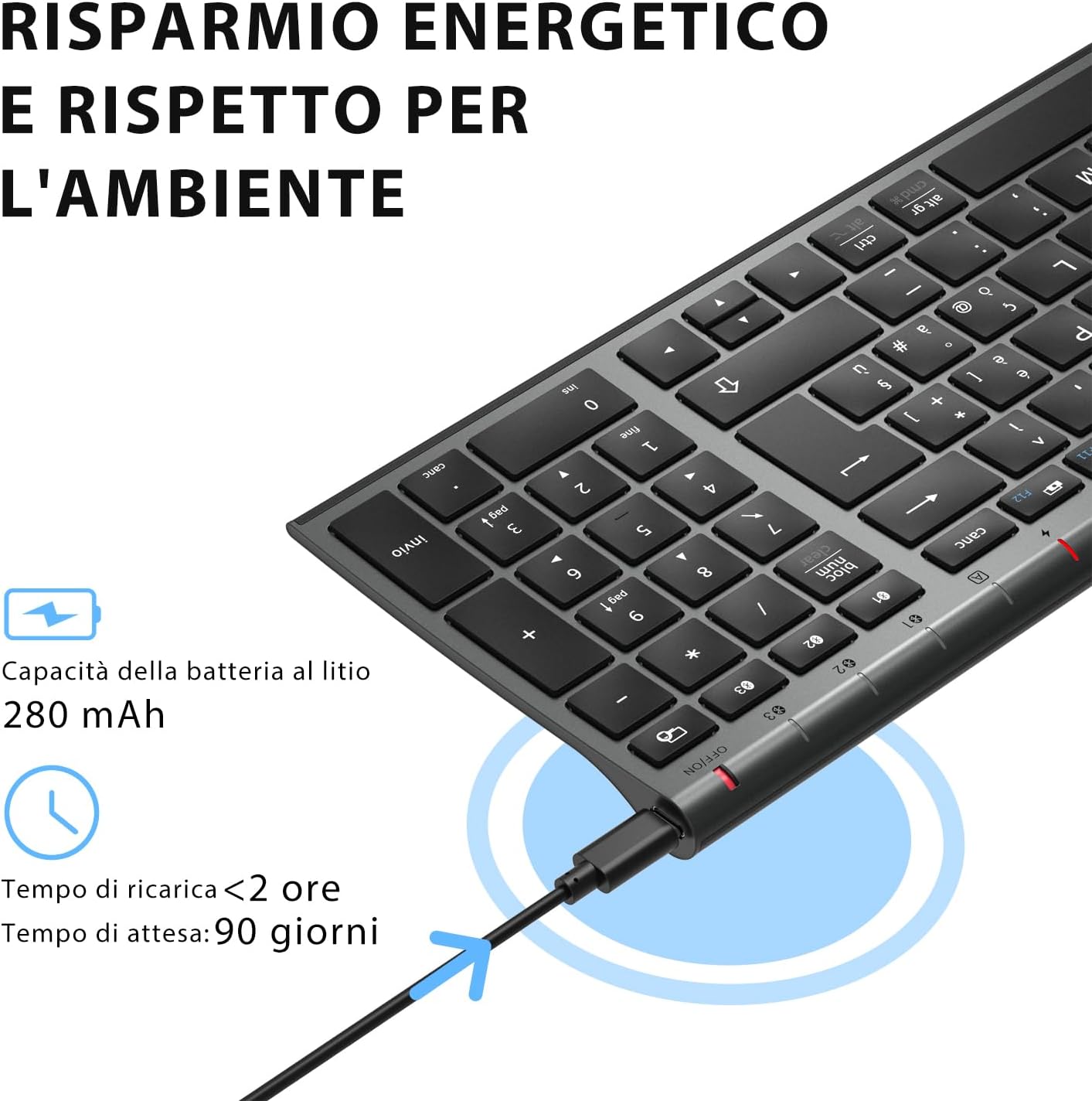
Before first use, fully charge the keyboard. Connect the provided USB charging cable to the keyboard's USB-C port and the other end to a USB power source (e.g., computer, wall adapter). The charging indicator light will show charging status and turn off when fully charged.

The iClever BK10 keyboard connected via USB-C for charging. This image details the 280 mAh lithium battery capacity, a charging time of less than 2 hours, and a standby time of 90 days.
2. Acendido/apagado
Locate the power switch on the keyboard. Slide the switch to the 'ON' position to power on the keyboard. Slide it to the 'OFF' position when not in use to conserve battery.
3. Emparellamento Bluetooth
The iClever BK10 keyboard supports connection to up to three devices simultaneously.
- Acende o teclado usando o interruptor de acendido.
- Preme o Fn tecla simultaneamente cunha das teclas do canal Bluetooth (BT1, BT2, ou BT3) to select a channel.
- Press and hold the selected Bluetooth channel key (e.g., BT1) for 3-5 seconds until the indicator light for that channel starts blinking rapidly. This indicates the keyboard is in pairing mode.
- No teu dispositivo (ordenador, tableta, teléfono intelixente), activa o Bluetooth e busca os dispositivos dispoñibles.
- Select "iClever BK10" (or similar name) from the list of found devices.
- Follow any on-screen prompts to complete the pairing process. The indicator light will stop blinking and remain solid for a few seconds, then turn off, indicating a successful connection.

The iClever BK10 keyboard demonstrating its ability to connect to an iPad, MacBook, and iPhone via three distinct Bluetooth channels. The image also illustrates key mapping for Windows/Android (Alt/Cmd) and iPad/Mac (Alt/Cmd) operating systems.
Operación do teclado
1. Cambio entre dispositivos emparellados
Para cambiar entre os dispositivos emparellados, simplemente prema o botón Fn key along with the corresponding Bluetooth channel key (BT1, BT2, ou BT3) that your device is paired to. The keyboard will automatically connect to the selected device.
2. Teclas de función (Fn)
The keyboard features a row of function keys (F1-F12) that also serve as multimedia and shortcut keys. To use the secondary function of these keys, press and hold the Fn key while pressing the desired function key.
3. Compatibilidade do sistema operativo
The iClever BK10 keyboard is designed to be compatible with various operating systems. Key functions may adapt slightly depending on the connected OS. For optimal performance, ensure your device's Bluetooth version is 4.0 or higher.

Close-up of the iClever BK10 keyboard with a hand typing, highlighting the low-profile keys and scissor switch mechanism designed for quiet and comfortable typing.
Mantemento
1. Limpeza
To clean your keyboard, power it off and disconnect it from any devices. Use a soft, lint-free cloth slightly dampened with water or a mild cleaning solution. Avoid using harsh chemicals, abrasives, or excessive moisture. Do not spray cleaners directly onto the keyboard.
2. Coidado da batería
To prolong the battery life of your keyboard:
- Charge the keyboard fully before its first use.
- Evita descargar completamente a batería con frecuencia.
- Garde o teclado nun lugar fresco e seco cando non o use durante períodos prolongados.
- Turn off the keyboard when transporting it or when not in use to prevent accidental key presses and battery drain.
Resolución de problemas
1. Keyboard Not Connecting/Pairing
- Asegúrate de que o teclado estea acendido e completamente cargado.
- Asegúrate de que o Bluetooth estea activado no teu dispositivo.
- Ensure the keyboard is in pairing mode (indicator light blinking).
- Tenta desvincular e volver vincular o teclado desde a configuración de Bluetooth do teu dispositivo.
- Reinicia tanto o teclado como o teu dispositivo.
- Ensure your device's Bluetooth version is compatible (BT 4.0+ recommended).
2. As teclas non responden
- Check if the keyboard is connected to the correct device.
- Ensure the battery is not low. Charge the keyboard if necessary.
- Reinicie o teclado e o dispositivo conectado.
- Limpa calquera residuo que haxa arredor das teclas.
3. Connection Drops Frequently
- Asegúrate de que non haxa fontes de interferencia fortes (por exemplo, enrutadores Wi-Fi ou outros dispositivos Bluetooth) preto.
- Keep the keyboard within the recommended operating range of your device.
- Asegúrate de que o teclado estea completamente cargado.
Garantía e Soporte
iClever products come with a standard warranty. For detailed warranty information, technical support, or customer service, please refer to the warranty card included with your product or visit the official iClever website. Please have your product model number (BK10) and purchase information ready when contacting support.
Produto rematadoview Imaxes

Un de arriba abaixo view of the iClever BK10 Bluetooth Wireless Keyboard, showcasina súa disposición completa, incluíndo o teclado numérico e as teclas de función.
Un lado view of the iClever BK10 keyboard, illustrating its ultra-thin profile with a thickness ranging from 0.16 inches to 0.45 inches.

The iClever BK10 keyboard positioned on a desk in an office environment, alongside a computer monitor, laptop, tablet, and smartphone, illustrating its versatile use in various professional and personal setups.