
SUNMI TF700
Manual do usuario da tableta industrial SUNMI M2 MAX
Modelo: TF700
Introdución
This manual provides comprehensive instructions for the safe and efficient use of your SUNMI M2 MAX Industrial Tablet, model TF700. Please read this manual thoroughly before operating the device and retain it for future reference.

Figura 1: Fronte view of the SUNMI M2 MAX Industrial Tablet, showing its display with various application icons.
Configuración
1. Desembalaxe e Inspección Inicial
Retire con coidado todos os compoñentes da embalaxe. Comprobe que todos os elementos que se indican a continuación estean presentes e non estean danados:
- SUNMI M2 MAX Industrial Tablet (TF700)
- Adaptador de alimentación
- Cable USB Tipo-C
- Hand Strap (optional, if included with your model)
2. Cargando o dispositivo
Before first use, fully charge the tablet. Connect the USB Type-C cable to the tablet's charging port and the other end to the power adapter. Plug the power adapter into a wall outlet. The charging indicator will illuminate.
The tablet is equipped with an 8360mAh non-removable lithium polymer battery. A full charge can provide over 12 hours of continuous operation.
3. Installing SIM Card and MicroSD Card (Optional)
The device supports MicroSIM or NanoSIM cards (Config 1) and an eSIM (Config 2). It also supports MicroSD cards up to 128GB for expanded storage.
- Locate the SIM/MicroSD card slot on the side of the tablet.
- Use the provided SIM ejector tool (if applicable) or a small paperclip to open the tray.
- Carefully place the SIM card(s) and/or MicroSD card into the tray according to the diagram on the tray.
- Empurre suavemente a bandexa cara atrás na ranura ata que encaixe no seu lugar.

Figura 2: Traseira view of the SUNMI M2 MAX, highlighting the camera, pogo pin charging interface, and the location of the SIM/MicroSD card slot.
4. Attaching the Hand Strap (Optional)
If your model includes a hand strap, attach it to the designated points on the back of the tablet for secure handling during mobile operations.
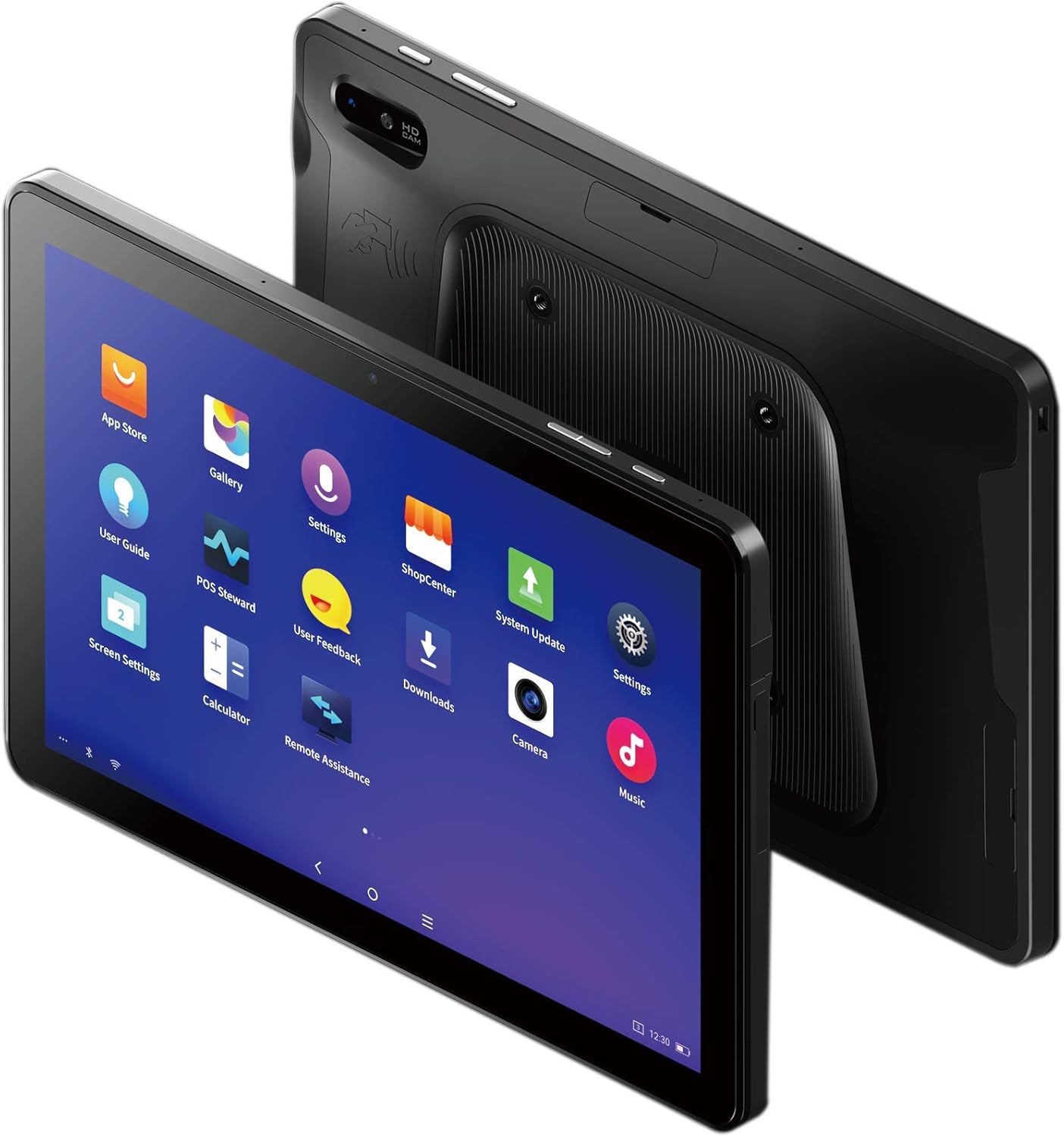
Figure 3: The SUNMI M2 MAX Industrial Tablet being held with an optional hand strap, demonstrating enhanced portability and secure grip.
Operación do Dispositivo
1. Acendido/apagado
- Encendido: Press and hold the Power button (located on the side) until the SUNMI logo appears on the screen.
- Apagado: Press and hold the Power button until a power-off menu appears. Select "Power Off" and confirm.
- Reiniciar: No menú de apagado, selecciona "Reiniciar" para reiniciar o dispositivo.
2. Navegación básica
The SUNMI M2 MAX runs on the Android operating system. Navigation is primarily touch-based:
- Toca: Para seleccionar un elemento ou abrir unha aplicación.
- Pasar o dedo: To scroll through lists or switch between screens.
- Zoom para pellizcar: Para ampliar ou reducir imaxes ou web páxinas.
- Botón de inicio: Volve á pantalla de inicio.
- Botón Atrás: Volve á pantalla anterior.
- Botón de aplicacións recentes: Mostra aplicacións usadas recentemente.
3. Conexión a Redes
The tablet supports Wi-Fi (2.4GHz/5GHz, 802.11 a/b/g/n/ac) and cellular networks (2G, 3G, 4G).
- Wi-Fi: Ir a Configuración > Rede e internet > Wi-FiActiva o Wi-Fi, selecciona a rede que desexas e introduce o contrasinal se é necesario.
- Datos móbiles: Ensure a valid SIM card is inserted. Go to Configuración > Rede e Internet > Rede móbil to enable mobile data and configure APN settings if necessary.
- Bluetooth: Ir a Configuración > Dispositivos conectados > Bluetooth to pair with Bluetooth devices (supports Bluetooth 5.0).
4. Using NFC
The SUNMI M2 MAX is equipped with NFC (Near Field Communication) for contactless transactions and data exchange. To use NFC, ensure it is enabled in settings and hold the tablet near a compatible NFC reader or device.
5. Funcionamento da cámara
The tablet features a 13 MP rear camera with flash and autofocus, and a 5 MP front camera. Open the "Camera" application to capture photos or record videos.
Mantemento
1. Limpeza do dispositivo
Use un pano suave e sen pelusa lixeiramente dampened with water or a screen cleaner to wipe the display and exterior. Avoid using harsh chemicals, abrasive cleaners, or excessive moisture.
2. Coidado da batería
- Avoid exposing the tablet to extreme temperatures (below -20°C or above 70°C).
- Non permitas que a batería se descargue completamente con frecuencia.
- Use only the original or certified compatible power adapter and cable.
3. Actualizacións de software
Comprobe e instale regularmente actualizacións do sistema para garantir un rendemento e unha seguridade óptimos. Vaia a Configuración > Sistema > Actualización do sistema.
4. Protección do Medio Ambiente
The SUNMI M2 MAX is designed with IP68 protection and a 1m drop specification, making it suitable for demanding environments. However, avoid intentional drops or prolonged submersion in water.
Resolución de problemas
| Problema | Causa posible | Solución |
|---|---|---|
| O dispositivo non se acende. | Batería baixa; fallo do software. | Charge the device for at least 30 minutes. Press and hold the Power button for 10-15 seconds to force restart. |
| Non se pode conectar á wifi. | Incorrect password; Wi-Fi disabled; router issue. | Verify password. Ensure Wi-Fi is enabled in settings. Restart router. Forget and reconnect to the network. |
| A pantalla táctil non responde. | Fallo temporal do software. | Forza o reinicio do dispositivo mantendo premido o botón de acendido. |
| Applications crashing. | Insufficient RAM; app bug. | Close background apps. Clear app cache/data (Settings > Apps). Update the app. |
Especificacións
The following table outlines the key technical specifications of the SUNMI M2 MAX Industrial Tablet (Model: TF700).

Figure 4: Comprehensive technical specifications for the SUNMI M2 MAX Industrial Tablet.
- Modelo: TF700
- Sistema operativo: Android 9.0 (SUNMI OS)
- Procesador: Kryo-260, Octa-core 2.2GHz (Qualcomm)
- Memoria: 3GB RAM + 32GB ROM (eMMC)
- Visualización: 10.1-inch FHD, 1920x1200, Capacitive multitouch, Corning Gorilla Glass 3
- Cámaras: Front: 5MP FF; Rear: 13MP AF + Flashlight, supports 1D/2D barcode recognition
- NFC: Type-A&B card, Mifare card, Felica card, ISO/IEC 14443 and ISO/IEC 15693 compliant
- Speaker/MIC: 1W Speaker, 2x MIC
- Ranura para tarxetas PSAM: 1x PSAM
- Ranura para tarxeta SIM: 1x MicroSD (TF), 1x MicroSIM or 1x NanoSIM (TF700 Config 1), eSIM (TF700 Config 2)
- Rede: 2G, 3G e 4G
- Wi-Fi: 2.4GHz/5GHz, 802.11 a/b/g/n/ac
- Bluetooth: Supports Bluetooth 2.1/3.0/4.2/5.0 (BLE)
- GPS: Supports AGPS, GPS, GLONASS, Beidou (Config 2)
- Sensor: Gravity sensor, light sensor, compass, Hall
- Botóns: 1x Power (lock screen), 2x Volume (+/-)
- Portos: 1x Type-C (supports OTG), 1x Audio Jack, 1x MicroSD (up to 128GB expansion)
- Batería: Non-removable Lithium Polymer battery, 8360mAh
- Adaptador de alimentación: Input: AC 100-240V, Output: DC 5V/2A
- Dimensións (LxWxH): 249.8 x 160 x 9.9 mm (0.39 x 6.3 x 9.84 polgadas)
- Peso total: 673 g (1.48 libras)
- Protección: IP68, 1m drop spec
- Temperatura de funcionamento: -20°C a 55°C
- Temperatura de almacenamento: -40°C a 70°C
Garantía e Soporte
For warranty information and technical support, please refer to the documentation provided with your purchase or visit the official SUNMI websitio. Garda o comprobante de compra para reclamacións de garantía.
SUNMI Official Websitio: www.sunmi.com
Ask a question about this manual
Ask about setup, troubleshooting, compatibility, parts, safety, or missing instructions. Manuals+ will review the question and use this page’s manual context to help answer it.