
1. Introdución
This manual provides detailed instructions for the setup, operation, maintenance, and troubleshooting of your WisFox 2.4GHz Wireless Keyboard and Mouse Combo. This full-size ergonomic USB keyboard features a convenient phone holder, and the accompanying mouse offers quiet clicking for a comfortable user experience. It is designed for seamless compatibility with various computer systems.

Figure 1: WisFox Wireless Keyboard and Mouse Combo. The image displays the black full-size keyboard with an integrated phone holder slot at the top, a black wireless mouse, and a small USB receiver.
2. Configuración
Siga estes pasos para configurar o seu combo de teclado e rato sen fíos:
- Instalar baterías:
- The wireless keyboard requires 2 AAA batteries. Locate the battery compartment on the underside of the keyboard, open the cover, insert the batteries according to the polarity indicators, and close the cover.
- The wireless mouse requires 1 AA battery. Locate the battery compartment on the underside of the mouse, open the cover, insert the battery according to the polarity indicators, and close the cover.
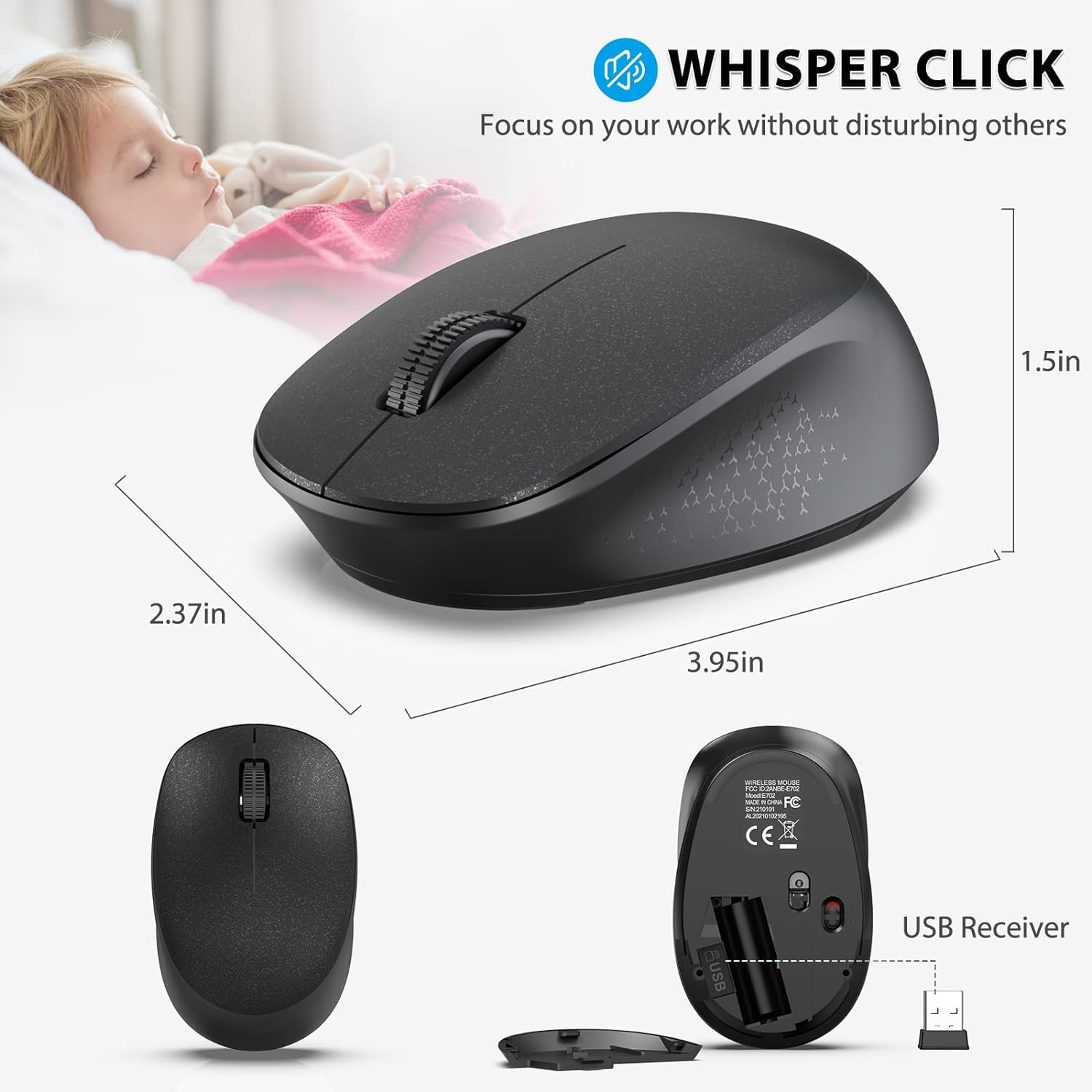
Figure 2: Battery installation for the keyboard and mouse. The image shows the underside of the keyboard with its battery compartment open, revealing two AAA batteries. The mouse's underside is also shown with its battery compartment open, revealing one AA battery. The USB receiver is stored inside the mouse's battery compartment.
- Localiza o receptor USB: The single USB receiver for both the keyboard and mouse is conveniently stored inside the mouse's battery compartment. Carefully remove it.
- Conecta o receptor: Plug the USB receiver into an available USB port on your computer, laptop, or desktop.
- Encendido: Turn on the keyboard and mouse using their respective ON/OFF switches. The keyboard's switch is located near the top right of the keyboard, and the mouse's switch is on its underside.
- Conexión automática: The keyboard and mouse should automatically connect to your device within seconds. No additional software installation is required.
Nota sobre os vídeos: Official product videos from the seller were not available for embedding. The setup process is straightforward as described above.
3. Instrucións de funcionamento
3.1 Características do teclado
- Soporte de teléfono integrado: The keyboard features a U-shaped holder (approximately 10 inches / 25.5 cm long) at the top. This slot is designed to securely hold smartphones, iPads, and other devices horizontally or vertically, providing a convenient viewing angle for videos, documents, or entertainment while working.
- Deseño de tamaño completo: The keyboard has a standard US QWERTY layout with a dedicated number pad. Keys are appropriately spaced for comfortable typing.
- Multimedia & Shortcut Keys: Access 12 multimedia combination keys and 5 independent shortcut keys for efficient control over music, movies, web browsing, email, and more.
Note: Some shortcuts may not be available on Mac systems.
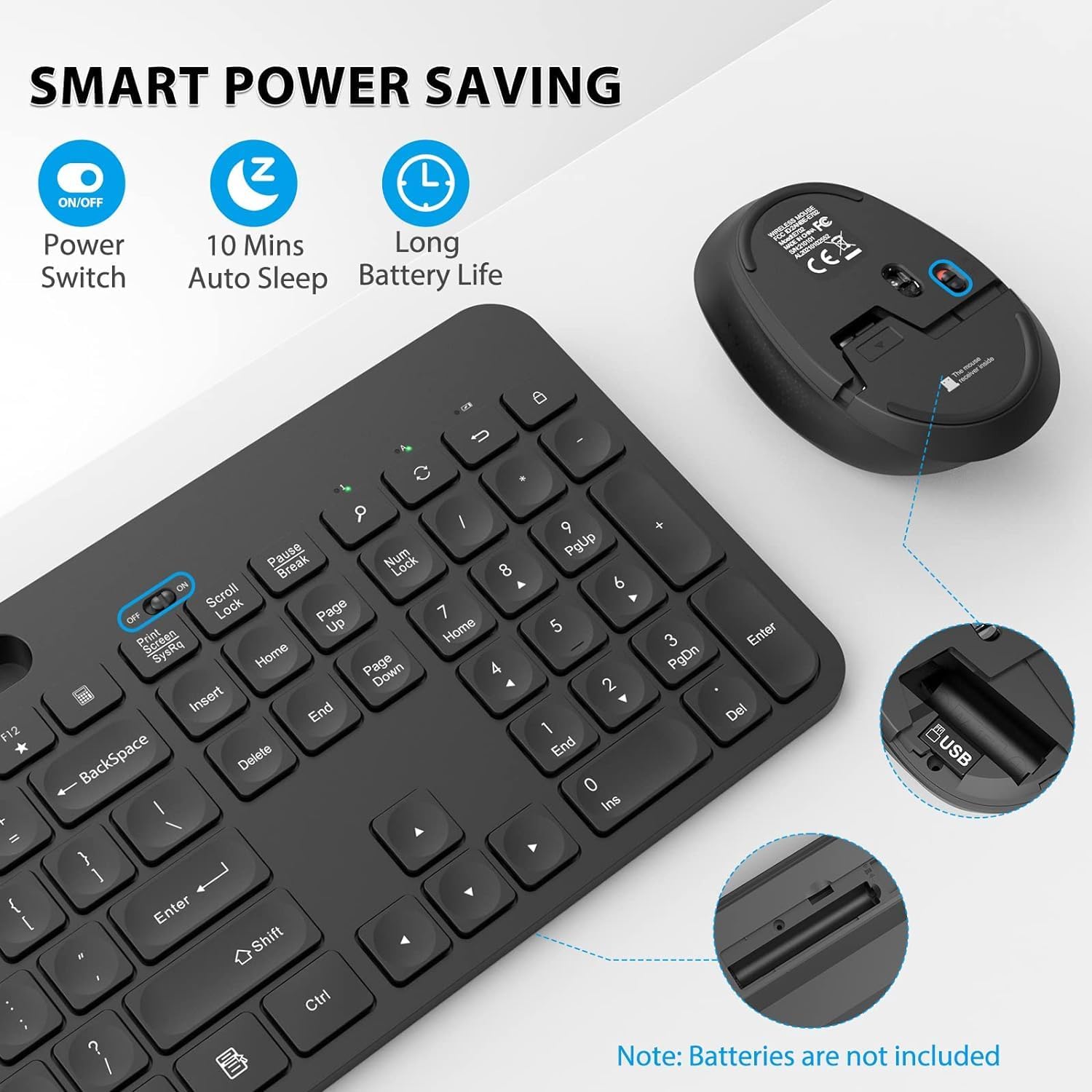
Figura 3: detallada view of the keyboard's multimedia and shortcut keys. The image highlights the function keys (F1-F12) with their respective multimedia icons (e.g., play/pause, volume control) and dedicated shortcut keys for calculator, search, and lock screen.
3.2 Características do rato
- Clics silenciosos: The mouse is designed for whisper-quiet clicks, minimizing disturbance in quiet environments like libraries or during late-night work sessions.
- Alta sensibilidade: Features a fixed 1600 DPI for precise and responsive cursor control.
3.3 Compatibilidade
The WisFox Wireless Keyboard and Mouse Combo is compatible with a wide range of operating systems and devices, including:
- Windows 2000 / ME / XP / Vista / 7 / 8 / 10
- Desktops, Chromebooks, PCs, Laptops, Computers

Figure 4: A user demonstrating the keyboard and mouse combo in an office setting. The image shows the keyboard with a tablet placed in its integrated holder, connected to a desktop computer, illustrating a simplified desktop setup.
4. Mantemento
- Substitución da batería: Replace batteries when performance degrades. Ensure correct polarity when inserting new batteries.
- Limpeza: Usa un pano suave e seco para limpar as superficies do teclado e do rato. Para a sucidade persistente, usa un pano lixeiramente seco.amp Pódese usar un pano, pero asegúrese de que non entre humidade nos compoñentes internos.
- Almacenamento: When not in use for extended periods, turn off the keyboard and mouse using their ON/OFF switches to conserve battery life. The USB receiver can be stored inside the mouse's battery compartment to prevent loss.
- Aforro de enerxía: The devices feature smart power-saving modes, including an auto-sleep function after 10 minutes of inactivity, to extend battery life.
5 Solución de problemas
If you encounter issues with your WisFox Wireless Keyboard and Mouse Combo, try the following solutions:
- Sen conexión/Retardo:
- Ensure both the keyboard and mouse are turned ON.
- Comprobe se as baterías están instaladas correctamente e teñen a carga suficiente. Substitúaas se é necesario.
- Verify that the USB receiver is securely plugged into a working USB port on your computer. Try a different USB port if the issue persists.
- Move the keyboard and mouse closer to the USB receiver to ensure they are within the 10m (33 ft) wireless range.
- Evite colocar o receptor preto doutros dispositivos sen fíos ou obxectos metálicos grandes que poidan causar interferencias.
- As teclas non responden:
- Comproba os niveis da batería.
- Asegúrate de que o teclado estea acendido e conectado.
- Reinicia o teu ordenador.
- Mouse Cursor Jumps/Erratic Movement:
- Asegúrate de usar o rato sobre unha superficie limpa e non reflectante.
- Limpa o sensor óptico da parte inferior do rato.
- Comproba os niveis da batería.
Se estes pasos non resolven o problema, consulte a sección Garantía e asistencia para obter máis axuda.
6. Especificacións
| Característica | Detalle |
|---|---|
| Marca | WisFox |
| Tecnoloxía de conectividade | Sen fíos de 2.4 GHz (receptor USB) |
| Disposición do teclado | Standard US QWERTY, Full Size with Number Pad |
| Características especiais | Ergonomic design, Integrated Phone Holder, Multimedia Keys, Shortcut Keys, Noiseless Mouse Clicks, Auto-Sleep Function |
| Rato DPI | Fixed 1600 DPI |
| distancia wireless | Ata 10 m (33 pés) |
| Potencia do teclado | 2 pilas AAA (non incluídas) |
| Potencia do rato | 1 x pilas AA (non incluídas) |
| Dispositivos compatibles | Laptop, Television, Personal Computer (Windows 2000 / ME/XP/Vista / 7/8/10, Chromebooks, PCs) |
| Cor | Negro |
| Peso do elemento | 2.2 libras |
| Dimensións do paquete | 17 x 6 x 2.4 polgadas |
7. Garantía e soporte
Your WisFox Wireless Keyboard and Mouse Combo is backed by a Garantía gratuíta de 12 meses desde a data de compra.
WisFox is committed to providing superior quality products and professional after-sales support to enhance your user experience.
If you encounter any issues or have questions regarding your product, please do not hesitate to contact us directly via Amazon mail. Our professional customer service team is ready to assist you and provide faster solutions.

Figure 5: Diagram illustrating the customer support process. It shows a user with an issue contacting the seller directly for faster problem resolution, emphasizing the availability of professional customer service.