
1. Configuración
1.1 Que está incluído
O paquete contén os seguintes elementos:
- 1 Smart Security Camera (CAM/PAN/WIFI)
- 1 adaptador de enerxía
- 1 USB Cord (1 meter)

Figure 1: Packaging for the Feit Electric Smart Indoor Camera with Pan & Tilt, illustrating included components.
1.2 Antes de comezar
Ensure you have the following before proceeding with installation:
- A stable 2.4 GHz Wi-Fi network. The camera is not compatible with 5 GHz networks.
- A smartphone or tablet with the Feit Electric App installed (available on Android and iOS app stores).
- An available standard electrical outlet for power.
- Optional: A Micro-SD card (up to 128GB) for local video storage (not included).
1.3 Pasos da instalación
- Descarga a aplicación Feit Electric: Busca "Feit Electric" in your device's app store and install the application.
- Crear unha conta: Abre a aplicación e segue as instrucións que aparecen na pantalla para crear unha nova conta de usuario ou iniciar sesión se xa tes unha.
- Encender a cámara: Connect the provided USB cord to the camera and the power adapter. Plug the power adapter into a standard electrical outlet. The camera will power on and indicate readiness for pairing (refer to the camera's LED indicator for status).
- Engadir dispositivo na aplicación: In the Feit Electric App, tap the "+" icon to add a new device. Select the "Security Camera" category and follow the app's instructions to connect your camera to your 2.4 GHz Wi-Fi network. You may need to scan a QR code displayed on your phone with the camera lens.
- Colocación: Position the camera indoors on a flat surface or mount it using appropriate hardware (not included) in your desired location. Ensure it has a clear line of sight to the area you wish to monitor.
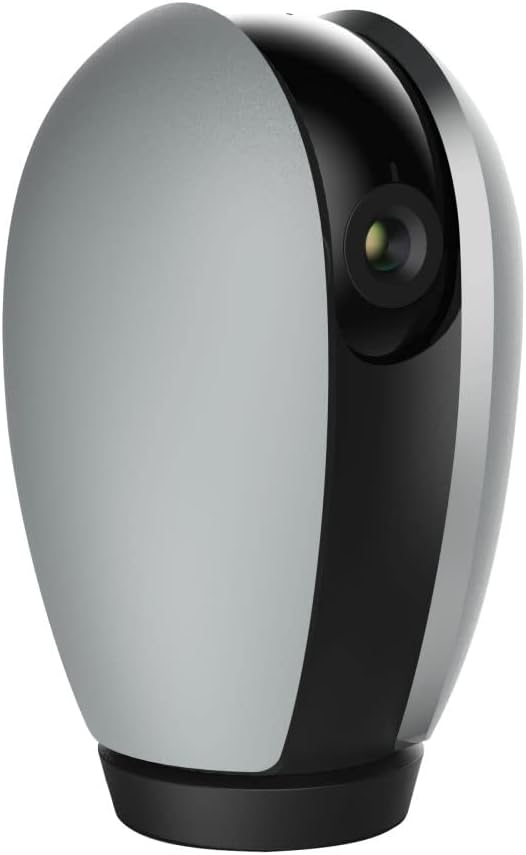
Figura 2: Fronte view of the Feit Electric Indoor Security Camera, ready for placement.
2. Funcionamento da cámara
2.1 Control da aplicación e en directo View
Once connected, you can access your camera from anywhere using the Feit Electric App. Open the app and select your camera from the device list to view a live feed. Multiple users can be granted access to control the camera through app sharing features.
2.2 Funcionalidade de panorámica e inclinación
The camera features remote pan and tilt capabilities, allowing you to adjust the field of vision. Within the live view in the Feit Electric App, use the directional controls to:
- Pan: Rotate the camera horizontally from 0° to 355°.
- Inclinación: Adjust the camera vertically from -10° to 75°.
2.3 Motion Detection and Night Vision
The camera is equipped with advanced motion detection, capable of detecting activity up to 32 feet away. You can configure the app to send push notifications to your mobile device when motion is detected. The camera also features night vision, providing clear visibility in low-light conditions up to 30 feet using Night Color technology.
2.4 Audio bidireccional
Utilize the built-in microphone and speaker for two-way communication. This allows you to listen to audio from the camera's location and speak through the camera from your mobile device via the app.
2.5 Gravación e almacenamento de vídeo
The camera records video in 1080p HD resolution. Recorded events can be stored locally on a Micro-SD card (up to 128GB, sold separately). A 128GB card can store approximately 14,400 minutes (10 days) of video. There are no monthly fees or subscriptions required for local storage. Videos can be downloaded wirelessly through the Feit Electric App.
2.6 Integración de fogares intelixentes
The Feit Electric Indoor Security Camera is compatible with Amazon Alexa and Google Assistant. Follow the instructions within the Feit Electric App or your smart home assistant's app to link your devices and enable voice control for certain camera functions.

Figure 3: The camera integrates with Amazon Alexa and Google Assistant for enhanced smart home control.
3. Mantemento
3.1 Limpeza
To maintain optimal performance, periodically clean the camera lens and body with a soft, dry cloth. Avoid using liquid cleaners or abrasive materials that could damage the camera's surfaces.
3.2 Actualizacións de software
Regularly check the Feit Electric App for available firmware updates for your camera. Keeping the firmware updated ensures you have the latest features, security enhancements, and bug fixes.
3.3 Xestión de tarxetas SD
If using a Micro-SD card for storage, it is recommended to periodically format the card through the Feit Electric App to ensure stable recording and prevent data corruption. Replace the SD card if you experience consistent recording issues or if the card reaches its end of life.
4 Solución de problemas
If you encounter issues with your Feit Electric Indoor Security Camera, refer to the following common troubleshooting steps:
- A cámara non se conecta á wifi:
- Asegúrate de que a túa rede wifi sexa de 2.4 GHz. A cámara non admite redes de 5 GHz.
- Verify that your Wi-Fi password is entered correctly in the app.
- Achega a cámara ao teu enrutador Wi-Fi para mellorar a intensidade do sinal.
- Reinicia o teu enrutador Wi-Fi e a cámara.
- Non Live View or Offline Status:
- Comproba a túa conexión a internet doméstica.
- Asegúrate de que a cámara estea acendida e que o adaptador de corrente estea conectado correctamente.
- Restart the Feit Electric App.
- Recording Issues (with SD Card):
- Ensure the Micro-SD card is correctly inserted into the camera.
- Check if the SD card is full. Format the card via the app if necessary (this will erase all data).
- Verify the SD card is not damaged or faulty.
- A detección de movemento non funciona:
- Check the motion detection settings in the Feit Electric App to ensure it is enabled and sensitivity is adjusted appropriately.
- Asegúrate de que non haxa obstáculos que bloqueen a cámara view.
- Problemas de audio bidireccional:
- Ensure your phone's microphone and speaker permissions are granted to the Feit Electric App.
- Comproba a configuración de volume no teu teléfono e dentro da aplicación.
For further assistance, consult the help section within the Feit Electric App or contact customer support.
5. Especificacións
| Característica | Especificación |
|---|---|
| Número de modelo | CAM/PAN/WIFI |
| Uso interior/exterior | Interior |
| Fonte de enerxía | Eléctrico con cable (120 voltios, 10 vatios) |
| Protocolo de conectividade | Wi-Fi (só 2.4 GHz) |
| Resolución de captura de vídeo | 1080p HD (25 fotogramas por segundo) |
| Range de visión nocturna | 30 Feet (Night Color technology) |
| Viewángulo ing | 115 graos |
| Pan Range | 0° - 355° |
| Rango de inclinación | -10° - 75° |
| Audio bidireccional | Si |
| Sensor de movemento | Yes (up to 32ft detection) |
| Almacenamento | Micro-SD card (up to 128GB, not included) |
| Dimensións (L x W x H) | 6.6 x 3.6 x 3.7 polgadas |
| Peso do elemento | 11.2 onzas |
| Dispositivos compatibles | Smartphone, Amazon Alexa, Google Assistant |
| UPC | 017801722208 |
| Material | Plástico |
| Certificación | ETL |
6. Garantía e soporte
6.1 Información da garantía
This Feit Electric Indoor Security Camera comes with a one-year warranty from the date of purchase. Please retain your proof of purchase for warranty claims.
6.2 Atención ao cliente
For technical support, warranty inquiries, or any questions regarding your Feit Electric product, please contact Feit Electric customer service:
- Correo electrónico: info@feit.com
- Teléfono gratuíto: 1-866-326-BULB (1-866-326-2852)
Tamén podes visitar o oficial Tenda Feit Electric en Amazon para obter máis información sobre o produto e recursos.