
1. Produto rematadoview
The CUBOT Note 7 is a 4G unlocked smartphone running Android 10. It features a 5.5-inch Dewdrop screen, 2GB RAM, 16GB internal storage (expandable up to 128GB via TF card), a 13MP rear camera, and an 8MP front camera. The device supports dual Nano SIM cards and includes a 3100mAh battery.

Figure 1: CUBOT Note 7 Smartphone (Green)
Características principais:
- 5.5-inch Waterdrop Incell Fullview Pantalla
- Android 10 GO Operating System
- 2GB RAM + 16GB ROM (expandable up to 128GB with TF card)
- 13MP Rear Main Camera + 2 sub cameras with 1A LED flashlight
- Cámara frontal de 8 MP
- Batería de 3100 mAh
- Dual Nano SIM Card Slots
- Face ID Unlock
- 2.4G Wi-Fi Support, Bluetooth 4.2
- Micro USB port, 3.5mm Headphone Jack
2. Guía de configuración
2.1 Unpacking and Initial Checks
Upon opening the box, ensure all components are present. The package typically includes the CUBOT Note 7 smartphone, a USB cable, and a power adapter. Before first use, verify that the insulating film on the battery has been removed. This film is present for transportation safety and must be removed for the phone to power on.
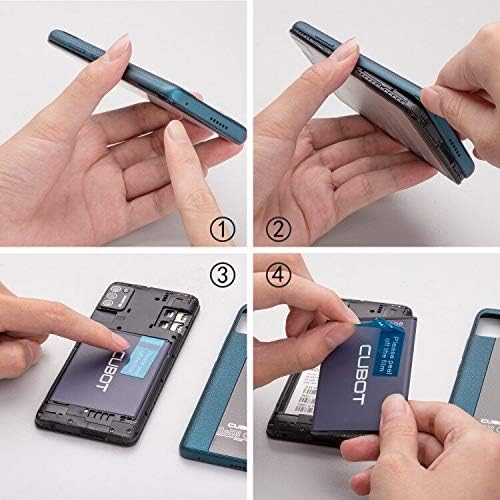
Figure 2: Battery Insulating Film Removal
Detailed description: This image illustrates the process of removing the insulating film from the CUBOT Note 7 battery. Step 1 shows the phone with its back cover. Step 2 shows the back cover being gently pried open. Step 3 reveals the battery compartment. Step 4 shows a hand peeling off a blue insulating film from the battery, which is labeled 'CUBOT'.
2.2 Instalación da tarxeta SIM e da tarxeta TF
The CUBOT Note 7 supports two Nano SIM cards and one TF (MicroSD) card for expandable storage. To install them:
- Retire con coidado a tapa traseira do teléfono.
- Locate the battery compartment and the SIM/TF card slots.
- Insert your Nano SIM cards into the designated SIM slots.
- Insert the TF card (up to 128GB) into its dedicated slot.
- Ensure the battery is correctly seated and replace the back cover.

Figura 3: Ranuras para tarxetas SIM e TF
Detailed description: This image displays the rear of the CUBOT Note 7, highlighting the slots for two Nano SIM cards and one Micro-SD (TF) card. The 3100mAh detachable battery is also visible, indicating its position relative to the card slots.
2.3 Acendido
Press and hold the Power button located on the side of the device until the CUBOT logo appears on the screen. Follow the on-screen prompts to complete the initial setup, including language selection, Wi-Fi connection, and Google account setup.
3. Instrucións de funcionamento
3.1 Navigating Android 10 GO
The CUBOT Note 7 runs on Android 10 GO, a streamlined version of Android optimized for entry-level devices. The interface is designed for simplicity and efficiency. Swipe up from the bottom of the screen to access the app drawer. Swipe down from the top to access quick settings and notifications.

Figure 4: Android 10 GO Interface
Detailed description: This image shows the CUBOT Note 7 displaying various screens of the Stock Android 10 interface, including the home screen, settings menu, a cleaner app, and battery optimization options. This illustrates the simpler and smarter operation experience provided by the system.
3.2 Desbloqueo con identificación facial
The device supports Face ID for convenient unlocking. To set up Face ID:
- Ir a Configuración > Seguridade > Desbloqueo facial.
- Sigue as instrucións en pantalla para rexistrar a túa cara.
- Ensure you are in a well-lit environment during registration for optimal performance.
3.3 Uso da cámara
The CUBOT Note 7 is equipped with a 13MP rear camera and an 8MP front camera. Open the Camera app to capture photos and videos. Tap the screen to focus, and press the shutter button to take a picture. Switch between front and rear cameras using the camera toggle icon.

Figure 5: Front and Rear Cameras
Detailed description: This image highlights the camera capabilities of the CUBOT Note 7, showing a sample photo taken with the 8MP front camera (a person smiling on a beach) and a sample photo taken with the 13MP AI rear camera (a scenic beach with umbrellas and a distant tower).
4. Mantemento e coidados
4.1 Coidado coa batería
To prolong battery life, avoid exposing the phone to extreme temperatures. Charge the device using the provided charger and cable. If the phone does not turn on, ensure the battery's insulating film has been removed and the battery is properly seated.
4.2 Actualizacións de software
Comprobe periodicamente se hai actualizacións de software para garantir un rendemento e unha seguridade óptimos. Vaia a Configuración > Sistema > Actualización do sistema. If an update fails, try turning off Wi-Fi and mobile data, then attempt the update again. If issues persist, skip the update and proceed with normal phone usage.
4.3 Limpeza
Usa un pano suave e sen pelusa para limpar a pantalla e a carcasa do teléfono. Evita o uso de produtos químicos agresivos ou materiais abrasivos que poidan danar o dispositivo.
5 Solución de problemas
5.1 O teléfono non se acende
- Ensure the battery's insulating film has been removed.
- Verifique que a batería estea instalada e cargada correctamente.
- Connect the phone to its charger and wait a few minutes before attempting to power on again.
5.2 Problemas de conectividade de rede
The CUBOT Note 7 is compatible with GSM carriers such as AT&T, T-Mobile, Metro PCS, and Cricket Wireless. It is NOT compatible with CDMA carriers like Verizon, Sprint, Boost Mobile, Straight Talk, or U.S. Cellular. If you experience network issues:
- Check if your carrier is supported.
- Asegúrate de que a tarxeta SIM estea inserida correctamente.
- Reinicie o teléfono.
- Check network settings under Configuración > Rede e internet.

Figure 6: Supported Network Bands
Detailed description: This image shows the CUBOT Note 7 with an overlay detailing its network compatibility: 4G FDD (B2/4/5/7/12/17/28A+B), 3G (B2/4/5), and 2G (B2/3/5/8). This visual aid helps users understand the specific bands supported by the device.
5.3 Retardo de rendemento
As an entry-level smartphone, performance may vary with demanding applications. To optimize performance:
- Pecha as aplicacións non utilizadas que se executan en segundo plano.
- Limpar a caché das aplicacións de uso frecuente.
- Avoid running multiple heavy applications simultaneously.
6. Especificacións
| Característica | Especificación |
|---|---|
| Número de modelo | 867 |
| Sistema Operativo | Android 10 GO |
| Mostrar | 5.5-inch Waterdrop Incell Fullview Pantalla |
| Resolución | 1280 x 720 |
| RAM | 2 GB |
| Almacenamento interno (ROM) | 16 GB |
| Almacenamento ampliable | Up to 128GB via TF Card |
| Cámara traseira | 13MP Main + 2 Sub Cameras |
| Cámara frontal | 8 MP |
| Capacidade da batería | 3100 mAh de iones de litio |
| Compatibilidade con tarxetas SIM | Nano SIM dual |
| Compatibilidade coa rede | 4G FDD (B2/4/5/7/12/17/28A+B), 3G (B2/4/5), 2G GSM |
| Wi-Fi | Wi-Fi 2.4G |
| Bluetooth | 4.2 |
| Conectividade | Micro USB, 3.5mm Headphone Jack |
| Dimensións | 5.31 x 2.48 x 0.43 polgadas |
| Peso | 5.3 onzas (150 gramos) |

Figure 7: CUBOT Note 7 Dimensions
Detailed description: This image provides a visual representation of the CUBOT Note 7's dimensions, showing its length (5.31 inches), width (2.48 inches), and thickness (0.43 inches). It also indicates the weight as 5.07 oz (which is approximately 144 grams, aligning with the 150 grams from specifications).
7. Garantía e soporte
7.1 Información da garantía
Please refer to the warranty card included in your product packaging for detailed warranty terms and conditions. Keep your proof of purchase for warranty claims.
7.2 Atención ao cliente
For technical assistance, troubleshooting, or other inquiries, please contact CUBOT customer support through their official websitio web ou a información de contacto proporcionada na documentación do produto.