
Introdución
This manual provides comprehensive instructions for the Docooler T-Wolf V11 Wired Gaming Mouse. It covers setup, operation, maintenance, and troubleshooting to ensure optimal performance and longevity of your device. The T-Wolf V11 is designed for both gaming and office use, featuring adjustable DPI, ergonomic design, and customizable RGB lighting.
Características do produto
- Deseño de 8 botóns: Equipped with 8 programmable buttons suitable for various tasks in gaming and office applications.
- DPI axustable: Offers 6 levels of DPI adjustment (1000/1600/2400/3200/4800/6400) for precise cursor control and sensitive operation.
- Ergonomic Arc Design: Engineered for a comfortable grip, fitting closely to your palm to reduce fatigue during extended use.
- Integrated Weights: Features independent weights within the mouse, allowing customization for improved stability and precision to suit individual preferences.
- RGB Colorful Backlight: Provides 6 types of colorful RGB streaming light effects, enhancing the visual experience.
- Construción duradeira: Includes a lightweight aluminum alloy anti-skid roller for comfortable and reliable use.
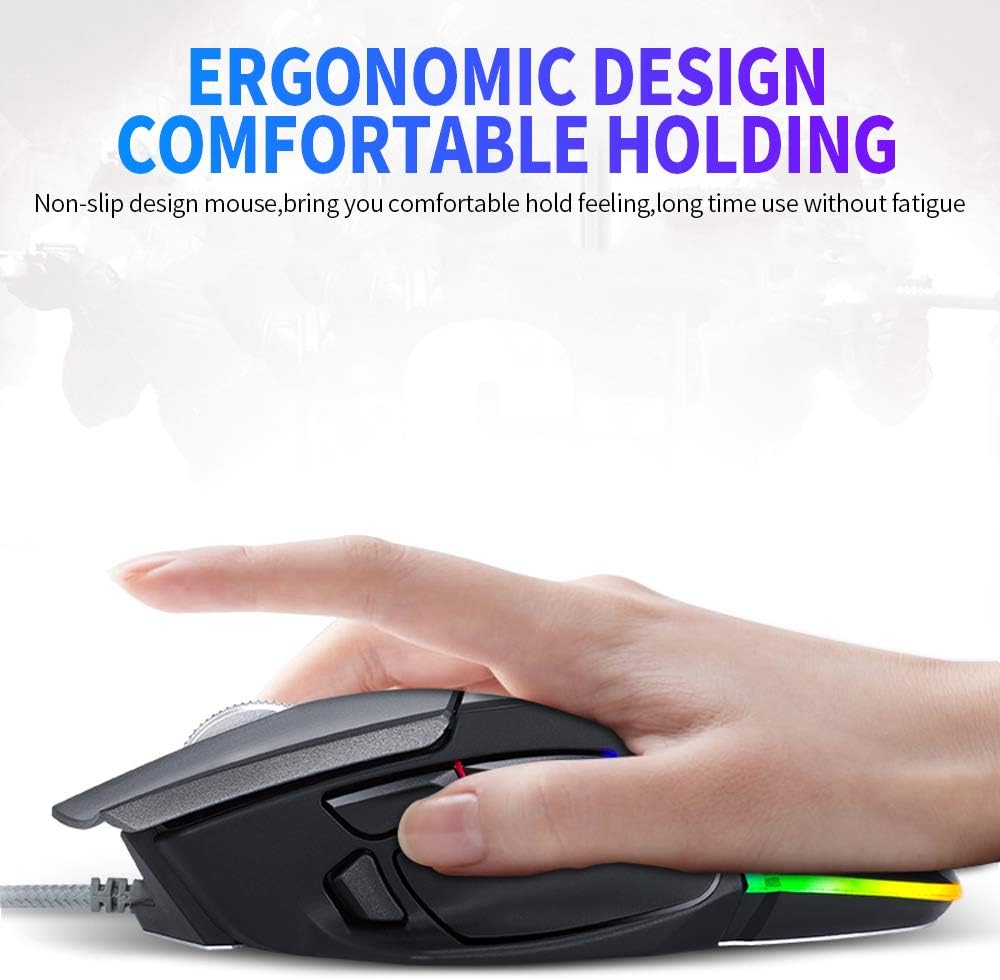
Image: The ergonomic design of the T-Wolf V11 mouse, demonstrating how it comfortably fits the hand to reduce strain during prolonged use.

Image: The T-Wolf V11 mouse illuminated with its dynamic RGB streaming light effects, showcasing the customizable lighting options.
Instrucións de configuración
- Desembalar o rato: Carefully remove the T-Wolf V11 mouse from its packaging.
- Conectar ao ordenador: Plug the USB connector of the mouse's cable into an available USB port on your computer (desktop or laptop).
- Instalación de controladores: The mouse is typically plug-and-play. Your operating system (Windows, macOS, Linux) should automatically detect and install the necessary drivers. No additional software installation is usually required for basic functionality.
- Verificar a funcionalidade: Once connected, move the mouse to check cursor movement and click the left and right buttons to ensure they are responsive.

Image: The Docooler T-Wolf V11 gaming mouse connected to a laptop, illustrating a typical setup scenario.
Instrucións de funcionamento
Funcións dos botóns
- Clic esquerdo (botón 1): Función de clic principal estándar.
- Clic dereito (botón 2): Función de clic secundario estándar.
- Roda de desprazamento (botón 3): Scrolls content up/down. Can also be pressed for middle-click functionality.
- DPI Cycle Button (Button 4): Located near the scroll wheel, press to cycle through DPI settings (1000/1600/2400/3200/4800/6400).
- Forward/Backward Buttons (Buttons 5 & 6): Typically located on the side, used for navigation in web navegadores ou file exploradores.
- Additional Programmable Buttons (Buttons 7 & 8): These buttons can often be customized using third-party software or operating system settings for specific functions or macros.
Axuste de DPI
Press the DPI cycle button (usually located behind the scroll wheel) to switch between the available DPI settings. Each press will change the sensitivity, allowing you to adapt to different tasks, from precise aiming in games to fast navigation in desktop environments. The RGB lighting may change color to indicate the current DPI level.
Efectos de iluminación RGB
The T-Wolf V11 features 6 types of colorful RGB streaming light effects. These effects are pre-programmed and cycle automatically, providing a dynamic visual experience. There is no specific button to change RGB modes on the mouse itself; the lighting patterns are typically fixed or cycle through automatically.

Imaxe: Unha detallada view of the T-Wolf V11 mouse, illustrating its DPI adjustment capabilities and RGB streamer marquee lighting.
Mantemento
- Limpeza: Usa un pano suave e seco para limpar a superficie do rato. Para a sucidade persistente, limpa lixeiramenteampen the cloth with water or a mild, non-abrasive cleaner. Avoid using harsh chemicals or excessive moisture.
- Limpeza de sensores: Limpa periodicamente o sensor óptico da parte inferior do rato cun hisopo de algodón para garantir un seguimento preciso.
- Coidado do cable: Avoid sharply bending or twisting the mouse cable to prevent internal damage. Store the cable neatly when not in use.
- Almacenamento: Cando non o use durante períodos prolongados, garde o rato nun ambiente limpo e seco, lonxe da luz solar directa e de temperaturas extremas.
Resolución de problemas
- O rato non responde:
- Asegúrate de que o cable USB estea conectado correctamente a un porto USB que funcione no teu ordenador.
- Tenta conectar o rato a un porto USB diferente.
- Reinicia o teu ordenador.
- O movemento do cursor é errático ou con saltos:
- Limpa o sensor óptico da parte inferior do rato.
- Asegúrate de usar o rato sobre unha superficie limpa, non reflectante e uniforme (por exemplo, unha alfombrilla de rato).
- DPI sen cambios:
- Press the DPI cycle button firmly.
- Asegúrate de que o rato estea conectado correctamente e que o sistema o recoñeza.
- As luces RGB non funcionan:
- Comprobe a conexión USB.
- The RGB lighting is typically automatic; if it's not illuminating, ensure the mouse is receiving power.
Especificacións
| Marca | Docooler |
| Modelo | V11 |
| Cor | Negro |
| Tecnoloxía de conectividade | Con cable |
| Número de botóns | 8 |
| Configuración de DPI | 1000/1600/2400/3200/4800/6400 (Adjustable) |
| Tipo de retroiluminación | RGB Colorful |
| Lonxitude do cable | 1.9 metros |
| Tamaño do elemento | 13 x 8.5 x 4.5 cm (5.1 x 3.3 x 1.8 polgadas) |
| Peso do elemento | 177 g (6.24 onzas) |
| Dispositivos compatibles | Portátil, PC |
| Plataforma de hardware | PC |
| Fonte de enerxía | Cable Electric (USB) |
Garantía e Soporte
For warranty information and technical support, please refer to the documentation provided with your purchase or contact Docooler customer service directly. Keep your proof of purchase for any warranty claims. Support contact details can typically be found on the manufacturer's official websitio.