
Confianza 24115
Trust Wireless Mouse User Manual
Modelo: 24115
Marca: Trust
1. Introdución
Grazas pola compraasing the Trust Wireless Mouse. This manual provides detailed instructions for setting up, operating, maintaining, and troubleshooting your new wireless mouse. Please read this manual thoroughly before using the product to ensure optimal performance and longevity.

Imaxe 1.1: Arriba view of the Trust Wireless Mouse, showcasino seu deseño ergonómico e a disposición dos botóns.
2. Información de seguridade
Siga as seguintes pautas de seguridade para evitar danos no dispositivo ou lesións a vostede mesmo:
- Non expoñas o rato á auga nin a humidade excesiva.
- Evite soltar ou someter o rato a fortes impactos.
- Non intente desmontar nin reparar o rato vostede mesmo. Consulte persoal de servizo cualificado.
- Elimina as baterías segundo a normativa local.
3. Contido do paquete
Verifica que todos os elementos estean presentes no paquete:
- 1x Trust Wireless Comfort Mouse
- 1 x Micro receptor USB
- 1 batería AA
- 1x Manual de usuario (este documento)

Image 3.1: The retail packaging of the Trust Wireless Mouse, showing the mouse and included accessories.
4. Configuración
4.1. Instalación da batería
- Localiza o compartimento da batería na parte inferior do rato.
- Abra a tapa do compartimento da batería.
- Insert the provided AA battery, ensuring the positive (+) and negative (-) terminals align correctly with the markings inside the compartment.
- Pecha a tapa do compartimento da batería de forma segura.

Image 4.1: Underside of the mouse with the battery compartment open, showing the insertion of an AA battery.

Imaxe 4.2: Parte inferior view of the Trust Wireless Mouse, illustrating the battery compartment and the storage slot for the USB micro receiver.
4.2. Connecting the USB Micro Receiver
- Locate the USB micro receiver, which is typically stored inside the mouse's battery compartment for transport.
- Remove the USB micro receiver from its storage slot.
- Plug the USB micro receiver into an available USB port on your computer (laptop or PC).
- The mouse should automatically connect to your computer. No additional drivers are typically required for Windows 10, 8, 7, or Mac OS X 10.15 (Catalina) or higher.
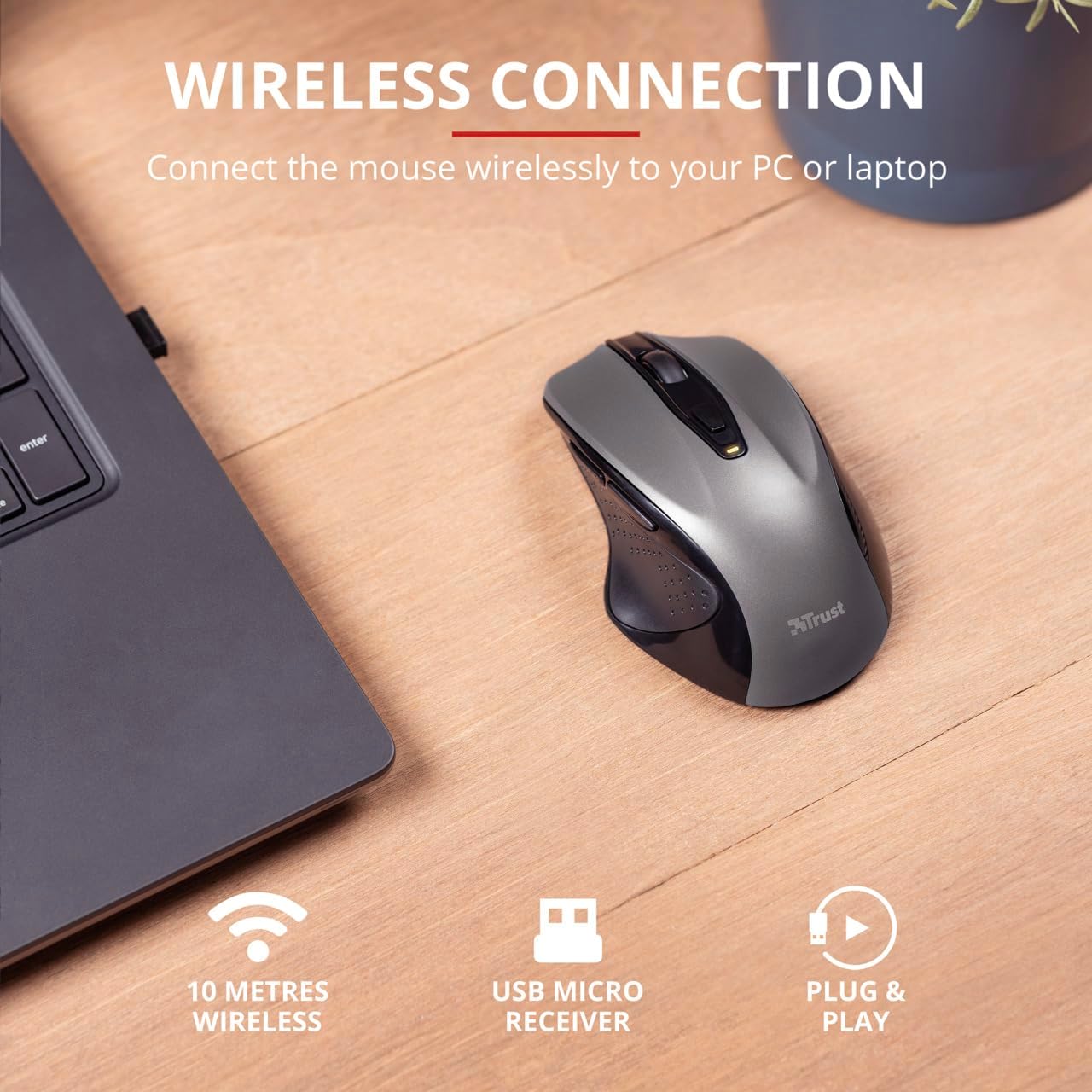
Image 4.3: The Trust Wireless Mouse positioned next to a laptop, demonstrating the wireless connection via the USB micro receiver plugged into the laptop's USB port.
5. Uso do rato
5.1. Funcións básicas
- Clic esquerdo: Botón principal para seleccionar elementos e interactuar co software.
- Clic dereito: Botón secundario para menús contextuais e opcións adicionais.
- Roda de desprazamento: Roll up or down to scroll through documents and web pages. Press the scroll wheel for middle-click functionality.
5.2. Axuste de DPI
The Trust Wireless Mouse features an adjustable DPI (Dots Per Inch) setting, allowing you to control the cursor speed. There are 5 different speeds available: 800, 1200, 1600, 1800, and 2200 DPI.
- Locate the DPI button, usually positioned behind the scroll wheel.
- Preme o botón DPI para percorrer os axustes de DPI dispoñibles.
- An LED indicator on the mouse will briefly show the current DPI setting.

Imaxe 5.1: Lateral view of the Trust Wireless Mouse highlighting its comfortable shape, thumb rest with extra grip, and the adjustable speed (DPI) feature.
5.3. Thumb Buttons
The mouse is equipped with two conveniently placed thumb buttons (forward and backward) on the left side. These buttons facilitate easy navigation, such as browsing through files ou web páxinas.
- Preme o Adiante button to move to the next page or item.
- Preme o Atrás button to return to the previous page or item.
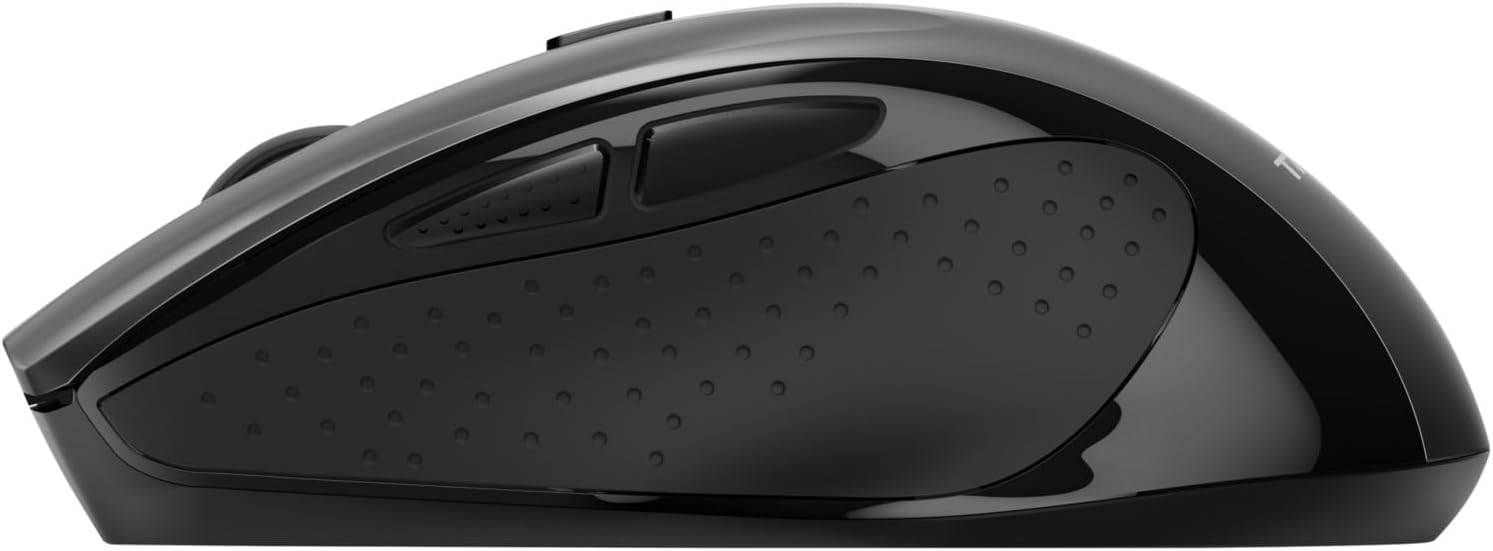
Imaxe 5.2: Lateral view of the Trust Wireless Mouse, clearly showing the placement of the two thumb buttons for forward and backward navigation.
Note: Functionality of side buttons may vary between operating systems.
5.4. Funcións de aforro de enerxía
To conserve battery life, the mouse includes a power-saving mode and an on/off switch.
- Interruptor On/Off: Located on the underside of the mouse. Turn the mouse off when not in use for extended periods to maximize battery life.
- Indicador LED da batería: An LED indicator will light up when the battery level is low, signaling that it's time to replace the AA battery.
6. Mantemento
6.1. Limpeza
Para manter un rendemento óptimo, limpa o rato regularmente:
- Use un pano suave e seco para limpar a superficie do rato.
- Para a sucidade persistente, d lixeiramenteampEnxágüe o pano con auga ou unha solución de limpeza suave. Evite produtos químicos agresivos.
- Non permita que entren líquidos nos compoñentes internos do rato.
6.2. Substitución da batería
When the battery indicator lights up, replace the AA battery promptly to ensure uninterrupted use. Refer to section 4.1 for battery installation instructions.
7 Solución de problemas
| Problema | Causa posible | Solución |
|---|---|---|
| O rato non responde. | Batería baixa ou esgotada. | Substitúe a batería AA. |
| O rato non responde. | Receptor USB non conectado correctamente. | Asegúrate de que o receptor USB estea conectado firmemente a un porto USB que funcione. Proba cun porto USB diferente. |
| O rato non responde. | O rato está desactivado. | Turn on the mouse using the on/off switch on the underside. |
| O movemento do cursor é errático ou lento. | Low DPI setting. | Press the DPI button to increase cursor speed. |
| O movemento do cursor é errático ou lento. | Dirty sensor or unsuitable surface. | Clean the optical sensor on the underside of the mouse. Use the mouse on a clean, non-reflective surface. |
| Problemas de conexión sen fíos. | Interference or distance from receiver. | Ensure the mouse is within 10 meters of the receiver. Remove any large metal objects between the mouse and receiver. |
8. Especificacións
| Característica | Detalle |
|---|---|
| Número de modelo | 24115 |
| Conectividade | Wireless (RF 2.4GHz) |
| distancia wireless | 10 metros |
| Configuración de DPI | 800, 1200, 1600, 1800, 2200 DPI (adjustable) |
| Número de botóns | 6 (Left, Right, Mid, Forward, Backward, DPI loop) |
| Tipo de sensor | Óptica |
| Ergonomía | Ergonomic design with thumb rest and rubber inlay |
| Fonte de enerxía | 1x batería AA (incluída) |
| Dimensións (L x W x H) | 113 mm x 74 mm x 41 mm (4.45 x 2.91 x 0.04 polgadas) |
| Peso | 100 g (2.65 onzas) |
| Sistemas operativos compatibles | Windows 10, 8, 7; Mac OS X 10.15 (Catalina) or higher |
9. Garantía e soporte
The Trust Wireless Mouse comes with a 1 ano de garantía desde a data de compra. Esta garantía cobre defectos de materiais e fabricación en condicións de uso normal.
A garantía non cobre:
- Danos causados por accidente, abuso, mal uso, inundación, incendio, terremoto ou outras causas externas.
- Damage caused by operating the product outside the permitted or intended uses described by Trust.
- Damage caused by service (including upgrades and expansions) performed by anyone who is not a representative of Trust or a Trust Authorized Service Provider.
For technical support or warranty claims, please visit the official Trust website or contact their customer service department. Refer to the product packaging or Trust's official websitio web para obter a información de contacto máis actualizada.
Recursos en liña: www.trust.com
Documentos relacionados - 24115
 |
Trust BAYO+ Multidevice Ergonomic Wireless Mouse User Guide Comprehensive user guide for the Trust BAYO+ multidevice ergonomic wireless mouse, covering setup, USB-A and Bluetooth connectivity, charging, and DPI sensitivity adjustments for optimal performance. |
 |
Guía do usuario do rato con cable Trust Fyda Comfort Guía do usuario para o cómodo rato con cable Trust Fyda, que detalla a configuración, a conexión e o funcionamento básico para un uso óptimo. |
 |
Guía do usuario do rato sen fíos Trust Mydo Silent Click Guía completa do usuario do rato silencioso sen fíos Trust Mydo, que abrangue a configuración, as características e a asistencia. Aprende a conectar e usar o teu rato silencioso para unha informática eficiente. |
 |
Guía do usuario do rato sen fíos Trust PUCK Guía completa do usuario para o rato sen fíos Trust PUCK, que detalla a configuración, a conectividade mediante receptor USB e Bluetooth e o estado do indicador LED. |
 |
Guía do usuario do rato para xogos sen fíos Trust FELOX con alfombrilla de rato Guía de usuario oficial para o rato e a alfombrilla de rato sen fíos para xogos Trust FELOX GXT 112. Aprende a configurar, cargar, as funcións dos botóns, a configuración de DPI e a iluminación RGB. Atopa asistencia en Trust.com. |
 |
Rato sen fíos recargable Trust Puck: guía de conexión Bluetooth Guía do usuario para o rato sen fíos recargable Trust Puck, que detalla os pasos de conexión Bluetooth para Windows, macOS e Android, e as características do produto. |
Ask a question about this manual
Ask about setup, troubleshooting, compatibility, parts, safety, or missing instructions. Manuals+ will review the question and use this page’s manual context to help answer it.