
1. Introdución
This manual provides detailed instructions for the installation, operation, and maintenance of your new ATA 43 Inch Full HD LED Smart TV, Model 43S1. Please read this manual thoroughly before using the television to ensure proper functionality and to maximize your viewexperiencia ing. Conserve este manual para futuras consultas.
2. Información importante de seguridade
- Fonte de enerxía: Ensure the TV is connected to a power supply within the specified voltagrango.
- Ventilación: Non bloquee as aberturas de ventilación. Deixe espazo suficiente arredor do televisor para unha correcta circulación do aire.
- Auga e humidade: Non expoñas o televisor á choiva nin á humidade. Evita colocar obxectos cheos de líquidos, como vasos, enriba do televisor.
- Limpeza: Desconecte o televisor antes de limpalo. Use un pano suave e seco. Non empregue produtos de limpeza líquidos nin produtos de limpeza en aerosol.
- Colocación: Coloque o televisor sobre unha superficie estable e nivelada. Evite colocalo baixo a luz solar directa ou preto de fontes de calor.
- Servizo: Non intente atender este produto vostede mesmo. Remita todo o servizo a persoal de servizo cualificado.
3. Contido do paquete
Marque a caixa para os seguintes elementos:
- ATA 43 Inch Full HD LED Smart TV (Model 43S1)
- Control remoto
- Soporte para TV (2 pezas)
- Cable de alimentación
- Manual de usuario (este documento)
- Tornillos para soporte de TV
4. Produto rematadoview
4.1. Fronte View
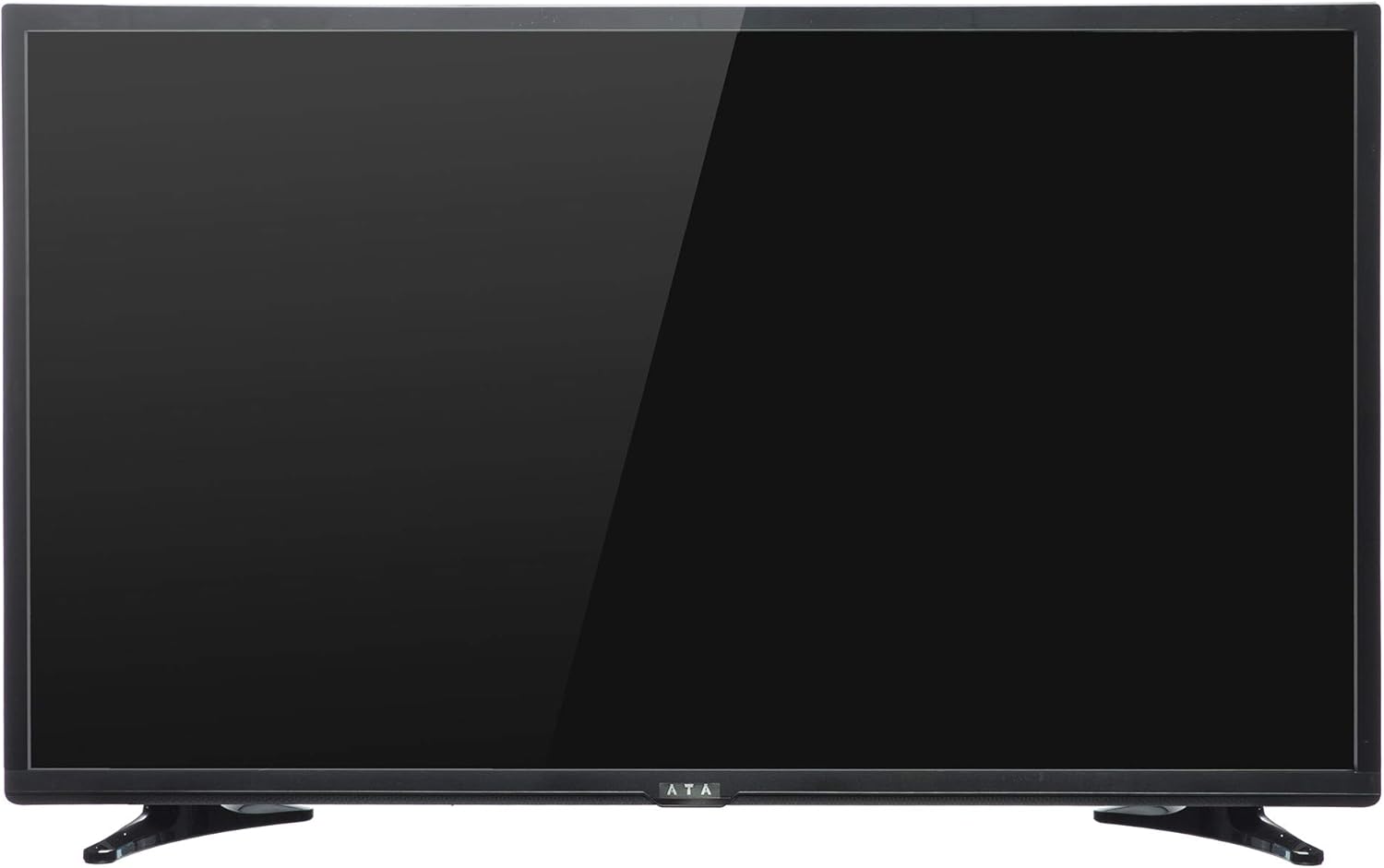
Imaxe 1: Fronte view of the ATA 43 Inch Smart TV. The screen is black, indicating it is powered off or in standby mode. The ATA logo is visible at the bottom center.
The front of the ATA 43S1 TV features a sleek design with a narrow bezel, maximizing the screen area. The ATA brand logo is centrally located at the bottom of the frame. An indicator light (not visible in image) and IR receiver for the remote control are typically located near the logo.
4.2. Traseira View

Imaxe 2: Traseira view of the ATA 43 Inch Smart TV. This image displays the back panel, including VESA mounting holes for wall installation and designated areas for input/output ports.
The rear panel of the TV includes VESA mounting points for wall installation (wall mount bracket sold separately). Various input and output ports are located on the side and bottom sections of the back panel for easy access.
4.3. Portos de entrada/saída
Your ATA Smart TV is equipped with a variety of ports to connect external devices.

Image 3: Close-up of the side-facing ports, showing three HDMI ports (HDMI1, HDMI2, HDMI3) and two USB ports (USB2.0, USB2.0).
- Portos HDMI (x3): For connecting high-definition devices such as Blu-ray players, gaming consoles, and set-top boxes.
- Portos USB (x2): Para conectar dispositivos de almacenamento USB para reproducir contido multimedia files ou para actualizacións de software.

Image 4: Close-up of the bottom-facing ports, including Earphone, RJ45 (Ethernet), PC Audio, PC(VGA), Mini YPbPr, Video, L/R Audio (AV In), and Coaxial.
- Porto RJ45 (Ethernet): Para conexión a internet por cable.
- PC(VGA) Port: Para conectar un ordenador.
- Entrada de audio do PC: Entrada de audio para conexión VGA.
- AV In (Video, L/R Audio): Para conectar dispositivos antigos con saídas de vídeo composto e audio estéreo.
- Mini YPbPr: Entrada de vídeo compoñente.
- Coaxial: Para conectar unha antena ou un cable de televisión.
- Conector para auriculares: Para conectar auriculares.
4.4. Control remoto

Image 5: The remote control for the ATA Smart TV. It features standard TV controls, navigation buttons, and dedicated function keys.
The remote control allows you to operate all functions of your TV. It includes buttons for power, input source selection, volume control, channel navigation, menu access, smart TV functions, and media playback controls.
- STANDBY (Red Button): Encendido / Apagado.
- FONTE: Select input source (HDMI, AV, TV, etc.).
- Botóns numéricos (0-9): Selección directa de canles.
- VOL +/-: Axustar o volume.
- CH +/-: Cambiar canles.
- MUTO: Silenciar/activar o son.
- MENÚ: Accede ao menú principal.
- ENTRAR: Confirmar selección.
- Botóns de navegación (Arriba/Abaixo/Esquerda/Dereita): Navega polos menús.
- SAÍDA: Exit current menu or function.
- INICIO: Access the Smart TV home screen.
- P.MODE / S.MODE: Picture Mode / Sound Mode.
- SUBTITLE / AUDIO / REFRESH: Specific function buttons.
- PLAY/PAUSE, STOP, FF, FB, PREV, NEXT: Controis de reprodución multimedia.
5. Configuración
5.1. Fixación do soporte para TV
- Coloque con coidado o televisor boca abaixo sobre unha superficie suave e limpa para evitar danar a pantalla.
- Aliñe as pezas do soporte coas ranuras correspondentes na parte inferior do televisor.
- Fixe as pezas do soporte cos parafusos proporcionados. Asegúrese de que estean ben apertadas.
- Levante con coidado o televisor e colóqueo sobre unha superficie estable e nivelada.
Alternatively, you can use a VESA-compatible wall mount (not included) to mount the TV on a wall. Refer to the wall mount's instructions for installation.
5.2. Potencia de conexión
Conecta o cable de alimentación á entrada de alimentación do televisor e logo conecta o outro extremo a unha toma de corrente. O televisor entrará no modo de espera.
5.3. Asistente de configuración inicial
The first time you power on the TV, an initial setup wizard will guide you through basic settings.
- Preme o ESTADO DE REPOUSO botón do mando a distancia para acender o televisor.
- Follow the on-screen prompts to select your preferred language, country/region, and time zone.
- Conexión de rede:
- Wi-Fi: Selecciona a túa rede Wi-Fi da lista e introduce o contrasinal.
- Ethernet: If you connected an Ethernet cable to the RJ45 port, the TV should automatically detect the wired connection.
- Complete any remaining steps in the setup wizard, such as channel scanning (if connecting an antenna/cable).
6. Instrucións de funcionamento
6.1. Acendido/apagado
- To turn on the TV from standby, press the ESTADO DE REPOUSO botón do control remoto.
- Para poñer o televisor en modo de espera, prema o ESTADO DE REPOUSO botón de novo.
6.2. Selección da fonte de entrada
To switch between connected devices (e.g., HDMI, AV, TV tuner):
- Preme o FONTE botón do mando a distancia.
- Use the Navigation buttons (Arriba/Abaixo) to highlight the desired input source.
- Preme ENTRAR para confirmar a súa selección.
6.3. Control de volume e canle
- Preme VOL+ para aumentar o volume, VOL - para diminuír o volume.
- Preme CH + to go to the next channel, CH - para ir á canle anterior.
- Use the Number buttons to directly enter a channel number.
- Preme MUTO to temporarily turn off the sound. Press again to restore.
6.4. Funcións da Smart TV (Android 4.4.2)
Your TV runs on Android 4.4.2, providing access to various smart features and applications.
- Preme o FOGAR button on the remote to access the Smart TV home screen.
- From the home screen, you can navigate to pre-installed applications or access settings.
- Ensure your TV is connected to the internet via Wi-Fi or Ethernet to utilize online features.
- Use the Navigation buttons and ENTRAR to select and launch applications.
7. Mantemento
- Limpeza da pantalla: Limpe a pantalla con suavidade cun pano suave e sen pelusa. Para marcas difíciles, d lixeiramenteampEnxágüe o pano con auga ou cun limpador de pantallas especializado (non o pulverice directamente sobre a pantalla).
- Limpeza do armario: Usa un pano suave e seco para limpar o moble do televisor. Non empregues produtos de limpeza abrasivos nin disolventes.
- Desempolvado: Limpe o po regularmente das aberturas de ventilación da parte traseira do televisor para evitar o sobrequecemento.
- Cable de alimentación: Periodically check the power cord for any damage. If damaged, contact service personnel for replacement.
8 Solución de problemas
| Problema | Causa posible | Solución |
|---|---|---|
| Sen poder | Cable de alimentación non conectado; toma de corrente non funciona. | Asegúrate de que o cable de alimentación estea ben conectado. Proba a toma de corrente con outro dispositivo. |
| Sen imaxe, pero hai son | Fonte de entrada incorrecta seleccionada; problema de retroiluminación. | Preme o FONTE button to select the correct input. Check picture settings. |
| Sen son, pero si imaxe | Volume is muted or too low; Audio cables not connected properly. | Preme MUTO or increase volume. Check audio cable connections. |
| O control remoto non funciona | As pilas están gastadas ou inseridas incorrectamente; Obstrución entre o mando a distancia e o televisor. | Replace batteries. Ensure line of sight to the TV's IR receiver. |
| Non se pode conectar á wifi | Contrasinal incorrecto; Problema co enrutador; TV demasiado lonxe do enrutador. | Verify Wi-Fi password. Restart router. Move TV closer or use Ethernet. |
9. Especificacións
| Característica | Detalle |
|---|---|
| Marca | ATA |
| Número de modelo | 43S1 (ATA43FOS) |
| Tamaño da pantalla | 43 polgadas |
| Tipo de visualización | LED FHD |
| Resolución | 1920 x 1080 (Full HD) |
| Taxa de actualización | 60 Hz |
| Sistema Operativo | Android 4.4.2 |
| Tecnoloxía de conectividade | HDMI (x3), USB (x2), VGA, Ethernet (RJ45) |
| Características especiais | Smart TV functionality, Flat Screen |
| Dimensións do produto (P x A x A) | 9 x 96.5 x 56 cm |
| Peso do elemento | 6.01 kg |
| Compoñentes incluídos | TV, soporte |
10. Garantía e soporte
For warranty information, please refer to the warranty card included with your product or contact your local ATA authorized dealer or service center. Keep your purchase receipt as proof of purchase for warranty claims.
For technical support or service inquiries, please contact ATA customer service through their official websitio web ou a información de contacto proporcionada na documentación do produto.