
1. Introdución
Thank you for choosing the DELTACO GAMING GAM-106 Wired Gaming Mouse. This manual provides essential information for setting up, operating, maintaining, and troubleshooting your new gaming mouse. Please read this manual carefully before use to ensure optimal performance and longevity of your device.
2. Produto rematadoview
The DELTACO GAMING GAM-106 is a high-performance wired gaming mouse designed for precision and comfort. It features an ergonomic design, a lightweight honeycomb shell, and an optical sensor for accurate tracking.
2.1 Contido do paquete
- DELTACO GAMING GAM-106 Wired Gaming Mouse
- Manual de usuario (este documento)
2.2 Mouse Features and Components
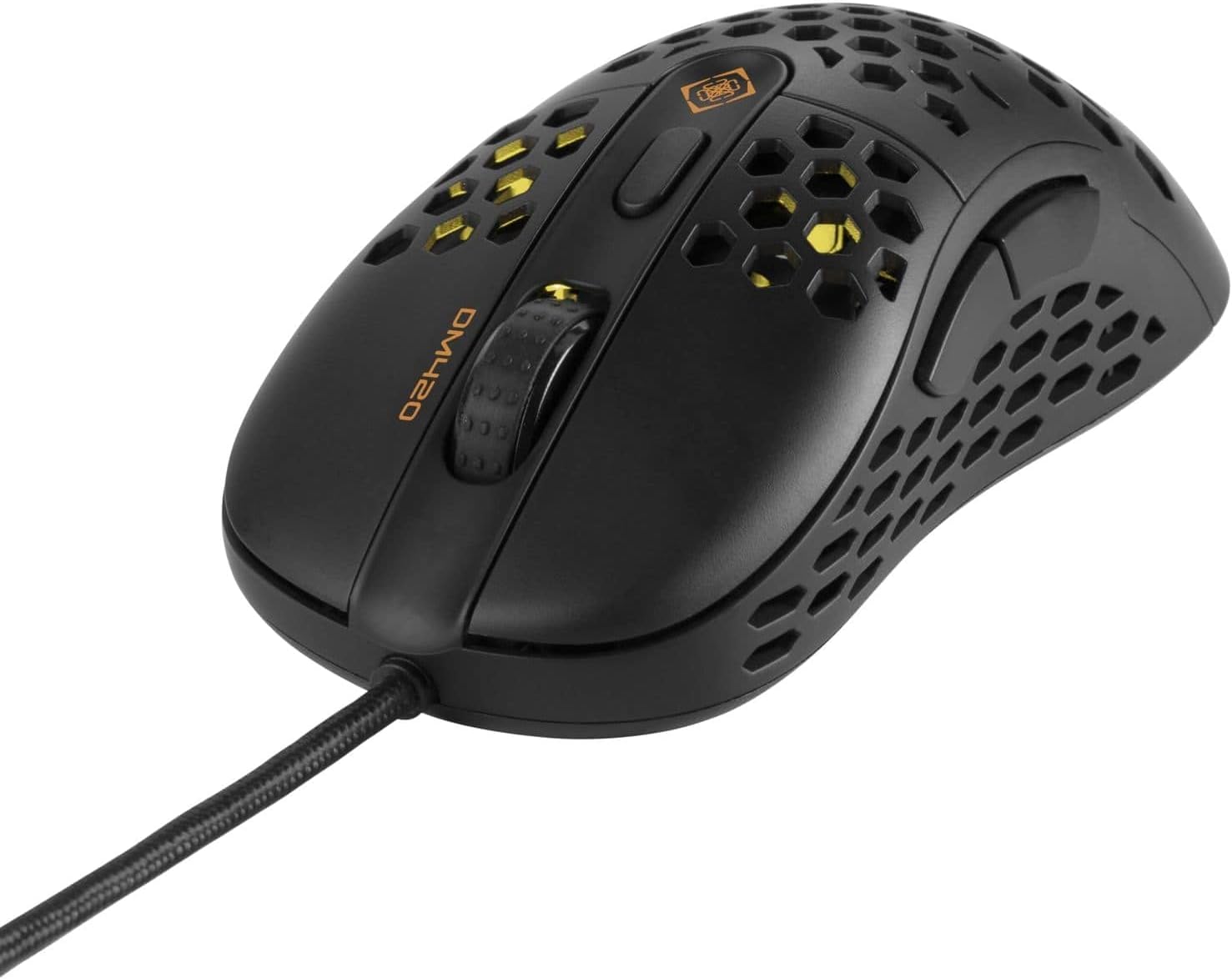
Figura 2.2.1: Parte superior frontal view of the DELTACO GAMING GAM-106 mouse, showcasing its honeycomb design and wired connection.

Figura 2.2.2: Arriba view of the mouse, highlighting the left and right click buttons, scroll wheel, and DPI adjustment button.

Figura 2.2.3: Lado view of the mouse, showing the ergonomic contour and the two programmable side buttons.

Figura 2.2.4: Parte traseira superior view of the mouse, illustrating the internal lighting visible through the honeycomb shell.
- Botón esquerdo para premer: Botón principal estándar do rato.
- Botón dereito do rato: Botón secundario estándar do rato.
- Roda de desprazamento: For vertical scrolling and can also function as a middle click button.
- Botón de axuste de DPI: Cycles through different DPI (Dots Per Inch) sensitivity settings.
- Botón de avance: Default function for navigating forward in web navegadores ou file exploradores.
- Botón de retroceso: Default function for navigating backward in web navegadores ou file exploradores.
- Sensor óptico: Located on the underside, provides precise tracking.
- Cable USB: Connects the mouse to your computer.
3. Configuración
Setting up your DELTACO GAMING GAM-106 mouse is a simple plug-and-play process.
- Conecta o rato: Locate an available USB port on your computer. Insert the USB connector of the GAM-106 mouse firmly into the USB port.
- Instalación de controladores: Your operating system (Windows, macOS, Linux) will automatically detect and install the necessary drivers for the mouse. This process usually takes a few seconds. No additional software installation is typically required for basic functionality.
- Listo para usar: Unha vez instalados os controladores, o rato estará listo para o seu uso inmediato.
4. Instrucións de funcionamento
4.1 Funcionamento básico
- Movemento: Move the mouse across a flat surface to control the cursor on your screen.
- Premendo: Use the left and right click buttons for primary and secondary actions, respectively.
- Desprazamento: Rotate the scroll wheel up or down to scroll through documents or web pages. Press the scroll wheel for a middle-click action.
4.2 Axuste de DPI
The GAM-106 mouse features a dedicated DPI adjustment button (usually located behind the scroll wheel) that allows you to change the mouse's sensitivity on the fly. Pressing this button will cycle through predefined DPI settings, indicated by a change in the mouse's LED lighting color or pattern. Higher DPI settings result in faster cursor movement for the same physical mouse movement, which is often preferred for gaming, while lower DPI settings offer more precise control for tasks like graphic design.
4.3 Botóns laterais
The two side buttons (Forward and Backward) are pre-programmed for navigation in web navegadores e file explorers. In many games and applications, these buttons can be customized to perform specific actions or macros through in-game settings or third-party software (if supported by the application).
5. Mantemento
Proper maintenance will help extend the life of your DELTACO GAMING GAM-106 mouse.
- Limpeza: Regularly clean the mouse to prevent dust and debris buildup. Use a soft, dry, lint-free cloth to wipe the surface. For stubborn dirt, slightly dampEnxágüe o pano con auga ou unha solución de limpeza suave. Evite o uso de produtos químicos agresivos ou materiais abrasivos.
- Limpeza de sensores: Occasionally inspect the optical sensor on the underside of the mouse. If dust or lint accumulates, gently clean it with a cotton swab or compressed air.
- Coidado do cable: Avoid sharp bends or kinks in the USB cable. Do not pull the mouse by its cable.
- Almacenamento: Cando non o use, garde o rato nun ambiente limpo e seco, lonxe de temperaturas extremas e da luz solar directa.
6 Solución de problemas
If you encounter issues with your DELTACO GAMING GAM-106 mouse, try the following troubleshooting steps:
6.1 O rato non responde
- Comprobar a conexión USB: Ensure the USB cable is securely plugged into a working USB port on your computer. Try plugging it into a different USB port.
- Reiniciar o ordenador: Ás veces, un simple reinicio do ordenador pode resolver os problemas de conectividade.
- Proba noutro ordenador: If possible, test the mouse on another computer to determine if the issue is with the mouse or your computer's setup.
6.2 Movemento errático do cursor
- Sensor limpo: O po ou os residuos no sensor óptico poden provocar movementos erráticos. Limpe o sensor como se describe na sección Mantemento.
- Superficie de comprobación: Ensure you are using the mouse on a clean, non-reflective, and uniform surface. Mouse pads are recommended for optimal tracking.
- Interferencia: While less common for wired mice, ensure no strong electromagnetic interference sources are near the mouse.
6.3 Os botóns ou a roda de desprazamento non funcionan
- Comprobar obstáculos físicos: Asegúrate de que non haxa residuos atascados arredor dos botóns ou da roda de desprazamento.
- Conflito de software: If you have installed any third-party mouse customization software, try temporarily disabling it to see if it resolves the issue.
7. Especificacións
| Característica | Especificación |
|---|---|
| Número de modelo | GAM-106 |
| Tecnoloxía de conectividade | USB (con cable) |
| Tecnoloxía de detección de movemento | Óptica |
| Cor | Negro |
| Característica especial | Deseño Ergonómico |
| Dimensións do produto | 12.5 x 6.5 x 0.25 cm |
| Peso | 65 gramos |
8. Garantía e soporte
DELTACO GAMING products are built to high-quality standards. For information regarding warranty terms and conditions, please refer to the warranty card included with your purchase or visit the official DELTACO GAMING website. For technical support or further assistance, please contact DELTACO GAMING customer service through their official channels.
Official DELTACO GAMING Store: Visitar a tenda