
Introdución
This manual provides detailed instructions for the LOFREE Wireless Mechanical Bluetooth Keyboard. It covers setup, operation, maintenance, troubleshooting, and product specifications to ensure optimal use of your device.
This video demonstrates the LOFREE Retro Keyboard in various usage scenarios, highlighting its design and functionality.
Configuración
Cargando o teclado
The keyboard is equipped with a rechargeable battery. Connect the provided USB cable to the Micro USB port on the keyboard and the other end to a power source (e.g., computer USB port, USB wall adapter).

Lado view of the LOFREE keyboard, highlighting the Micro USB charging port and mode switches.
Initial Pairing (Bluetooth)
To pair the keyboard via Bluetooth, ensure the keyboard is charged.
- Locate the Bluetooth switch on the side of the keyboard and slide it to the "ON" position.
- No teu dispositivo (ordenador, tableta, teléfono intelixente), activa o Bluetooth e busca os dispositivos dispoñibles.
- Select "LOFREE Keyboard" from the list of devices to complete the pairing process.
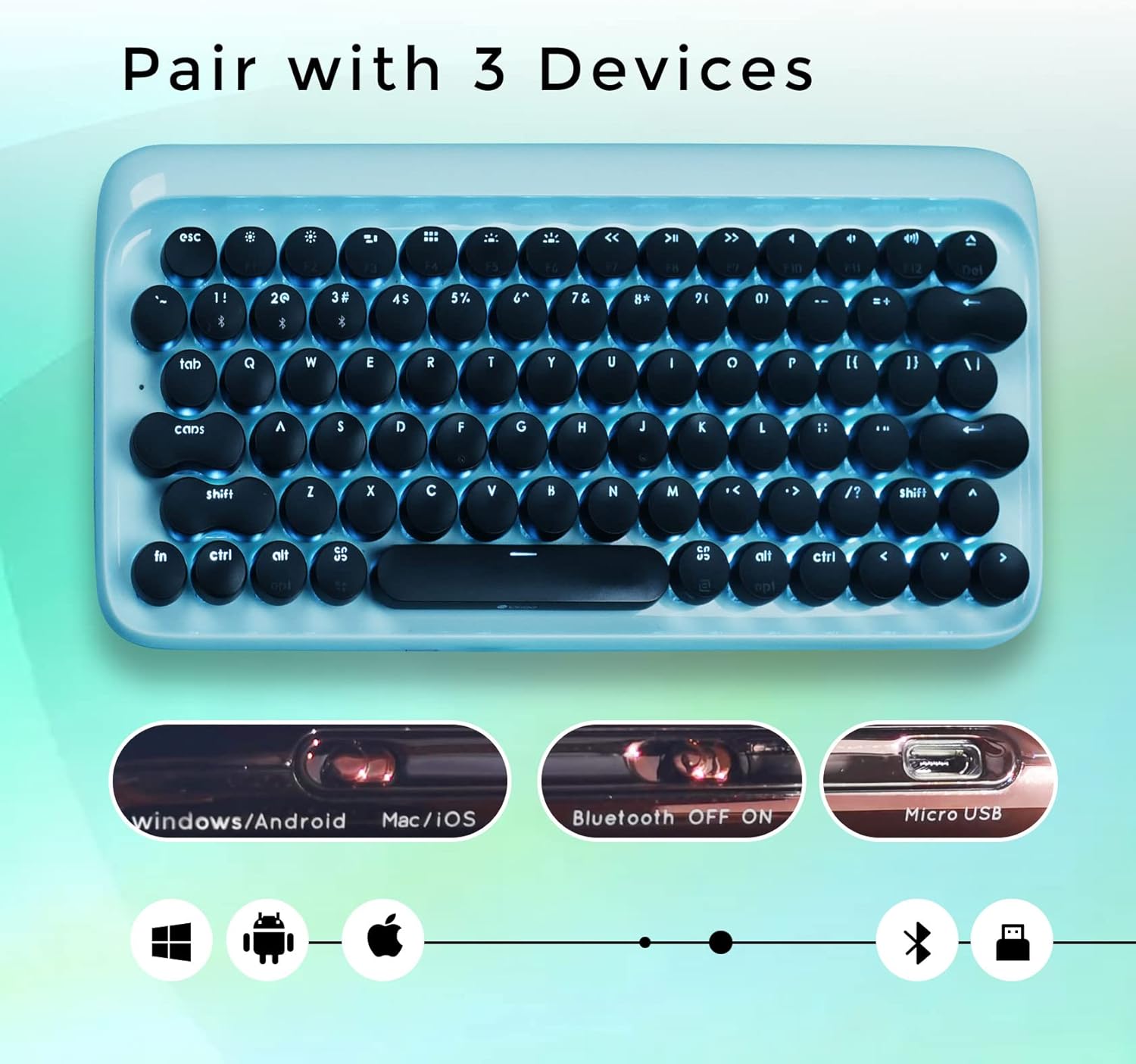
Arriba abaixo view of the LOFREE keyboard illustrating its ability to pair with up to three devices and showing the Bluetooth ON/OFF switch.
Instrucións de funcionamento
Cambio entre dispositivos
The LOFREE keyboard can connect to up to 3 different devices simultaneously. Use the quick switch on the keyboard to toggle between connected devices.
Conexión por cable
For a wired connection, connect the USB cable directly from the keyboard to your computer. The keyboard will automatically switch to USB mode.

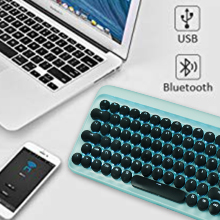
An image showing the keyboard connected via USB and Bluetooth, indicating dual connectivity options.
Axuste da luz de fondo
The keyboard features adjustable white LED backlighting with 4 brightness levels. To adjust the brightness or turn off the backlight, use the dedicated function keys. Refer to the key layout for specific controls.

Primeiro plano view of the LOFREE keyboard highlighting the four adjustable backlight brightness levels.
Modo de suspensión automática
To conserve battery life, the keyboard automatically enters sleep mode after 10 minutes of inactivity. Press any key to wake it up.
An illustration depicting the keyboard's auto-sleep mode feature for battery conservation.
Compatibilidade do sistema operativo
The keyboard is compatible with Windows, Android, Mac, and iOS operating systems. Use the OS switch on the side of the keyboard to select the appropriate mode.

An image illustrating the LOFREE keyboard's compatibility with Windows, Apple (Mac/iOS), and Android operating systems.
Mantemento
Limpeza
To clean the keyboard, power it off and disconnect any cables. Use a soft, dry cloth to wipe the surface. For stubborn dirt, a slightly damp cloth can be used, ensuring no moisture enters the key switches or internal components. Avoid using harsh chemicals or abrasive materials.
Eliminación de teclas
The keycaps are designed to be removable for cleaning or replacement. Gently pull the keycap upwards to remove it. Exercise caution to avoid damaging the switch mechanism.
Resolución de problemas
O teclado non se conecta
Problemas de conexión Bluetooth
- Ensure Bluetooth is enabled on both the keyboard and your device.
- Check if the keyboard is in pairing mode.
- Tenta desvincular e volver vincular o teclado co teu dispositivo.
- Verify the keyboard battery level.
Wired Connection Issues
- Asegúrate de que o cable USB estea conectado correctamente tanto ao teclado como ao ordenador.
- Proba cun porto ou cable USB diferente.
A luz de fondo non funciona
- Check the battery level. Low battery can affect backlight functionality.
- Ensure the backlight is not turned off or set to the lowest brightness level.
As chaves non responden
- Recarga o teclado.
- If using Bluetooth, try switching to wired mode to rule out connection issues.
- If a specific key is not responding, gently remove the keycap and check for any obstructions.
Especificacións
Xeral
- Marca: LOFREE
- Modelo: B093GR97N3
- Conectividade: Bluetooth, USB
- Interruptores de chave: Interruptores mecánicos azuis
- Teclas: Retro Round Keycaps
- Retroiluminación: Adjustable White LED
- Compatibilidade: Windows, Android, Mac, iOS
- Batería: 2 baterías de iones de litio (incluídas)
- Peso do artigo: 2.74 libras
- Dimensións do paquete: 14.37 x 6.61 x 1.85 polgadas

The LOFREE Wireless Mechanical Bluetooth Keyboard, showcasing its retro design and round keycaps.
Interruptores de teclas
The keyboard features Gateron Blue Mechanical Switches, known for their tactile bump and audible click, providing a satisfying typing experience reminiscent of vintage typewriters.

Un detallado view of the Gateron Blue Mechanical Switches, known for their tactile and clicky feedback.
Garantía e Soporte
Información da garantía
All LOFREE products come with a 12-month warranty from the date of purchase.
Atención ao cliente
For any questions, technical assistance, or support needs, please feel free to contact LOFREE customer service via email. We aim to respond to all inquiries within 24 hours.
For more information and additional products, visit the LOFREE Store.