
HP EliteDesk 800 G4 SFF
HP EliteDesk 800 G4 SFF Business PC Desktop Computer User Manual
Modelo: EliteDesk 800 G4 SFF
Introdución
This manual provides detailed instructions for the setup, operation, maintenance, and troubleshooting of your HP EliteDesk 800 G4 SFF Business PC Desktop Computer. This compact and powerful system is designed for business environments, featuring an Intel Hexa-Core i5-8500 processor, 16GB DDR4 RAM, and a 256GB NVMe SSD, running on Windows 11 Pro.
O que hai na caixa
Upon unpacking your HP EliteDesk 800 G4 SFF, please verify that all the following items are included:
- HP EliteDesk 800 G4 SFF Desktop Computer
- Teclado
- Rato
- Cable de alimentación
- Cable DisplayPort (DP)
Produto rematadoview
Familiarize yourself with the physical components and ports of your HP EliteDesk 800 G4 SFF.
Panel frontal

Imaxe: Fronte view of the HP EliteDesk 800 G4 SFF. This image displays the front panel of the desktop computer, highlighting the accessible ports and the power button for user interaction.
The front panel provides convenient access to frequently used ports and controls:
- Botón de encendido: Used to turn the computer on or off.
- Porto USB tipo C: For connecting modern USB-C devices.
- Portos USB 3.1: High-speed USB ports for data transfer.
- Portos USB 2.0: Portos USB estándar para periféricos.
- Jack para auriculares: Para conectar auriculares ou altofalantes externos.
- Lector de tarxetas SD: Para ler datos de tarxetas de memoria SD.
Panel traseiro
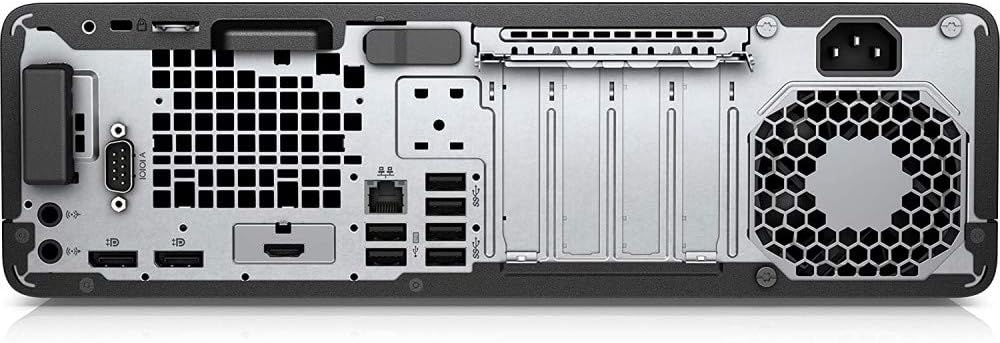
Imaxe: Traseira view of the HP EliteDesk 800 G4 SFF. This image shows the back of the desktop computer, detailing the array of input/output ports for connectivity and the ventilation grille.
The rear panel houses the primary connectivity options:
- DisplayPort (DP) Outputs: For connecting monitors.
- Porto Ethernet RJ-45: Para conexión de rede por cable.
- Portos USB 3.1: Portos USB adicionais de alta velocidade.
- Portos USB 2.0: Additional standard USB ports.
- Audio Input/Output Jacks: For connecting microphones, speakers, or other audio devices.
- Toma de alimentación: Para conectar o cable de alimentación.
Configuración
Follow these steps to set up your HP EliteDesk 800 G4 SFF for the first time.
- Unpack the Computer: Carefully remove the computer and all accessories from the packaging. Place the computer on a stable, flat surface with adequate ventilation.
- Conectar periféricos:
- Connect the keyboard and mouse to the available USB ports on the front or rear panel.
- Connect your monitor(s) to the DisplayPort outputs on the rear panel using the provided DP cable.
- Conectar á rede (opcional):
- For a wired connection, connect an Ethernet cable from your router or modem to the RJ-45 port on the rear panel.
- For wireless connectivity, ensure your system has a wireless adapter (included) and you will configure it during Windows setup.
- Conectar enerxía: Connect the power cable to the power jack on the rear panel of the computer, then plug the other end into a grounded electrical outlet.
- First Boot and Windows Setup: Press the power button on the front panel. The computer will power on, and you will be guided through the initial Windows 11 Pro setup process. Follow the on-screen instructions to configure your operating system settings, network, and user accounts.
En funcionamento
This section covers basic operational aspects of your HP EliteDesk 800 G4 SFF.
- Encendido/apagado: Press the power button on the front panel to turn the computer on. To turn it off, click the Start button in Windows, then select Power > Shut down. Avoid unplugging the computer directly without proper shutdown to prevent data loss.
- Conexión á rede: If you did not connect an Ethernet cable during setup, you can connect to a wireless network via Windows settings. Go to Configuración > Rede e internet > Wi-Fi, then select your network and enter the password.
- Usando portos USB: The USB ports (Type-C, 3.1, 2.0) on both the front and rear panels can be used to connect various peripherals such as external hard drives, USB flash drives, printers, and weblevas.
- Saída de visualización: The DisplayPort outputs support high-resolution monitors, including 4K (3840x2160). Ensure your monitor is connected to one of these ports for optimal display quality.
- Conexións de audio: Use the headphone jack on the front for personal audio. The rear audio input/output jacks can be used for external speakers, microphones, or line-in devices.
Mantemento
Regular maintenance helps ensure the longevity and optimal performance of your HP EliteDesk 800 G4 SFF.
- Limpeza: Regularly clean the exterior of the computer with a soft, dry, lint-free cloth. Use compressed air to clear dust from ventilation grilles and ports. Ensure the computer is powered off and unplugged before cleaning.
- Actualizacións de software: Keep your Windows operating system and drivers updated. Windows Update can be accessed via Configuración > Actualización de Windows. Regularly check for driver updates from the HP support websitio.
- Copia de seguridade de datos: Periodically back up your important data to an external drive or cloud storage to prevent data loss in case of system failure.
- Ventilación: Ensure the computer's ventilation openings are not obstructed. Proper airflow is crucial to prevent overheating and maintain system stability.
Resolución de problemas
Esta sección ofrece solucións a problemas comúns cos que podes atoparte.
| Problema | Causa posible | Solución |
|---|---|---|
| O ordenador non se acende. | Power cable loose; Power outlet issue; Internal component failure. | Check power cable connection at both ends. Try a different power outlet. Ensure power button is fully pressed. |
| Sen visualización no monitor. | Monitor cable loose; Incorrect input selected on monitor; Monitor not powered on. | Ensure DisplayPort cable is securely connected to both computer and monitor. Check monitor's power and input source settings. Try a different monitor or cable if available. |
| System runs slowly. | Too many programs running; Low disk space; Malware; Outdated drivers. | Close unnecessary applications. Free up disk space. Run a full system scan for malware. Update drivers and Windows. |
| Sen conexión a internet. | Ethernet cable disconnected; Wi-Fi off; Router issue; Driver issue. | Check Ethernet cable connection. Ensure Wi-Fi is enabled in Windows settings. Restart router/modem. Update network drivers. |
Especificacións
Key technical specifications for the HP EliteDesk 800 G4 SFF.
| Característica | Detalle |
|---|---|
| Procesador | Intel Hexa-Core i5-8500 (3.0 GHz base, up to 4.1 GHz) |
| Sistema Operativo | Windows 11 Pro 64 Bit |
| RAM | 16 GB DDR4 |
| Almacenamento | SSD NVMe de 256 GB |
| Gráficos | Gráficos Intel integrados |
| Resolución máxima de pantalla | 3840 x 2160 |
| Portos (frontais) | USB Type-C, USB 3.1, USB 2.0, Headphone Jack, Card Reader |
| Portos (traseiros) | DisplayPort, USB 3.1, USB 2.0, RJ-45, Audio In/Out |
| Tipo sen fíos | 5 GHz Radio Frequency (Wireless technology included) |
| Dimensións (LxWxH) | 15.3 x 12.1 x 3.9 polgadas |
| Peso do elemento | 13.51 libras |
Garantía e Soporte
As a renewed product, this HP EliteDesk 800 G4 SFF comes with a 90-day return policy for refund or replacement. For any issues or support inquiries, please contact the seller directly. Additionally, protection plans are available for purchase to extend coverage beyond the initial return period.
For further assistance, refer to the official HP support website for general product documentation and driver downloads related to the EliteDesk 800 G4 series.
Ask a question about this manual
Ask about setup, troubleshooting, compatibility, parts, safety, or missing instructions. Manuals+ will review the question and use this page’s manual context to help answer it.