
1. Introdución
Thank you for choosing the IMICE X6 Wired USB Gaming Mouse. This manual provides essential information for setting up, operating, and maintaining your new gaming mouse. Please read it carefully to ensure optimal performance and longevity of your device.
2. Información de seguridade
- Manteña o dispositivo lonxe de líquidos e humidade excesiva.
- Evita temperaturas extremas.
- Do not attempt to disassemble or modify the mouse. This may void your warranty and cause damage.
- Use un pano suave e seco para a limpeza.
3. Contido do paquete
O paquete debe conter os seguintes elementos:
- IMICE X6 Wired USB Gaming Mouse
- Manual de usuario (este documento)
4. Produto rematadoview
The IMICE X6 gaming mouse features an ergonomic design with multiple programmable buttons and adjustable DPI settings for a customized gaming experience.
4.1 Button Functions and Working Modes
The mouse supports two working modes: Normal mode and Multimedia mode. You can switch between these modes by long-pressing the DPI button for more than 5 seconds.
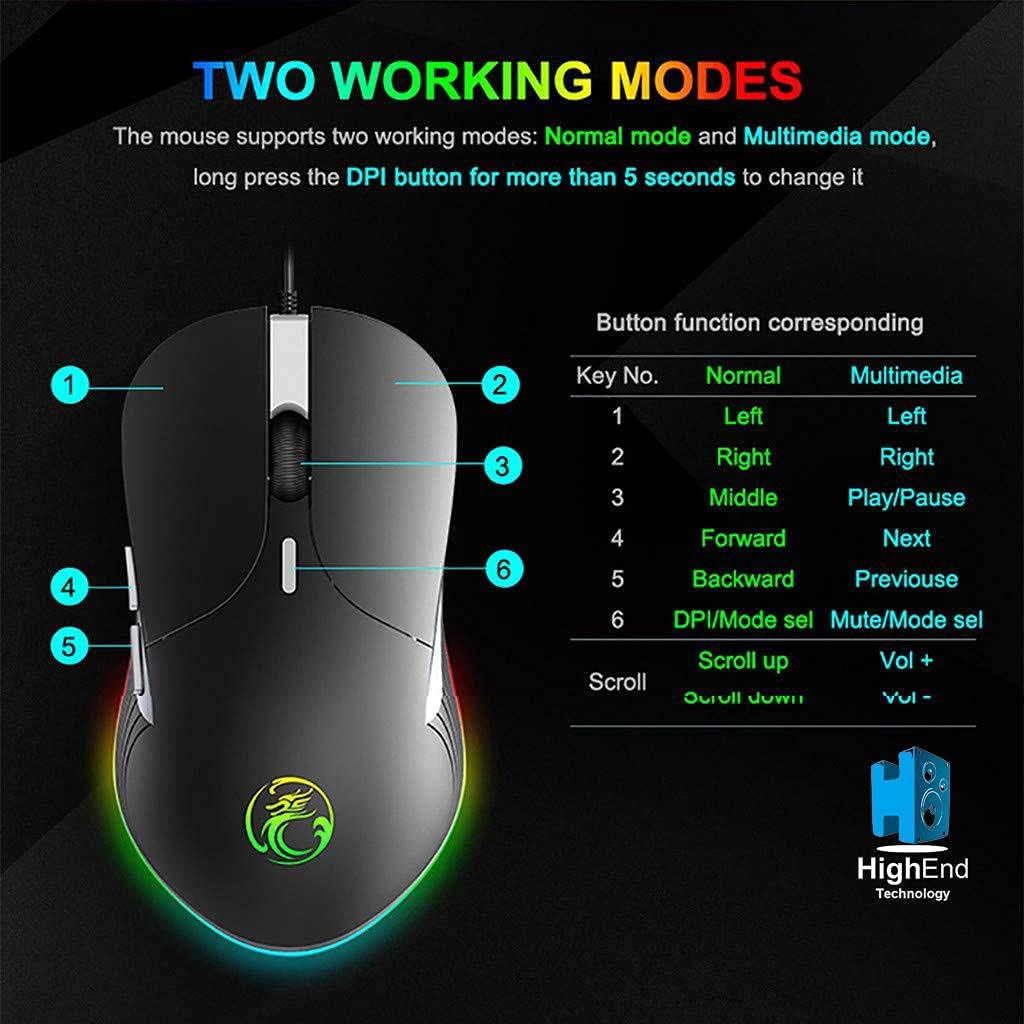
Imaxe 4.1: Button layout and function table for IMICE X6 mouse. The image displays the mouse from a top-down perspective, highlighting six numbered buttons. A table next to it lists the default functions for each button in 'Normal' mode (Left, Right, Middle, Forward, Backward, DPI/Mode select) and 'Multimedia' mode (Left, Right, Play/Pause, Next, Previous, Mute/Mode select). The scroll wheel also has functions for 'Scroll up' (Vol +) and 'Scroll down' (Vol -).
4.2 Compoñentes do rato
Familiarize yourself with the main components of your IMICE X6 mouse.

Imaxe 4.2: Labeled components of the IMICE X6 mouse. This image shows a side-angle view of the mouse, pointing out the 'Right click' button, 'Scroll' wheel, 'DPI switch', 'Left click' button, 'Forward' button, and 'Backward' button. The text also mentions that software can be used to implement functions like lighting and button functions, utilizing a built-in memory chip.
5. Configuración
Setting up your IMICE X6 mouse is a simple plug-and-play process.
- Conecte o cable USB: Plug the USB connector of the mouse into an available USB port on your computer or laptop.
- Instalación de controladores: Your operating system (Windows, macOS, Linux) should automatically detect and install the necessary drivers. No additional software installation is typically required for basic functionality.
- Funcionalidade de proba: Once connected, move the mouse and click the buttons to ensure it is working correctly.
6. Instrucións de funcionamento
6.1 Funcionamento básico
- Clic esquerdo: Primary button for selecting items, activating functions.
- Clic dereito: Secondary button for context menus and special functions.
- Roda de desprazamento: Desprácese cara arriba ou cara abaixo polos documentos e web páxinas. Tamén se pode premer para a funcionalidade de clic central.
- Botóns de avance/retroceso: Navega web pages or folders (default function).
6.2 Axustar a sensibilidade dos DPI
The IMICE X6 mouse features 6 adjustable DPI levels, allowing you to change cursor speed and precision on the fly. The DPI button is typically located behind the scroll wheel.
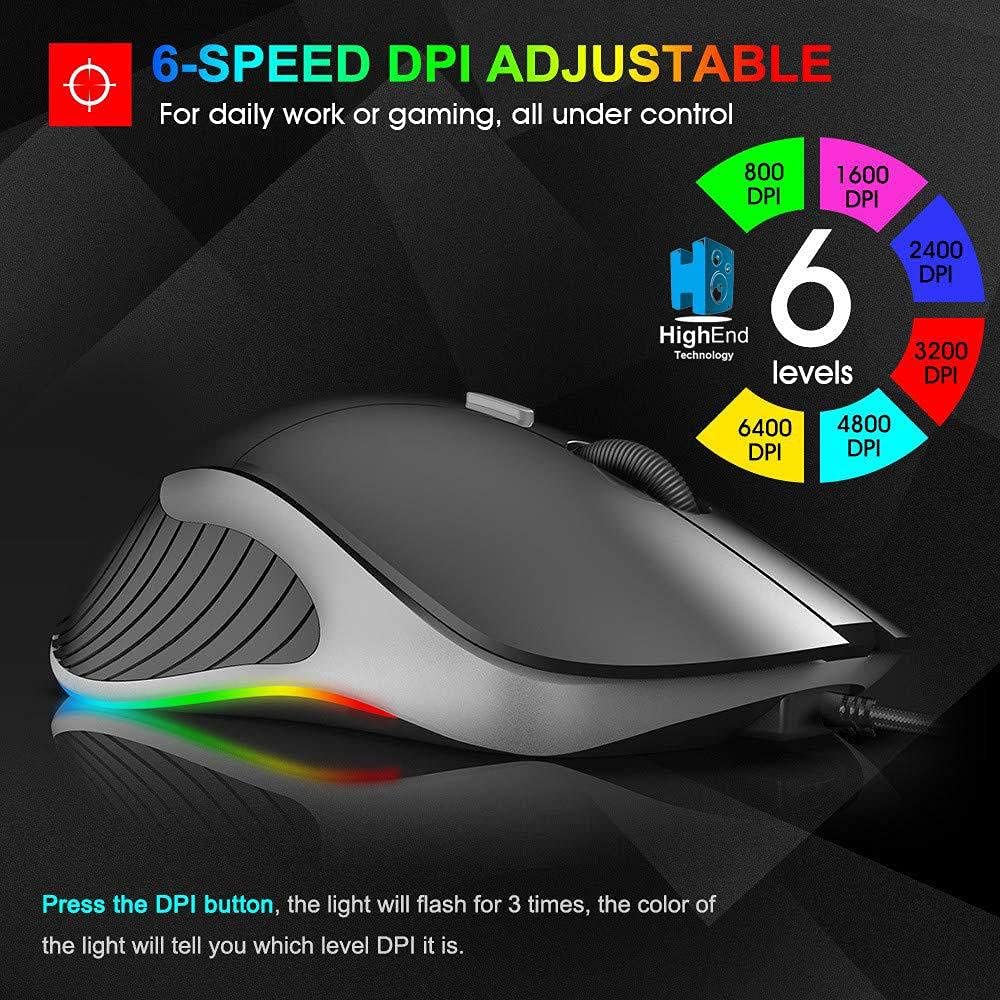
Imaxe 6.1: 6-Speed DPI Adjustment. This image shows the mouse from a side-top view, with six colored circles indicating DPI levels: 800, 1600, 2400, 3200, 4800, and 6400 DPI. The text explains that pressing the DPI button will make the light flash 3 times, and the color of the light indicates the current DPI level.
Para cambiar os DPI:
- Preme o Botón DPI (Button 6 in Image 4.1).
- The mouse's LED lighting will flash 3 times, and the color will indicate the current DPI level.
- Continue pressing the DPI button to cycle through the available DPI settings: 800, 1600, 2400, 3200, 4800, and 6400 DPI.
6.3 Switching Working Modes
As mentioned in Section 4.1, the mouse has two working modes:
- Modo normal: Standard mouse functions for general use and gaming.
- Modo multimedia: Buttons are remapped for media control (e.g., Play/Pause, Next, Previous, Volume).
To switch modes, long-press the DPI button for more than 5 seconds. The mouse will indicate the mode change, typically through a change in LED behavior.
7. Mantemento
Proper maintenance ensures the longevity and performance of your mouse.
- Limpeza: Use a soft, lint-free cloth to wipe the surface of the mouse. For stubborn dirt, slightly dampEnxágüe o pano con auga. Evite produtos químicos agresivos ou materiais abrasivos.
- Mantemento do sensor: Manteña o sensor óptico da parte inferior do rato limpo e libre de po ou residuos para garantir un seguimento preciso.
- Coidado do cable: Evite dobrar bruscamente ou tirar demasiado do cable USB para evitar danos.
8 Solución de problemas
If you encounter issues with your IMICE X6 mouse, try the following solutions:
| Problema | Solución |
|---|---|
| O rato non responde |
|
| O movemento do cursor é errático ou brusco |
|
| DPI setting not changing |
|
9. Especificacións
Key technical specifications for the IMICE X6 Gaming Mouse:
- Marca: IMICE
- Modelo: X6
- Cor: Negro
- Tecnoloxía de conectividade: USB (con cable)
- Detección de movemento: Óptica
- Maximum Mouse Sensitivity (DPI): 6400 DPI
- Niveis de DPI axustables: 800, 1600, 2400, 3200, 4800, 6400 ppp
- Número de botóns: 5
- Orientación das mans: Ambidiestro
- Uso recomendado: Xogos
- Dispositivos compatibles: PC, Laptop
- Fonte de enerxía: Plug-in Electric (USB powered)
- Pilas necesarias: Non
10. Garantía e soporte
Your IMICE X6 Gaming Mouse comes with a standard manufacturer's warranty. Please refer to the warranty card included with your purchase or contact your retailer for specific warranty terms and conditions.
For technical support or further assistance, please contact the vendor or visit the official IMICE support websitio (se está dispoñible).