
MageGee Typewriter Mechanical Gaming Keyboard
MageGee Typewriter Mechanical Gaming Keyboard User Manual
Model: Typewriter Mechanical Gaming Keyboard
Introdución
This manual provides instructions for the MageGee Typewriter Mechanical Gaming Keyboard. It covers setup, operation, maintenance, and troubleshooting to ensure optimal performance and longevity of your device. Please read this manual thoroughly before using the keyboard.
Contido do paquete
- MageGee Typewriter Mechanical Gaming Keyboard
- Reposamuñecas magnética
- Cable USB
- Manual de usuario (este documento)
Configuración
1. Conectando o teclado
- Localiza o cable USB que vén co teclado.
- Connect the USB Type-A end of the cable to an available USB port on your computer (PC, Laptop, or Mac).
- Conecta o outro extremo do cable USB ao porto do teclado.
- The keyboard is plug-and-play; no additional drivers or software are required for basic functionality. Your operating system should automatically detect and configure the device.
2. Colocación do repousa-pulsos
If your model includes a magnetic wrist rest, align it with the front edge of the keyboard. The magnets will help secure it in place, providing ergonomic support during use.
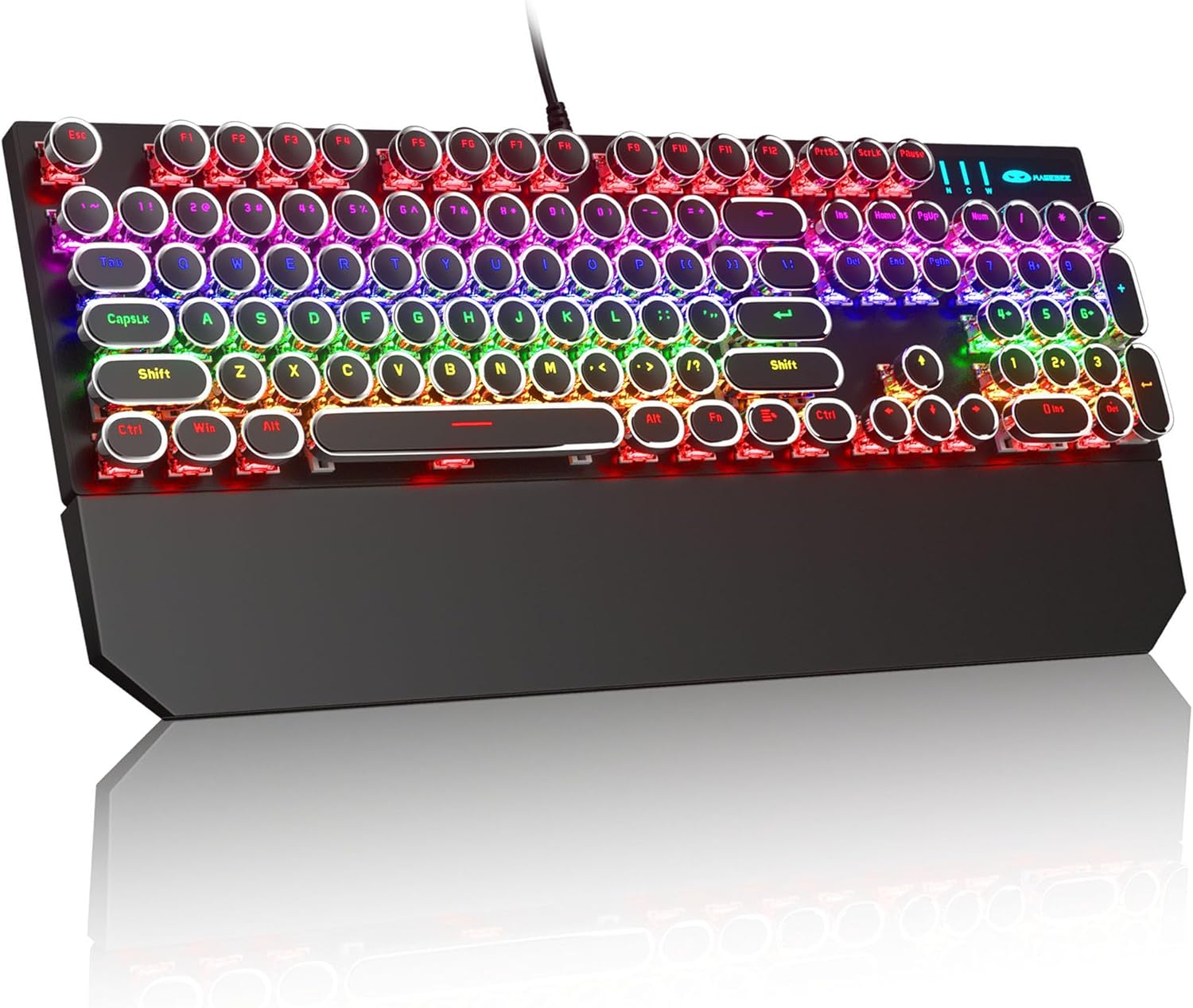
Image: The MageGee Typewriter Mechanical Gaming Keyboard connected via USB, with its magnetic wrist rest attached. The keyboard features retro round keycaps and vibrant RGB backlighting.
Instrucións de funcionamento
Disposición do teclado
The MageGee Typewriter Mechanical Gaming Keyboard features a full-size 104-key layout, including a numeric keypad and dedicated function keys (F1-F12).

Imaxe: Unha vista superior view of the keyboard, highlighting the full 104-key layout and the LED backlighting effect.
Control de retroiluminación
The keyboard features multiple RGB rainbow backlit modes. Use the following key combinations to adjust the lighting effects:
- Fn + Ins: Cycle through various backlight modes.
- Fn + Inicio: Adjust backlight brightness.
- Fn + PgAp: Aumentar a velocidade da retroiluminación.
- Fn + PgDn: Reducir a velocidade da retroiluminación.
- Fn + Supr: Change backlight color (if applicable to the current mode).
- Fn + Fin: Activar/desactivar a retroiluminación.

Imaxe: Primeiro plano view of the keyboard's keys, illustrating the RGB backlighting and the visible blue mechanical switches beneath the round keycaps.
Teclas multimedia e de función
The F1-F12 keys can be used in conjunction with the Fn key to access multimedia and system functions. Specific functions may vary slightly depending on your operating system.
| Combinación de teclas | Función |
|---|---|
| Fn + F1 | Reproductor multimedia |
| Fn + F2 | Baixar o volume |
| Fn + F3 | Subir volume |
| Fn + F4 | Silenciar |
| Fn + F5 | Pare |
| Fn + F6 | Pista anterior |
| Fn + F7 | Reproducir/Pausa |
| Fn + F8 | Próxima pista |
| Fn + F9 | Correo electrónico |
| Fn + F10 | Web Navegador |
| Fn + F11 | O meu ordenador |
| Fn + F12 | Calculadora |
Mantemento
Limpeza do teclado
- Desconecte o teclado do ordenador antes de limpalo.
- Use un pano suave e sen pelusa lixeiramente dampEnxágüe con auga ou unha solución de limpeza suave para limpar as teclas e a superficie do teclado.
- Para o po e os residuos entre as teclas, use aire comprimido.
- Evita usar produtos químicos agresivos, produtos de limpeza abrasivos ou pulverizar líquidos directamente sobre o teclado.
Atención Xeral
- Evite expoñer o teclado a temperaturas extremas, humidade ou luz solar directa.
- Do not drop the keyboard or subject it to strong impacts.
- Keep liquids away from the keyboard to prevent damage.
Resolución de problemas
O teclado non responde
- Asegúrate de que o cable USB estea conectado correctamente tanto ao teclado como ao ordenador.
- Tenta conectar o teclado a un porto USB diferente do teu ordenador.
- Proba o teclado noutro ordenador para descartar un problema específico do ordenador.
- Reinicia o teu ordenador.
Backlight Not Working or Incorrect
- Ensure the backlight is not turned off (Fn + End).
- Adjust backlight brightness (Fn + Home).
- Cycle through different backlight modes (Fn + Ins) to see if the issue persists across all modes.
As teclas non se rexistran ou escriben dúas veces
- Limpa a(s) tecla(s) afectada(s) con aire comprimido para eliminar calquera residuo.
- If the issue persists, it may indicate a hardware fault. Contact customer support for assistance.
Especificacións
| Característica | Detalle |
|---|---|
| Modelo | Typewriter Mechanical Gaming Keyboard |
| Conectividade | USB 2.0 con cable |
| Tipo de chave | Mecánico (interruptor azul) |
| Chaves | Retro Round, Double-shot injection molded |
| Retroiluminación | RGB Rainbow Backlit |
| Maquetación | 104-Key Full-Size, Anti-ghosting |
| Compatibilidade | Windows (2000, XP, ME, Vista, 7, 8), Linux, Mac |
| Dimensións (L x W x H) | 17.1 x 4.9 x 1.3 polgadas (434 mm x 130 mm x 37 mm) |
| Peso do elemento | 1.99 libras |
| Material | Aluminum alloy metal panel |

Image: A diagram illustrating the physical dimensions of the keyboard and its detachable wrist rest.
Garantía e Soporte
Información da garantía
MageGee products are designed for quality and reliability. This product comes with a standard manufacturer's warranty against defects in materials and workmanship. Please refer to the product packaging or the official MageGee websitio web para coñecer os termos e a duración específicos da garantía.
Atención ao cliente
If you encounter any issues or have questions regarding your MageGee Typewriter Mechanical Gaming Keyboard, please contact our customer support team:
- Correo electrónico: support@magegee.com
- Websitio: www.magegee.com
When contacting support, please provide your product model and a detailed description of the issue.