
Milestone MPT-II
Milestone MPT-II 58mm Thermal Printer User Manual
Model: MPT-II | Brand: Milestone
1. Introdución
The Milestone MPT-II is a compact and portable 58mm thermal printer designed for various business applications, including retail, restaurants, and mobile logistics. It offers high-speed, clear printing and features Bluetooth connectivity for seamless integration with Android and iOS devices. Its lightweight design and long-lasting battery make it ideal for on-the-go printing needs.

2. Características clave
- Impresión Bluetooth: Supports Android and iOS devices for wireless printing.
- Portabilidade: Light and compact design allows for printing anywhere, anytime.
- Low Operating Cost: Direct thermal printing eliminates the need for ink ribbons or cartridges, requiring only thermal paper.
- Batería de longa duración: Built-in 7.4V/2500mAh rechargeable lithium battery provides up to 4 hours of continuous printing.
- Versatile Interface: Equipped with both USB and Bluetooth connectivity.
- ESC/POS Compatible: Supports standard ESC/POS print commands for broad software compatibility.

3. Configuración inicial
3.1 Desembalaxe e contido
Carefully unpack the printer and verify all components are present:
- 1 x Milestone MPT-II Thermal Printer
- 1 x cable USB
- 1 x USB Adaptor
- 1 x rolo de papel
- 1 x Manual de usuario (este documento)
3.2 Carga da impresora
- Connect the USB cable to the printer's charging port.
- Plug the USB adaptor into a standard power outlet.
- The charging indicator light will illuminate. Charge the printer fully before first use (approximately 2.5-3 hours for continuous printing).
3.3 Cargar papel térmico
- Open the paper compartment cover by gently pushing the latch.
- Insert the thermal paper roll with the printing side facing outwards (as shown in Figure 2). Ensure the roll is seated correctly.
- Tira dun pequeno anaco de papel máis alá do bordo de corte.
- Peche firmemente a tapa do compartimento de papel ata que encaixe no seu lugar.
4. Instrucións de funcionamento
4.1 Acendido/Apagado
- Para acender: Prema e manteña premido o botón de acendido ata que se acenda o indicador luminoso.
- Para apagar: manteña premido o botón de acendido ata que o indicador luminoso se apague.
4.2 Conexión Bluetooth
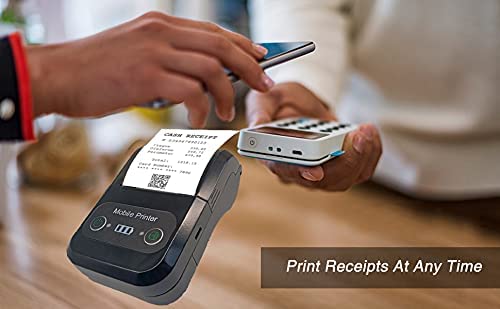
The MPT-II printer supports Bluetooth connectivity for mobile devices.
- Asegúrate de que a impresora estea acendida e dentro do alcance do teu dispositivo móbil.
- On your mobile device (Android/iOS), go to Bluetooth settings and turn Bluetooth on.
- Busca available devices. The printer will appear as "MPT-II".
- Select "MPT-II" to pair. If prompted for a password, enter 1234 or 0000.
- Once paired, the printer is ready for use with compatible applications.
4.3 Uso con aplicacións
For mobile printing, you will need a compatible application. Milestone recommends downloading RAWBT Printer App or MYXPrint App from the Google Play Store. For iOS, search for compatible thermal printer apps in the App Store.
- Open your chosen printing application.
- Navigate to the printer settings within the app.
- Select the "MPT-II" printer from the list of available Bluetooth devices.
- You can now send print commands from the application.

4.4 USB Connection (for PC)
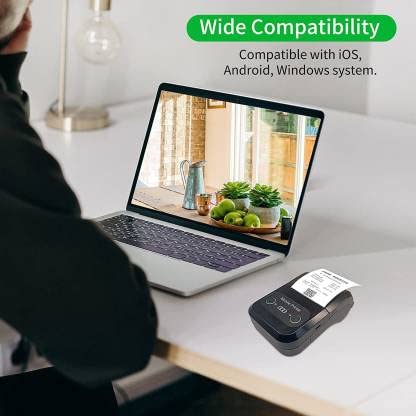
The printer can also be connected to a PC via USB. You may need to install a printer driver, which is typically available from the manufacturer's website or included on a CD with the product (if applicable).
5. Mantemento
5.1 Limpeza da impresora
To ensure optimal performance and print quality, regularly clean the printer:
- Cabezal de impresión: Use un hisopo de algodón lixeiramenteampHumedecido con alcol isopropílico para limpar suavemente o cabezal de impresión térmica. Déixeo secar completamente antes de usalo.
- Ruta do papel: Use a soft, dry cloth or a small brush to remove any paper dust or debris from the paper path.
- Exterior: Limpe o exterior da impresora cun pano suave eamp pano. Evite o uso de produtos químicos agresivos ou produtos de limpeza abrasivos.
5.2 Coidado coa batería
- Cargue a batería completamente antes do primeiro uso.
- Evita descargar completamente a batería con frecuencia.
- If storing the printer for an extended period, charge it to about 50% and recharge every few months to prevent battery degradation.
6 Solución de problemas
| Problema | Causa posible | Solución |
|---|---|---|
| A impresora non se acende. | A batería está baixa ou esgotada. | Charge the printer using the provided USB cable and adaptor. |
| Non se pode conectar por Bluetooth. | Bluetooth is off on device; incorrect pairing password; printer not discoverable. | Ensure Bluetooth is enabled on your device. Re-attempt pairing with password 1234 or 0000. Restart both printer and device. |
| No print output or blank paper. | Paper loaded incorrectly; out of paper; print head dirty. | Check paper orientation (printing side out). Replace paper roll if empty. Clean the thermal print head (refer to Maintenance section). |
| Mala calidade de impresión (descoloridos, liñas). | Print head dirty; low battery; poor quality thermal paper. | Clean the print head. Charge the printer fully. Use high-quality thermal paper. |
| Printer beeps continuously. | Paper alarm (out of paper or paper jam); low battery reminder. | Check and replace paper roll or clear jam. Charge the printer. |
7. Especificacións técnicas
| Característica | Especificación |
|---|---|
| Método de impresión | Impresión en liña térmica |
| Ancho de impresión | Paper width 58mm, effective width 58mm |
| Densidade de impresión | 576 punto/liña |
| Resolución | 8 dots/mm, 203 DPI |
| Velocidade de impresión | 70mm/s (Max Print speed Monochrome: 50 ppm) |
| Printer Core Life | 50KM (25% print density or less than 100 million pulses) |
| Printable Content | English, numbers, symbols, characters, pictures, 1D/2D barcode, multi-languages |
| Interfaz de comunicación de datos | USB/Bluetooth |
| Fonte de alimentación | Machine charging 9V-1.5A |
| Batería | Built-in rechargeable 2600mAh lithium-ion battery (7.4V/2500mAh) |
| Continuous Printing Time | 2.5-3 horas |
| Conxunto de instrucións | Compatible con ESC/POS |
| Corte de papel | Manually tear |
| Compatibilidade do sistema operativo | Android, iOS, Windows |
| Dimensións do produto | 15P x 12L x 6H centímetros |
| Peso do elemento | 310 gramos |
| Compoñentes incluídos | 1 x Thermal Printer, 1 x USB Cable, 1 x USB Adaptor, 1 x Paper Roll, 1 x User Manual |
8. Garantía e soporte
This product comes with a 10-day warranty as per the purchase terms. For any technical assistance, troubleshooting beyond this manual, or warranty claims, please contact your retailer or the manufacturer's customer support. Refer to your purchase documentation for specific contact details.
Fabricante: Fito
Importador: SB RETAILS, SECTOR 28, PRADHIKARAN, PUNE-44, +918888881631
Ask a question about this manual
Ask about setup, troubleshooting, compatibility, parts, safety, or missing instructions. Manuals+ will review the question and use this page’s manual context to help answer it.