
Apple MLWL3LL/A
Apple iPad Mini (6th Generation) User Manual
Model: MLWL3LL/A
1. Rematadoview
The Apple iPad Mini (6th Generation) is a compact and powerful tablet designed for portability and performance. Featuring an 8.3-inch Liquid Retina display, the advanced A15 Bionic chip, and versatile cameras, it offers a full iPad experience in a smaller form factor. This manual provides essential information for setting up, operating, maintaining, and troubleshooting your device.
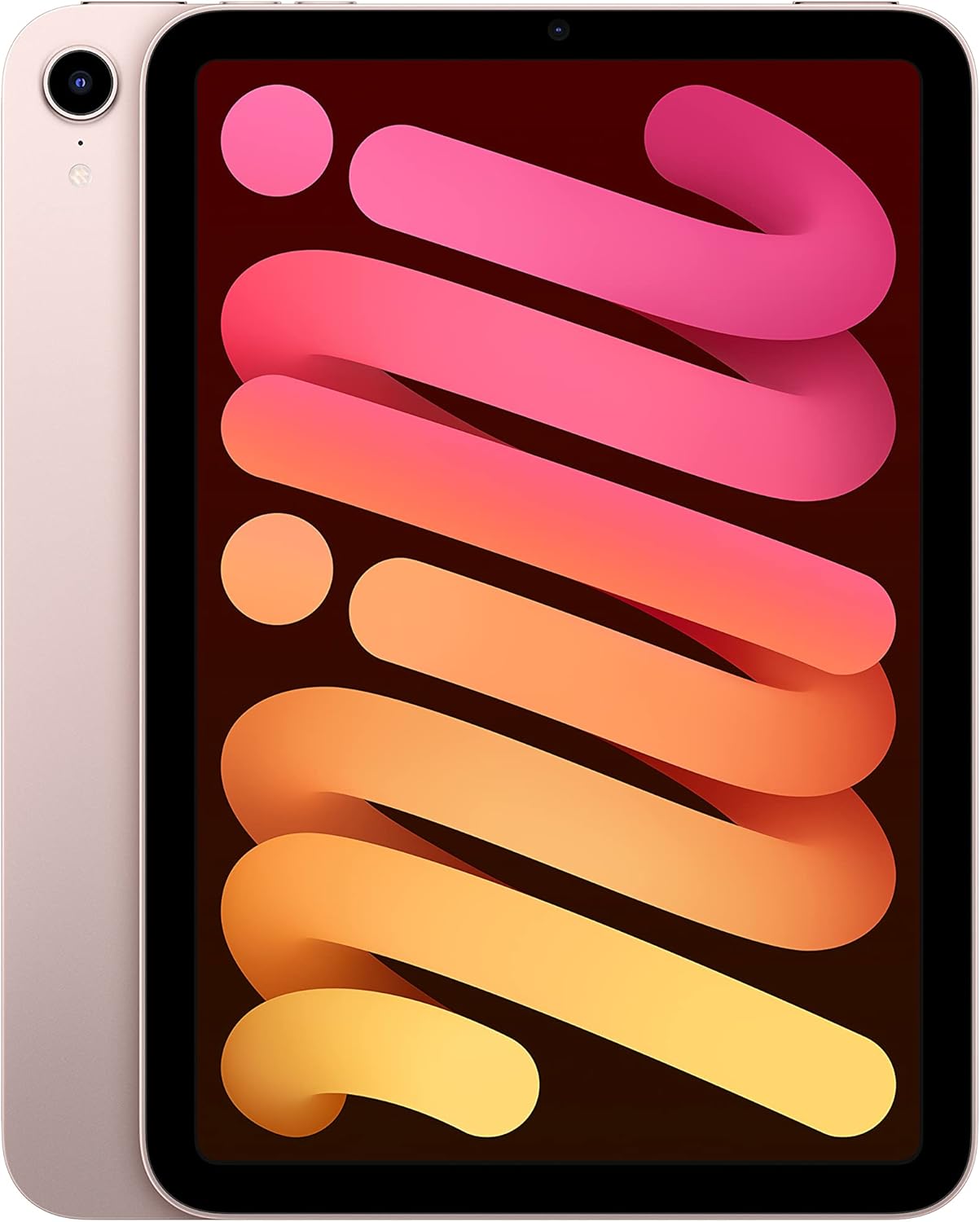
Imaxe: Fronte view of the Apple iPad Mini (6th Generation) in Pink, showcasing its compact design and edge-to-edge display.
Características principais:
- 8.3-inch Liquid Retina Display: Features True Tone, P3 wide color, and ultralow reflectivity for vibrant visuals.
- A15 Bionic Chip: Delivers powerful performance for demanding applications and graphics.
- 12MP Ultra Wide Front Camera with Center Stage: Enhances video calls by keeping you centered in the frame.
- 12MP Wide Back Camera: Capable of capturing high-quality photos and 4K videos.
- Touch ID: Integrated into the top button for secure authentication and Apple Pay.
- Conectividade USB-C: For charging and connecting accessories.
- Wi-Fi 6: Provides fast and reliable wireless connectivity.
- Duración da batería durante todo o día: Designed to last through your daily activities.
2. Que hai na caixa
Upon unboxing your Apple iPad Mini, ensure all components are present:
- iPad mini (6th Generation)
- Cable de carga USB-C
- Adaptador de alimentación USB-C de 20W

Image: The contents of the iPad Mini box, including the iPad, USB-C charge cable, and 20W USB-C power adapter.
3. Configuración
3.1 Acendido e activación iniciais
- Cargar o dispositivo: Before first use, connect the iPad mini to the 20W USB-C Power Adapter using the USB-C Charge Cable and plug it into a power outlet. Allow it to charge for at least 30 minutes.
- Encendido: Press and hold the top button (Touch ID sensor) until the Apple logo appears.
- Siga as instrucións en pantalla: The iPad mini will guide you through the initial setup process, which includes:
- Seleccionando o teu idioma e rexión.
- Conectando a unha rede wifi.
- Setting up Touch ID for secure unlocking and purchases.
- Crear ou iniciar sesión co teu ID de Apple.
- Setting up a passcode.
- Restoring data from a backup (optional) or setting up as a new iPad.
3.2 Touch ID Setup
During initial setup, you will be prompted to set up Touch ID. To do this, place your finger on the top button repeatedly, lifting and repositioning it slightly each time, until the iPad mini has a complete scan of your fingerprint. You can add multiple fingerprints later in Settings > Touch ID & Passcode.
4. Operating Your iPad Mini
4.1 Visualización e interacción
The 8.3-inch Liquid Retina display offers a vibrant visual experience. Navigate your iPad mini using touch gestures:
- Toca: To select an item or activate a button.
- Pasar o dedo: Para percorrer o contido ou navegar entre pantallas.
- Beliscar: Para ampliar ou reducir as fotos e web páxinas.
- Multi-finger Gestures: Use four or five fingers to pinch to the Home Screen, swipe up to reveal the App Switcher, or swipe left/right to switch between open apps.

Image: An infographic highlighting key features of the iPad Mini 6th Generation, including its 8.3-inch Liquid Retina display, A15 Bionic chip, 12MP Ultra Wide front camera with Center Stage, Touch ID, and all-day battery life.
4.2 Cámaras
The iPad mini features a 12MP Wide camera on the back and a 12MP Ultra Wide camera on the front. The front camera supports Center Stage, which automatically adjusts to keep you and anyone else with you in the frame during video calls.
- Facer fotos/vídeos: Open the Camera app. Select photo, video, or other modes. Tap the shutter button to capture.
- Centro Stage: This feature is enabled by default for supported video conferencing apps. It uses machine learning to pan and zoom to keep subjects in view.

Imaxe: Primeiro plano view of the 12MP Wide camera on the back of the iPad Mini 6th Generation.
4.3 iPadOS and Apps
iPadOS provides a powerful and intuitive operating system. You can run multiple apps simultaneously using Split View or Slide Over. The App Store offers millions of applications to expand your iPad's capabilities.
- Multitarefa: Drag an app from the Dock to the side of the screen to use Split View, or drag it over an open app to use Slide Over.
- Apple Pencil (2.ª xeración): The iPad mini supports Apple Pencil (2nd Generation), which attaches magnetically to the side for pairing and charging. It allows for precise drawing, note-taking, and marking up documents.

Image: A person using the iPad Mini 6th Generation with an Apple Pencil, demonstrating its utility for creative and productivity tasks.
5. Mantemento e coidados
5.1 Cleaning Your iPad Mini
To clean your iPad mini, use a soft, lint-free cloth. Avoid abrasive cloths, towels, paper towels, or similar items. Do not use aerosol sprays, solvents, or abrasives. Unplug all cables and power off the iPad mini before cleaning.
5.2 Coidado coa batería
The iPad mini is designed to provide all-day battery life. To maximize battery lifespan:
- Evitar temperaturas ambientais extremas.
- Keep software updated to the latest version of iPadOS.
- Adjust screen brightness and use Wi-Fi instead of cellular data when possible.
5.3 Actualizacións de software
Regularly check for and install iPadOS updates to ensure optimal performance, security, and access to new features. Go to Settings > General > Software Update.
6 Solución de problemas
If you encounter issues with your iPad mini, try the following common troubleshooting steps:
- O dispositivo non responde: Press and quickly release the Volume Up button. Press and quickly release the Volume Down button. Then, press and hold the top button until the Apple logo appears.
- Problemas de conectividade wifi: Ensure Wi-Fi is enabled in Settings. Try restarting your Wi-Fi router. Forget the network and reconnect.
- Fallo da aplicación: Close the app from the App Switcher (swipe up from the bottom of the screen and swipe the app card up). Reopen the app. If the issue persists, try deleting and reinstalling the app.
- Esgotando a batería rapidamente: Review battery usage in Settings > Battery to identify apps consuming significant power. Adjust settings or limit background activity for those apps.
- Fallos de software: Ensure your iPadOS is up to date. A factory reset (Settings > General > Transfer or Reset iPad > Erase All Content and Settings) can resolve persistent software issues, but back up your data first.
For more detailed troubleshooting or issues not covered here, please refer to Apple's official support website or contact Apple Support.
7. Especificacións
| Característica | Detalle |
|---|---|
| Nome do modelo | iPad mini (6th Generation) |
| Número de modelo do artigo | MLWL3LL/A |
| Mostrar | 8.3-inch Liquid Retina display |
| Resolución de visualización máxima | 2266 x 1488 píxeles |
| Chip | A15 Bionic chip with 64-bit architecture, 6-core CPU, 5-core graphics, and 16-core Neural Engine |
| Capacidade de almacenamento da memoria | 64 GB (also available in 256GB) |
| Cámara frontal | 12MP Ultra Wide front camera, 122° field of view |
| Cámara traseira | 12MP Wide camera with Center Stage, Smart HDR 3 and 4K video |
| Duración da batería | Ata 10 horas de navegación web on Wi-Fi or watching video. Up to 9 hours of surfing the web usando a rede de datos móbil. |
| Conector | USB-C |
| Dimensións do produto | 7.69 x 5.31 x 0.25 polgadas (195.4 x 134.8 x 6.3 mm) |
| Peso do elemento | 0.65 pound (293 grams) Wi-Fi model |
8. Garantía e soporte
Your Apple iPad Mini (6th Generation) is covered by Apple's standard limited warranty. For detailed information regarding warranty terms, coverage, and how to obtain service, please refer to the warranty documentation included with your purchase or visit Apple's official support websitio.
For technical support, service, or to find authorized service providers, please visit the official Apple Support websitio: soporte.apple.com/ipad
Ask a question about this manual
Ask about setup, troubleshooting, compatibility, parts, safety, or missing instructions. Manuals+ will review the question and use this page’s manual context to help answer it.