1. Introdución
The DOBE TY-1793 Wireless Controller is a versatile gaming accessory designed for multi-platform compatibility. It offers seamless connectivity with Nintendo Switch, Android phones, Android TV boxes, and personal computers (PC). This controller integrates advanced features such as Bluetooth wireless technology, a wired USB connection option, Turbo function keys, a dedicated camera button, 6-axis motion sensing, and immersive motor vibration feedback. Its ergonomic design ensures a comfortable and responsive gaming experience.
2. Información de seguridade
- Manteña o controlador lonxe da auga, da humidade e das temperaturas extremas.
- Evite deixar caer o controlador nin someterlo a impactos fortes.
- Do not attempt to disassemble or modify the controller. This may void the warranty and cause damage.
- Use só o cable de carga fornecido ou recomendado.
- Garde o controlador nun lugar limpo e seco cando non o use.
3. Contido do paquete
Comprobe o contido do paquete ao abrilo. Se falta algún artigo ou está danado, póñase en contacto co seu vendedor.
- DOBE TY-1793 Wireless Controller
- Cable de carga USB
- Manual de usuario
4. Deseño do controlador
Familiarize yourself with the buttons and features of your DOBE TY-1793 Wireless Controller.
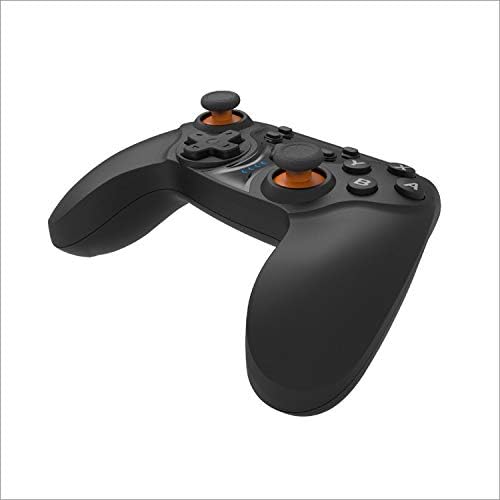
Figura 4.1: Fronte view of the DOBE TY-1793 Wireless Controller, showing the dual analog sticks, D-pad, action buttons (A, B, X, Y), and central function buttons.

Figura 4.2: Lado view of the DOBE TY-1793 Wireless Controller, highlighting the USB charging/connection port located at the front edge.

Figura 4.3: De volta view of the DOBE TY-1793 Wireless Controller, showing the ergonomic grips and battery compartment area.
Descricións de botóns:
- Manetas analóxicas esquerda/dereita: Para un movemento preciso de 360 graos.
- D-Pad (panel direccional): Para entrada direccional.
- Botóns de acción (A, B, X, Y): Primary game interaction buttons.
- L1/R1 (Botóns de ombreiro): Top trigger buttons.
- L2/R2 (botóns de disparo): Bottom trigger buttons.
- Botón HOME: Volve á pantalla de inicio do sistema.
- SELECT/MINUS Button: Normalmente úsase para a navegación por menús ou para funcións específicas do xogo.
- START/PLUS Button: Typically used for pausing or menu access.
- Botón TURBO: Activates/deactivates turbo function for assigned buttons.
- Botón CÁMARA: Captures screenshots or video clips (functionality may vary by platform).
- Porto USB-C: Para carga e conexión por cable.
5. Configuración
5.1 Carga do controlador
- Connect the small end of the USB charging cable to the USB-C port on the controller.
- Connect the large end of the USB charging cable to a USB power source (e.g., PC, USB wall adapter, game console).
- The LED indicator on the controller will show charging status. It will typically turn off or change color once fully charged.
- Unha carga completa leva aproximadamente 2-3 horas.
5.2 Connecting to Nintendo Switch (Bluetooth)
- Na túa Nintendo Switch, vai ao menú INICIO.
- Selecciona "Controlantes" > "Cambiar agarre/orde".
- Press and hold the HOME button on the DOBE TY-1793 controller for 3-5 seconds until the LED indicators start flashing rapidly.
- The Switch will detect the controller. Once connected, the corresponding player LED on the controller will light up solid.
5.3 Conexión a dispositivos Android (Bluetooth)
- Ensure Bluetooth is enabled on your Android phone or TV box.
- Vaia á configuración de Bluetooth e busque novos dispositivos.
- Press and hold the HOME button on the DOBE TY-1793 controller for 3-5 seconds until the LED indicators start flashing rapidly.
- Select 'TY-1793' or a similar name from the list of available devices to pair.
- Unha vez emparellado, o indicador LED acenderase de forma fixa.
5.4 Connecting to PC (Wired USB & Bluetooth)
Conexión por cable:
- Connect the USB charging cable to the controller's USB-C port.
- Conecta o outro extremo do cable USB a un porto USB dispoñible no teu PC.
- The PC should automatically detect and install the necessary drivers. The controller will be ready for use.
Conexión Bluetooth:
- Asegúrate de que o teu PC teña o Bluetooth activado.
- Go to 'Settings' > 'Devices' > 'Bluetooth & other devices' and click 'Add Bluetooth or other device'.
- Selecciona "Bluetooth".
- Press and hold the HOME button on the DOBE TY-1793 controller for 3-5 seconds until the LED indicators start flashing rapidly.
- Select 'TY-1793' or a similar name from the list of available devices to pair.
- Unha vez emparellado, o indicador LED acenderase de forma fixa.
6. Instrucións de funcionamento
6.1 Encendido/apagado
- Encendido: Press the HOME button once. The controller will attempt to connect to the last paired device.
- Apagado: Press and hold the HOME button for approximately 5 seconds until the LED indicators turn off. The controller will also power off automatically after a period of inactivity.
6.2 Función Turbo
The Turbo function allows a button to be pressed repeatedly as long as it is held down, which can be useful in certain games.
- Para configurar Turbo: Press and hold the button you wish to assign Turbo to (e.g., A button), then press the TURBO button once. Release both buttons. The assigned button will now have Turbo functionality.
- To Clear Turbo: Press and hold the button with Turbo assigned, then press the TURBO button once. Release both buttons. The Turbo function will be removed from that button.
- To Clear All Turbo: Press and hold the TURBO button for 3 seconds. All Turbo settings will be cleared.
6.3 Retroalimentación de vibración
The controller features built-in motor vibrators to provide immersive haptic feedback during gameplay. Vibration intensity is typically controlled by the game or system settings.
6.4 6-Axis Gyroscope
The integrated 6-axis gyroscope provides precise motion control, enhancing gameplay in titles that support motion sensing. This feature is automatically active when connected to compatible platforms like the Nintendo Switch.
6.5 Camera Button
The dedicated camera button allows for quick capture of screenshots or video clips during gameplay on supported platforms. Functionality may vary depending on the connected device and game.
7. Mantemento
- Limpeza: Usa un pano suave e seco para limpar o controlador. Non empregues produtos químicos agresivos nin materiais abrasivos.
- Almacenamento: Store the controller in a cool, dry place, away from direct sunlight and extreme temperatures.
- Coidado da batería: Para prolongar a duración da batería, evita descargar completamente o controlador con frecuencia. Cárgao regularmente, mesmo se non o usas de forma constante.
8 Solución de problemas
8.1 Controller Will Not Power On
- Ensure the controller is charged. Connect it to a power source using the USB cable and allow it to charge for at least 30 minutes.
- Try pressing the HOME button firmly.
8.2 Controller Will Not Connect/Pair
- Asegúrate de que o controlador estea completamente cargado.
- Verify that Bluetooth is enabled on your device (Switch, Android, PC).
- Make sure the controller is in pairing mode (LEDs flashing rapidly).
- Move the controller closer to the device.
- Remove any previous pairings of the controller from your device's Bluetooth settings and try pairing again.
- Reinicie tanto o controlador como o dispositivo ao que está a tentar conectarse.
- For PC, try a wired USB connection to confirm functionality.
8.3 Buttons or Joysticks Are Unresponsive
- Ensure the controller is properly connected and paired.
- Proba o controlador con outro xogo ou aplicación para determinar se o problema é específico dun título.
- Restart the controller and the connected device.
- Se usas unha conexión con cable, proba cun porto ou cable USB diferente.
9. Especificacións
| Modelo: | TY-1793 |
| Conectividade: | Bluetooth, Wired USB |
| Compatibilidade: | Nintendo Switch, Android (Phones, TV Boxes), PC |
| Tipo de batería: | Batería recargable de polímero de litio |
| Capacidade da batería: | 400 mAh, 3.7 V |
| Características especiais: | Turbo Function, Camera Button, 6-Axis Gyroscope, Motor Vibration |
10. Garantía e soporte
This product comes with a standard manufacturer's warranty. Please refer to the warranty card included in your package or contact your retailer for specific warranty terms and conditions. For technical support or further assistance, please reach out to the customer service provided by your point of purchase.