
1. Produto rematadoview
The LexonElec 60% Mechanical Gaming Keyboard is a compact 68-key keyboard designed for gaming and office use. It features RGB backlighting, durable Red mechanical switches, and full key anti-ghosting for responsive performance. Its ultra-compact design saves desktop space while providing essential functionality through FN key combinations.

Imaxe 1.1: Acabadoview of the LexonElec 60% Mechanical Gaming Keyboard, highlighting its compact size and RGB backlighting.
2. Contido do paquete
Comprobe que todos os elementos estean presentes no paquete:
- 1 x LexonElec 68-Key Mechanical Keyboard
- 1 x cable USB tipo C
- 1 x Keycap Removal Tool
- 1 x Manual de usuario (este documento)
3. Instrucións de configuración
Follow these steps to set up your LexonElec Mechanical Gaming Keyboard:
- Conecta o teclado: Insert the USB Type-C end of the provided cable into the port on the back of the keyboard. Connect the standard USB-A end to an available USB port on your computer.
- Recoñecemento do sistema: Your operating system (Windows, Mac, Linux, Android) should automatically detect and install the necessary drivers. This may take a few moments.
- Axustar as patas do teclado: For optimal typing comfort, you can adjust the two-stage feet located on the bottom of the keyboard to achieve your preferred angle. Ensure the non-slip pads are securely in place for stability.
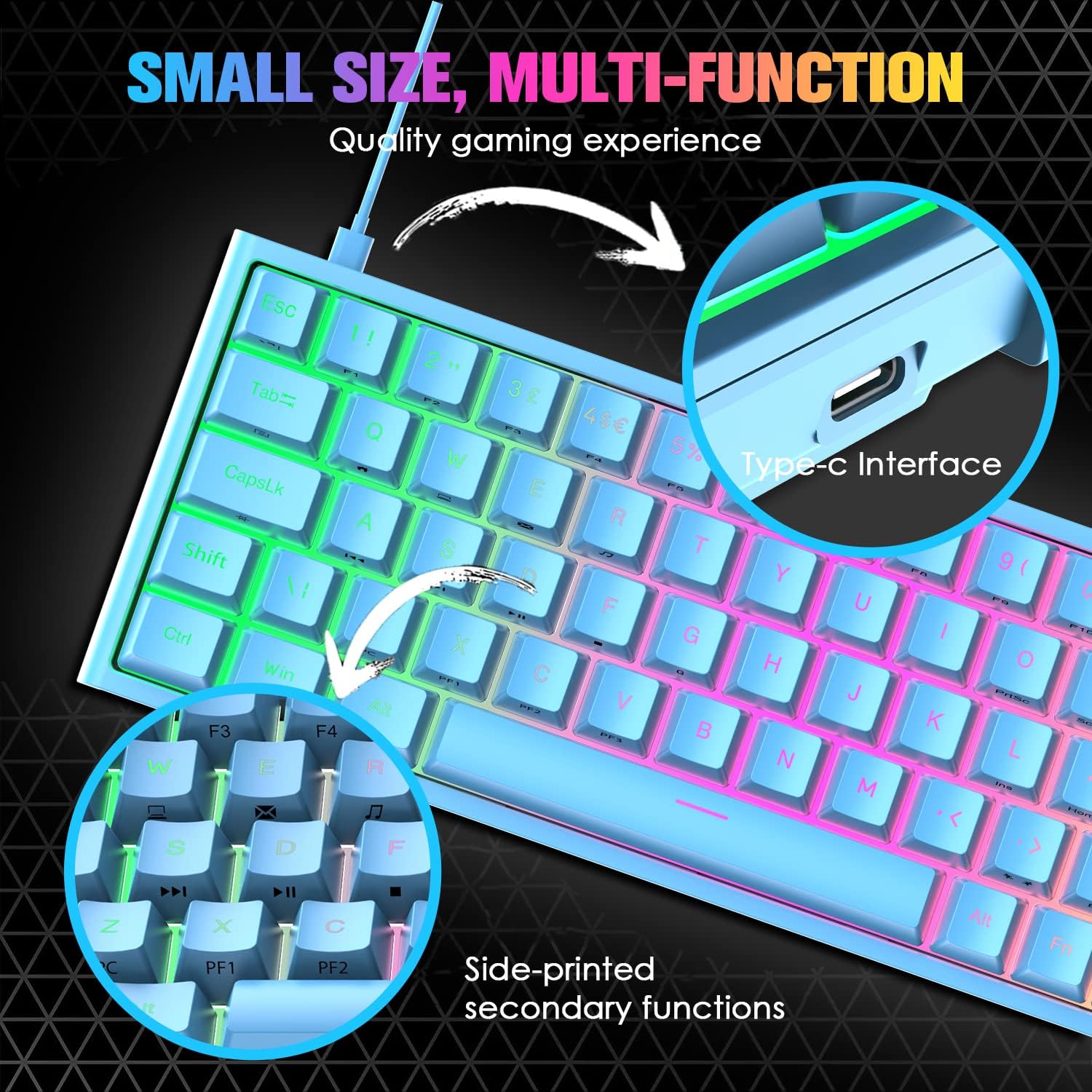
Image 3.1: Illustration of the Type-C interface connection point on the keyboard.
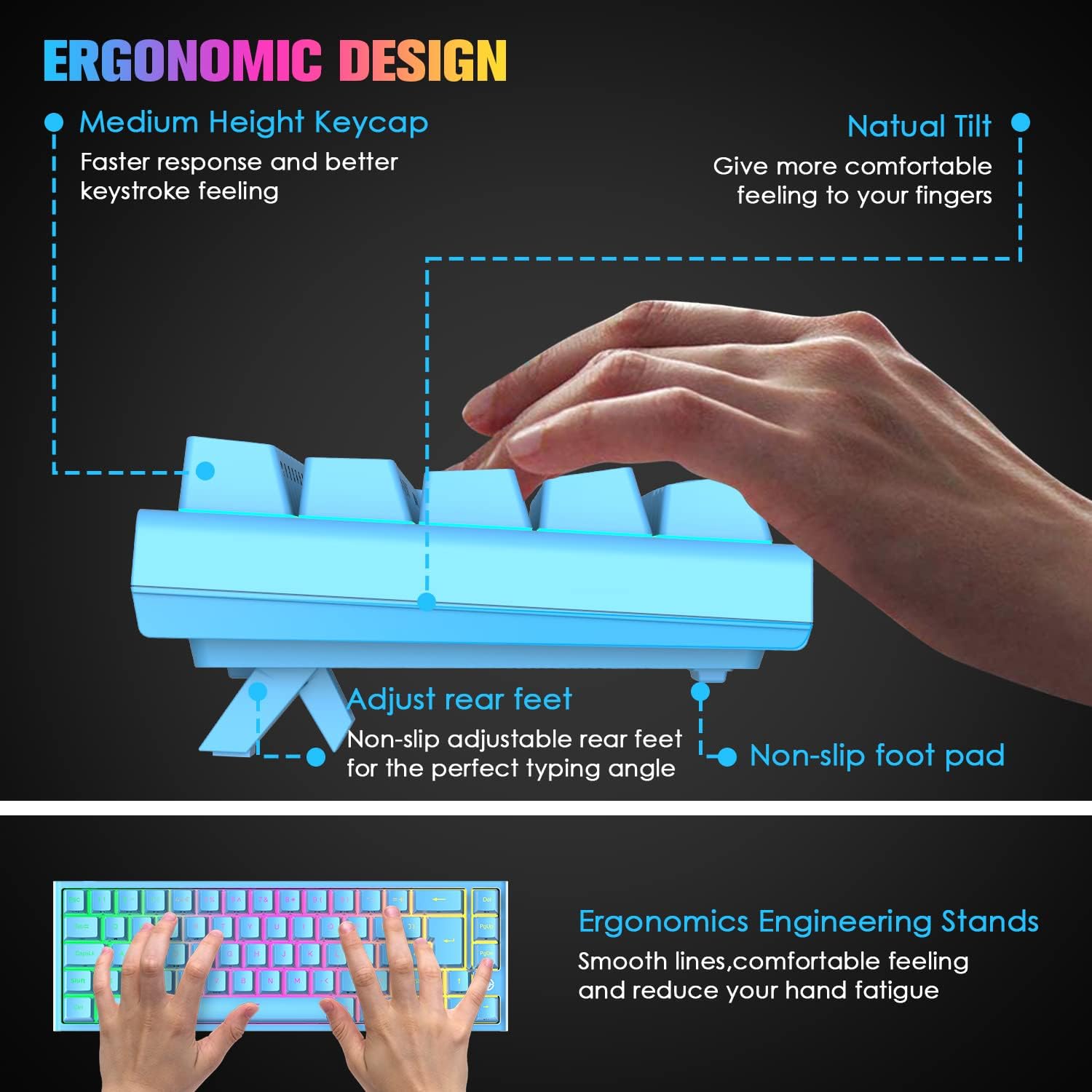
Image 3.2: Diagram showing the adjustable rear feet and non-slip foot pads for ergonomic positioning.
4. Instrucións de funcionamento
4.1. Funcións básicas do teclado
The keyboard functions as a standard 68-key layout. All keys feature anti-ghosting, ensuring that multiple simultaneous key presses are registered accurately, which is crucial for gaming.
4.2. Control da retroiluminación RGB
The keyboard supports 14 RGB lighting effects and 8 monochromatic light modes. You can customize the brightness and breathing speed of the backlight.
- Activar/desactivar a retroiluminación: Preme Fn + ←
- Switch Lighting Effects: Preme Fn + Tab
- Axustar o brillo: Preme Fn + ↑ (Increase) / ↓ (Decrease) (5 levels)
- Axustar a velocidade respiratoria: Preme Fn + ← (Decrease) / → (Increase) (6 levels)

Image 4.1: The keyboard displaying various RGB backlight effects and controls.
4.3. FN Combination Functions
The keyboard utilizes FN key combinations to access multimedia and other functions due to its compact layout:
| Combinación | Función |
|---|---|
| Fn + Q | Páxina de inicio |
| Fn + W | O meu ordenador |
| Fn + E | Caixa de correo electrónico |
| Fn + R | Música |
| Fn + T | Calculadora |
| Fn + [ | Pausa |
| Fn + ] | busca |
| Fn + A | Última canción |
| Fn + S | Próxima canción |
| Fn + D | Reproducir/Pausa |
| Fn + F | Pare |
| Fn + L | INS (Insert) |

Image 4.2: Visual guide to the FN combination functions for multimedia and system controls.
5. Mantemento
5.1. Limpeza do teclado
Para manter un rendemento e unha aparencia óptimos, limpa o teclado regularmente:
- Eliminación de po: Usa unha lata de aire comprimido para eliminar o po e os residuos que hai entre as tapas das teclas.
- Limpeza de superficies: Limpe as tapas das teclas e a superficie do teclado cun pano suave e lixeiramente damp pano. Evitar a humidade excesiva.
- Limpeza profunda (teclas): For a more thorough clean, use the provided keycap removal tool to carefully detach keycaps. Clean them with mild soap and water, then ensure they are completely dry before reattaching.

Image 5.1: Close-up of the Red mechanical switches and double-shot keycaps, illustrating components that may require cleaning.
6 Solución de problemas
Se tes problemas co teclado, consulta as seguintes solucións habituais:
- O teclado non responde:
- Asegúrate de que o cable USB estea conectado correctamente tanto ao teclado como ao ordenador.
- Tenta conectar o teclado a un porto USB diferente do teu ordenador.
- Proba o teclado noutro ordenador para determinar se o problema é co teclado ou co porto/controladores do ordenador.
- Keys Not Registering / Double Tapping:
- Dust or debris under the keycap can sometimes cause issues. Refer to the cleaning instructions in Section 5.1.
- If a specific key consistently malfunctions, it may indicate a switch issue. Contact customer support for assistance.
- Backlight Not Working / Incorrect:
- Ensure the backlight is turned on using Fn + ←.
- Axusta o brillo usando Fn + ↑ / ↓.
- Cycle through lighting effects with Fn + Tab.
7. Especificacións
| Característica | Especificación |
|---|---|
| Disposición do teclado | 68 Keys (60% Compact) |
| Tipo de cambio | Interruptores mecánicos vermellos |
| Vida de teclas | Ata 50 millóns de pulsacións de teclas |
| Forza de Actuación | 40 g |
| Keystroke Travel | 2.0 mm |
| Retroiluminación | RGB (14 effects, 8 monochromatic modes) |
| Interface | USB Type-C (Wired) |
| Anti-Ghosting | Antighosting de clave completa |
| Material | ABS Keycaps, Metal Panel |
| Dimensións (L x W x H) | 350 x 155 x 50 mm (13.78 x 6.1 x 1.97 polgadas) |
| Peso | 850 g (1.87 lb) |
| Compatibilidade | Windows 7/8/10/Vista/XP, limited Mac OS, Android, Linux |

Image 7.1: Diagram illustrating the physical dimensions of the keyboard.
8. Garantía e soporte
For warranty information or technical support, please refer to the purchase platform or contact LexonElec customer service directly. Keep your purchase receipt as proof of purchase.
For further assistance, you may visit the LexonElec official websitio web ou póñase en contacto cos seus canais de asistencia.