1. Introdución
This manual provides comprehensive instructions for the Earto iPad Pro 12.9 Keyboard Case. It covers product features, compatibility, setup procedures, operating guidelines, maintenance tips, and troubleshooting solutions to ensure optimal use of your device.

2. Produto rematadoview e Características
The Earto iPad Pro 12.9 Keyboard Case combines a protective cover with a functional keyboard and trackpad, transforming your iPad into a versatile workstation. Key features include:
- Smart Trackpad with Multi-Touch Gestures: Navigate your iPad with precision using the integrated trackpad, supporting various multi-touch gestures for efficient operation.
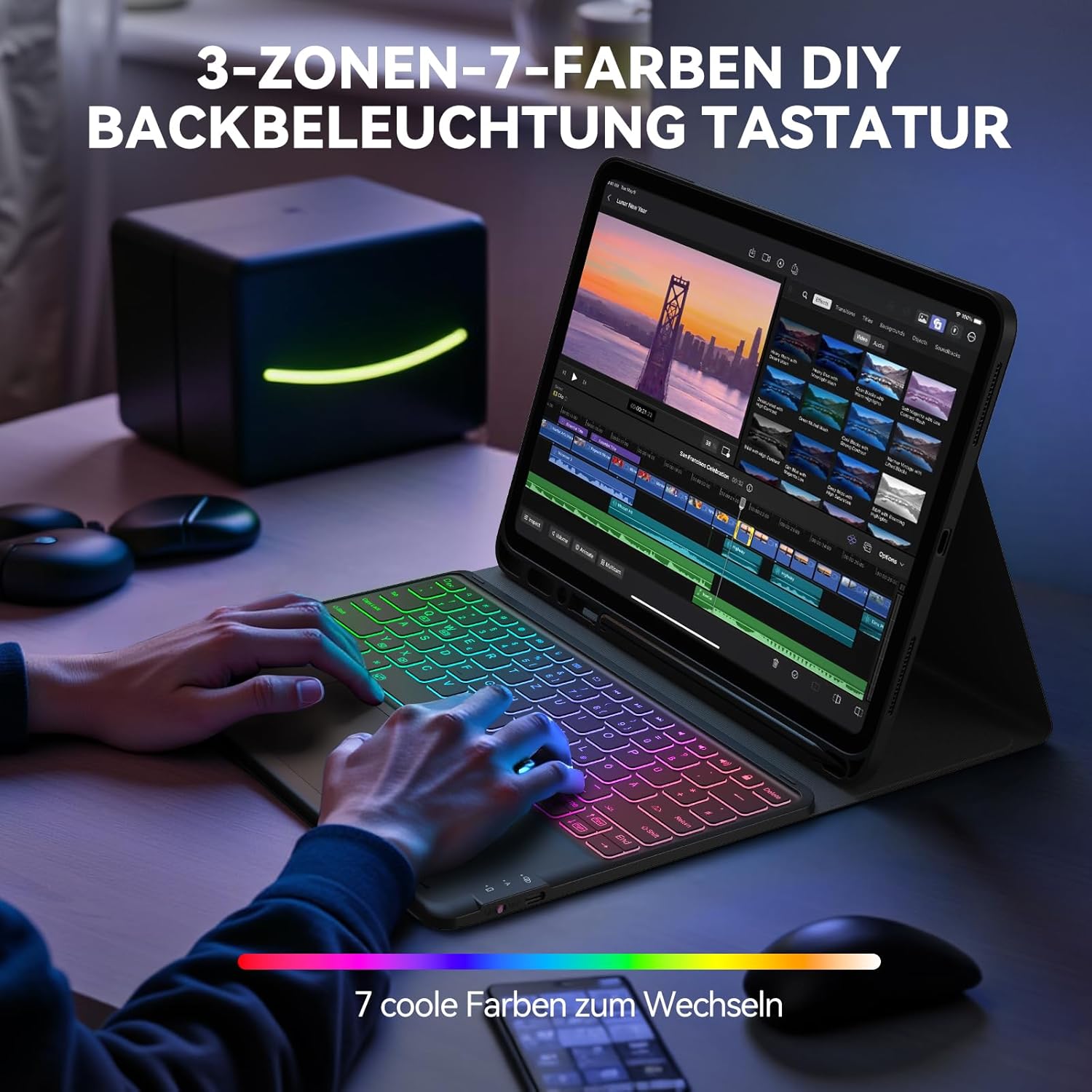
- 7-Color 3-Zone Backlight: Customize your typing experience with a unique three-zone backlight design, offering 7 colors per zone and adjustable brightness levels for comfortable use in any lighting condition.
- Axustable ViewÁngulo de ing: The case features an adjustable slot, allowing you to set your iPad at optimal viewángulos para escribir, observar ou debuxar.
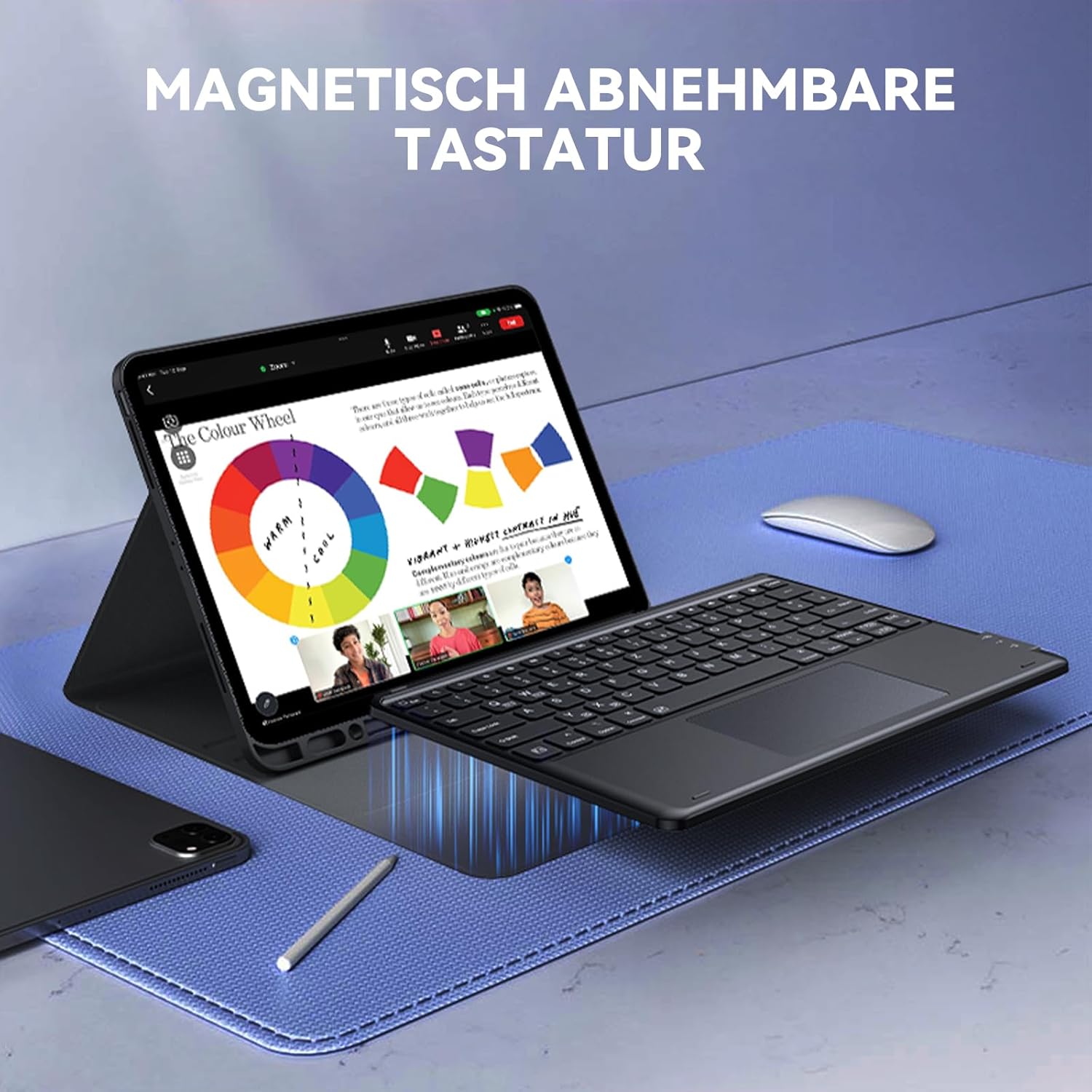
- Teclado magnético extraíble: The keyboard can be magnetically attached or detached from the case, offering flexibility for different usage scenarios.
- Conectividade Bluetooth: Connects wirelessly to your iPad via Bluetooth for a seamless typing experience.
- Ranura para lapis integrada: A dedicated slot for storing and charging your Apple Pencil.


3. Compatibilidade
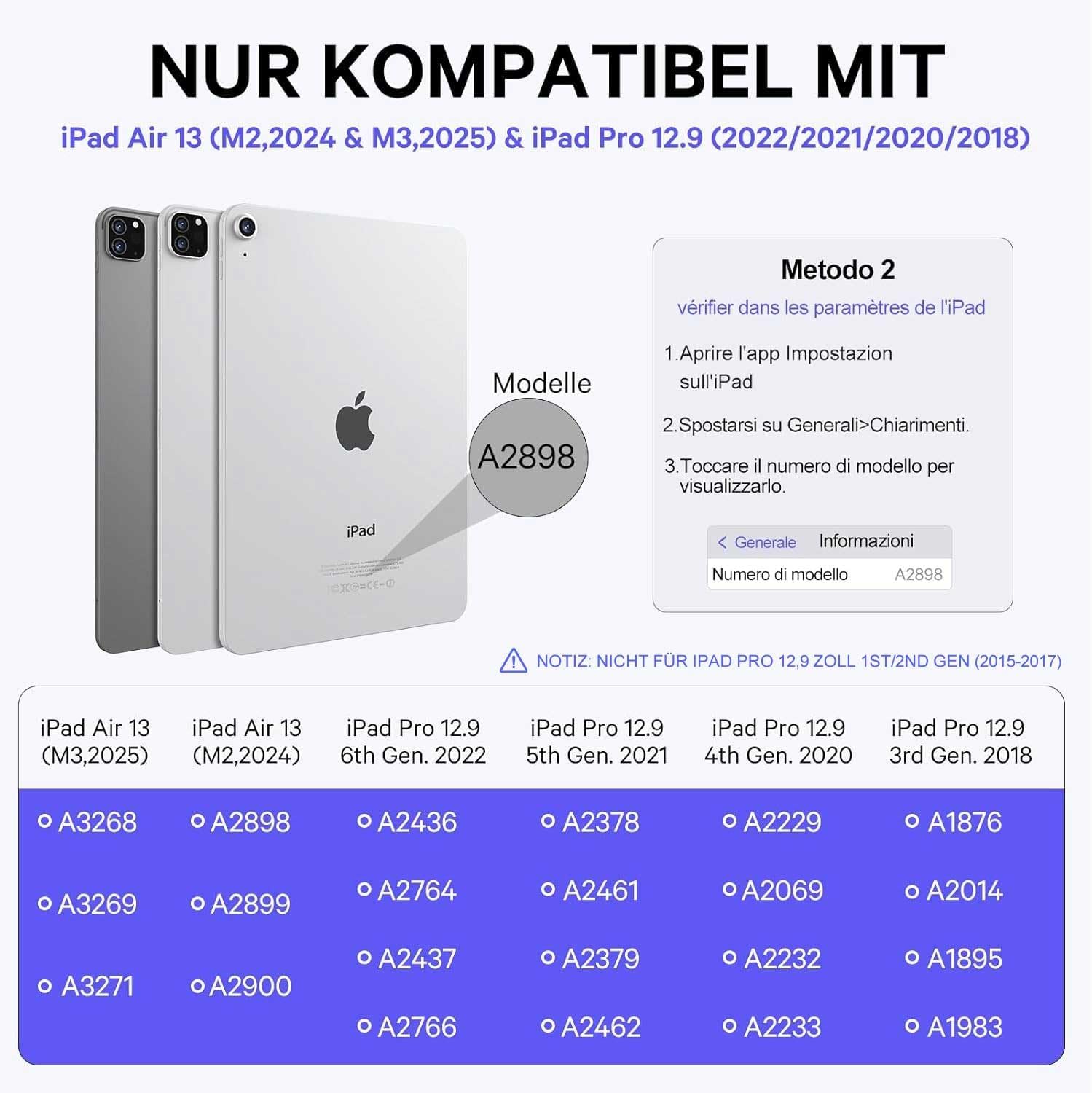
Esta funda con teclado é compatible cos seguintes modelos de iPad Pro de 12.9 polgadas:
- iPad Pro 12.9-inch (6th Generation 2022): Modelos A2436, A2437, A2764, A2766
- iPad Pro 12.9-inch (5th Generation 2021): Modelos A2378, A2461, A2379, A2462
- iPad Pro 12.9-inch (4th Generation 2020): Modelos A2229, A2069, A2232, A2233
- iPad Pro 12.9-inch (3rd Generation 2018): Modelos A1876, A2014, A1895, A1983
Note: This case is NOT compatible with iPad Pro 12.9-inch (2nd Generation 2017) or (1st Generation 2015). Please verify your iPad model number on the back of your device before use.
4. Instrucións de configuración
4.1. Cargar o teclado
Antes do uso inicial, asegúrese de que o teclado estea completamente cargado.
- Locate the Type-C charging port on the side of the keyboard.
- Connect the provided Type-C charging cable to the keyboard and a power source.
- A luz indicadora de carga acenderase. Unha carga completa adoita tardar aproximadamente 2.5 horas.
- Once fully charged, the keyboard can operate for up to 50 hours without backlight.

4.2. Emparellamento Bluetooth
Follow these steps to connect your keyboard to your iPad via Bluetooth:
- Turn on the power switch of the keyboard. The power switch is usually located on the side or back of the keyboard.
- Preme o Fn clave e o C key simultaneously to enter Bluetooth pairing mode. The Bluetooth indicator light will start blinking.
- No teu iPad, vai a Configuración > Bluetooth e activa o Bluetooth.
- In the list of available devices, select "Bluetooth 5.1 Keyboard" to complete the pairing process. The indicator light on the keyboard will stop blinking once connected.

5. Instrucións de funcionamento
5.1. Keyboard Backlight Control
The keyboard features a 3-zone, 7-color backlight system with adjustable brightness.
- To turn the backlight on/off or adjust brightness, press the 💡 chave.
- To change the color of the left backlight zone, press Fn + A.
- To change the color of the middle backlight zone, press Fn + S.
- To change the color of the right backlight zone, press Fn + D.

5.2. Trackpad Gestures
The integrated trackpad supports various multi-touch gestures for intuitive navigation. Refer to your iPad's operating system documentation for a full list of supported gestures.

5.3. Conexión multidispositivo
The keyboard can connect to two devices simultaneously, allowing for easy switching between them.
- Pair the keyboard with your first device (e.g., iPad) using the Bluetooth pairing instructions (Section 4.2).
- To pair with a second device, repeat the Bluetooth pairing process. The keyboard will remember both connections.
- Use the designated function keys (e.g., Fn + 1, Fn + 2) to switch between connected devices. (Specific keys not provided, assuming standard functionality).

5.4. Axustable Viewángulos ing
O deseño da caixa permite múltiples viewing angles to suit various activities such as typing, watching videos, or browsing.
- Position the iPad in the case's adjustable slot to achieve your desired angle.
- The magnetic attachment of the keyboard allows for slight adjustments to optimize comfort.

5.5. Detachable Keyboard
The keyboard can be easily detached from the case for standalone use or when only the protective case is needed.
- Gently pull the keyboard away from the magnetic base of the case.
- To reattach, align the keyboard with the magnetic strip in the case until it snaps into place.
6. Mantemento
To ensure the longevity and optimal performance of your Earto iPad Pro 12.9 Keyboard Case, follow these maintenance guidelines:
- Limpeza: Use un suave, damp cloth to wipe the exterior of the case and keyboard. Avoid harsh chemicals or abrasive materials.
- Almacenamento: Cando non estea en uso, garde a funda do teclado nun lugar fresco e seco, lonxe da luz solar directa e de temperaturas extremas.
- Exposición ao líquido: Avoid exposing the keyboard to liquids. In case of accidental spills, immediately power off the keyboard and allow it to dry completely before reuse.
- Manipular con coidado: Do not drop or apply excessive force to the keyboard or case, as this may cause damage.
7 Solución de problemas
If you encounter issues with your Earto iPad Pro 12.9 Keyboard Case, refer to the following common problems and solutions:
- O teclado non se conecta por Bluetooth:
- Asegúrate de que o teclado estea acendido e completamente cargado.
- Asegúrate de que o Bluetooth estea activado no teu iPad.
- Re-enter pairing mode on the keyboard (Fn + C) and re-select "Bluetooth 5.1 Keyboard" on your iPad.
- If previously paired, try forgetting the device on your iPad and re-pairing.
- As teclas non responden:
- Check if the keyboard is charged.
- Ensure the Bluetooth connection is stable.
- Restart both the keyboard and your iPad.
- O trackpad non funciona:
- Asegúrate de que o teclado estea conectado por Bluetooth.
- Check iPad settings for trackpad functionality (Settings > Accessibility > Touch > AssistiveTouch).
- Limpa a superficie do trackpad para eliminar calquera residuo.
- Backlight not working or changing colors:
- Asegúrate de que o teclado estea suficientemente cargado.
- Preme o 💡 key to cycle through brightness levels or turn on the backlight.
- Use Fn + A/S/D to change zone colors.
If the issue persists after trying these steps, please contact Earto customer support for further assistance.
8. Especificacións
| Característica | Detalle |
|---|---|
| Marca | Earto |
| Cor | Negro |
| Tecnoloxía de conectividade | Bluetooth |
| Características especiais | Trackpad, Backlit Keyboard (7 colors, 3 zones) |
| Dispositivos compatibles | iPad Pro 12.9 (3rd, 4th, 5th, 6th Generation) |
| Composición da batería | Polímero de litio (1 incluído) |
| Descrición do teclado | Flexible |
| Uso recomendado do produto | Oficina |
| Xestión da cor da retroiluminación do teclado | RGB |
| Dimensións do produto | 28.5 L x 24.5 W x 1.7 H centímetros |
9. Garantía e soporte
Information regarding product warranty and availability of spare parts is not provided in the product data. For any support inquiries or warranty claims, please refer to the Earto official websitio web ou póñase en contacto directamente co servizo de atención ao cliente.