
1. Introdución
The Xiaomi Mesh System AX3000 (Pack of 2) is designed to provide comprehensive Wi-Fi 6 coverage for complex home layouts, extending up to 370 m². This system comes pre-configured from the factory, ensuring a straightforward setup process and immediate readiness for use.
2. Información de seguridade
- Asegúrese de colocar o dispositivo nunha zona ben ventilada para evitar o sobreenriquecido.
- Use só o adaptador de corrente orixinal que se inclúe co dispositivo.
- Manteña o dispositivo lonxe da auga, do lume e das altas temperaturas.
- Non intente desmontar nin reparar o dispositivo vostede mesmo. Póñase en contacto co persoal de servizo cualificado para obter axuda.
- Evite colocar o dispositivo preto de campos electromagnéticos fortes.
3. Contido do paquete
Verifica que todos os elementos estean presentes no teu paquete:
- 2 x Xiaomi Mesh System AX3000 Base Units
- 2 x adaptadores de alimentación
- 1 x cable Ethernet
- 1 x Guía de usuario
4. Produto rematadoview
4.1. Aspecto do dispositivo
The Xiaomi Mesh System AX3000 units feature a sleek, minimalist design. Each unit is equipped with status indicators and essential ports for connectivity.

Fronte view of the two Xiaomi Mesh System AX3000 units included in the pack.
4.2. Portos e indicadores
Each unit includes multiple Ethernet ports, a power input, and a reset button. The front panel features an LED indicator to show the device's status.
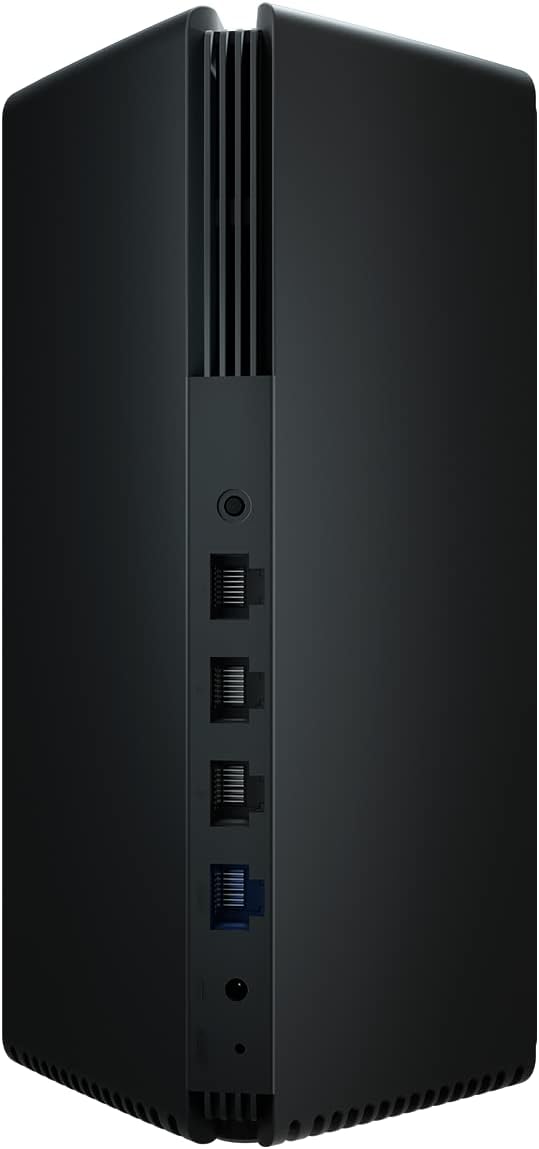
Detail of the rear panel of a Xiaomi Mesh System AX3000 unit, highlighting the Ethernet ports, power connector, and reset button.
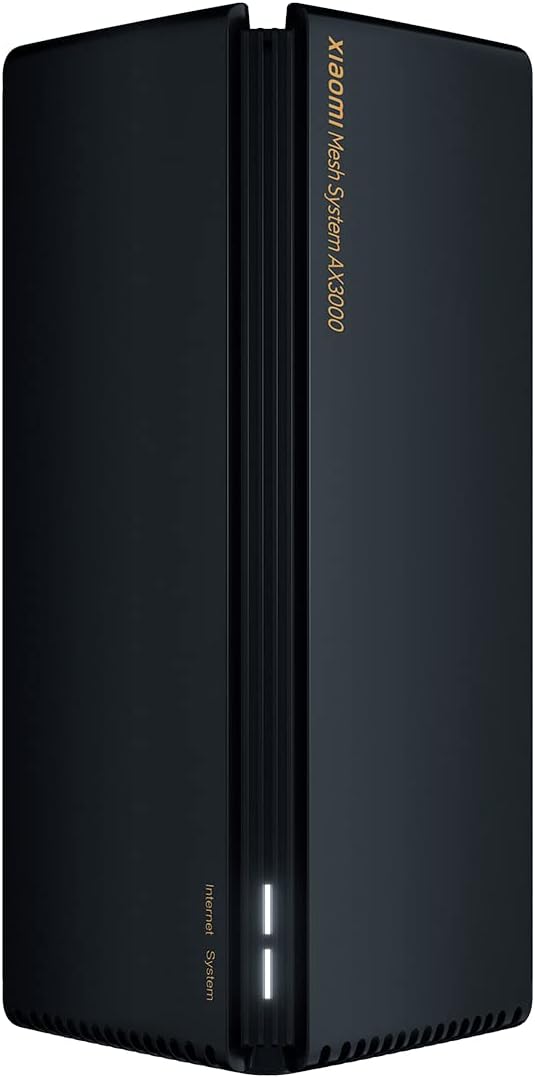
A single Xiaomi Mesh System AX3000 unit, showcasing its sleek design and front status indicator.
5. Instrucións de configuración
5.1. Configuración inicial (unidade principal)
- Connect the Main Unit: Connect one of the Mesh System units to your internet modem or router using the provided Ethernet cable. Plug one end into the WAN port (usually blue) of the Mesh unit and the other end into a LAN port on your modem/router.
- Encendido: Connect the power adapter to the main Mesh unit and plug it into a power outlet. Wait for the unit to power on and the indicator light to turn solid white (or blue, depending on the model, indicating a stable connection).
- Descarga a aplicación: Download the Xiaomi Home or Mi Home app from your smartphone's app store.
- Configurar a través da aplicación: Open the app, create an account if you don't have one, and follow the on-screen instructions to add your new Mesh System. The app will guide you through setting up your Wi-Fi network name (SSID) and password.
5.2. Mesh Network Setup (Secondary Unit)
- Colocación: Place the second Mesh unit in an area where you need extended Wi-Fi coverage, ideally within range of the main unit. Avoid obstructions like thick walls or large metal objects.
- Encendido: Connect the power adapter to the secondary Mesh unit and plug it into a power outlet.
- Emparejamento automático: The secondary unit will automatically detect and pair with the main unit. The indicator light will change to reflect a successful mesh connection (e.g., solid white/blue). This process typically takes a few minutes.
- Verificar a conexión: Use the Xiaomi Home/Mi Home app to verify that both units are connected and functioning correctly within the mesh network.

The Xiaomi Home/Mi Home application interface on a smartphone, used for managing the Mesh System AX3000 network and connected devices.
6. Instrucións de funcionamento
6.1. Dispositivos de conexión
Once your Mesh System is set up, devices can connect to the Wi-Fi network using the SSID and password you configured. The mesh system ensures seamless roaming between units, providing a consistent signal throughout your coverage area.
6.2. Network Management via App
The Xiaomi Home/Mi Home app allows you to:
- View connected devices and their network usage.
- Change Wi-Fi settings (SSID, password, security type).
- Realizar actualizacións de firmware.
- Configura controis parentais ou redes de convidados.
- Monitor network status and troubleshoot issues.
6.3. Funcións avanzadas
- OFDMA Transmission: This technology enables high-efficiency data transmission, allowing the system to process data streams from multiple devices simultaneously, improving overall network performance.
- Tempo de activación obxectivo (TWT): TWT allows devices to negotiate when and how often they will wake up to send or receive data. This reduces power consumption for connected devices, especially IoT devices, by keeping them in standby mode until a transmission signal is received.
7. Mantemento
- Actualizacións de firmware: Regularly check for and install firmware updates via the Xiaomi Home/Mi Home app to ensure optimal performance, security, and access to new features.
- Limpeza: Gently wipe the exterior of the units with a soft, dry cloth. Do not use liquid cleaners or abrasive materials. Ensure ventilation slots are free from dust.
- Colocación óptima: Periódicamente review the placement of your mesh units to ensure they are in central locations, away from major obstructions, and not too close to other electronic devices that might cause interference.
8 Solución de problemas
8.1. Problemas comúns e solucións
- Sen conexión a Internet:
- Check if your modem/router is working correctly.
- Ensure the Ethernet cable between the main Mesh unit and your modem is securely connected.
- Restart both your modem/router and the Mesh System units.
- Sinal wifi débil:
- Relocate the secondary Mesh unit closer to the main unit or to a more central location.
- Ensure there are no major physical obstructions (e.g., concrete walls, large appliances) between the units.
- Comprobe se hai fontes de interferencias (por exemplo, microondas, teléfonos sen fíos).
- Non se pode conectar á wifi:
- Verify that you are using the correct Wi-Fi network name (SSID) and password.
- Reinicia o teu dispositivo (teléfono intelixente, portátil, etc.).
- Try connecting to a different Wi-Fi network to rule out device-specific issues.
8.2. Restablecemento de fábrica
If you encounter persistent issues, you may need to perform a factory reset. Locate the reset button on the rear of the unit (often a small pinhole). With the unit powered on, use a paperclip to press and hold the reset button for approximately 5-10 seconds until the indicator light changes, then release. The unit will restart with factory default settings, requiring re-configuration.
9. Especificacións
| Característica | Especificación |
|---|---|
| Marca | XIAOMI |
| Nome do modelo | XIAOMI Mesh System AX3000 (2-pack) |
| Número de modelo do artigo | 33592 |
| Estándar de comunicación sen fíos | 802.11ac, 802.11ax, 802.11n (Wi-Fi 6) |
| Clase de banda de frecuencia | Banda dual |
| Tecnoloxía de conectividade | Ethernet, Wi-Fi |
| Característica especial | WPS (configuración protexida por Wi-Fi) |
| Dispositivos compatibles | Compatible with any type of internet box or router |
| Usos recomendados | Casa |
| Compoñentes incluídos | 2x Xiaomi Mesh System AX3000 Base, Power Adapter, Ethernet Cable, User Guide |
| Fabricante | XIAOMI |
10. Garantía e soporte
10.1. Garantía do fabricante
Este produto está cuberto por a Garantía do fabricante de 24 meses desde a data de compra. Conserve o comprobante de compra para reclamacións de garantía.
10.2. Actualizacións de software
Software updates for this device are guaranteed until 13 de abril de 2030. Ensure your device is connected to the internet and check the Xiaomi Home/Mi Home app regularly for available updates.
10.3. Atención ao cliente
For technical assistance, troubleshooting beyond this manual, or warranty inquiries, please visit the official Xiaomi support website or contact their customer service. Refer to the packaging or official websitio para obter datos de contacto específicos na súa rexión.