
1. Introdución
Thank you for choosing the Xiaomi AX3000 Mesh System. This device is designed to provide a stable and high-speed Wi-Fi 6 (802.11ax) network throughout your home or office. This manual provides detailed instructions for setting up, operating, maintaining, and troubleshooting your mesh system to ensure optimal performance.
2. Contido do paquete
Verifique que todos os elementos estean presentes no seu paquete:
- Xiaomi AX3000 Mesh Router Unit
- Adaptador de alimentación
- Cable Ethernet
- Manual de usuario (este documento)
3. Produto rematadoview
Familiarize yourself with the components of your Xiaomi AX3000 Mesh System.

Figura 3.1: Fronte view of the Xiaomi AX3000 Mesh System, showing its sleek black design and indicator lights.
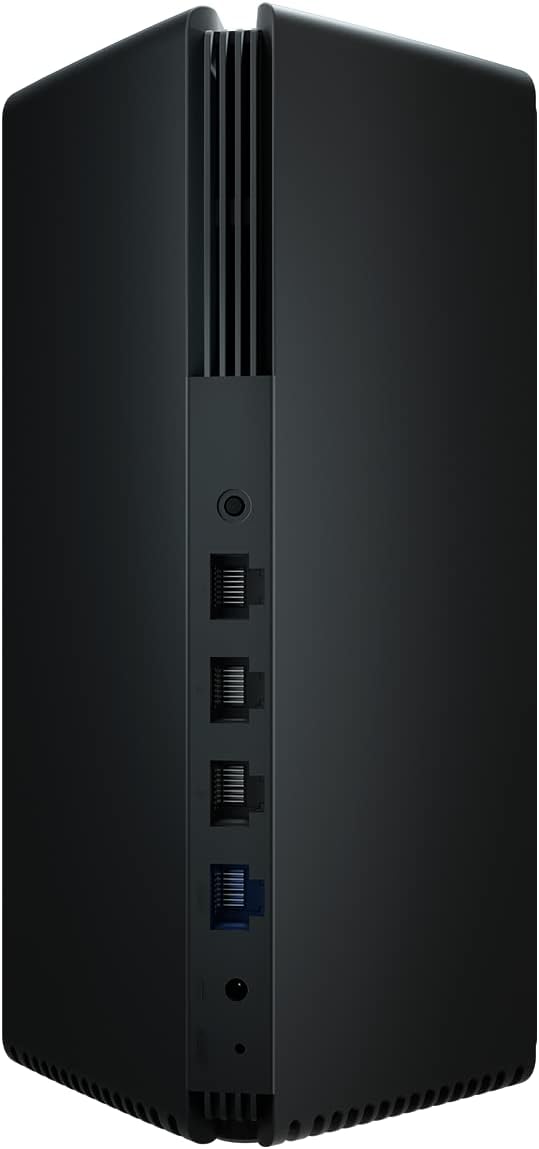
Figura 3.2: Traseira view of the Xiaomi AX3000 Mesh System, highlighting the power input, WAN port (blue), and multiple LAN ports (black).
3.1. Portos e indicadores
- Porto WAN (azul): Connects to your modem or main internet source.
- LAN Ports (Black): Conecta dispositivos con cable como ordenadores, consolas de xogos ou televisores intelixentes.
- Entrada de enerxía: Conéctase ao adaptador de corrente fornecido.
- Botón de reinicio: Used to restore factory settings (usually a small pinhole button).
- System Indicator LED: Indicates the device's status (e.g., solid white for normal operation, blinking for setup/error).
4. Configuración
4.1. Colocación inicial
Place the Xiaomi AX3000 unit in a central location in your home, away from obstructions like thick walls, metal objects, and other electronic devices that may cause interference.
4.2. Conectando ao poder
- Connect the power adapter to the power input port on the back of the router.
- Plug the power adapter into a power outlet. The system indicator LED will light up.
4.3. Conexión á rede
- Connect one end of the Ethernet cable to the WAN port (blue) of the Xiaomi AX3000 router.
- Connect the other end of the Ethernet cable to your modem's LAN port or your existing router's LAN port.
4.4. App Installation and Initial Configuration
For the best setup experience, download the Xiaomi Home app on your smartphone or tablet. The app will guide you through the initial setup process, including setting up your Wi-Fi name (SSID) and password.
- Descarga o Xiaomi Home app from your device's app store (Google Play Store for Android, Apple App Store for iOS).
- Abre a aplicación e crea ou inicia sesión na túa conta de Xiaomi.
- Follow the on-screen instructions to add your new Xiaomi AX3000 Mesh System. The app will automatically detect the device.
- Set up your Wi-Fi network name (SSID) and password when prompted.
5. En funcionamento
5.1. Mesh Network Configuration (Adding More Units)
If you have multiple Xiaomi AX3000 units, you can easily expand your mesh network:
- Place the additional mesh unit in an area where you need extended Wi-Fi coverage, ensuring it's within range of the main router or another mesh unit.
- Power on the new unit.
- Open the Xiaomi Home app. The app should detect the new unit and prompt you to add it to your existing mesh network. Follow the on-screen instructions.
- Alternatively, some units support a mesh button pairing. Press the mesh button on the main router and then on the new unit simultaneously to initiate pairing. Refer to the specific unit's quick start guide for exact button locations.
5.2. Configuración Wi-Fi
The Xiaomi AX3000 supports Dual-Band (2.4 GHz and 5 GHz) Wi-Fi 6 (802.11ax) for optimal performance. You can manage your Wi-Fi settings through the Xiaomi Home app:
- Nome de rede (SSID): Change your Wi-Fi network name.
- Contrasinal: Update your Wi-Fi password regularly for security.
- Rede de invitados: Create a separate network for guests to enhance security.
- Dirección de banda: The system intelligently directs devices to the optimal Wi-Fi band (2.4 GHz or 5 GHz) for better performance.
5.3. Significado dos indicadores LED
- Branco sólido: The mesh system is operating normally and connected to the internet.
- Branco parpadeante: The system is starting up, updating firmware, or in pairing mode.
- Laranxa/vermello sólido: No internet connection or a system error.
- Blinking Orange/Red: Network cable not connected or other connection issues.
6. Mantemento
6.1. Actualizacións de firmware
Regularly check for and install firmware updates via the Xiaomi Home app. Firmware updates provide new features, performance improvements, and security patches. Ensure your device is powered on and connected to the internet during updates.
6.2. Limpeza
To clean the device, use a soft, dry cloth. Do not use liquid cleaners or aerosol sprays directly on the unit. Ensure the device is unplugged before cleaning.
6.3. Restablecer o dispositivo
If you encounter persistent issues, you may need to reset the device to its factory settings. This will erase all custom configurations.
- With the device powered on, use a paperclip or a similar pointed object to press and hold the Restablecer button (usually a small pinhole) for approximately 5-10 seconds.
- Release the button when the system indicator LED starts blinking rapidly.
- The device will restart with factory default settings. You will need to reconfigure it using the Xiaomi Home app.
7 Solución de problemas
Esta sección aborda problemas comúns cos que podes atoparte.
7.1. Sen conexión a Internet
- Check if the WAN port cable is securely connected to your modem/router.
- Verify that your modem/main router is working correctly and has an active internet connection.
- Restart your modem, then your Xiaomi AX3000 unit.
- Check the system indicator LED for error states (Solid Orange/Red).
7.2. Poor Wi-Fi Signal or Slow Speeds
- Ensure the mesh unit is placed centrally and away from interference sources.
- If using multiple units, ensure they are within optimal range of each other.
- Comproba se hai actualizacións de firmware.
- Reduce the number of connected devices or consider adding more mesh units for larger areas.
7.3. Cannot Connect to Wi-Fi Network
- Verifica que estás a introducir o contrasinal wifi correcto.
- Restart your device (smartphone, laptop) and try connecting again.
- If the issue persists, try resetting the Xiaomi AX3000 to factory settings and reconfiguring it.
8. Especificacións
| Característica | Detalle |
|---|---|
| Número de modelo | AX3000 |
| Estándar sen fíos | Wi-Fi 6 (802.11ax) |
| Bandas de frecuencia | Dobre banda (2.4 GHz / 5 GHz) |
| Tecnoloxía de conectividade | Ethernet, WLAN |
| Dimensións (L x W x H) | 9.7 x 9.7 x 22.2 cm |
| Peso | 760 gramos |
| Tipo de material | Plástico |
| Cor | Negro |
| Compoñentes incluídos | Router |
9. Garantía e soporte
9.1. Información da garantía
Warranty terms and conditions may vary by region and point of purchase. Please refer to the warranty card included with your product or contact your retailer for specific warranty details. Keep your purchase receipt as proof of purchase.
9.2. Atención ao cliente
For further assistance, technical support, or service inquiries, please visit the official Xiaomi support website or contact Xiaomi customer service in your region. You can often find FAQs, troubleshooting guides, and contact information on their websitio.
10. Información legal
This product is new from a specialist dealer. An invoice including VAT is available. Shipping to a packing station is possible.