
SKYLOONG SK96
SKYLOONG SK96 Full Size Gaming Keyboard Instruction Manual
Model: SK96 | Brand: SKYLOONG
Introdución
This manual provides detailed instructions for the SKYLOONG SK96 Full Size Gaming Keyboard. Designed for enhanced productivity and an immersive gaming experience, this keyboard features a 96% compact layout, hot-swappable switches, customizable RGB lighting, and a unique Lite Gasket design for noise and vibration damping. Please read this manual thoroughly to ensure proper setup, operation, and maintenance of your keyboard.
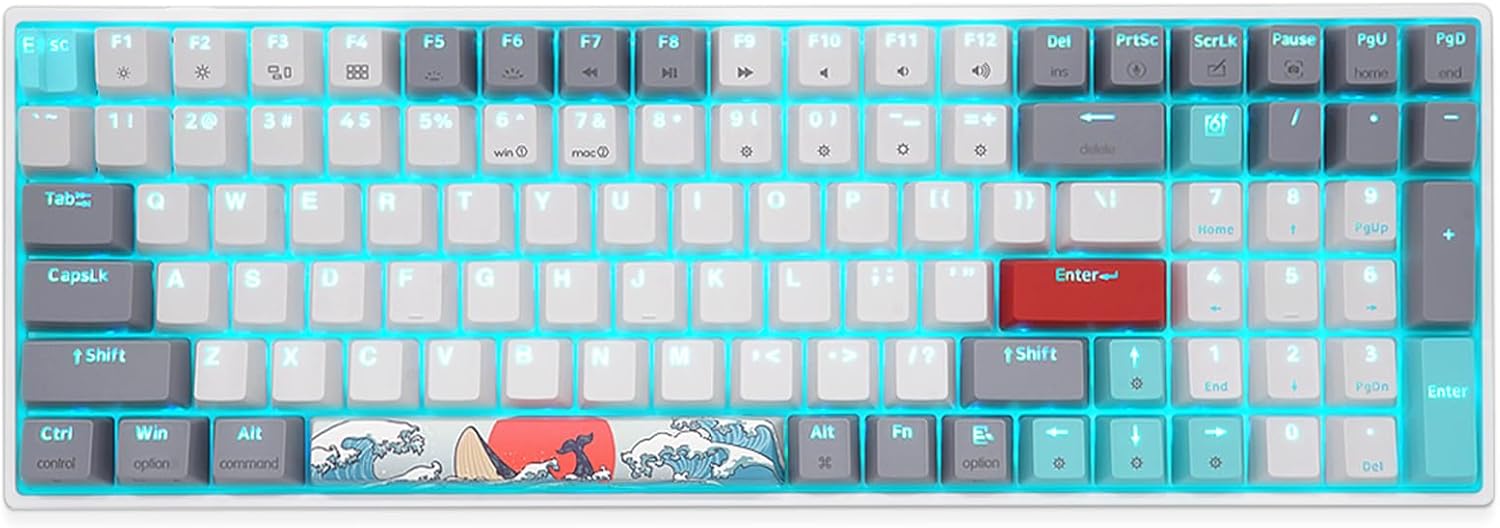
Figura 1: Máisview of the SKYLOONG SK96 Full Size Gaming Keyboard.
Configuración
1. Contido do paquete
Antes de continuar, asegúrate de que todos os elementos estean presentes no paquete:
- SKYLOONG SK96 Gaming Keyboard
- Cable USB
- Tirador de chaves
- Extractor de interruptor
- Supplementary keycap/experience Switch (6 pieces)

Figure 2: Included accessories: USB-C cable, keycap puller, and switch puller.
2. Conectando o teclado
The SKYLOONG SK96 keyboard connects via a USB-C cable, ensuring a stable and reliable connection to your computer.
- Locate the USB-C port on the keyboard, typically at the top edge.
- Conecta un extremo do cable USB-C fornecido ao teclado.
- Connect the other end of the USB cable to an available USB port on your computer (Laptop or PC).
- The keyboard should be automatically recognized by your operating system (Windows or Mac).

Figure 3: Connecting the keyboard using the USB-C cable.
3. Adjusting Keyboard Angle
The keyboard features a three-stage leg brace design, allowing you to adjust the typing angle for optimal comfort.
- Dé a volta ao teclado para acceder ás patas axustables da parte inferior.
- Extend the feet to your preferred angle (approximately 4°, 8°, or 10°).

Figure 4: Adjustable feet for ergonomic typing angles.
Instrucións de funcionamento
1. Keyboard Layout and Features
The SK96 offers a 96% compact layout, retaining most of the functionality of a full-size keyboard while optimizing desk space. It includes a numeric keypad for enhanced productivity.

Figure 5: Key features of the SKYLOONG SK96 keyboard.
The keyboard is equipped with Gateron G Pro pre-lubricated 3-pin mechanical switches, ensuring a smooth and consistent typing experience. The unique Lite Gasket design incorporates a silicone integrated cushion to reduce noise and vibration from stabilizers and switches hitting the PCB.

Figure 6: Illustration of the Lite Gasket noise and vibration dampdeseño de ing.
A stepped ESC keycap is designed to prevent accidental touches during use.

Figure 7: The stepped ESC keycap for improved usability.
2. RGB Backlighting and Customization
The keyboard features immersive 16 million RGB lighting options. You can customize lighting effects using the dedicated driver software.
To activate the musical rhythm light effect mode, press FN + = four times. The lighting will then move with the music rhythm.

Figure 8: Musical rhythm effect demonstration.
For a visual demonstration of the RGB display, please watch the official product video below:
Video 1: Demonstration of the SKYLOONG SK96 RGB lighting effects.
3. Programmable Driver
The keyboard features a highly programmable driver that allows for extensive customization. This includes remapping keys, creating custom macros, and fine-tuning lighting effects to suit your specific needs and workflow.
Details on downloading and using the driver software can typically be found on the official SKYLOONG website or through the product's support page.

Figure 9: Illustration of the keyboard's internal hardware, supporting advanced customization.
Mantemento
1. Limpeza do teclado
Unha limpeza regular axuda a manter a aparencia e a funcionalidade do teclado.
- Desconecte o teclado do ordenador antes de limpalo.
- Use un pano suave e sen pelusa lixeiramente dampEnxágüe con auga ou unha solución de limpeza suave para limpar as teclas e o marco.
- Para o po e os residuos entre as teclas, use aire comprimido.
- Evite pulverizar líquidos directamente sobre o teclado.
2. Interruptores e teclas intercambiables en quente
The SKYLOONG SK96 features hot-swappable sockets, allowing you to easily change mechanical switches without soldering. It also comes with extra PBT keycaps for customization.

Figure 10: Demonstrating the hot-swappable switch feature.

Figure 11: Customize your keyboard with included extra PBT keycaps.
To replace switches or keycaps:
- Usa o extractor de teclas fornecido para retirar con coidado a tecla desexada.
- Use o extractor de interruptores fornecido para extraer con coidado o interruptor da súa base.
- Aliña os pines do novo interruptor cos orificios da placa de circuíto impreso e preme firmemente ata que encaixe no seu lugar.
- Place the new keycap onto the switch stem and press down gently.
Note: Some larger keys may come with pre-installed "Chocolate Rose" switches for a different tactile feel. Extra Gateron switches are provided if you prefer uniformity.

Figure 12: Locations of pre-installed Chocolate Rose switches on larger keys.
Resolución de problemas
| Problema | Causa posible | Solución |
|---|---|---|
| O teclado non responde | Conexión USB solta, cable defectuoso, problema co controlador. | Ensure USB-C cable is securely connected to both keyboard and computer. Try a different USB port or cable. Restart your computer. Check device manager for driver issues. |
| A iluminación RGB non funciona ou é inconsistente | Software settings, power issue, specific keycap/switch interference. | Ensure the keyboard is receiving sufficient power. Check the RGB settings in the SKYLOONG driver software. Try resetting RGB effects using keyboard shortcuts (refer to driver manual). Ensure keycaps are fully seated and switches are properly installed. |
| As chaves non se rexistran ou se escriben dúas veces | Faulty switch, debris under keycap, software conflict. | Remove the keycap and switch, inspect for debris, and reinsert. If the issue persists, replace the switch with one of the spares provided. Ensure no conflicting software is running. |
| Custom macros or keybindings not working | Driver software not running, incorrect configuration. | Ensure the SKYLOONG driver software is installed and running in the background. Verify your macro and keybinding configurations within the software. Save and apply changes. |
Especificacións
| Característica | Detalle |
|---|---|
| Dimensións do produto | 14.55 x 4.84 x 1.48 polgadas |
| Peso do elemento | 2.21 libras |
| Fabricante | SKYLOONG |
| Número de modelo | SK96 |
| Dispositivos compatibles | Portátil, PC |
| Tecnoloxía de conectividade | USB-C |
| Descrición do teclado | Mecánica |
| Usos recomendados | Uso diario |
| Característica especial | Retroiluminado |
| Color (Switches) | Gateron G Pro Brown Switches - Tactile |
| Número de chaves | 100 |
| Retroiluminación del teclado | RGB (16 millóns de cores) |
| Estilo | Clásico |
| Primeira data dispoñible | 6 de xaneiro de 2022 |
Soporte e Garantía
For any questions, technical assistance, or warranty inquiries regarding your SKYLOONG SK96 keyboard, please contact SKYLOONG customer support.
You can reach out to the manufacturer directly via the contact information provided on their official website or through the platform where the product was purchased.

Figure 13: SKYLOONG After-sales service contact information.
For the most up-to-date support resources, including driver downloads and FAQs, please visit the official SKYLOONG websitio.
Ask a question about this manual
Ask about setup, troubleshooting, compatibility, parts, safety, or missing instructions. Manuals+ will review the question and use this page’s manual context to help answer it.