
Introdución
The HyperGear HyperStream 1080P Webcam provides high-definition video and clear audio for various applications, including online meetings, classes, and streaming. This manual provides instructions for setup, operation, maintenance, and troubleshooting to ensure optimal performance of your webleva.
Contido do paquete
Verifique que todos os elementos estean presentes no seu paquete:
- HyperGear HyperStream 1080P Webleva
- Cable USB
- Micrófono incorporado
Produto rematadoview
The HyperGear HyperStream 1080P Webcam is designed for ease of use and high-quality performance. Key features include:
- Crystal-Clear 1080P HD Resolution: Delivers sharp and vibrant visuals.
- Built-in Noise Reduction Microphone: Captures clear audio by reducing background sounds.
- Conectividade USB Plug & Play: Requires no additional software or drivers for quick setup.
- Wide-Angle 110° Lens: Captura un amplo campo de view, suitable for group interactions.
- Balance de brancos automático: Automatically adjusts to various lighting conditions for optimal image quality.
- Montaxe con clip axustable: Securely attaches to monitors or laptops, and can also be positioned as a standalone unit.
Instrucións de configuración
Follow these steps to set up your HyperGear HyperStream 1080P Webleva:
- Desempaquetar o Webleva: Elimina con coidado webcam and its USB cable from the packaging.

Image: The HyperGear HyperStream 1080P Webcam is designed for instant plug-and-play setup without requiring additional drivers. Simply connect the USB cable to your computer.
- Monte o Webleva:
- Nun monitor/portátil: Open the adjustable clip and place it securely on top of your monitor or laptop screen. Adjust the angle to ensure the weba cámara está estable e está mirando cara a ti.
- Nun escritorio: Fold the clip to form a stable stand and place the webcam on a flat surface, such as your desk.

Imaxe: A webcam features an adjustable mount that allows it to be clamped onto any screen or display, or positioned as a standalone unit on your desk. It offers 180-degree rotation for flexible positioning.
- Conéctate ao teu dispositivo: Conecte o cable USB da webcam into an available USB port on your computer (PC, Mac) or Xbox console. The webcam is plug-and-play, so no additional drivers are typically required.
- Verificar a conexión: Your operating system should automatically detect the webcam. You can verify its connection in your device settings or within your preferred video conferencing/streaming application.
Instrucións de funcionamento
Once connected, the HyperGear HyperStream 1080P WebA cámara está lista para o seu uso con varias aplicacións.
Compatibilidade do sistema
O webcam is compatible with multiple operating systems and platforms:
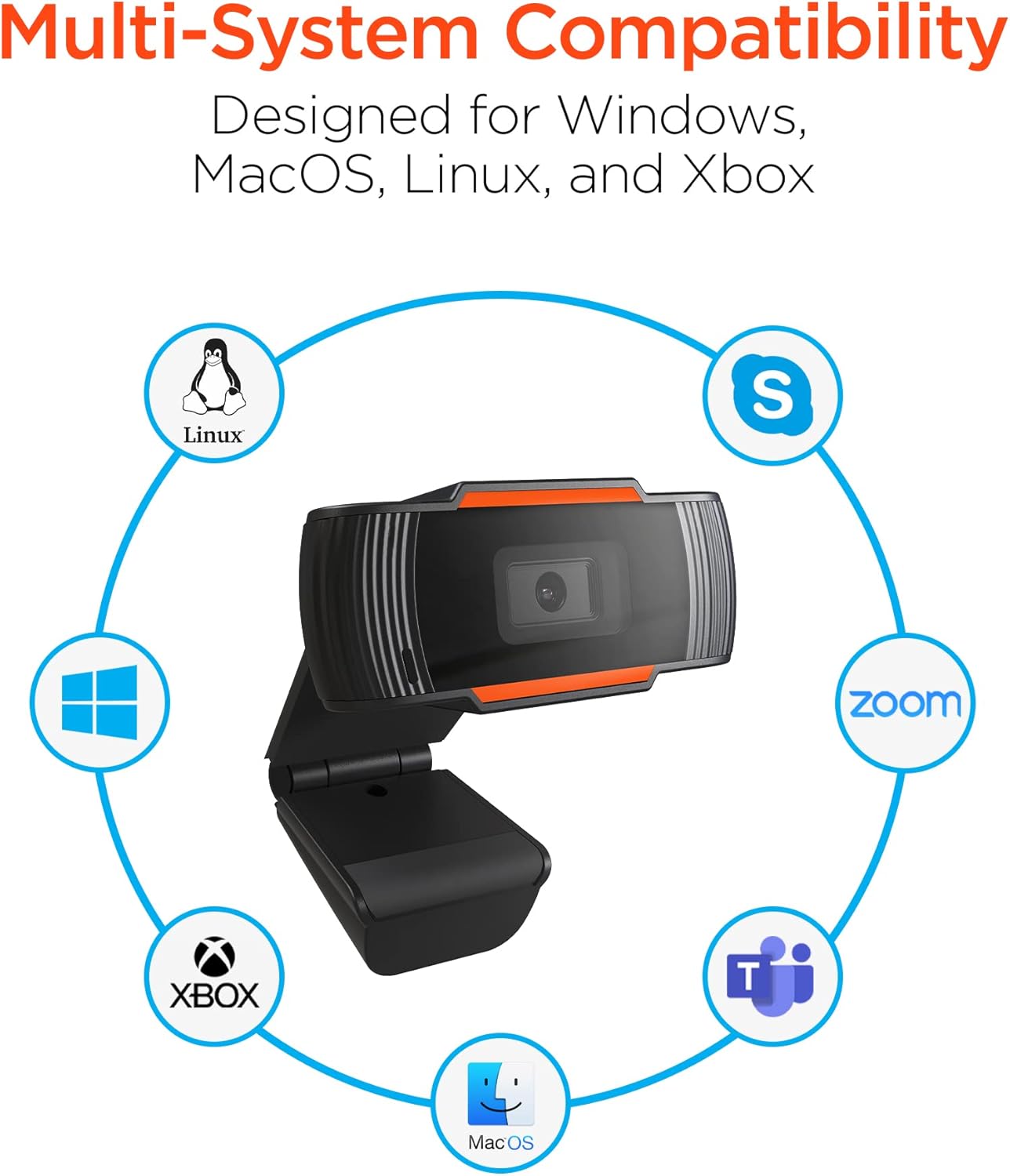
Image: The HyperGear HyperStream 1080P Webcam offers multi-system compatibility, designed for use with Windows, MacOS, Linux, and Xbox, as well as popular communication platforms like Skype, Zoom, and Microsoft Teams.
- Windows
- macOS
- Linux
- Xbox
- Compatible with popular video conferencing software (e.g., Skype, Zoom, Microsoft Teams).
Usando o Webleva
- Seleccione o Webleva: In your video conferencing or streaming application, navigate to the video and audio settings. Select "HyperGear HyperStream 1080P Webcam" as your video input device and its integrated microphone as your audio input device.
- Adjust Position and Angle: Asegurar o webcam is positioned to capture your desired view. The 110° wide-angle lens is ideal for capturing multiple participants or a broader background.

Image: The 110° ultra wide-angle lens ensures that your entire team and presentations fit within the frame, making it suitable for group meetings and collaborative environments.
- Benefit from Auto-White Balance and Fixed Focus: O webcam automatically adjusts for optimal lighting and maintains a sharp focus on subjects within its field of view, eliminating the need for manual adjustments.

Imaxe: A webcam features fixed focus and auto-white balance (AWB) to automatically adjust to various lighting conditions (like daylight or fluorescent), ensuring clear and sharp visuals without manual intervention.
- Utilize Noise Reduction Microphone: The built-in microphone actively reduces ambient noise, ensuring your voice is clear and easily understood during calls.

Image: The integrated noise reduction microphone minimizes unwanted background noise and distortions, ensuring clear audio during your video calls and streams.
Mantemento
Para garantir a lonxevidade e o rendemento óptimo do seu webcámara, siga estas pautas de mantemento:
- Limpeza: Gently wipe the lens with a soft, lint-free cloth. Avoid using harsh chemicals or abrasive materials that could scratch the lens or damage the casing.
- Almacenamento: Cando non estea en uso, almacene o webgardar nun lugar limpo e seco, lonxe de temperaturas extremas e da luz solar directa.
- Manexo: Evite deixar caer o webcam or subjecting it to strong impacts, which could damage internal components.
Resolución de problemas
If you encounter issues with your HyperGear HyperStream 1080P Webcámara, probe os seguintes pasos para a resolución de problemas:
- Webcámara non detectada:
- Asegúrese de que o cable USB estea conectado correctamente a ambos os dous webcam and your computer's USB port.
- Proba a conectar o webcam nun porto USB diferente.
- Reinicia o teu ordenador.
- Check your operating system's device manager (Windows) or System Information (macOS) to see if the webA cámara está listada.
- Sen saída de vídeo:
- Verifique que o webA cámara está seleccionada como dispositivo de entrada de vídeo na configuración da aplicación.
- Asegúrate de que ningunha outra aplicación estea a usar actualmente o webcam, as some systems only allow one application to access it at a time.
- Comprobe se hai algunha obstrución física que cubra a lente.
- No Audio Input (Microphone):
- Confirme que o webcam's microphone is selected as the audio input device in your application's settings and your system's sound settings.
- Check that the microphone is not muted in your application or system settings.
- Ensure your system's privacy settings allow applications to access the microphone.
- Baixa calidade do vídeo:
- Ensure you have adequate lighting in your environment. While the webcam has auto-white balance, sufficient ambient light is crucial for best results.
- Limpar o webcam lens if it appears smudged or dirty.
- Check your internet connection speed if streaming or video conferencing, as a slow connection can affect video quality.
Especificacións
| Característica | Detalle |
|---|---|
| Marca | HyperGear |
| Nome do modelo | HyperStream Portable 1080P |
| Resolución de captura de vídeo | 1080 p |
| Tecnoloxía de conectividade | USB |
| Cor | negro |
| Característica especial | Axustable |
| Tipo de videocámara | Webleva |
| Sistema Operativo | Windows, macOS |
| Tipo de lente | Gran Angular |
| Tipo de foco | Foco fixo |
| Relación de aspecto da imaxe | 16:9 |
| Tipo de control de exposición | Automático |
| Resolución efectiva de vídeo | 1920 píxeles |
| Dispositivos compatibles | Ordenador persoal |
| Medios incorporados | Microphone, USB Cable |
| Peso do elemento | 4.72 onzas |
| UPC | 633755155390 |
| ASIN | B09S51KSC4 |
Garantía e Soporte
For warranty information and customer support, please refer to the documentation included with your purchase or visit the official HyperGear websitio.
Tamén podes visitar o HyperGear Store on Amazon para obter máis información sobre o produto e recursos de asistencia.