
1. Introdución
Thank you for choosing the Pantum BP5100DN Monochrome Laser Printer. This manual provides essential information for the safe and efficient use of your printer. Please read it thoroughly before operating the device and keep it for future reference.
The Pantum BP5100DN is designed for high-speed, high-quality monochrome printing, featuring automatic two-sided printing and versatile connectivity options including USB and Ethernet.
2. Información de seguridade
- Coloque sempre a impresora sobre unha superficie estable e nivelada.
- Ensure proper ventilation around the printer to prevent overheating.
- Non expoña a impresora á auga nin a humidade excesiva.
- Use only the specified power supply and connect to a grounded outlet.
- Manteña as mans e a roupa solta lonxe das pezas móbiles durante o funcionamento.
- Evite tocar a unidade do fusor, xa que pode estar moi quente.
- Do not attempt to service the printer yourself. Refer to qualified service personnel.
3. Que hai na caixa
Verifique que todos os elementos que se indican a continuación estean incluídos no seu paquete:
- Pantum BP5100DN Monochrome Laser Printer
- Cable de alimentación
- cable de interface USB
- Guía de configuración rápida
- Starter cartridge (3000 pages)
- Starter drum (30000 pages)

Figure 3.1: Package Contents. This image displays the Pantum BP5100DN printer along with its accessories: power cord, USB interface cable, quick setup guide, starter toner cartridge, and starter drum unit.
4. Produto rematadoview
4.1. Compoñentes da impresora
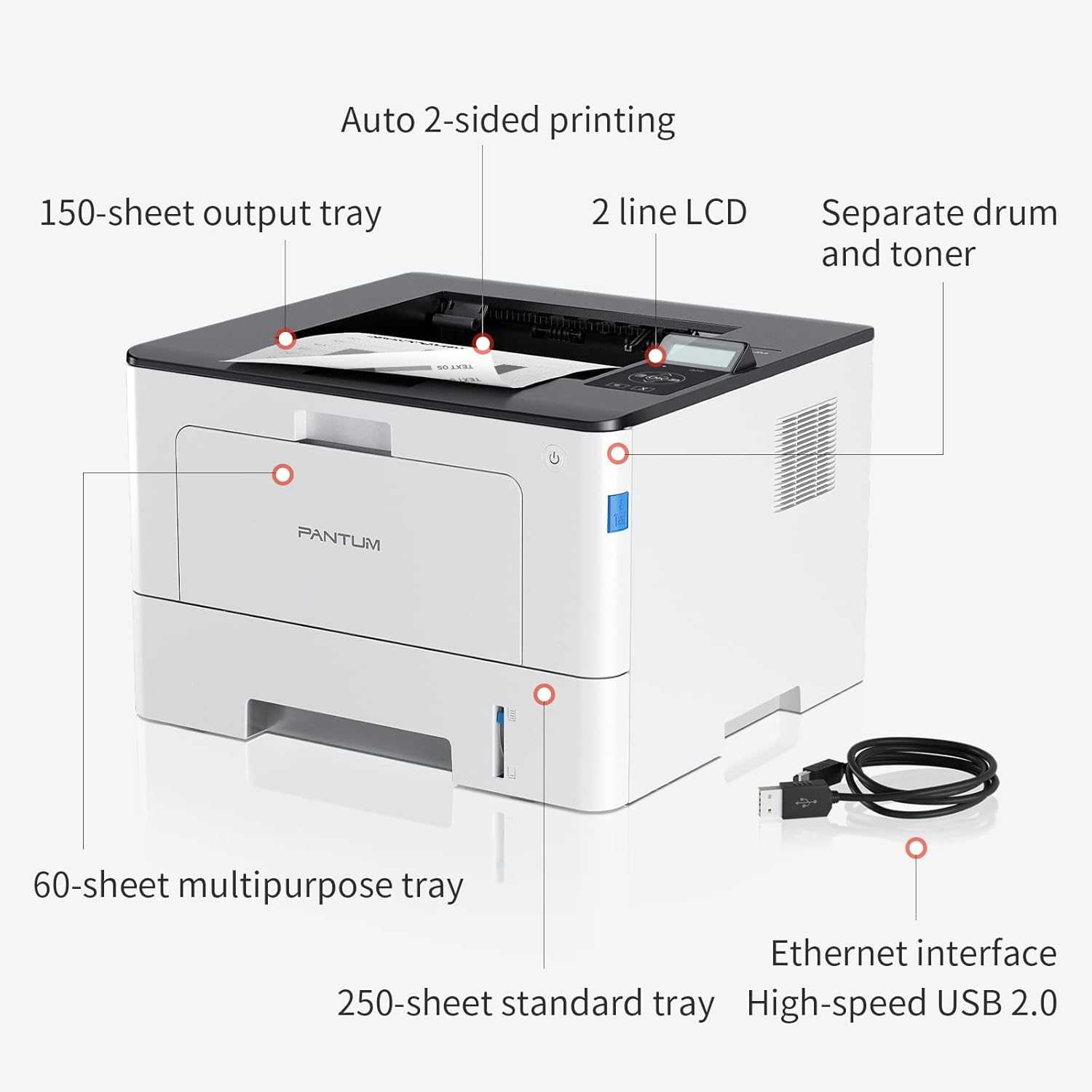
Figure 4.1: Printer Components. Key features include a 150-sheet output tray, a 2-line LCD display, separate drum and toner units, a 60-sheet multipurpose tray, a 250-sheet standard tray, an Ethernet interface, and a High-speed USB 2.0 port.
4.2. Dimensións

Figure 4.2: Printer Dimensions. The printer measures approximately 14.33 inches (W) x 10.12 inches (H) x 13.54 inches (D).
4.3. Panel de control

Figure 4.3: Control Panel. The control panel includes a 2-line LCD display for status messages and menu navigation, along with buttons for OK, arrow controls, and cancel functions.
5. Configuración
5.1. Desembalaxe e colocación
- Retire coidadosamente a impresora da súa embalaxe.
- Retire todas as cintas protectoras e os materiais de embalaxe da impresora.
- Place the printer on a firm, level surface with adequate space for ventilation.
5.2. Toner and Drum Installation
- Abra a tapa frontal da impresora.
- Unpack the drum unit and toner cartridge.
- Insert the toner cartridge into the drum unit until it clicks into place.
- Insert the combined drum and toner unit into the printer.
- Pecha a tapa frontal.
5.3. Carga de papel
- Pull out the standard paper tray or open the multipurpose tray.
- Axuste as guías do papel ao tamaño do seu papel.
- Load paper into the tray, ensuring it is flat and not exceeding the maximum capacity (250 sheets for standard tray, 60 sheets for multipurpose tray).
- Pecha a bandexa de papel.
5.4. Power and Connectivity
- Conecte o cable de alimentación á impresora e despois a unha toma de corrente con conexión a terra.
- For USB connection: Connect the provided USB 2.0 cable from the printer to your computer.
- For Ethernet connection: Connect an Ethernet cable from the printer to your network router or switch.
- Prema o botón de acendido para acender a impresora.
6. Instrucións de funcionamento
6.1. Instalación de controladores
For optimal performance, install the printer drivers from the official Pantum website or the provided installation media. The printer supports easy one-step installation for quick setup.
6.2. Printing a Document
- Abre o documento que queres imprimir no teu ordenador ou dispositivo móbil.
- Selecciona a opción de impresión na túa aplicación.
- Choose the Pantum BP5100DN from the list of available printers.
- Axuste a configuración de impresión segundo sexa necesario (por exemplo, número de copias, tamaño do papel, impresión dúplex).
- Fai clic en "Imprimir".
The printer offers fast printing speeds of up to 40 pages per minute (A4) / 42 pages per minute (Letter) in black and white. It also supports automatic two-sided printing to save paper.
6.3. Impresión móbil
The Pantum BP5100DN supports direct printing of office documents from mobile devices. Ensure your mobile device and printer are connected to the same network or via USB OTG (if supported by your device and printer).
7. Mantemento
7.1. Replacing Toner Cartridge and Drum Unit
When the toner is low or the drum unit reaches its end of life, the printer's display will show a message. Refer to the instructions provided with the replacement consumables for proper installation. The starter toner cartridge yields approximately 3000 pages, and the starter drum unit yields approximately 30000 pages.
7.2. Limpeza da impresora
- Apague a impresora e desconecte o cable de alimentación antes de limpala.
- Wipe the exterior of the printer with a soft, lint-free cloth.
- Use a dry cloth to clean the paper path and rollers if paper jams occur frequently.
- Non use produtos de limpeza ou disolventes abrasivos.
8 Solución de problemas
If you encounter issues with your printer, refer to the following common solutions:
- A impresora non responde: Check power connections, USB/Ethernet cable connections, and ensure the printer is turned on. Restart both the printer and your computer.
- Atascos de papel: Open all covers and carefully remove any jammed paper. Ensure paper is loaded correctly and not creased or damaged.
- Mala calidade de impresión: Check toner levels. If print quality is faded, especially with cut and paste text, ensure you are using the correct print settings and consider replacing the toner cartridge or drum unit if they are near end-of-life.
- Problemas de conectividade: For Ethernet, verify network cable connection and IP address settings. For USB, try a different USB port or cable.
- Mensaxes de erro: Consult the printer's display for specific error codes and refer to the quick setup guide or online support for detailed solutions.
For persistent issues, please contact customer service for support.
9. Especificacións
| Característica | Especificación |
|---|---|
| Nome do modelo | BP5100DN |
| Tecnoloxía de impresión | Láser |
| Saída da impresora | Monocromo |
| Velocidade máxima de impresión (monocromo) | 40 ppm (A4) / 42 ppm (Letter) |
| Resolución de impresión máxima | 1200 x 1200 ppp |
| Impresión a dúas caras | Si (Automático) |
| Tecnoloxía de conectividade | Ethernet, USB 2.0 |
| Capacidade máxima da folla de entrada | 250 sheets (Standard Tray), 60 sheets (Multipurpose Tray) |
| Medios impresos | Papel (normal) |
| Tamaño da folla | A4, Letter, etc. |
| Dispositivos compatibles | Smartphones, PCs |
| Wattage | 650 vatios |
| Peso do elemento | 9.07 kg (approx. 9 kg 70 g) |
| Fabricante | Pantum |
10. Garantía e soporte
The Pantum BP5100DN Monochrome Laser Printer comes with a 1-year warranty from the date of purchase. For warranty claims, technical support, or any inquiries, please refer to the contact information provided in your quick setup guide or visit the official Pantum websitio.
For a better experience, please kindly refer to the user manual or contact customer service for support.