
1. Introdución
Welcome to the HyperX Armada 25 Gaming Monitor user manual. This document provides essential information for setting up, operating, maintaining, and troubleshooting your new monitor. The HyperX Armada 25 is designed for competitive gaming, featuring a 24.5-inch Full HD (1920x1080) IPS panel, a 240Hz refresh rate, and a 1ms response time, ensuring smooth and responsive visuals. It also includes NVIDIA G-SYNC compatibility to eliminate screen tearing and minimize input latency. A desk mount is included for convenient setup and to maximize desk space.
Características principais:
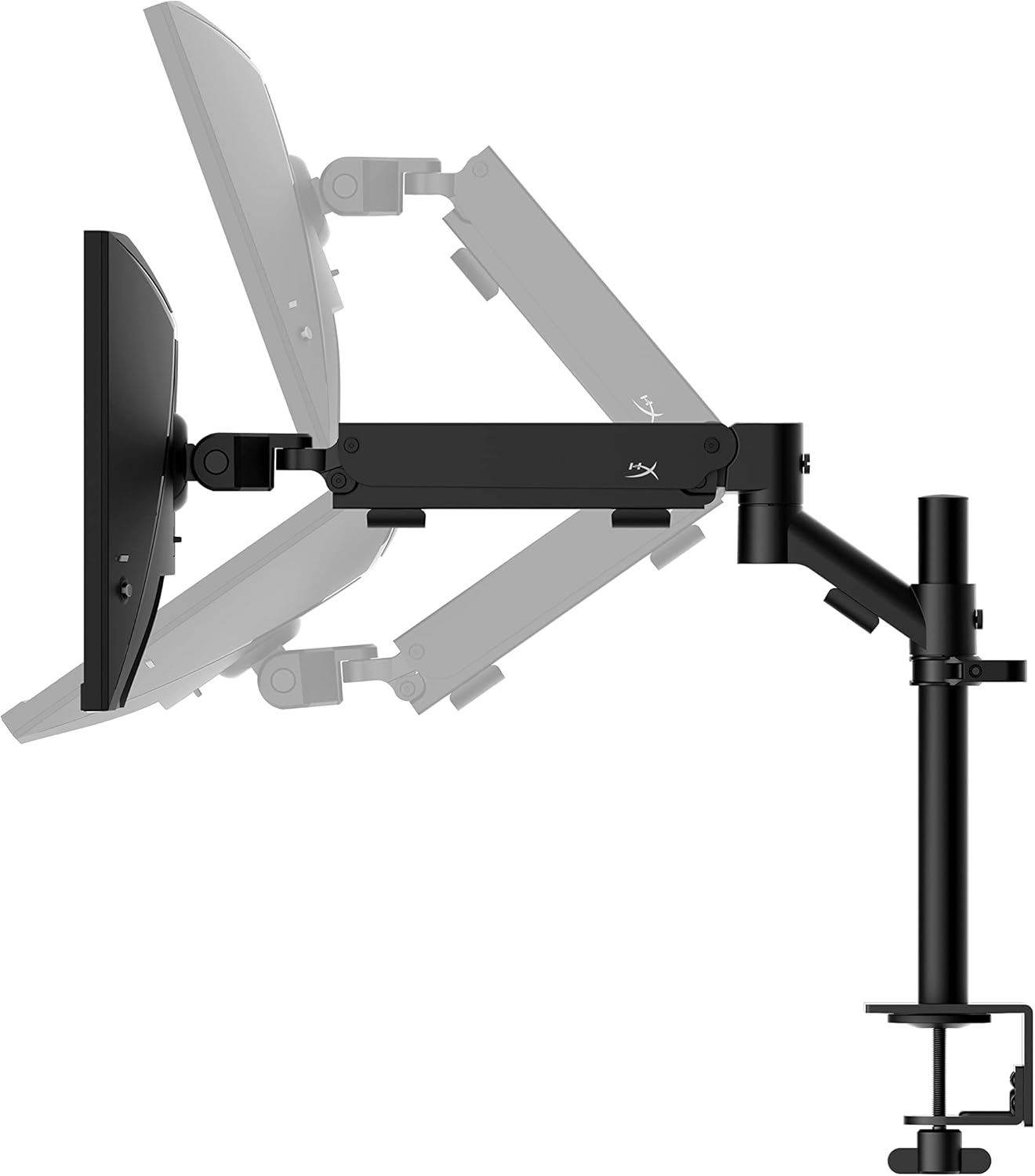
- Paquete todo en un: Includes an ergonomic arm and desk mount for easy setup and space-saving.
- Alta taxa de actualización e tempo de resposta: 240Hz refresh rate and 1ms response time for ultra-smooth gaming.
- Vibrant IPS Panel: 24.5-inch Full HD (1920x1080) IPS panel delivers stunning visuals with accurate colors and wide viewángulos de inflexión.
- Compatible con NVIDIA G-SYNC: Eliminates screen tearing and reduces stuttering for a fluid gaming experience.

Vídeo oficial do produto:
2. Configuración
This section guides you through the initial setup of your HyperX Armada 25 Gaming Monitor, including assembly and connection to your computer.
2.1. Assembling the Desk Mount
The HyperX Armada 25 comes with an integrated ergonomic desk mount. Follow the instructions provided in the separate quick start guide for detailed assembly steps. The monitor head easily snaps into the arm, allowing for quick and secure installation.

2.2. Conectando o monitor
Connect the monitor to your computer using the appropriate cables. The HyperX Armada 25 supports both HDMI and DisplayPort connections.
- Conecta un extremo do cable HDMI ou DisplayPort ao porto correspondente da tarxeta gráfica do teu ordenador.
- Connect the other end of the cable to an available HDMI 2.0 or DisplayPort 1.4 port on the back of your monitor.
- Connect the power cord to the monitor and then to a power outlet.
- Preme o botón de acendido do monitor para acendelo.

3. Funcionamento do monitor
This section covers basic operation and navigation of the monitor's On-Screen Display (OSD) menu.
3.1. Navegación en pantalla (OSD)
The OSD menu is controlled using a joystick located on the back of the monitor. This joystick allows you to power on/off the monitor and navigate through various settings.
- Preme o joystick: Para abrir o menú OSD ou confirmar unha selección.
- Move the joystick Up/Down/Left/Right: To navigate through menu options and adjust settings.
- Hold the joystick: To power off the monitor.

3.2. Axustar a posición do monitor
The ergonomic desk mount allows for flexible positioning of your monitor. You can adjust the height, tilt, swivel, and pivot to find your optimal viewángulo de ing.

4. Mantemento
Proper maintenance ensures the longevity and optimal performance of your HyperX Armada 25 Gaming Monitor.
- Limpeza da pantalla: Use un pano suave e sen pelusa dampened with water or a specialized screen cleaner. Avoid using harsh chemicals, abrasive materials, or direct spraying onto the screen.
- Limpeza do Casing: Limpar o monitor casinlimpe cun pano suave e seco.
- Ventilación: Asegúrate de que as aberturas de ventilación do monitor non estean bloqueadas para evitar o sobrequecemento.
- Apague cando non estea en uso: Apague o monitor cando non o use durante períodos prolongados para aforrar enerxía e prolongar a súa vida útil.
5 Solución de problemas
If you encounter issues with your monitor, refer to the following common troubleshooting steps.
- Sen enerxía:
- Comprobe se o cable de alimentación está conectado de forma segura tanto ao monitor como á toma de corrente.
- Asegúrate de que a toma de corrente funcione correctamente.
- Preme o botón de acendido do monitor.
- Sen sinal:
- Comprobe que o cable HDMI ou DisplayPort estea conectado correctamente tanto ao monitor como ao ordenador.
- Asegúrate de que o teu ordenador estea acendido e non en modo de suspensión.
- Seleccione a fonte de entrada correcta usando o menú OSD.
- Flickering Screen or Image Issues:
- Check the display cable for damage or loose connections.
- Asegúrate de que os controladores da túa tarxeta gráfica estean actualizados.
- Axusta a taxa de actualización na configuración da pantalla do teu ordenador.
- If G-SYNC is enabled, try disabling it temporarily to see if the issue persists.
- Buttons Not Responding (OSD Joystick):
- Asegúrese de que o monitor estea acendido.
- Try restarting the monitor by unplugging and replugging the power cable.
- Clean around the joystick to ensure no debris is obstructing its movement.
6. Especificacións
Detailed technical specifications for the HyperX Armada 25 Gaming Monitor.
| Característica | Detalle |
|---|---|
| Dimensións do produto | 21.94 x 25.79 x 31.12 polgadas; 16.98 libras |
| Número de modelo do artigo | HyperX Armada 25 |
| Data de primeira dispoñibilidade | 24 de agosto de 2022 |
| Fabricante | HP Inc. |
| ASIN | B0B2C1G356 |
| Tamaño de visualización | Diagonal de 24.5 polgadas |
| Resolución | FHD (1920x1080) |
| Taxa de actualización | 240 Hz |
| Tipo de panel | Panel IPS |
| Tempo de resposta | 1 ms |
| Tecnoloxía de sincronización | Compatible con NVIDIA® G-SYNC® |
| Included Mount | Desk Mount Included |
| Conectividade | HDMI and Display Port |
7. Garantía e soporte
For warranty information, technical support, or to access additional resources, please visit the official HyperX websitio ou póñase en contacto co seu servizo de atención ao cliente.
- HyperX oficial Websitio: www.hyperx.com
- Páxina de asistencia do produto: Refer to the support section on the HyperX websitio para o teu modelo específico.