
1. Introdución
This manual provides essential information for setting up, operating, maintaining, and troubleshooting your new HP 14-inch laptop. Please read this guide thoroughly to ensure optimal performance and longevity of your device.
2. Produto rematadoview
The HP 14-inch laptop is designed for productivity and portability, featuring an Intel Celeron N4120 processor, 4GB RAM, and 128GB storage (64GB eMMC + 64GB Micro SD). It comes pre-installed with Windows 11 Home in S mode.
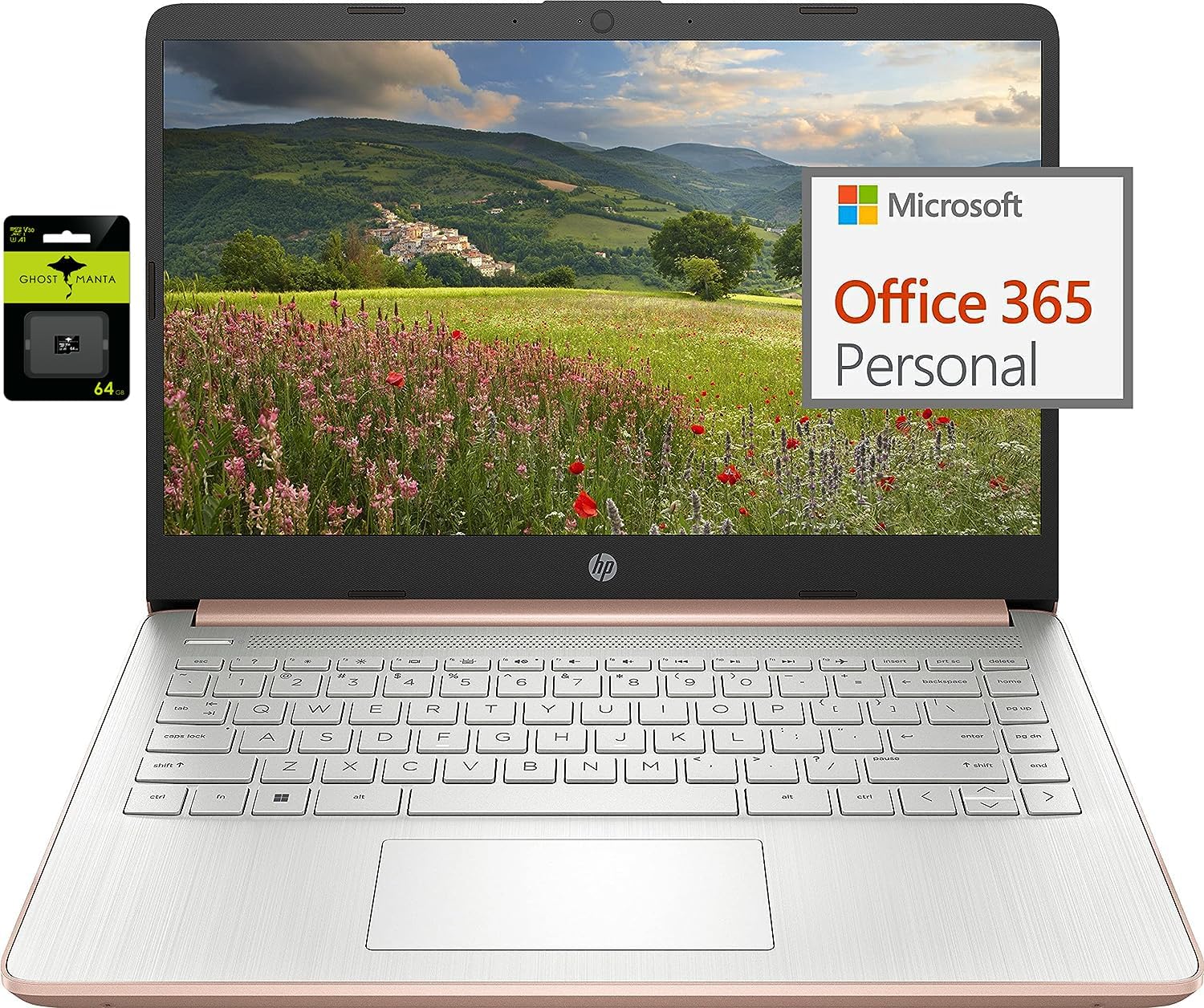
Figure 2.1: HP 14-inch Laptop with included accessories.
This image displays the HP 14-inch laptop in an open position, showcasing its screen and keyboard. To the left, packaging for a Ghost Manta 64GB SD card is visible, and to the right, a graphic indicating Microsoft Office 365 Personal is included. The laptop features a rose gold finish on the base and a silver keyboard deck.
2.1 Características principais
- Visualización: 14.0-inch diagonal, HD (1366 x 768), micro-edge, BrightView.
- Procesador: Intel Celeron N4120, 4 Cores & 4 Threads.
- Memoria: 4 GB de memoria RAM DDR4.
- Almacenamento: 64GB eMMC internal storage with an additional 64GB Micro SD card.
- Sistema operativo: Windows 11 Home in S mode.
- Conectividade: 802.11a/b/g/n/ac (2x2) Wi-Fi and Bluetooth.
- Portos: USB 3.1 Type-C, USB 3.1 Type-A (x2), HDMI, Headphone/Microphone Combo Jack, microSD slot.
- Webleva: HP True Vision 720p HD camera with integrated dual array digital microphones.
- Batería: Up to 11.5 hours video playback, HP Fast Charge.

Figure 2.2: Laptop displaying the Windows 11 desktop interface.
This image shows the HP 14-inch laptop open at an angle, with the screen displaying the Windows 11 desktop. The keyboard and touchpad are visible, and the laptop's rose gold and silver color scheme is prominent.
2.2 Disposición de portos
Familiarize yourself with the port locations for connecting external devices.

Figure 2.3: Left side ports.
This close-up image shows the left side of the HP 14-inch laptop. From left to right, the ports include a headphone/microphone combo jack, a USB Type-C port, two USB Type-A ports, an HDMI port, and the power input port.

Figura 2.4: Portos do lado dereito.
This close-up image shows the right side of the HP 14-inch laptop. From left to right, the ports include a microSD card slot, followed by indicator lights for power and storage activity.
3. Configuración
3.1 Encendido inicial
- Conecta o adaptador de corrente ao portátil e a unha toma de corrente.
- Abre a tapa do portátil e preme o botón de acendido, que normalmente se atopa na parte superior dereita do teclado.
- Follow the on-screen instructions to complete the initial Windows 11 setup, including language, region, and network settings.
3.2 Switching Out of Windows 11 S Mode
Your laptop comes with Windows 11 Home in S mode, which is optimized for security and performance by exclusively running apps from the Microsoft Store. If you need to install applications from outside the Microsoft Store, you must switch out of S mode. This process is irreversible.
- On your PC running Windows 11 in S mode, open Configuración > Sistema > Activación.
- In the "Switch to Windows 11 Pro" section, locate and select the Go to the Store ligazón. (Note: If you also see an "Upgrade your edition of Windows" section, ensure you click the "Go to the Store" link specifically for switching out of S mode.)
- On the "Switch out of S mode" (or similar) page that appears in the Microsoft Store, select the Obter botón.
- After you see a confirmation message, you will be able to install apps from outside of the Microsoft Store.
4. Instrucións de funcionamento
4.1 Funcionamento básico
- Encendido/apagado: Press the power button to turn on. To shut down, click the Start button, then Power, and select Shut down.
- Teclado: Use the integrated keyboard for typing. Function keys (F1-F12) often have secondary functions (e.g., volume, brightness) accessible by pressing the Fn key simultaneously.
- Touchpad: The touchpad acts as a mouse. Tap to click, use two fingers to scroll, and pinch to zoom.
4.2 Conexión de periféricos
- Dispositivos USB: Connect USB drives, external keyboards, or mice to the USB Type-A or Type-C ports.
- HDMI: Use the HDMI port to connect to an external monitor or TV.
- Audio: Plug headphones or external speakers into the headphone/microphone combo jack.
- Tarxeta MicroSD: Insert the provided 64GB Micro SD card into the microSD slot for expanded storage.

Figure 4.1: Ghost Manta 64GB Micro SD card.
This image shows the retail packaging for a Ghost Manta 64GB Micro SD card, which is included with the laptop for additional storage.
4.3 Conectividade sen fíos
- Wi-Fi: Para conectarse a unha rede sen fíos, faga clic na icona Wi-Fi da barra de tarefas, seleccione a rede desexada e introduza o contrasinal se se lle solicita.
- Bluetooth: Para emparellar dispositivos Bluetooth, vaia a Configuración > Bluetooth e dispositivos, turn on Bluetooth, and select "Add device."
5. Mantemento
5.1 Coidado coa batería
- Para unha duración óptima da batería, evite descargala completamente con frecuencia.
- Garda o portátil nun lugar fresco e seco cando non o uses durante períodos prolongados.
- Use only the original HP power adapter.
5.2 Limpeza do portátil
- Turn off the laptop and disconnect the power adapter before cleaning.
- Use un pano suave e sen pelusa lixeiramente dampenxugado con auga ou cun limpador de pantallas.
- Para o teclado e o chasis, use un pano suave e seco. Evite produtos químicos agresivos.
5.3 Actualizacións de software
Regularly check for and install Windows updates and HP driver updates to ensure system stability and security. You can find Windows updates in Configuración > Actualización de Windows.
6 Solución de problemas
Esta sección aborda problemas comúns cos que podes atoparte. Para problemas máis complexos, consulta os recursos de asistencia oficiais de HP.
- Laptop will not power on: Asegúrate de que o adaptador de corrente estea conectado correctamente e de que a batería teña carga suficiente. Proba cunha toma de corrente diferente.
- Rendemento lento: Close unnecessary applications, check for background processes, and ensure sufficient free storage space. Consider switching out of S mode if you need to run more demanding applications not available in the Microsoft Store.
- Problemas de conectividade Wi-Fi: Restart your router and laptop. Check Wi-Fi settings to ensure the correct network is selected and the password is entered accurately.
- Problemas coa pantalla (sen pantalla, parpadeo): Connect an external monitor via HDMI to check if the issue is with the laptop's display or the graphics output.
7. Especificacións
| Característica | Detalle |
|---|---|
| Marca | HP |
| Número de modelo | HP |
| Tamaño da pantalla | 14 polgadas |
| Resolución de pantalla | 1366 x 768 píxeles |
| Procesador | Intel Celeron N4120 (1.1 GHz base, up to 2.6 GHz burst) |
| RAM | 4 GB de DDR4 (2400 MHz) |
| Disco duro | 64GB eMMC + 64GB Micro SD |
| Coprocesador gráfico | Gráficos Intel UHD 600 |
| Sistema Operativo | Windows 11 Home en modo S |
| Tipo sen fíos | 802.11a/b/g/n/ac, Bluetooth |
| Portos USB 3.0 | 3 (1x Type-C, 2x Type-A) |
| Porto HDMI | 1 |
| Peso do elemento | 3.24 libras |
| Dimensións do produto | 12.76 x 8.86 x 0.71 polgadas |
| Cor | Ouro rosa |
| Battery Life (Video Playback) | Ata 11 horas 30 minutos |
| Webleva | Cámara HP True Vision HD de 720p |
8. Garantía e soporte
For warranty information, technical support, or service, please visit the official HP support websitio web ou póñase en contacto co servizo de atención ao cliente de HP. Manteña o recibo da compra e o número de serie do produto á man.
Soporte HP Websitio: support.hp.com