
1. Introdución
This manual provides essential information for the safe and efficient operation of your TechniSat DIGITRADIO 370 IR. Please read these instructions carefully before using the device and retain them for future reference.
2. Instrucións de seguridade
- Non expoña o dispositivo á choiva nin á humidade para evitar incendios ou descargas eléctricas.
- Non bloquees as aberturas de ventilación. Asegúrate de que haxa espazo suficiente arredor do dispositivo para un fluxo de aire axeitado.
- Use só o adaptador de alimentación que se proporciona co dispositivo.
- Evite colocar o dispositivo preto de fontes de calor como radiadores, rexistros de calor, estufas ou outros aparellos (incluídos amplificadores) que producen calor.
- Protexa o cable de alimentación para evitar que se pise ou se pinche, especialmente nos enchufes, tomas de corrente e no punto de saída do aparello.
- Desenchufe este aparello durante tormentas eléctricas ou cando non se use durante longos períodos de tempo.
- Encargue toda a reparación a persoal de servizo cualificado. O mantemento é necesario cando o aparello resultou danado dalgún xeito, como o cable de alimentación ou o enchufe está danado, se derrama líquido ou caen obxectos no aparello, o aparello estivo exposto á choiva ou á humidade, non funciona normalmente. , ou foi abandonado.
3. Contido do paquete
Verifica que todos os elementos estean presentes no paquete:
- TechniSat DIGITRADIO 370 IR (Black)
- Control remoto
- Adaptador de alimentación
- Manual de usuario (este documento)
4. Controis e conexións

Figura 4.1: Panel frontalview
The image above displays the front panel of the DIGITRADIO 370 IR, featuring the central display, volume and tuning/OK rotary knobs, and various control buttons such as Power, Mode, Preset, Scan, and Back.
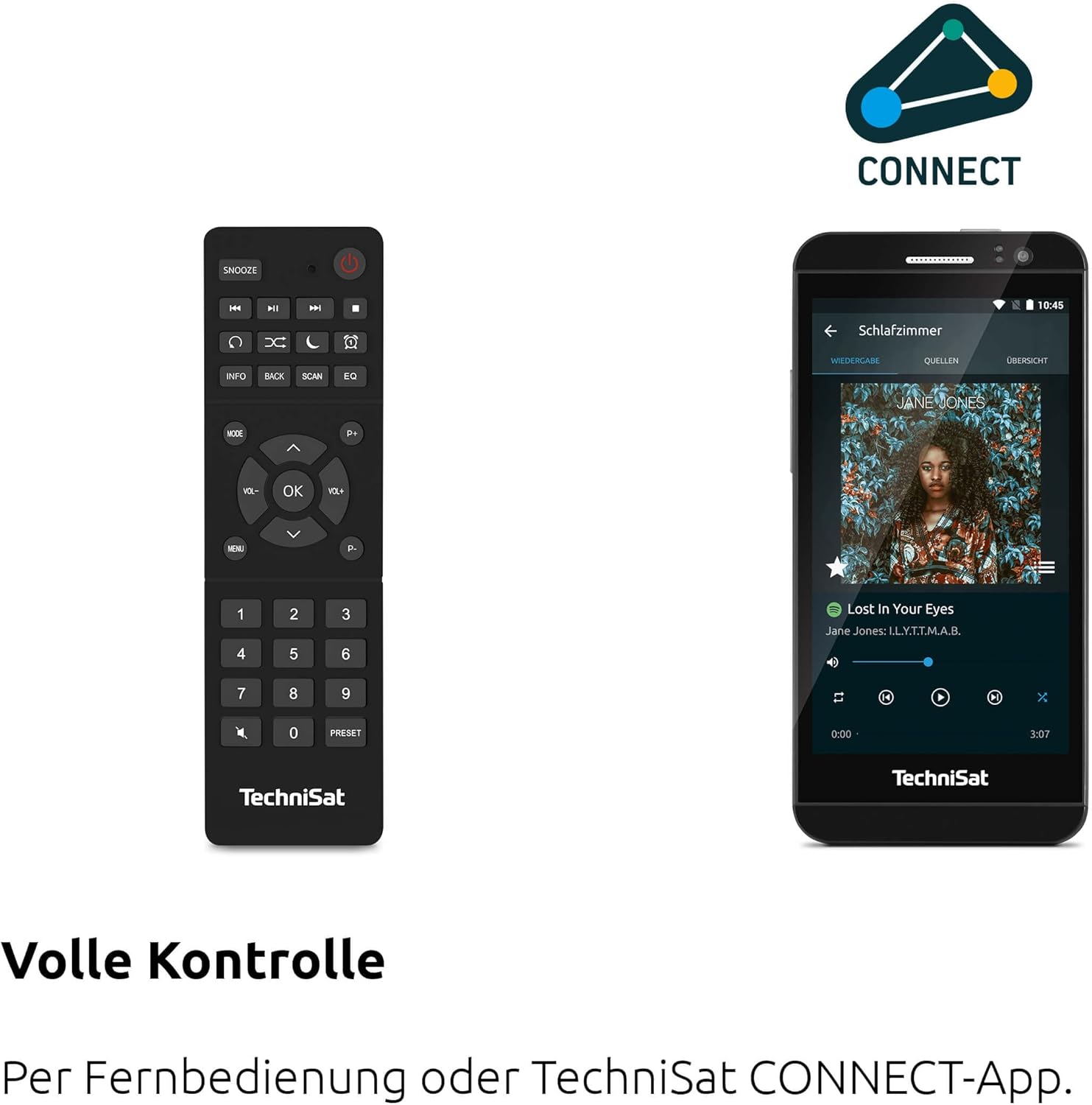
Figure 4.2: Remote Control and App Interface
This image shows the included remote control with buttons for power, snooze, mode, info, scan, EQ, preset numbers, volume, and navigation. It also illustrates the TechniSat CONNECT app interface on a smartphone, providing an alternative control method.
Controis do panel frontal:
- Botón de encendido: Acende/apaga o dispositivo.
- Botón de modo: Switches between DAB+, FM, Internet Radio, Bluetooth, AUX, and USB modes.
- Botón predefinido: Accede ás presintonías de emisoras de radio gardadas.
- Botón de volume: Axusta o nivel de saída de audio.
- Tuning/OK Knob: Navega polos menús e confirma as seleccións.
- Botón de escaneo: Initiates station scanning in radio modes.
- Botón Atrás: Volve ao menú ou pantalla anterior.
- Visualización: 2.4-inch TFT color display for information and menu navigation.
Conexións do panel traseiro:
- Entrada de enerxía: Conecte o adaptador de alimentación subministrado.
- AUX-IN: Conector de 3.5 mm para conectar dispositivos de son externos.
- Jack para auriculares: Conector de 3.5 mm para escoita privada.
- Porto USB: For MP3 playback from USB drives and charging external devices.
5. Configuración
5.1 Encendido inicial
- Place the DIGITRADIO 370 IR on a stable, flat surface.
- Extend the telescopic antenna for optimal DAB+ and FM reception.
- Connect the power adapter to the DC IN port on the rear of the radio and then to a wall outlet.
- Press the Power button on the front panel or remote control to turn on the device.
- Follow the on-screen prompts for initial setup, including language selection and network configuration.
5.2 Network Configuration (WLAN)
To access Internet Radio and app control, the device must be connected to a Wi-Fi network.
- Navigate to the 'Settings' menu using the Tuning/OK knob.
- Selecciona "Rede" e despois "Configuración Wi-Fi".
- The radio will scan for available networks. Select your desired network from the list.
- Enter the Wi-Fi password using the on-screen keyboard and the Tuning/OK knob.
- Confirm the connection. Once connected, the Wi-Fi icon will appear on the display.
6. Instrucións de funcionamento

Figure 6.1: Radio Diversity
This image highlights the multiple radio reception options available: DAB+ Digital Radio, Internet Radio via WLAN, and UKW/FM analog radio.
Radio DAB+ 6.1
- Press the 'Mode' button until 'DAB+' is selected.
- The radio will automatically scan for available DAB+ stations during the first use. To initiate a scan manually, press the 'Scan' button.
- Use the Tuning/OK knob to scroll through the list of available stations. Press the knob to select a station.
- To save a station as a preset, press and hold the 'Preset' button, then select a preset number and confirm.
6.2 Radio FM
- Press the 'Mode' button until 'FM' is selected.
- Press the 'Scan' button to automatically search for and store FM stations.
- Alternatively, use the Tuning/OK knob to manually tune to a frequency.
- To save a station as a preset, press and hold the 'Preset' button, then select a preset number and confirm.
6.3 Radio por Internet
Asegúrate de que a radio estea conectada a unha rede Wi-Fi (consulta a Sección 5.2).
- Press the 'Mode' button until 'Internet Radio' is selected.
- Podes explorar as emisoras por localización, xénero ou buscar emisoras específicas.
- Use the Tuning/OK knob to navigate and select stations.
- To save a station as a preset, press and hold the 'Preset' button, then select a preset number and confirm.
Transmisión de audio Bluetooth 6.4

Figure 6.2: Bluetooth Audio Streaming
This image demonstrates a smartphone wirelessly streaming music to the radio via Bluetooth, indicating the device's capability for wireless music enjoyment.
- Press the 'Mode' button until 'Bluetooth' is selected. The radio will enter pairing mode.
- No teu teléfono intelixente ou noutro dispositivo Bluetooth, activa Bluetooth e busca os dispositivos dispoñibles.
- Select 'DIGITRADIO 370 IR' from the list to pair.
- Unha vez emparellado, podes reproducir audio desde o teu dispositivo a través da radio.
6.5 USB Playback and Charging

Figure 6.3: USB Playback and Charging Function
This image illustrates the dual functionality of the USB port: connecting USB storage devices for MP3 playback and using the port to charge compatible devices like smartphones.
- Insira unha unidade flash USB que conteña MP3 files no porto USB da parte traseira da radio.
- Press the 'Mode' button until 'USB' is selected.
- Use the Tuning/OK knob to navigate through folders and select tracks for playback.
- The USB port can also be used to charge compatible smartphones and other devices. Connect your device's charging cable to the USB port.
6.6 Carga sen fíos

Figure 6.4: Wireless Charging Function
This image shows a hand placing a smartphone on the top surface of the radio, demonstrating the wireless charging capability for compatible smartphones.
The DIGITRADIO 370 IR features a wireless charging surface on its top panel.
- Ensure your smartphone or device supports Qi wireless charging.
- Place your compatible device centrally on the designated wireless charging area on top of the radio.
- The device should indicate that charging has begun.
6.7 Alarm Clock, Sleep Timer, and Snooze
The radio includes an alarm clock, sleep timer, and snooze function.
- Espertador: Set up to two independent alarms with customizable sources (buzzer, DAB+, FM, Internet Radio) and volume. Access via the 'Settings' menu.
- Temporizador de sono: Allows the radio to turn off automatically after a set period (e.g., 15, 30, 60 minutes). Access via the 'Settings' menu.
- Repetición: When an alarm sounds, press the 'Snooze' button on the remote control to temporarily pause the alarm.
6.8 App Control (UNDOK App)
The DIGITRADIO 370 IR can be controlled via the UNDOK app on your smartphone or tablet.
- Download the 'UNDOK' app from your device's app store.
- Ensure your smartphone/tablet and the radio are connected to the same Wi-Fi network.
- Open the UNDOK app; it should automatically detect your DIGITRADIO 370 IR.
- You can now control all major functions of the radio, including mode selection, station tuning, volume, and presets, directly from the app.
7. Mantemento
7.1 Limpeza
- Desconecte sempre o dispositivo da toma de corrente antes de limpalo.
- Use un pano suave e seco para limpar as superficies exteriores.
- Do not use liquid cleaners, aerosol cleaners, or strong chemical solvents, as these may damage the finish.
7.2 Almacenamento
If storing the device for an extended period, unplug it from the power source and store it in a cool, dry place, away from direct sunlight and extreme temperatures.
8 Solución de problemas
| Problema | Causa posible | Solución |
|---|---|---|
| Sen poder | Cable de alimentación non conectado; Toma de corrente avariada | Comprobe a conexión do cable de alimentación; probe cunha toma de corrente diferente. |
| Sen son | Volume demasiado baixo; Silenciamento activado; Fonte incorrecta seleccionada | Increase volume; Check if mute is active; Select the correct input source (DAB+, FM, Internet, Bluetooth, USB, AUX). |
| Mala recepción de radio (DAB+/FM) | Antenna not extended; Weak signal; Interference | Fully extend the telescopic antenna; Reposition the radio; Avoid placing near other electronic devices. |
| Internet Radio not working | No Wi-Fi connection; Incorrect Wi-Fi password; Router issue | Check Wi-Fi connection in settings; Re-enter Wi-Fi password; Restart your Wi-Fi router. |
| Fallou o emparejamento por Bluetooth | Radio not in pairing mode; Device too far; Bluetooth off on source device | Ensure radio is in Bluetooth mode; Move devices closer; Enable Bluetooth on your source device. |
| A carga sen fíos non funciona | Device not Qi-compatible; Device not placed correctly; Phone case too thick | Verify device supports Qi charging; Adjust device position on charging pad; Remove thick phone cases. |
9. Especificacións
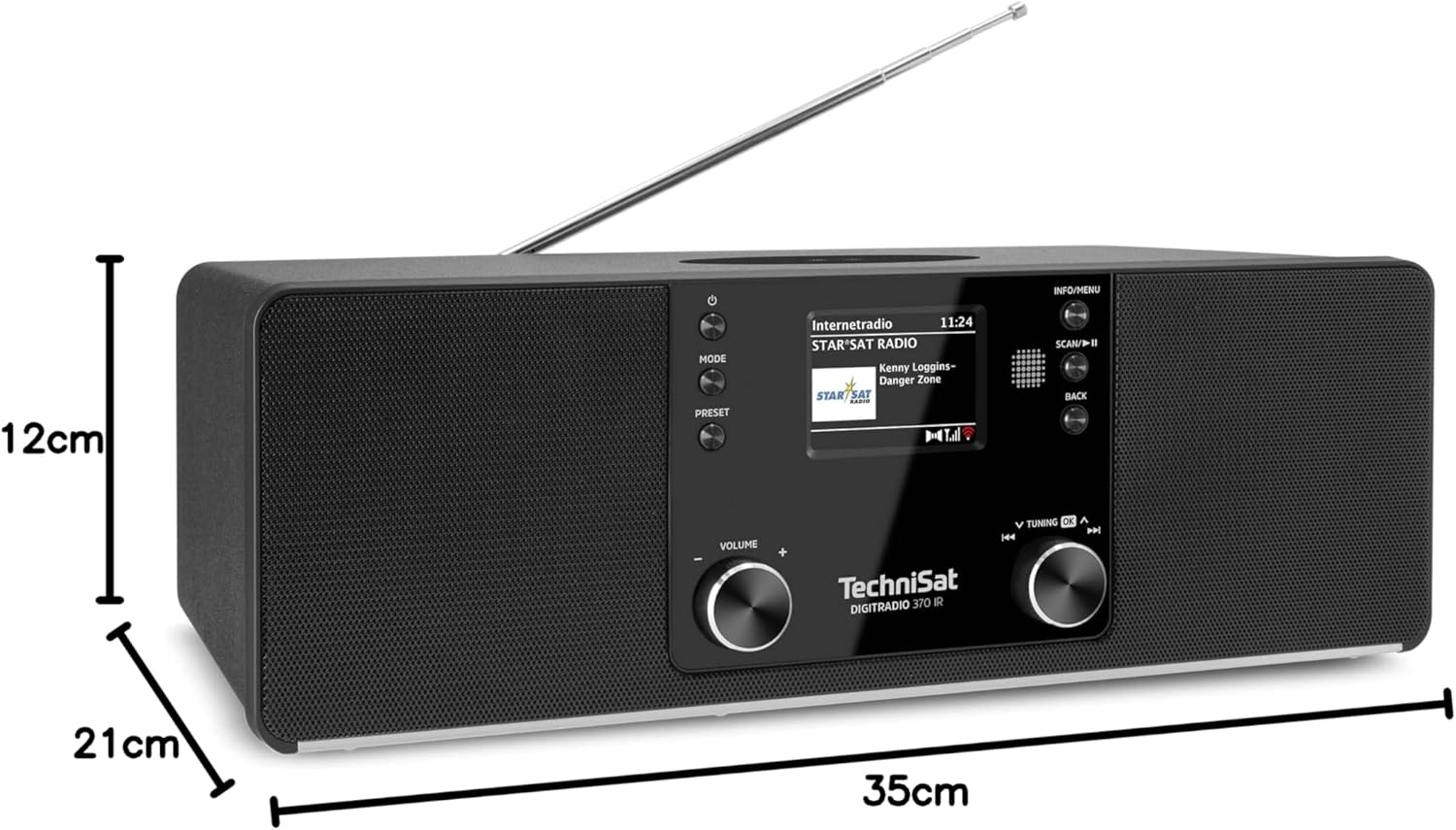
Figura 9.1: Dimensións do produto
This image provides a visual representation of the radio's dimensions: 35 cm (length), 12 cm (height), and 21 cm (depth).
| Característica | Detalle |
|---|---|
| Número de modelo | 0000/3971 |
| Marca | TechniSat |
| Bandas de radio admitidas | DAB+, FM, radio por internet |
| Tecnoloxía de conectividade | Bluetooth, USB, Wireless-Charging, WLAN (2.4 GHz & 5 GHz) |
| Características especiais | Wireless Charging, Bluetooth Audio Streaming, USB Playback & Charging, Alarm Clock, Sleep Timer, Snooze, App Control (UNDOK) |
| Modo de saída de audio | Estéreo |
| Potencia de saída do altofalante | 2 x 5 Watts RMS (10 Watts total) |
| Tipo de visualización | LCD color TFT de 2.4 polgadas |
| Fonte de enerxía | Electric Cord (230 Volts, 60 Hz) |
| Dimensións (L x W x H) | 35 x 21 x 12 cm |
| Peso | 2.7 quilogramos |
| Material da vivenda | Madeira |
| Dispositivos compatibles | Smartphone, MP3 player, tablet, laptop, headphones |
| Interfaces | 3.5 mm Audio (AUX-IN), USB 2.0, 3.5 mm Headphone |
10. Garantía e soporte
10.1 Información da garantía
This product comes with a 2-year warranty (Gewährleistung) from the date of purchase. Please retain your proof of purchase for any warranty claims. The warranty covers manufacturing defects and malfunctions under normal use. It does not cover damage caused by misuse, accidents, unauthorized modifications, or normal wear and tear.
10.2 Atención ao cliente
For technical assistance, troubleshooting beyond this manual, or warranty inquiries, please contact TechniSat customer support. Refer to the TechniSat official websitio para obter detalles de contacto específicos da súa rexión.
Recursos en liña: Visit the official TechniSat website for updated manuals, FAQs, and support information.