
Introdución
This manual provides comprehensive instructions for the setup, operation, maintenance, and troubleshooting of your T-WOLF X9 Bluetooth Mouse. Please read this manual carefully before using the product to ensure optimal performance and longevity.
Contido do paquete
- 1 x T-WOLF X9 Bluetooth Mouse
- 1 x batería AA
- 1 x Manual de usuario (este documento)
Produto rematadoview

Imaxe 1: Arriba view of the T-WOLF X9 Bluetooth Mouse, showing the left and right click buttons, scroll wheel, and DPI switch button. The T-WOLF logo and Bluetooth icon are visible.
The T-WOLF X9 is a portable Bluetooth mouse designed for convenience and performance. It features a sleek design, Bluetooth 5.2 connectivity, and a 10-meter operating range. The mouse includes four buttons: left-click, right-click, scroll wheel (which also functions as a button), and a dedicated DPI switch button for adjusting cursor sensitivity.
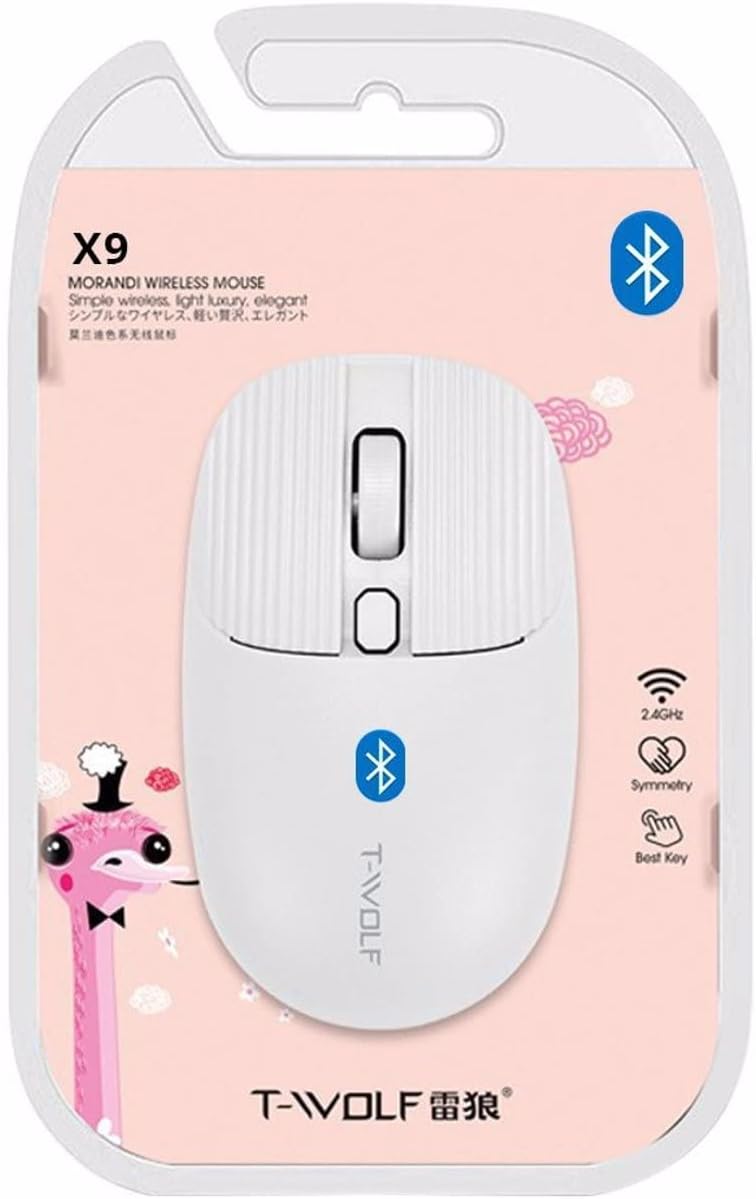
Imaxe 2: Packaging of the T-WOLF X9 Bluetooth Mouse, highlighting key features such as 2.4GHz (though product is Bluetooth, this might be a generic packaging element), symmetry, and "Best Key".

Imaxe 3: Lado view of the T-WOLF X9 Bluetooth Mouse, illustrating its ergonomic profile and non-slip roller design.
Configuración
1. Instalación da batería
- Localiza o compartimento da batería na parte inferior do rato.
- Abra a tapa do compartimento da batería.
- Insira a pila AA incluída, asegurándose de manter a polaridade correcta (+/-).
- Pecha a tapa do compartimento da batería de forma segura.
2. Emparellamento Bluetooth
- Ensure the mouse is powered on. There may be a power switch on the underside.
- No teu ordenador ou dispositivo, desprázate ata a configuración de Bluetooth.
- Activa o Bluetooth e busca novos dispositivos.
- The mouse should appear as "T-WOLF X9" or similar. Select it to initiate pairing.
- Unha vez emparellado, o rato está listo para usar.
Instrucións de funcionamento
1. DPI Switching
The T-WOLF X9 mouse features 3-gear DPI switching. Press the dedicated DPI button (located behind the scroll wheel) to cycle through the available DPI settings. Each press will change the cursor sensitivity, allowing you to adjust it to your preference for different tasks.
2. Funcións dos botóns
- Botón esquerdo do clic: Selección e interacción primarias.
- Botón dereito do rato: Abre menús contextuais.
- Roda de desprazamento: Scrolls content vertically. Can also be pressed for middle-click functionality.
- Botón de cambio de DPI: Adjusts cursor sensitivity (DPI).
Mantemento
- Limpeza: Usa un pano suave e seco para limpar o rato. Para a sucidade persistente, dórao lixeiramenteampEnxágüe o pano con auga. Evite o uso de produtos químicos agresivos ou materiais abrasivos.
- Substitución da batería: Substitúa a pila AA cando o rendemento do rato diminúa ou deixe de responder.
- Almacenamento: Garde o rato nun lugar fresco e seco cando non o use durante períodos prolongados.
Resolución de problemas
| Problema | Solución |
|---|---|
| O rato non responde |
|
| O movemento do cursor é errático ou lento |
|
| Cannot pair the mouse |
|
Especificacións
| Característica | Detalle |
|---|---|
| Modelo | X9 |
| Conectividade | Bluetooth 5.2 |
| Rango de operación | Ata 10 metros |
| Botóns | 4 (Left, Right, Scroll Wheel/Middle, DPI Switch) |
| Configuración de DPI | 3-Gear Switching |
| Fonte de enerxía | 1 x batería AA |
| Orientación das mans | Ambidiestro |
| Dispositivos compatibles | Ordenador portátil, ordenador persoal |
| Sistemas operativos | Linux, Windows 7, Windows XP (and newer OS with Bluetooth support) |
| Dimensións | 20 x 13 x 7.5 cm (embalaxe) |
| Peso | 150 g (Paquete) |
Garantía e Soporte
This product is covered by a standard manufacturer's warranty. For specific warranty details, please refer to the documentation provided at the time of purchase or contact your retailer. For technical support or further assistance, please reach out to the seller or manufacturer's customer service.