
1. Introdución
This manual provides detailed instructions for the setup, operation, and maintenance of your AUN ET30S Android 9.0 Smart LED Full HD 1080p Projector. Please read this manual thoroughly before using the projector to ensure optimal performance and longevity.
The AUN ET30S projector offers a large, 1080P Full HD viewing experience with 4000 lumens brightness. It features Android 9.0, 1GB RAM, 8GB memory, built-in Playstore for applications, 2.4G Wi-Fi, and Bluetooth 4.0. Its wide compatibility allows connection to various devices including TV boxes, PCs, laptops, tablets, and smartphones.

Image 1.1: AUN ET30S Projector with its Android 9.0 interface projected, showing various applications.
2. Que hai na caixa
Carefully unpack your AUN ET30S projector and verify that all items listed below are included and in good condition:
- 1x AUN ET30S Projector
- 1x Remote Control (AAA batteries not included)
- 1x cable de alimentación
- 1 x Manual de usuario
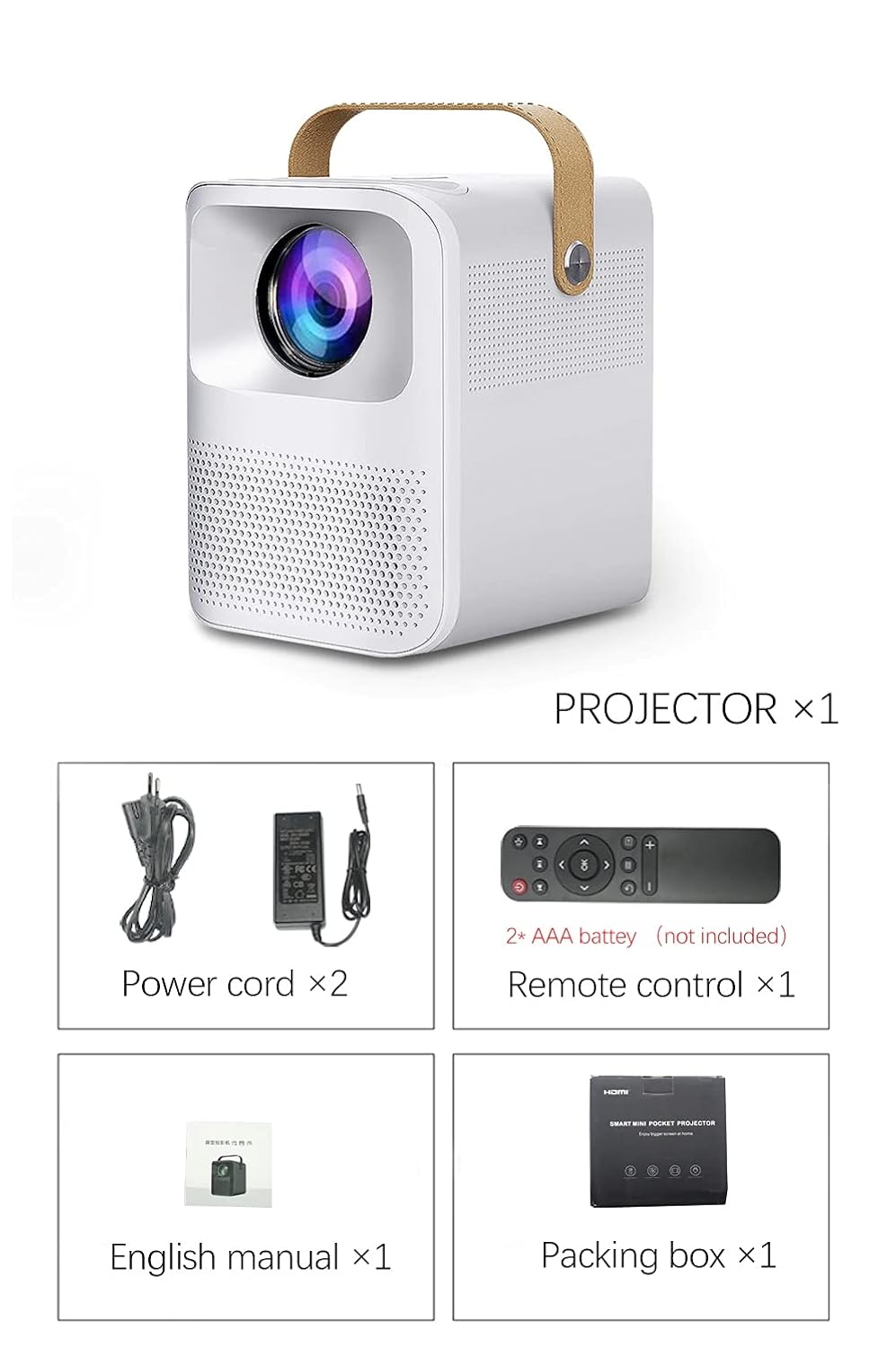
Image 2.1: Packaging contents of the AUN ET30S Projector.
3. Produto rematadoview
The AUN ET30S projector is designed for ease of use and versatility. Familiarize yourself with its physical components and dimensions.
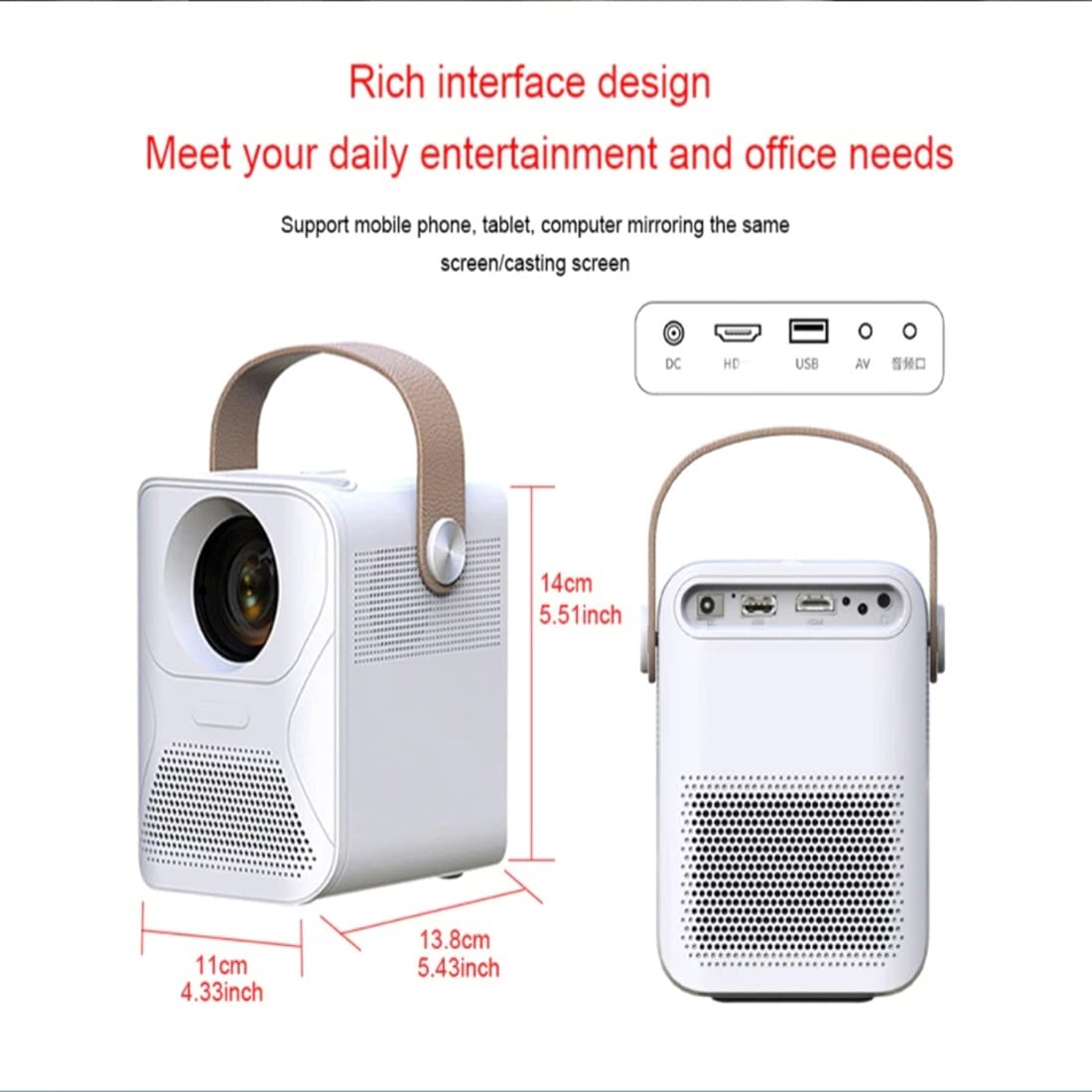
Image 3.1: AUN ET30S Projector dimensions and interface ports.
3.1 Interface Ports
The projector features a variety of ports for connecting external devices:
- Entrada DC: For power adapter connection.
- HD (HDMI): Connects to devices like laptops, gaming consoles, or TV boxes.
- USB: Para conectar unidades USB para reproducir contido multimedia files.
- DE: Para conectar dispositivos antigos con saída de vídeo composto.
- Saída de audio: Para conectar altofalantes externos ou auriculares.
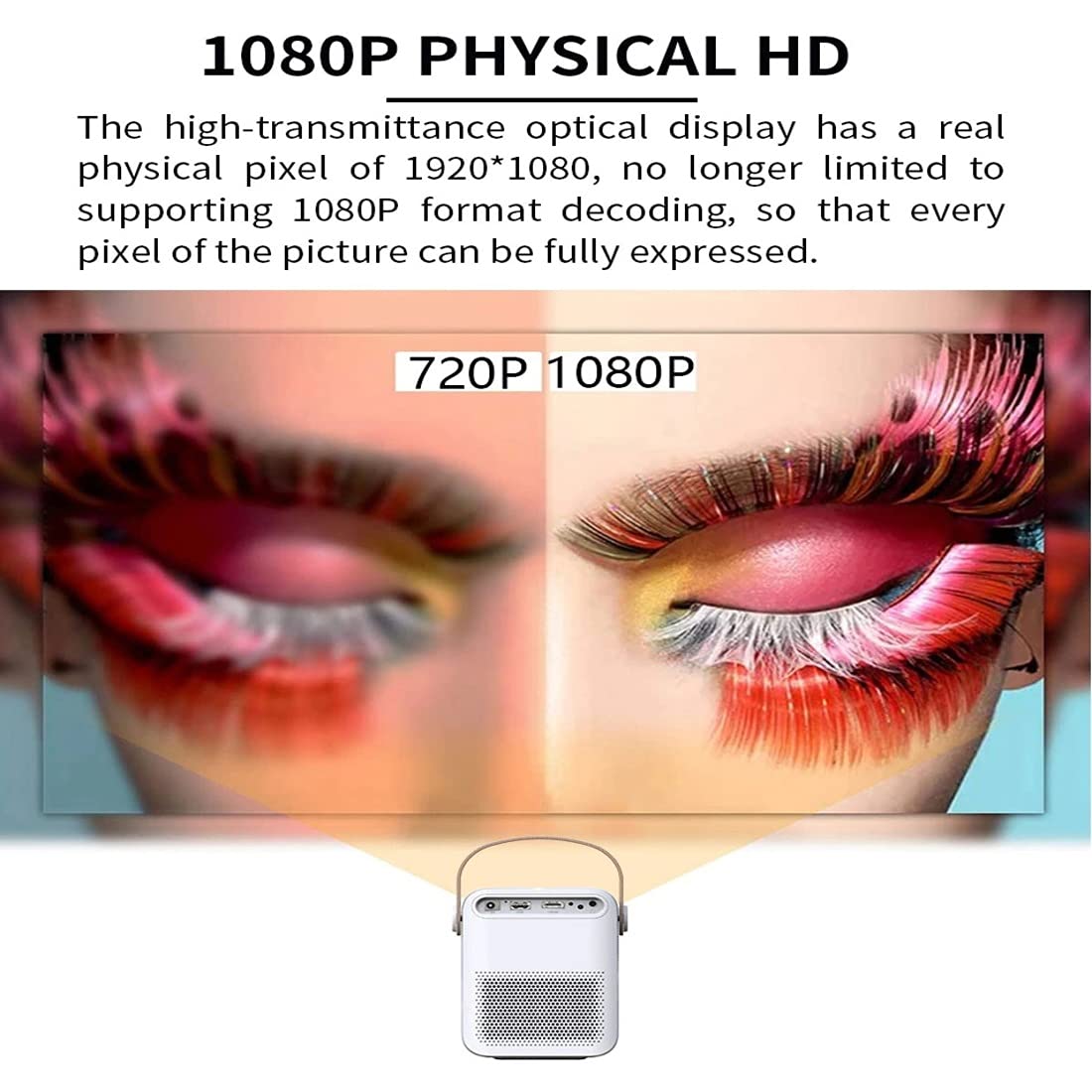
Image 3.2: Multi-media connections and controls on the AUN ET30S Projector.
4. Configuración
4.1 Conexión de alimentación
- Connect the power cord to the projector's DC In port.
- Conecte o outro extremo do cable de alimentación a unha toma de corrente.
4.2 Colocación e enfoque iniciais
- Place the projector on a stable, flat surface, or mount it according to your preference. Ensure adequate ventilation around the projector.
- Acende o proxector.
- Adjust the focus ring (labeled 'Focus' in Image 3.2) on the projector until the projected image is clear and sharp.
4.3 Corrección Keystone
The AUN ET30S features automatic keystone correction for both up and down adjustments, and four-corner keystone correction for Android mode, ensuring a rectangular image even when the projector is not perfectly aligned with the screen.

Image 4.1: Automatic Keystone Correction in action.
5. Instrucións de funcionamento
5.1 Acendido/Apagado
- Encendido: Preme o botón de acendido do proxector ou do control remoto.
- Apagado: Press the power button again. A confirmation prompt may appear on screen.
5.2 Navegando pola interface de Android
O proxector funciona con Android 9.0, o que proporciona unha experiencia semellante á dunha televisión intelixente. Usa o control remoto para navegar pola interface.

Image 5.1: Android 9.0 User Interface.
- Pantalla de inicio: Access pre-installed apps like YouTube, Google Play, and a browser.
- Todas as aplicacións: View todas as aplicacións instaladas.
- Fonte: Select input sources (HDMI, USB, AV).
- Configuración: Adjust network, display, sound, and system settings.
- App Store: Descarga e instala aplicacións adicionais.
5.3 Conectividade Wi-Fi e Bluetooth
- Ir a Configuración na pantalla de inicio.
- Seleccione Rede to configure Wi-Fi. Choose your network and enter the password.
- Seleccione Bluetooth to pair with external Bluetooth speakers or other devices.
6. Conectividade
The AUN ET30S offers versatile connectivity options for various devices.
6.1 Conexións por cable
- HDMI: Connect a laptop, Blu-ray player, gaming console, or TV box using an HDMI cable. Select 'HD' as the input source.
- USB: Insert a USB flash drive to play videos, music, or view photos directly. Select 'USB' as the input source or navigate through the file manager in Android.
- DE: Connect older devices using an AV cable. Select 'AV' as the input source.
- Saída de audio: Conecta altofalantes ou auriculares externos a través do conector de audio de 3.5 mm para obter un son mellorado.
6.2 Conexións sen fíos
- Wi-Fi: Connect to your home network for internet access, streaming, and app downloads.
- Bluetooth: Pair with Bluetooth-enabled audio devices for wireless sound.
- Miracast/Airplay (HappyCast): Use the pre-installed HappyCast app or similar functionality to mirror your Android smartphone or Apple device screen wirelessly to the projector.
7. Calidade da imaxe e proxección
The AUN ET30S delivers a high-quality viewing experience with its advanced projection capabilities.
7.1 Full HD 1080p Resolution
Experience crisp and clear images with a native resolution of 1920 x 1080 pixels. The projector supports 1080p format decoding, ensuring every pixel of the picture is fully expressed.
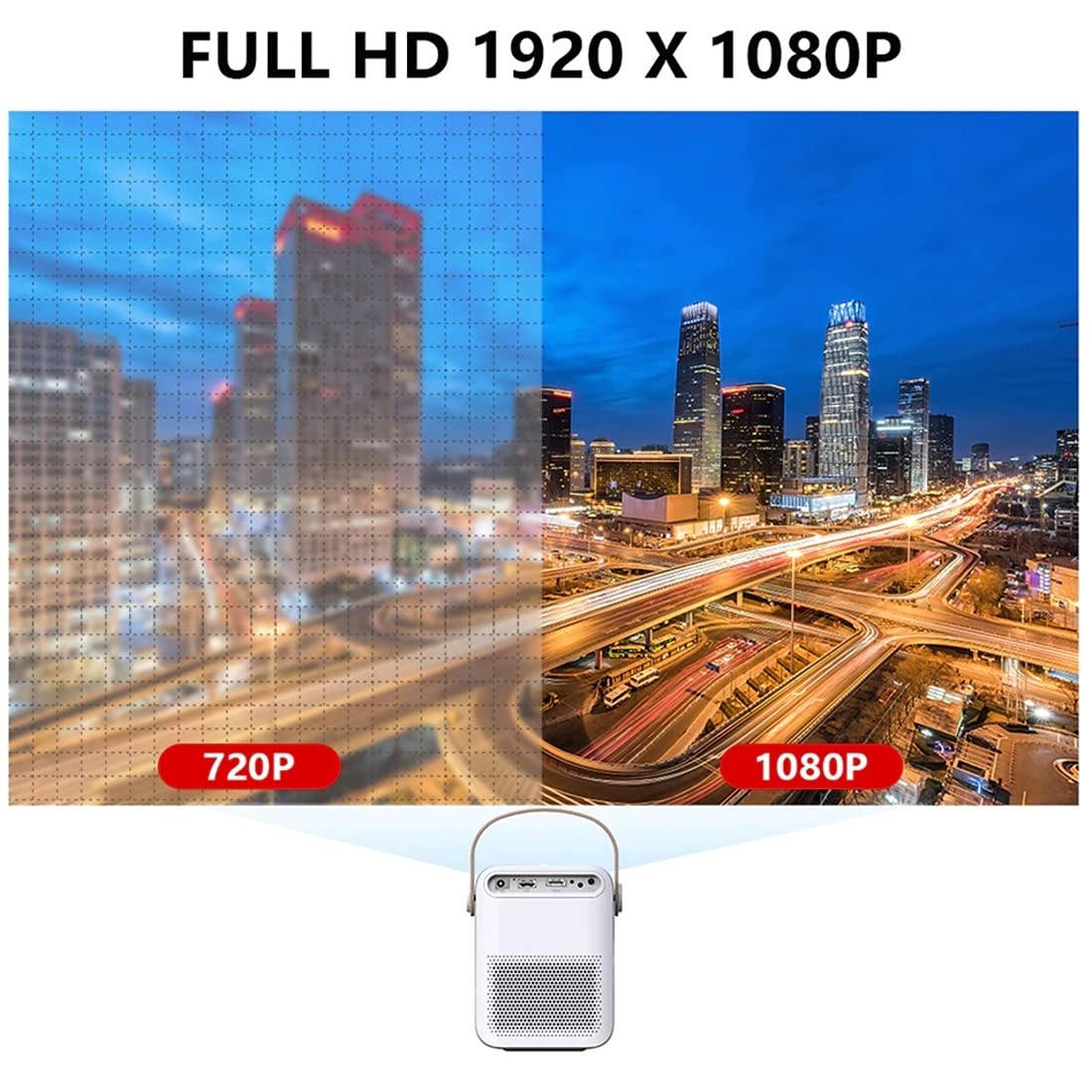
Image 7.1: 720P vs. 1080P Resolution Comparison.
7.2 Brillo e contraste
- Brillo: 4000 lumens LED brightness ensures strong, vibrant colors.
- Relación de contraste: A 3000:1 contrast ratio provides deeper blacks and brighter whites, resulting in vivid and immersive images with almost 100% color accuracy.
7.3 Projection Ratio and Distance
The projector features a 1.18:1 projection ratio, allowing for a large picture from a relatively short distance.

Image 7.2: Projection Ratio and Distance Guide.
Refer to the table below for approximate projection distances for various screen sizes:
| Tamaño da pantalla | Distancia de proxección |
|---|---|
| 50 polgadas | 1.27 metros |
| 60 polgadas | 1.57 metros |
| 80 polgadas | 2.09 metros |
| 100 polgadas | 2.60 metros |
8. Mantemento
Un mantemento axeitado garante a lonxevidade e o rendemento óptimo do seu proxector.
- Limpeza: Use a soft, dry cloth to clean the projector's exterior. For the lens, use a specialized lens cleaning cloth and solution.
- Ventilación: Ensure the projector has good airflow. Do not block the ventilation openings. High temperatures can damage internal components, especially the LCD panel.
- Prevención de po: Keep the projector in a clean, dust-free environment. Dust accumulation can impede airflow and affect performance.
- Almacenamento: Cando non o use durante períodos prolongados, garde o proxector nun lugar fresco e seco, preferiblemente na súa embalaxe orixinal ou nunha funda protectora.
9 Solución de problemas
If you encounter issues with your AUN ET30S projector, refer to the following common problems and solutions:
| Problema | Causa posible | Solución |
|---|---|---|
| Sen poder | Power cord not connected, power outlet faulty | Check power cord connection. Try a different power outlet. |
| Sen imaxe | Incorrect input source, device not connected, blank screen mode | Select correct input source (HDMI, USB, AV). Ensure external device is powered on and connected. Press 'Mute' or 'Blank' button on remote if applicable. |
| Imaxe borrosa | Focus not adjusted, keystone not corrected | Adjust the focus ring. Use keystone correction in settings. |
| Sen son | Volume too low, external speakers not connected, audio settings incorrect | Increase volume. Check external speaker connection. Verify audio output settings. |
| O control remoto non funciona | Batteries low/dead, obstruction, remote sensor blocked | Substitúa as pilas. Asegúrese de que non haxa obstrucións entre o mando a distancia e o proxector. |
10. Especificacións
Detailed technical specifications for the AUN ET30S Projector:
| Característica | Especificación |
|---|---|
| Marca | AUN |
| Modelo | AUN ET30S Android Projector |
| Sistema Operativo | Android 9.0 |
| RAM / Memory | 1GB RAM / 8GB Internal Memory |
| Tecnoloxía de visualización | LED |
| Tipo de visualización | LCD |
| Resolución nativa | 1920 x 1080 píxeles (Full HD) |
| Brillo da imaxe | 4000 lúmenes |
| Relación de contraste da imaxe | 3000:1 |
| Tecnoloxía de conectividade | Bluetooth, HDMI, USB, Wi-Fi |
| Interface de hardware | Bluetooth, HDMI, USB |
| Características especiais | Built-In Wi-Fi, Portable, Wireless |
| Altavoz incorporado | HIFI Stereo Speaker (3 Watts) |
| Dimensións do produto | 25 x 20 x 6 cm |
| Peso do elemento | 1.8 kg |
| Tipo de montaxe | Soporte de mesa |
| Control remoto | IR Remote Included |
11. Garantía e soporte
11.1 Información da garantía
The AUN ET30S Projector comes with a 6 meses de garantía covering manufacturing defects, technical defects, and software defects.
Exclusións da garantía:
- LCD panel damage or burns (due to insufficient ventilation).
- Dust-related issues inside the projector.
- Damage from misuse, including broken parts, burns, or physical damage.
- Repairs performed by unauthorized third parties.
11.2 Atención ao cliente
For support or warranty claims, please contact Megaa Electronics:
- Correo electrónico: support@megaaelectronics.com or megaaelectronics@gmail.com
- WhatsApp: 8328671337