
1. Introdución
Thank you for choosing the ICON Morpheus GX 66 Wired Gaming Mouse. This manual provides essential information for setting up, operating, and maintaining your new gaming mouse. Please read this guide thoroughly to ensure optimal performance and longevity of your device.
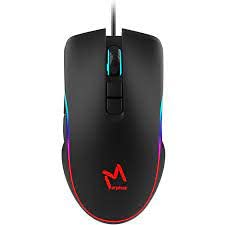
The ICON Morpheus GX 66 is a high-performance wired gaming mouse featuring customizable LED lighting and a precise 7200 DPI optical sensor, designed for an optimal gaming experience. It offers a modern style and ambidextrous design, compatible with Windows 7, Windows XP, and Linux operating systems.
2. Características do produto
- Sensor de alta precisión: Equipped with a 7200 DPI optical sensor for accurate tracking and responsiveness.
- Iluminación LED personalizable: Dynamic LED illumination enhances your gaming setup.
- 7 botóns programables: Offers extensive customization for various gaming commands.
- Conectividade por cable: Ensures a stable and lag-free connection.
- Deseño ambidiestro: Cómodo tanto para usuarios zurdos como destros.
- Construción duradeira: Designed for long-lasting use in intense gaming sessions.
- Ampla compatibilidade: Supports Windows 7, Windows XP, and Linux operating systems.

3. Configuración
- Desembalar o rato: Carefully remove the ICON Morpheus GX 66 mouse from its packaging.
- Conectar ao ordenador: Locate an available USB port on your computer. Plug the USB connector of the mouse firmly into the USB port.
- Instalación de controladores: The mouse is plug-and-play. Your operating system (Windows 7, Windows XP, or Linux) should automatically detect and install the necessary drivers. This process may take a few moments.
- Funcionalidade de proba: Once installed, move the mouse and click the buttons to ensure it is working correctly.
4. Instrucións de funcionamento
4.1 Funcións básicas
- Clic esquerdo: Primary action, selection, activation.
- Clic dereito: Menú contextual, accións secundarias.
- Roda de desprazamento: Scroll up/down, middle click for specific functions.
4.2 Axuste de DPI
The mouse features a dedicated DPI button (often located behind the scroll wheel) to cycle through different sensitivity levels. Press this button to adjust the DPI (Dots Per Inch) to your preferred setting for various tasks or games. The LED lighting may change color to indicate the current DPI level.
4.3 Iluminación LED
The ICON Morpheus GX 66 features dynamic LED lighting. The lighting patterns and colors are typically pre-programmed and may change based on the selected DPI setting or cycle automatically. There are no user-configurable software controls for the LED lighting on this model.

5. Mantemento
- Limpeza: Usa un pano suave e seco para limpar a superficie do rato. Para a sucidade persistente, limpa lixeiramenteampEnxágüe o pano con auga. Evite o uso de produtos químicos agresivos ou materiais abrasivos.
- Limpeza de sensores: Ocasionalmente, pode acumularse po ou residuos arredor do sensor óptico. Use un hisopo de algodón ou aire comprimido para limpar suavemente a área do sensor na parte inferior do rato.
- Coidado do cable: Avoid sharp bends or excessive pulling on the mouse cable to prevent damage. Store the cable neatly when not in use.
- Almacenamento: Cando non o use durante períodos prolongados, garde o rato nun ambiente limpo e seco, lonxe da luz solar directa e de temperaturas extremas.

6 Solución de problemas
- O rato non responde:
- Asegúrate de que o cable USB estea conectado correctamente ao porto USB do ordenador.
- Tenta conectar o rato a un porto USB diferente.
- Reinicia o teu ordenador.
- Movemento errático do cursor:
- Limpa o sensor óptico da parte inferior do rato.
- Asegúrate de usar o rato sobre unha superficie limpa, non reflectante e uniforme. Evita o vidro ou as superficies moi reflectantes.
- LED Lighting Not Working:
- Comprobe a conexión USB.
- The LED lighting is typically powered directly via USB. If the mouse functions but LEDs do not, contact support.
- Botóns que non funcionan:
- Asegúrate de que o rato estea conectado correctamente.
- Proba o rato noutro ordenador para descartar problemas de software.
7. Especificacións
| Fabricante | ICONA |
| Modelo | Morpheus GX 66 |
| ASIN | B0B5PLWQXC |
| Características especiais | Iluminación LED |
| Tecnoloxía de detección de movemento | Óptica |
| DPI | 7200 |
| Orientación das mans | Ambidiestro |
| Usos recomendados | Xogos |
| Compatibilidade do sistema operativo | Linux, Windows 7, Windows XP |
| Estilo | Moderno |
| Tipo de acabado | Mate |
| Fonte de enerxía | Eléctrico con cable (USB) |
| Cor | Multicolor |
8. Garantía e soporte
The ICON Morpheus GX 66 Wired Gaming Mouse comes with a standard manufacturer's warranty. For specific warranty terms and conditions, please refer to the warranty card included with your product or visit the official ICON websitio.
For technical support, troubleshooting assistance, or to inquire about replacement parts, please contact ICON customer service through their official support channels. Keep your purchase receipt and product model information (GX 66) handy when contacting support.