
FLAMMA FX200
FLAMMA FX200 Multi Effects Guitar Processor User Manual
Modelo: FX200
1. Introdución
This manual provides detailed instructions for the operation and maintenance of your FLAMMA FX200 Multi Effects Guitar Processor. Please read this manual thoroughly to ensure proper usage and to maximize the potential of your device.
The FLAMMA FX200 is a versatile multi-effects processor designed for guitarists, featuring a 5-inch LCD touch screen, extensive input/output options, and a wide array of effects, amplifier models, and cabinet simulations.
2. Precaucións de seguridade
- Non expoña a unidade á choiva, á humidade ou a temperaturas extremas.
- Evite colocar a unidade preto de fontes de calor ou baixo a luz solar directa.
- Use só o adaptador de corrente especificado.
- Non intente desmontar nin modificar a unidade. Encargue calquera mantemento a persoal cualificado.
- Manter fóra do alcance dos nenos.
3. Contido do paquete
Verifica que todos os elementos estean presentes no paquete:
- FLAMMA FX200 Multi Effects Guitar Processor
- Adaptador de alimentación
- Cable USB-C
- Manual de usuario (este documento)

Figure 3.1: Contents of the FLAMMA FX200 package.
4. Dispositivo rematadoview
4.1 Panel frontal
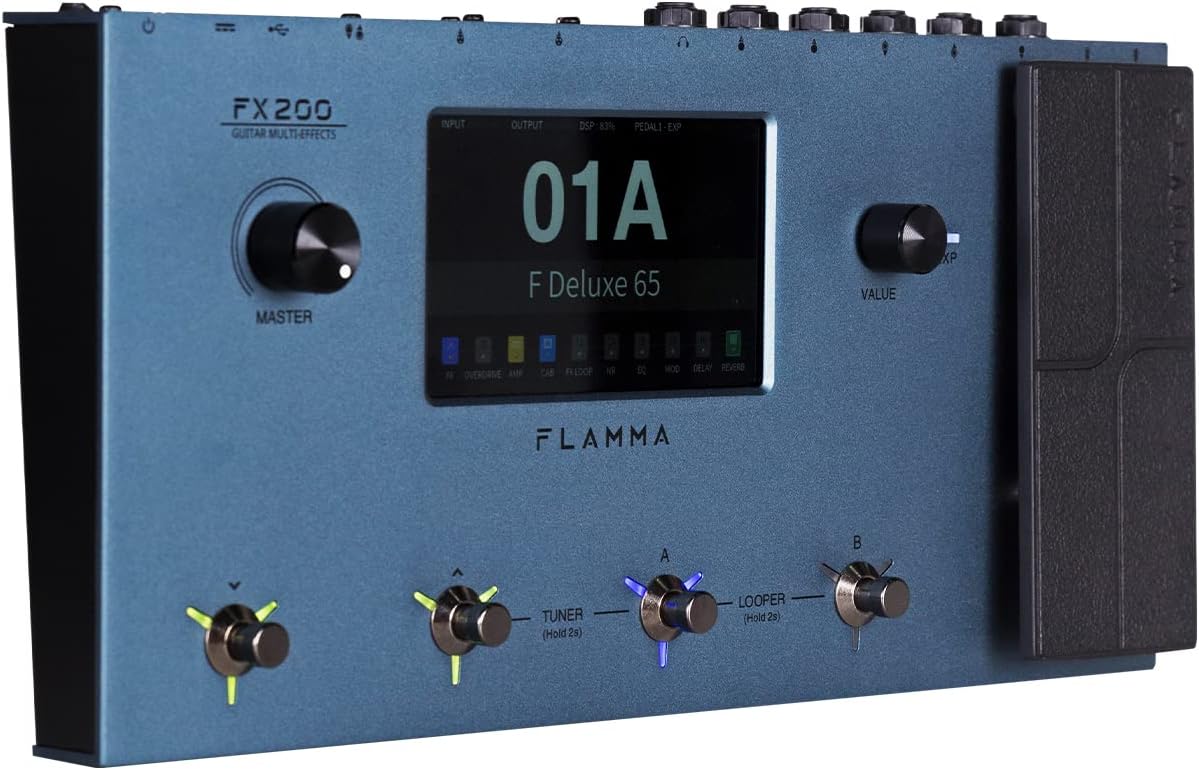
Figure 4.1: Front Panel Layout of the FX200.
- Botón mestre: Axusta o volume de saída xeral.
- Pantalla táctil LCD: 5-inch display for navigation, parameter editing, and preset management.
- Botón de valor: Used for data entry and parameter adjustments.
- Footswitches (A, B, C, D): Control presets, effects, looper, and tuner functions.
- Pedal de expresión: Assignable for real-time control of various effects parameters.
4.2 Rear Panel (I/O)

Figure 4.2: Rear Panel Input/Output Connections.
- AUX IN: Entrada estéreo de 3.5 mm para dispositivos de son externos.
- EXP2: External expression pedal input.
- ENTRADA: 1/4-inch mono input for guitar.
- ENVIAR/DEVOLVER: Stereo FX Loop for integrating external effects pedals.
- SAÍDA (E/MONO, D): 1/4-inch stereo outputs to amplificador ou mesturador.
- TELÉFONOS: Saída de auriculares estéreo de 3.5 mm.
- GND/LIFT: Ground lift switch to eliminate hum.
- XLR OUT (L, R): Balanced XLR stereo outputs for direct connection to PA systems or audio interfaces.
- Entrada/Saída MIDI: 5-pin MIDI connectors for external MIDI control.
- USB DC IN: USB-C port for power and connection to a computer.
- Interruptor de alimentación: Acende / apaga a unidade.
5. Configuración
5.1 Encendido inicial
- Connect the provided power adapter to the USB DC IN port on the rear panel.
- Enchufe o adaptador de alimentación nunha toma de CA adecuada.
- Flip the Power Switch to the ON position. The unit will power on and display the startup screen.
5.2 Connecting Your Guitar and Ampmáis vivo
- Conecta a túa guitarra ao ENTRADA toma de instrumentos usando un cable de instrumento estándar de 1/4 de polgada.
- Conecta o SAÍDA L/MONO jack to your guitar amplifier's input using a 1/4-inch instrument cable. For stereo output, connect the SAÍDA R jack a un segundo amplifier or mixer input.
- Alternatively, for direct recording or PA system connection, use XLR cables from the XLR OUT L e XLR OUT R ports to your audio interface or mixer.
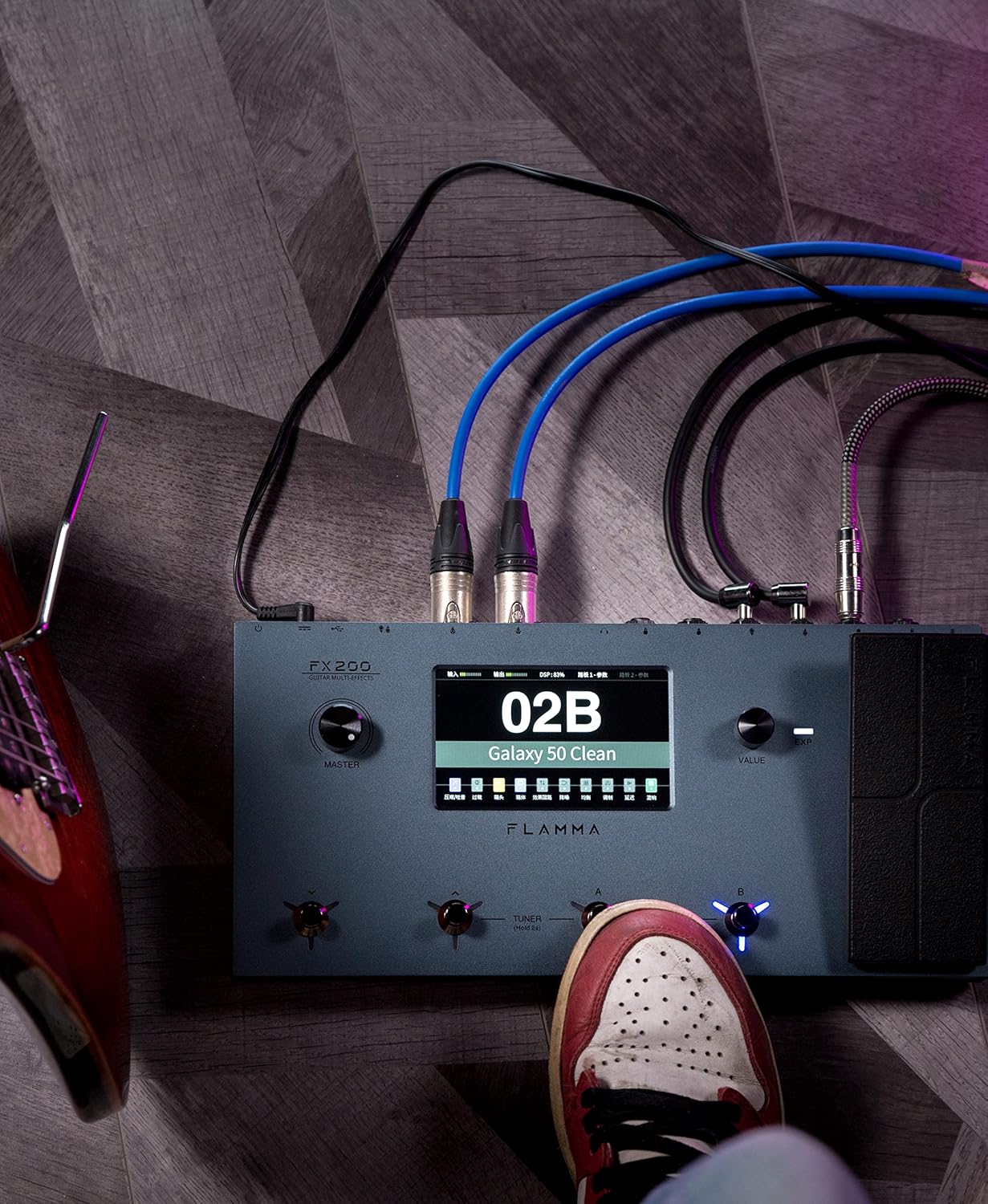
Figure 5.1: Typical connection setup for the FX200.
5.3 Conectando a un ordenador
The FX200 can be connected to a computer for editing presets, firmware updates, and USB audio recording.
- Download the specialized editing software from the official FLAMMA websitio.
- Connect the FX200 to your computer using the provided USB-C cable.
- Launch the editing software. The software will detect the FX200, allowing you to manage presets, effects, and perform firmware updates.

Figure 5.2: FX200 connected to a computer for software editing.
6. Instrucións de funcionamento
6.1 Navigating the Touch Screen
The 5-inch LCD touch screen is the primary interface for controlling the FX200. Tap icons and parameters to select them, and use the Value Knob to adjust values.

Figura 6.1: Interacción coa interface da pantalla táctil.
6.2 Xestión de predefinidos
The FX200 features 200 editable user preset slots. Presets can be selected using the footswitches or by navigating the touch screen.
- Seleccionando predefinicións: In Play mode, press footswitches A or B to cycle through presets within a bank. Press footswitches C or D to change banks.
- Edición de presets: Tap on an effect module icon on the touch screen to access its parameters. Adjust settings using the Value Knob.
- Gardando presets: After editing, tap the 'Save' icon on the touch screen and follow the prompts to store your changes to a user preset slot.
6.3 Effect Modules and Chain
The FX200 includes 10 effect modules with over 160 different effect types, 58 preamp models, and 30 cabinet simulations. The effects chain can be customized.
- Module Order: Drag and drop effect module icons on the touch screen to change their order in the signal chain.
- Activating/Deactivating Modules: Tap an effect module icon to toggle it on or off within a preset.
- Third-Party IRs: The unit supports third-party impulse response files (up to 1024 sampling points) with 50 empty slots for custom cabinet simulations. Use the editing software to load IRs.

Figure 6.2: Customizable effects chain on the FX200.
6.4 Looper e caixa de ritmos
The FX200 includes an integrated 52-second looper and 80 drum machine variations with 10 metronome styles.
- Looper: Access the looper function via a dedicated footswitch or the touch screen. Record, overdub, play, and stop loops.
- Máquina de ritmos: Select drum patterns and metronome styles from the touch screen interface. Adjust tempo and volume.
6.5 USB Audio Recording
The FX200 supports USB audio recording, allowing you to record directly to your computer.
- Connect the FX200 to your computer via USB-C.
- Select the FX200 as your audio input device in your Digital Audio Workstation (DAW) software.
- Adjust input levels on both the FX200 and your DAW for optimal recording.
7. Mantemento
- Limpeza: Use un pano suave e seco para limpar a unidade. Non empregue produtos de limpeza abrasivos nin solventes.
- Almacenamento: When not in use for extended periods, store the unit in a dry, cool place away from direct sunlight.
- Actualizacións de firmware: Regularly check the FLAMMA website for firmware updates to ensure optimal performance and access to new features. Updates are performed via the USB-C connection and editing software.
8 Solución de problemas
| Problema | Causa posible | Solución |
|---|---|---|
| Sen poder | Power adapter not connected or faulty; Power switch off. | Asegúrate de que o adaptador de corrente estea conectado correctamente e conectado a unha toma de corrente que funcione. Comproba o interruptor de alimentación. |
| Sen saída de son | Incorrect cable connections; Master volume too low; Amplifier off; Effect module bypassed. | Verify all audio cables are correctly connected. Increase Master volume. Check amplifier power. Ensure desired effect modules are active. |
| Zumbido ou ruído | Ground loop; Faulty cables; Interference. | Engage the GND/LIFT switch. Try different cables. Ensure power supply is stable and away from other electronics. |
| A pantalla táctil non responde | Fallo temporal do software. | Restart the unit by cycling the power switch. If the issue persists, contact customer support. |
| Non se pode conectar ao ordenador | USB-C cable issue; Driver not installed; Software not running. | Ensure USB-C cable is functional. Install necessary drivers. Launch the FLAMMA editing software. |
9. Especificacións
| Característica | Detalle |
|---|---|
| Mostrar | Pantalla táctil LCD de 5 polgadas |
| Módulos de efectos | 10 modules, 160+ effect types |
| Preamp Modelos | 58 |
| Cabinet Simulations | 30 (IR-based, 1024pts), 50 user IR slots |
| Predefinidos de usuario | 200 editable slots |
| Looper | 52 segundos |
| Máquina de tambor | 80 variations, 10 metronome styles |
| Conectividade | AUX IN, EXP2, INPUT, SEND/RETURN, OUTPUT (L/MONO, R), PHONES, XLR OUT (L, R), MIDI IN/OUT, USB-C |
| USB Audio Recording | Soportado |
| Dimensións (L x W x H) | 13.5 x 6.6 x 2 polgadas (34.3 x 16.8 x 5.1 cm) |
| Peso | 3.9 libras (1.77 kg) |
| Fonte de alimentación | 9V DC (via USB-C) |
| Material do corpo | Metal |
10. Garantía e soporte
FLAMMA products are covered by a limited warranty. For detailed warranty information, product registration, and technical support, please visit the official FLAMMA websitio ou póñase en contacto co seu servizo de atención ao cliente.
Official FLAMMA Websitio: www.flamma.com
For any issues not covered in this manual, please refer to the online resources or contact FLAMMA customer support directly.
Ask a question about this manual
Ask about setup, troubleshooting, compatibility, parts, safety, or missing instructions. Manuals+ will review the question and use this page’s manual context to help answer it.