
Introdución
This manual provides detailed instructions for the MOFII Wireless Bluetooth Keyboard. It covers essential information regarding product setup, operation, maintenance, and troubleshooting to ensure optimal performance and longevity of your device. This keyboard supports both Bluetooth and USB wired connections, offering versatility across various operating systems including Windows, Mac OS, and iOS.
Contido do paquete
Verifique que todos os elementos que se indican a continuación estean incluídos no seu paquete:
- MOFII Wireless Bluetooth Keyboard x 1
- Cable de carga USB x 1
- Manual de usuario x 1
Produto rematadoview
The MOFII Wireless Bluetooth Keyboard features a unique hexagon keycap design and offers dual connectivity modes. Below is an overview of its key components and indicators.

Image: The MOFII Wireless Bluetooth Keyboard showing the ON/OFF switch, Micro-USB charging port, and indicator lights for Case Switch, Charging, Bluetooth Connection, and Low Battery.
The keyboard is equipped with an ON/OFF switch, a Micro-USB charging port, and several indicator lights to provide status information:
- Case Switch Indicator: Indicates the status of the Caps Lock function.
- Indicador de carga: Illuminates during charging and changes status upon full charge.
- Indicador de conexión Bluetooth: Shows the Bluetooth pairing and connection status.
- Indicador de batería baixa: Alerts when the battery level is low and requires charging.
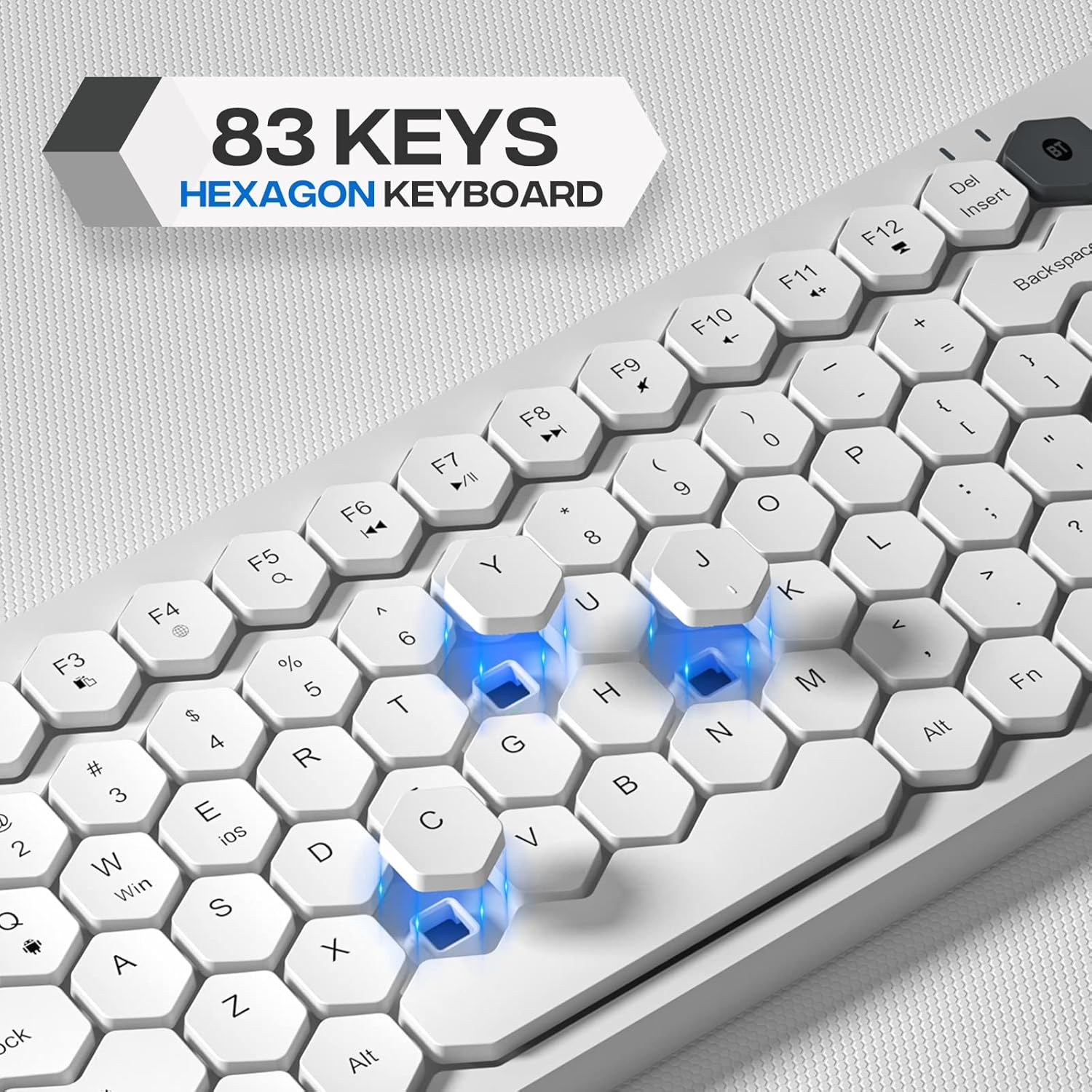
Imaxe: Primeiro plano view of the MOFII Wireless Bluetooth Keyboard highlighting its 83-key layout and distinctive hexagon-shaped keycaps.
The keyboard features an 83-key layout with hexagon keycaps, designed for a distinct typing experience. It includes dedicated function keys and multimedia shortcuts for enhanced productivity.
Configuración
1. Acendido/apagado
Locate the ON/OFF switch on the keyboard. Slide the switch to the 'ON' position to power on the keyboard. Slide it to the 'OFF' position when not in use to conserve battery life.
2. Cargar o teclado
The keyboard is equipped with a built-in rechargeable battery. To charge:
- Connect the provided USB charging cable to the Micro-USB port on the keyboard.
- Conecta o outro extremo do cable USB a unha fonte de alimentación USB (por exemplo, un porto USB do ordenador ou un adaptador de parede USB).
- The Charging Indicator light will illuminate during charging. A full charge typically takes approximately 2 hours and provides up to 360 hours of usage.
3. Conectando a través de Bluetooth
To connect the keyboard wirelessly via Bluetooth:
- Asegúrate de que o teclado estea acendido.
- Press the 'BT' key on the keyboard to enter Bluetooth pairing mode. The Bluetooth Connection Indicator will flash.
- No teu dispositivo (ordenador, tableta, teléfono intelixente), vai á configuración de Bluetooth.
- Busca available Bluetooth devices and select "MOFII Keyboard" (or similar name) from the list.
- Follow any on-screen prompts to complete the pairing process. The Bluetooth Connection Indicator will become solid once connected.
4. Connecting via USB Wired Connection
Para unha conexión por cable:
- Connect the provided USB cable to the Micro-USB port on the keyboard.
- Conecte o outro extremo do cable USB a un porto USB dispoñible no seu ordenador.
- O teclado recoñecerase automaticamente e estará listo para o seu uso.
Instrucións de funcionamento
1. Cambio de sistemas operativos
The keyboard is compatible with multiple operating systems. Use the following key combinations to switch between modes:
- FN + Q: Switch to Android system mode.
- FN + W: Switch to Windows system mode.
- FN + E: Switch to iOS system mode.
2. Teclas multimedia
The keyboard features 12 multimedia key combinations. These keys, often used in conjunction with the 'FN' key, provide quick access to functions such as volume control, media playback, and browser shortcuts. Refer to the keycap legends for specific multimedia functions.
3. Función Auto Sleep
To conserve battery life, the keyboard will automatically enter sleep mode after 30 minutes of inactivity. To wake the keyboard, press any key. The keyboard will reconnect to the last paired device.
Mantemento
Un mantemento axeitado garante a lonxevidade e o rendemento do teu teclado.

Imaxe: Parte inferior view of the MOFII Wireless Bluetooth Keyboard, illustrating its stainless steel material, matte smooth coating, and non-slip increased pads for stability.
- Limpeza: Use a soft, dry cloth to wipe the keyboard surface. For stubborn dirt, a slightly damp Pódese usar un pano con xabón suave, garantindo que non entre líquido nos interruptores de chave nin nos compoñentes internos.
- Teclas: The keycaps are designed with injection molding technology to prevent letter color fading. Avoid using harsh chemicals or abrasive materials on the keycaps.
- Almacenamento: Garda o teclado nun lugar fresco e seco, lonxe da luz solar directa e de temperaturas extremas.
- Almofadas antideslizantes: The keyboard features non-slip pads on its base for stability. Ensure these pads are clean and free from debris for optimal grip.
Resolución de problemas
If you encounter issues with your MOFII Wireless Bluetooth Keyboard, refer to the following common solutions:
| Problema | Posible Solución |
|---|---|
| O teclado non se acende. | Ensure the ON/OFF switch is in the 'ON' position. Charge the keyboard using the provided USB cable. |
| Bluetooth connection fails or disconnects frequently. | Ensure the keyboard is fully charged. Re-enter Bluetooth pairing mode by pressing the 'BT' key. On your device, forget the keyboard and attempt to re-pair. Ensure the keyboard is within the 33 ft signal range. |
| As chaves non responden. | Check if the keyboard is powered on and connected (Bluetooth or USB). If in auto-sleep mode, press any key to wake it. Ensure the correct operating system mode (FN+Q/W/E) is selected. |
| O indicador de batería baixa está acendido. | Charge the keyboard immediately using the USB charging cable. |
| Keyboard is not recognized in wired mode. | Ensure the USB cable is securely connected to both the keyboard and the computer. Try a different USB port on your computer. |
Especificacións
Key technical specifications for the MOFII Wireless Bluetooth Keyboard:
- Marca: MOFII
- Modelo: B0B7WTFWPN
- Tecnoloxía de conectividade: Bluetooth, USB con cable
- Dispositivos compatibles: Laptop, PC, Desktop, Notebook, iPad (Windows, Mac OS, Android, iOS)
- Descrición do teclado: Sen fíos
- Característica especial: Portátil
- Cor: Branco
- Compoñentes incluídos: Cable USB
- Número de baterías: 1 (Built-in rechargeable)
- Fonte de enerxía: Alimentado por batería
- Tipo de interruptor: Mecánica
- Deseño do teclado: QWERTY
- Fabricante: MOFII
Información da garantía
The MOFII Wireless Bluetooth Keyboard comes with a 12 meses de garantía desde a data de compra. Esta garantía cobre defectos de fabricación en condicións de uso normal. Conserve o comprobante de compra para reclamacións de garantía.
Apoio
For further assistance, technical support, or warranty inquiries, please refer to the contact information provided with your purchase documentation or visit the official MOFII support websitio.