
1. Introdución
This manual provides detailed instructions for the setup, operation, and maintenance of your EIGHTREE HomeKit Smart Plug (Model ET03-1). Please read this manual thoroughly before using the product to ensure proper functionality and safety. This smart plug is designed to integrate seamlessly with Apple HomeKit for convenient control of your home appliances.
2. Información de seguridade
- Só para uso en interiores. Non o expoña á humidade nin a temperaturas extremas.
- Ensure the smart plug is connected to a power outlet within its specified voltage clasificacións actuais.
- Non desmonte nin modifique o dispositivo.
- Avoid overloading the smart plug beyond its maximum wattage capacity. Refer to the Specifications section for details.
- Manter fóra do alcance dos nenos.
3. Contido do paquete
O seu paquete debe conter os seguintes elementos:
- EIGHTREE HomeKit Smart Plug(s) (quantity as purchased)
- Manual de instrucións
4. Produto rematadoview
The EIGHTREE HomeKit Smart Plug is a compact device designed to turn any standard wall outlet into a smart outlet. It features a power button and an indicator light for status feedback.

Image: EIGHTREE HomeKit Smart Plug in use, connected to a lamp.
Características principais:
- Fácil configuración: Integrate with Apple Home App by scanning a QR code.
- Control de voz: Control connected devices using Siri.
- Control remoto: Manage devices from anywhere via the Home App (requires a home hub).
- Escenas e automatizacións: Create custom schedules and scenes for automated control.

Imaxe: Máis deview of EIGHTREE HomeKit Smart Plug features.
5. Instrucións de configuración
Follow these steps to set up your EIGHTREE HomeKit Smart Plug:
- Download the Apple Home App: Ensure you have the Apple Home app installed on your iOS device.
- Conecta o enchufe intelixente: Insert the EIGHTREE Smart Plug into a standard wall outlet.
- Engadir accesorio: Open the Apple Home app. Tap the "+" icon or "Add Accessory" option.
- Escanear código QR: Use your device's camera to scan the HomeKit QR code located on the smart plug or its packaging.
- Siga as instrucións na pantalla: The app will guide you through naming the accessory and assigning it to a room.
Nota importante: The smart plug requires a Rede Wi-Fi a 2.4 GHz for connection. It is not compatible with 5GHz Wi-Fi networks.
6. Instrucións de funcionamento
6.1 Control manual
Press the physical button on the smart plug to manually turn the connected appliance on or off.
6.2 Voice Control with Siri
Once set up with Apple HomeKit, you can control your smart plug using Siri voice commands:
- Say, "Hey Siri, turn on [device name]."
- Say, "Hey Siri, turn off [device name]."
- Say, "Hey Siri, is [device name] on?"
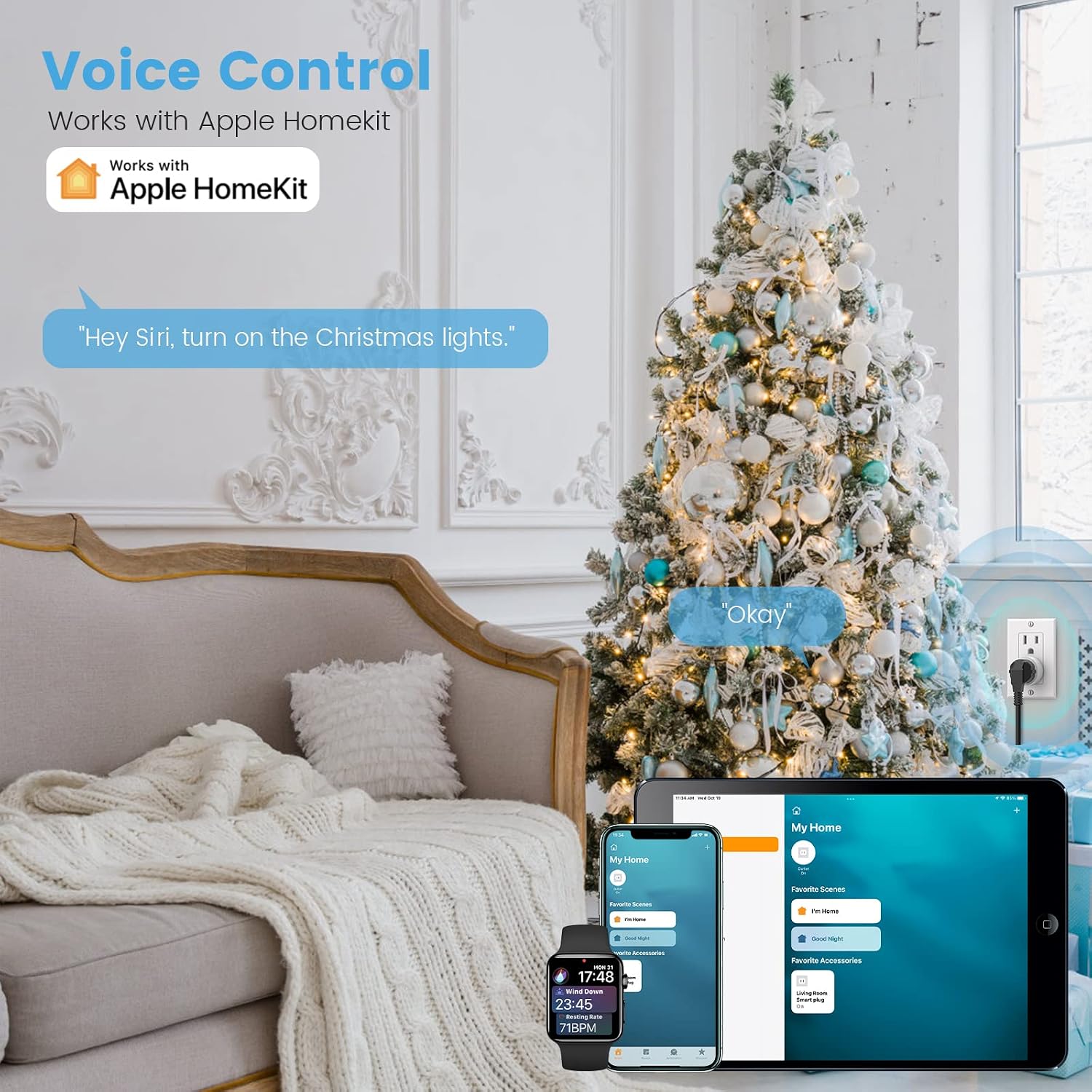
Image: Using Siri to control Christmas lights connected to the smart plug.
6.3 Control remoto
To control your smart plug when you are away from home, you need an Apple Home Hub (e.g., Apple TV, HomePod, or a dedicated iPad) set up in your home. The Home Hub must be powered on, connected to your home Wi-Fi network, and remain in your home.

Image: Remote control functionality via the Home app.
6.4 Scenes and Automations
Create custom scenes and time schedules within the Apple Home app to automate your devices:
- Escenas: Group multiple accessories to respond to a single command (e.g., a "Good Morning" scene that turns on lights and a coffee maker).
- Automatizacións: Set devices to turn on/off based on time of day, sunrise/sunset, or when you arrive/leave home.

Image: Setting timers and schedules for smart devices.

Image: Activating a 'sleep scene' using voice control.
6.5 Compartir en familia
You can invite family members to control your HomeKit devices by adding their Apple IDs to the Home app. This allows multiple users to manage the smart plugs and other accessories.

Image: Family sharing access to HomeKit devices.
7. Mantemento
- Limpeza: Disconnect the smart plug from the power outlet before cleaning. Use a dry, soft cloth to wipe the surface. Do not use liquid cleaners or sprays.
- Almacenamento: When not in use for extended periods, store the smart plug in a cool, dry place away from direct sunlight.
8 Solución de problemas
- Dispositivo non conectado:
- Asegúrate de que a túa rede wifi sexa de 2.4 GHz. O enchufe intelixente non admite wifi de 5 GHz.
- Verify that your iOS device is connected to the same 2.4GHz Wi-Fi network during setup.
- Check if the smart plug is within range of your Wi-Fi router.
- Try resetting the smart plug by unplugging it for 10 seconds and plugging it back in.
- O control remoto non funciona:
- Confirm that you have an Apple Home Hub (Apple TV, HomePod, or dedicated iPad) set up and active in your home.
- Ensure the Home Hub is powered on and connected to your home Wi-Fi network.
- Siri Not Responding:
- Verify that Siri is enabled on your iOS device.
- Ensure the smart plug is properly named and recognized in the Home app.
9. Especificacións
| Modelo | ET03-1 |
| Marca | OITOTREE |
| Modo de operación | ACENDIDO APAGADO |
| Valoración actual | 10 Amps |
| Vol. Operativotage | 120 voltios |
| Wattage | 1200 vatios |
| Protocolo de conectividade | Wi-Fi (só 2.4 GHz) |
| Tipo de controlador | Apple HomeKit, iOS |
| Método de control | Remoto, Voz |
| Material | Estirreno Acrilonitrilo Butadieno |
| Dimensións do artigo (L x W x H) | 1 x 1 x 1 polgadas |
| Tipo de montaxe | Montaxe enchufable |
| Clasificación de protección internacional | IP44 (Note: Product is for indoor use) |
| Certificación | FCC |
10. Garantía
EIGHTREE provides a 2 ano de garantía for this product from the date of purchase. This warranty covers manufacturing defects and malfunctions under normal use. It does not cover damage caused by misuse, accidents, unauthorized modifications, or external factors.

Image: EIGHTREE product certifications and warranty information.
11. Atención ao cliente
If you encounter any issues or require further assistance, please contact EIGHTREE customer service directly via Amazon or email. Our team is available to provide support.