
Produto rematadoview
The MARVO 2.4G Ergonomic Wireless Keyboard and Silent Mouse Combo provides a reliable and comfortable input solution for your computer and smart devices. Featuring a full-size keyboard with a built-in phone/tablet holder and a silent 6-button mouse with adjustable DPI, this combo is designed for efficiency and quiet operation.

Image: MARVO 2.4G Ergonomic Wireless Keyboard and Silent Mouse Combo.
Instrucións de configuración
1. Instalación da batería
The keyboard and mouse require batteries (not included). Each device typically uses one AA battery. Locate the battery compartments on the underside of both the keyboard and the mouse. Insert the batteries, ensuring correct polarity.

Image: Underside of the wireless mouse, illustrating the battery slot and the storage for the USB receiver.
2. Conexión do receptor USB
The combo uses a single 2-in-1 USB Nano Receiver for both the keyboard and mouse. The receiver is typically stored within the mouse's battery compartment for convenience. Remove the receiver and plug it into an available USB port on your computer.
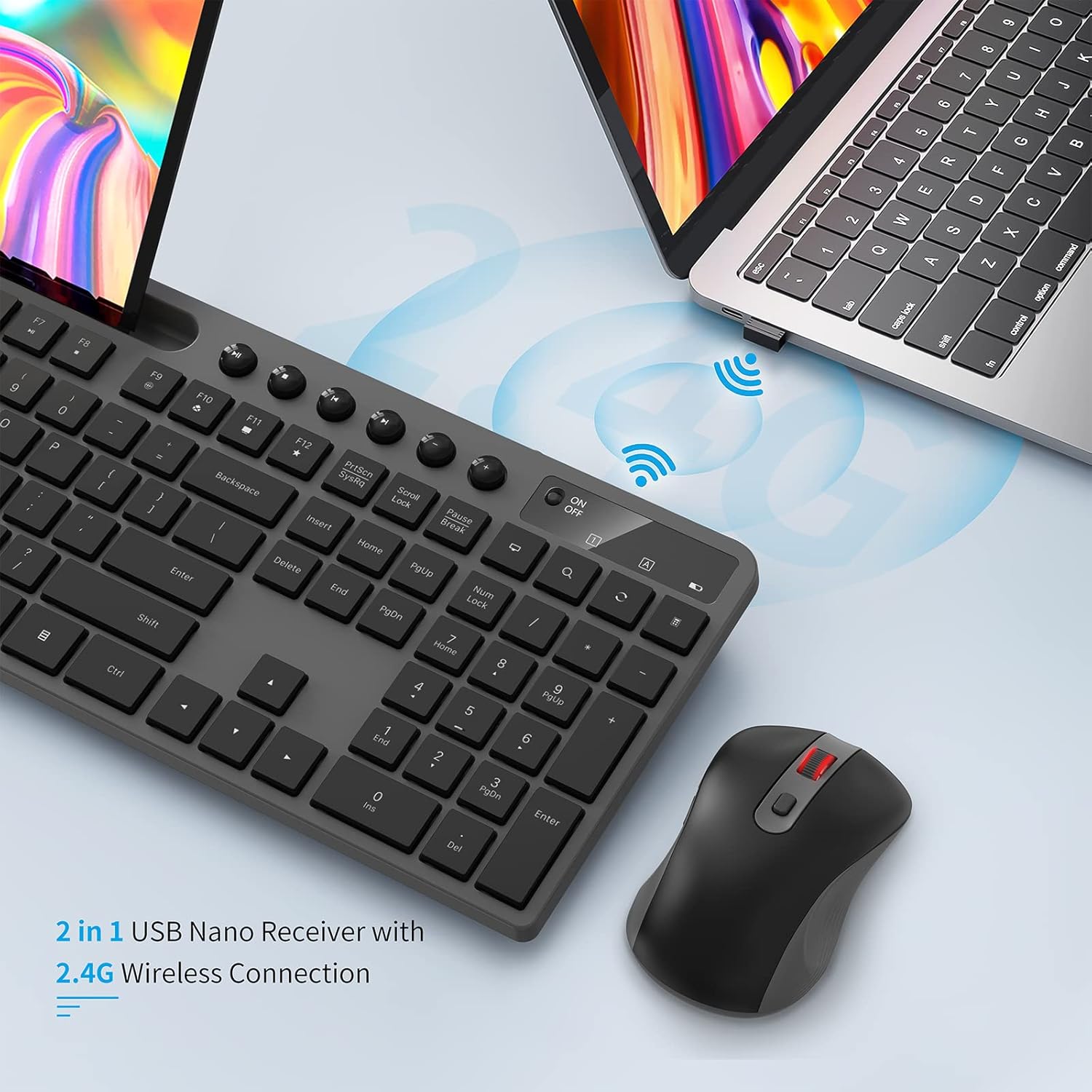
Image: The 2-in-1 USB Nano Receiver connected to a laptop, enabling wireless communication for the keyboard and mouse.
3. Acender
Turn on both the keyboard and the mouse using their respective On/Off switches. The keyboard's power light will blink for 5-8 seconds and then turn off, indicating a normal connection. If the red power light blinks when you press any key, it indicates a low battery state.
4. Compatibilidade do sistema
The MARVO Wireless Keyboard and Mouse Combo is compatible with Windows XP, Vista, 7, 8, 10, and macOS operating systems. No additional drivers are typically required for basic functionality.
Instrucións de funcionamento
Características do teclado
- Disposición QWERTY: Standard keyboard layout for familiar typing.
- Teclas multimedia: Dedicated keys for media control (play, pause, volume, etc.) located above the function keys.
- Integrated Phone/Tablet Holder: A 9.84-inch slot is built into the keyboard to securely hold your smartphone or tablet, providing convenient access to your second screen.
- Deseño ergonómico: Designed for comfortable typing during extended use.
- Patas inclinables axustables: The keyboard features foldable legs on the underside, allowing you to adjust the typing angle for personalized comfort.

Image: The MARVO wireless keyboard featuring its integrated phone and tablet holder, showcasing a phone and tablet in use.
Características do rato
- Clics silenciosos: Designed for quiet operation, minimizing click noise.
- 6 Botóns: Includes standard left/right click, scroll wheel, DPI switch, and two side buttons (often for page up/down or forward/back).
- DPI axustable: Cycle through 800, 1200, and 1600 DPI settings using the dedicated DPI switch button to adjust cursor sensitivity.
- Roda de desprazamento: For smooth navigation through documents and web páxinas.
- Interruptor On/Off: Situado na parte inferior do rato para aforrar batería cando non se usa.
Mantemento
- Substitución da batería: Replace batteries when the low battery indicator appears or performance degrades. Ensure to use the correct battery type (AA).
- Limpeza: Usa un pano suave e seco para limpar as superficies do teclado e do rato. Para a sucidade persistente, usa un pano lixeiramente seco.amp pódese usar un pano, garantindo que non entre humidade nos compoñentes internos.
- Almacenamento do receptor USB: When transporting the mouse, store the USB receiver in its dedicated slot within the mouse's battery compartment to prevent loss.
Resolución de problemas
- Sen conexión: Ensure both devices are powered on and the USB receiver is securely plugged into a working USB port. Try plugging the receiver into a different USB port.
- O rato non responde: Check the mouse battery. If the mouse is unresponsive, try re-pairing it by pressing the ESC key on the keyboard and holding the right wheel and right button down simultaneously on the mouse.
- Keyboard Keys Not Working: Check the keyboard battery. Ensure the keyboard is powered on.
- Conectividade intermitente: Ensure there are no obstructions between the devices and the USB receiver. Move the receiver closer to the keyboard and mouse if possible.
- Keyboard Wobbles: If the keyboard does not sit level, check the adjustable tilt legs on the underside. Gently adjust or apply slight pressure to the corners to correct any unevenness.
Especificacións
| Marca | MARVO |
| Modelo | KC-411W |
| Conectividade | 2.4G Radio Frequency |
| Dispositivos compatibles | Ordenador persoal, Smartphone |
| Sistema Operativo | Windows XP / Vista / 7 / 8 / 10, macOS |
| Disposición do teclado | QWERTY (92 teclas) |
| Rato DPI | 800/1200/1600 DPI Adjustable |
| Botóns do rato | 6 |
| Fonte de enerxía | Battery Powered (1 AA per device, not included) |
| Peso do elemento | 0.75 quilogramos |
| distancia wireless | Ata 33 pés |
| Soporte para teléfono / tableta | 9.84 polgadas |

Image: Detailed dimensions of the MARVO wireless keyboard and mouse for reference.
Garantía e Soporte
MARVO provides a 12-month worry-free warranty for this product, ensuring peace of mind. Our friendly customer service team is available to assist with any questions or issues you may encounter.
For support, please visit the official MARVO website or contact our customer service department directly. Please have your model number (KC-411W) and purchase information ready when contacting support.