
1. Introdución
Thank you for choosing the LDNIO SCW1050 WiFi Smart Plug. This manual provides essential information for the safe and efficient use of your smart plug. Please read it thoroughly before installation and operation, and retain it for future reference.
2. Produto rematadoview
The LDNIO SCW1050 is a smart electric plug designed to integrate seamlessly into your smart home ecosystem. It features WiFi connectivity for remote control, a timing function for scheduled operations, and multiple safety protections. Its fire-resistant polycarbonate structure ensures durability and safety.
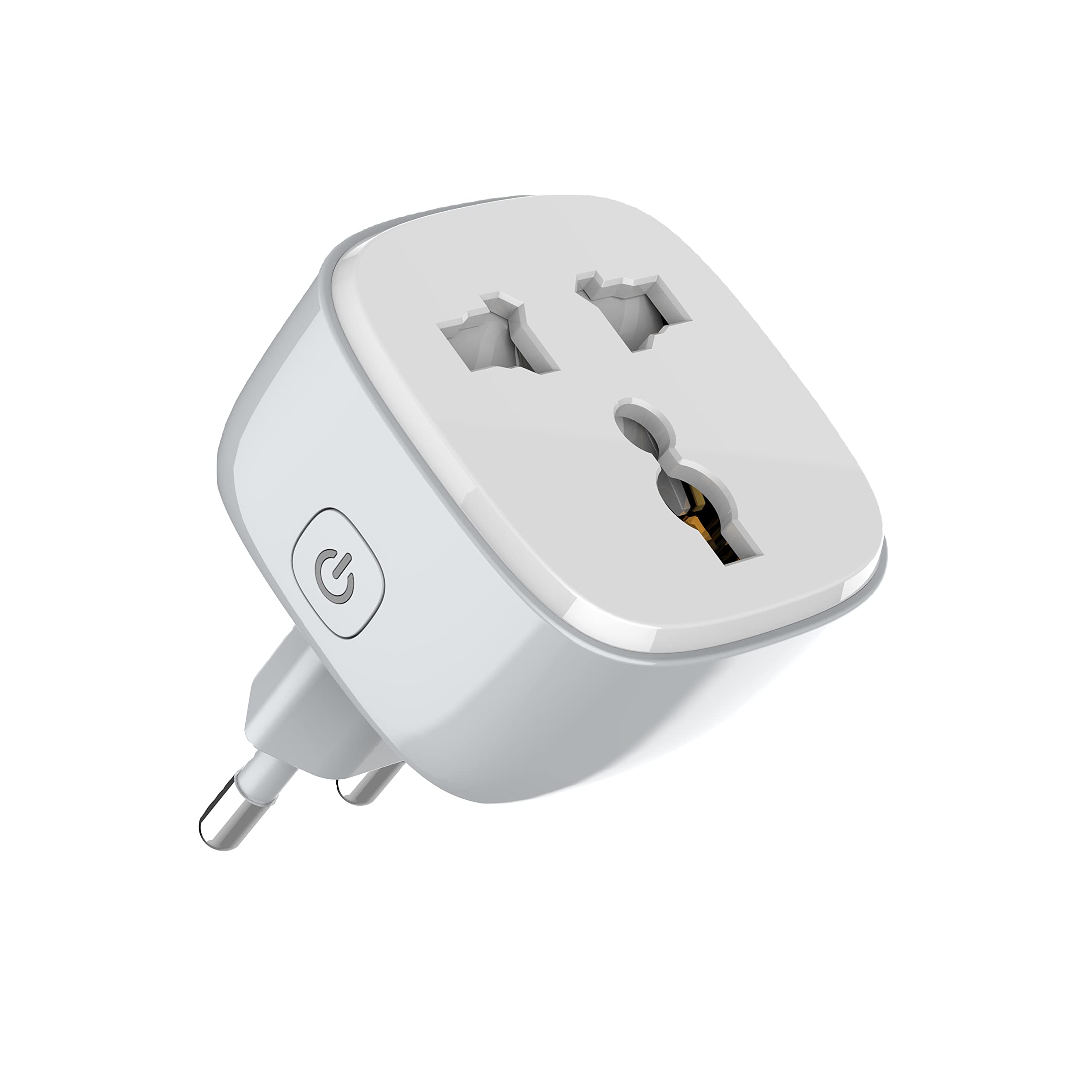
Figura 1: Fronte view of the LDNIO SCW1050 WiFi Smart Plug.

Figura 2: En ángulo view of the LDNIO SCW1050 WiFi Smart Plug, highlighting its compact design.
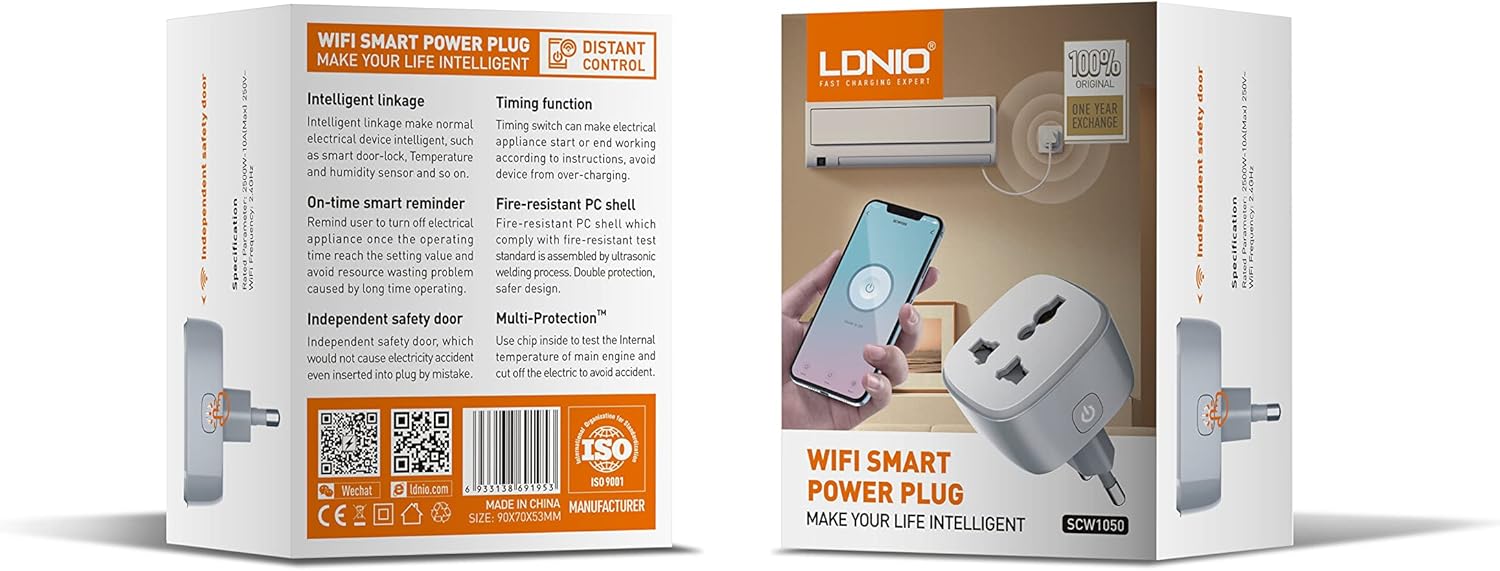
Figure 3: Product packaging illustrating key features such as intelligent linkage, timing function, on-time smart reminder, independent safety door, fire-resistant PC shell, and multi-protection. For more information, visit www.siyoteam.com.
3. Información de seguridade
- Non desmonte nin modifique o dispositivo.
- Asegúrate de que o enchufe estea completamente inserido na toma de corrente.
- Do not overload the smart plug beyond its rated capacity (2500W, 10A).
- Manteña o dispositivo lonxe da auga, da humidade e das altas temperaturas.
- Este produto é só para uso en interiores.
- If the device is damaged, discontinue use immediately and contact support.
4. Configuración
4.1 Conexión inicial
- Plug the LDNIO SCW1050 Smart Plug into a standard wall outlet.
- Ensure the indicator light on the smart plug is blinking, indicating it is in pairing mode. If not, press and hold the power button for 5-10 seconds until it blinks rapidly.
4.2 Instalación e emparellamento da aplicación
- Download the compatible smart home application (e.g., Tuya Smart or Smart Life app) from your mobile device's app store.
- Rexístrate ou inicia sesión na túa conta dentro da aplicación.
- Toca a icona "+" ou "Engadir dispositivo" para iniciar o proceso de emparellamento.
- Selecciona "Toma de corrente" ou "Enchufe intelixente" na lista de dispositivos.
- Follow the on-screen instructions to connect the smart plug to your 2.4GHz WiFi network. Ensure your phone is connected to the same 2.4GHz network during setup.
- Unha vez emparellado correctamente, podes renomear o dispositivo e asignalo a unha sala.

Figure 4: Remote control of the smart plug using a mobile application.
5. Instrucións de funcionamento
5.1 Control manual
Press the power button on the smart plug to manually turn the connected appliance on or off.
5.2 Control de aplicacións
- On/Off: Tap the power icon next to the device in the app to toggle power.
- Función de temporización: Set schedules for the smart plug to turn on or off automatically at specific times. This is useful for managing lighting or other appliances.
- Recordatorios intelixentes: Configure smart reminders within the app to receive notifications or automate actions based on usage patterns or set conditions.
- Conexión intelixente: Connect your smart plug with other smart devices or sensors to create automated scenarios (e.g., turn on a lamp when a motion sensor is triggered).
6. Mantemento
- To clean the smart plug, disconnect it from the power outlet and wipe it with a dry, soft cloth.
- Non use produtos de limpeza líquidos ou en aerosois.
- Comprobe regularmente se hai signos de dano ou desgaste.
7 Solución de problemas
- O dispositivo non se conecta á wifi: Ensure your WiFi network is 2.4GHz. Check that the smart plug is within range of your router. Restart the smart plug and your router, then try pairing again.
- O control da aplicación non funciona: Verify your phone has an active internet connection. Ensure the smart plug is connected to WiFi and its indicator light is solid. Update the app to the latest version.
- Appliance not turning on/off: Check if the appliance is properly plugged into the smart plug and if the appliance itself is functional. Ensure the smart plug is receiving power.
- Indicator light behavior:
- Pestanexo rápido: Preparado para emparellar.
- Parpadeo lento: Disconnected from WiFi.
- Sólido: Connected to WiFi and operating normally.
8. Especificacións
| Característica | Especificación |
|---|---|
| Número de modelo | SCW1050 |
| Potencia nominal | 2500 W |
| Corrente nominal | 10A (máximo) |
| Voltage | 250 V~ |
| Frecuencia WiFi | 2.4 GHz |
| Dimensións do produto | 7.62 x 5.08 x 5.08 cm |
| Peso do produto | 70 gramos |
| Material de carcasa | Fire-resistant Polycarbonate |
9. Garantía e soporte
LDNIO offers a One Year Exchange warranty for this product, as indicated on the packaging. For technical support, warranty claims, or further inquiries, please visit the official LDNIO websitio en www.siyoteam.com ou póñase en contacto co seu distribuidor local.
You may also find additional resources and community support through the WeChat platform by scanning the QR code found on the product packaging (refer to Figure 3).