
1. Introdución
This manual provides essential information for the safe and efficient use of your ASUS E410MA 14-inch Laptop Computer. Please read this guide thoroughly before operating your device to ensure proper setup, operation, and maintenance. Keep this manual for future reference.
2. Contido do paquete
Upon unpacking your ASUS E410MA laptop, please verify that all items listed below are present and in good condition. If any item is missing or damaged, contact your retailer immediately.
- ASUS E410MA 14-inch Laptop Computer
- Adaptador de corrente alterna e cable de alimentación
- User Documentation (Quick Start Guide, Warranty Card)
3. Laptop Overview
Familiarize yourself with the various components of your ASUS E410MA laptop.
3.1 Fronte View (Aberto)
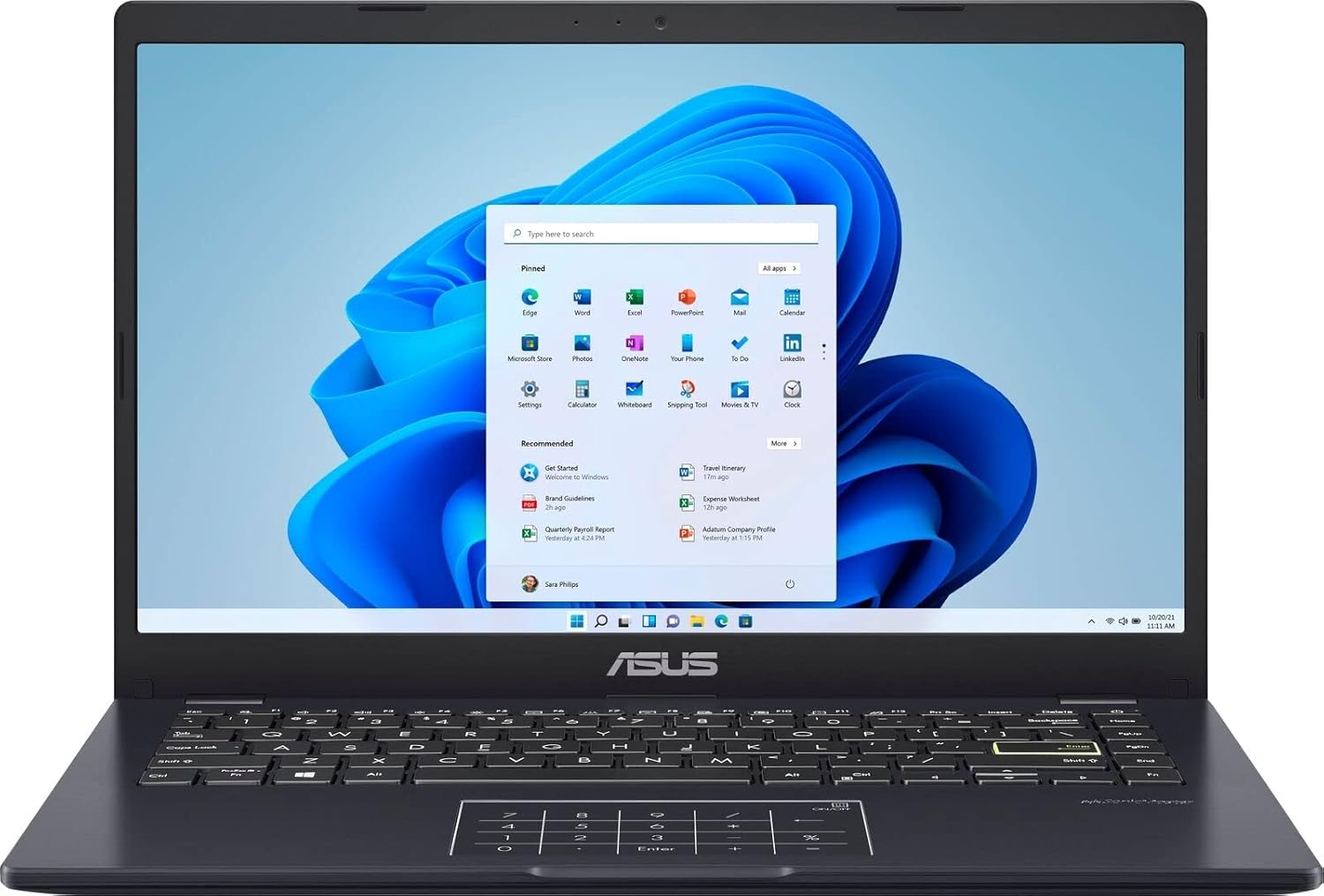
Imaxe 3.1: The ASUS E410MA laptop shown open, displaying the Windows 11 operating system interface on its 14-inch screen. The keyboard and touchpad are visible below the screen.
3.2 Teclado e panel táctil

Imaxe 3.2: A top-down perspective of the ASUS E410MA laptop's keyboard and touchpad. The touchpad features an integrated NumberPad, indicated by illuminated numeric keys.
3.3 Laterais View (Aberto)
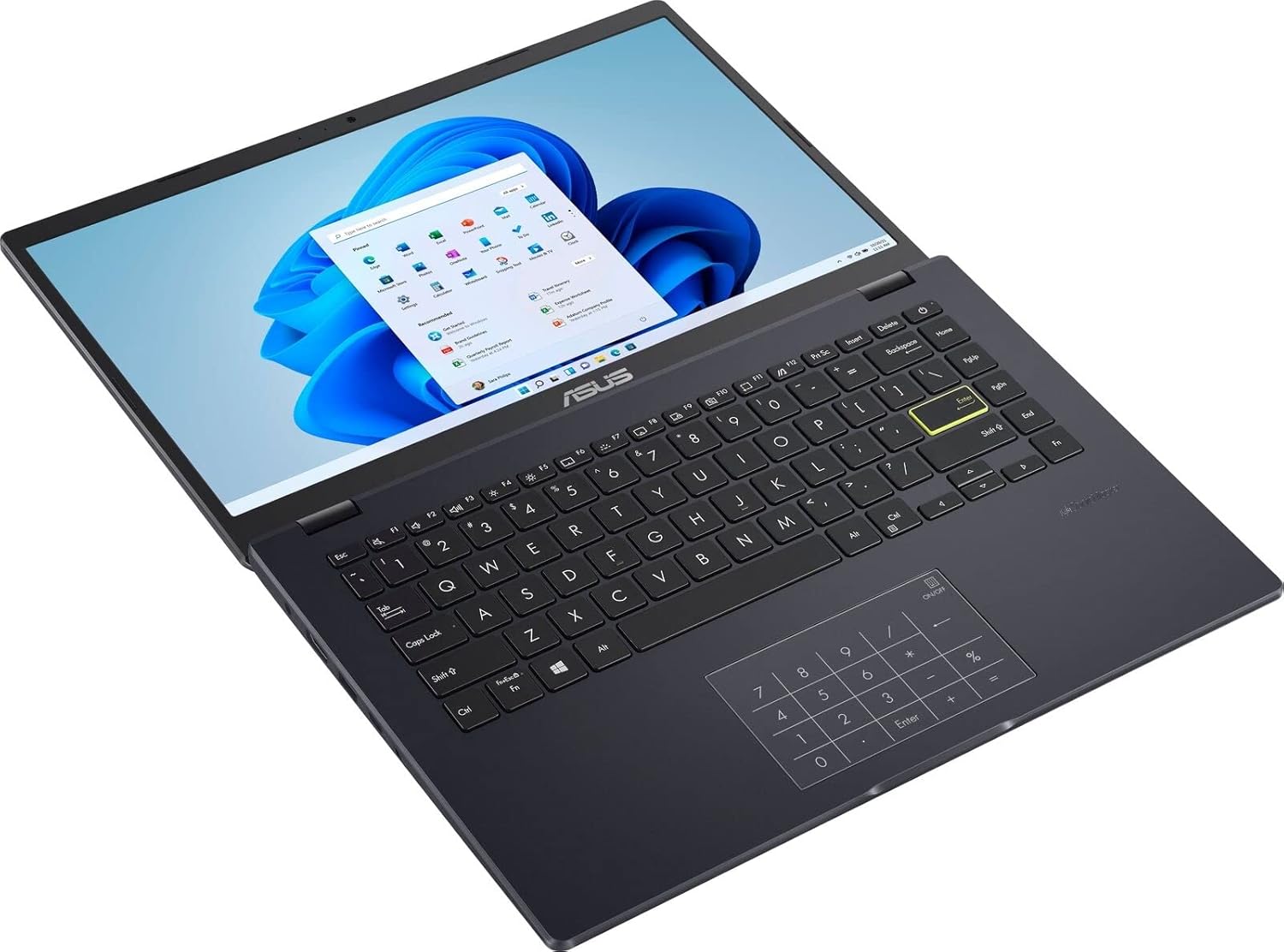
Imaxe 3.3: Un ángulo view of the ASUS E410MA laptop in an open position, highlighting the keyboard layout and the display screen.
3.4 Traseira View (Pechado)

Imaxe 3.4: A parte traseira view of the ASUS E410MA laptop in a closed state, featuring the ASUS logo prominently on the lid.
3.5 Angled Rear View (Pechado)

Imaxe 3.5: An angled rear view of the ASUS E410MA laptop when closed, showcasing the ASUS logo on the lid and a glimpse of the side ports.
3.6 Xeral View (Open and Closed)
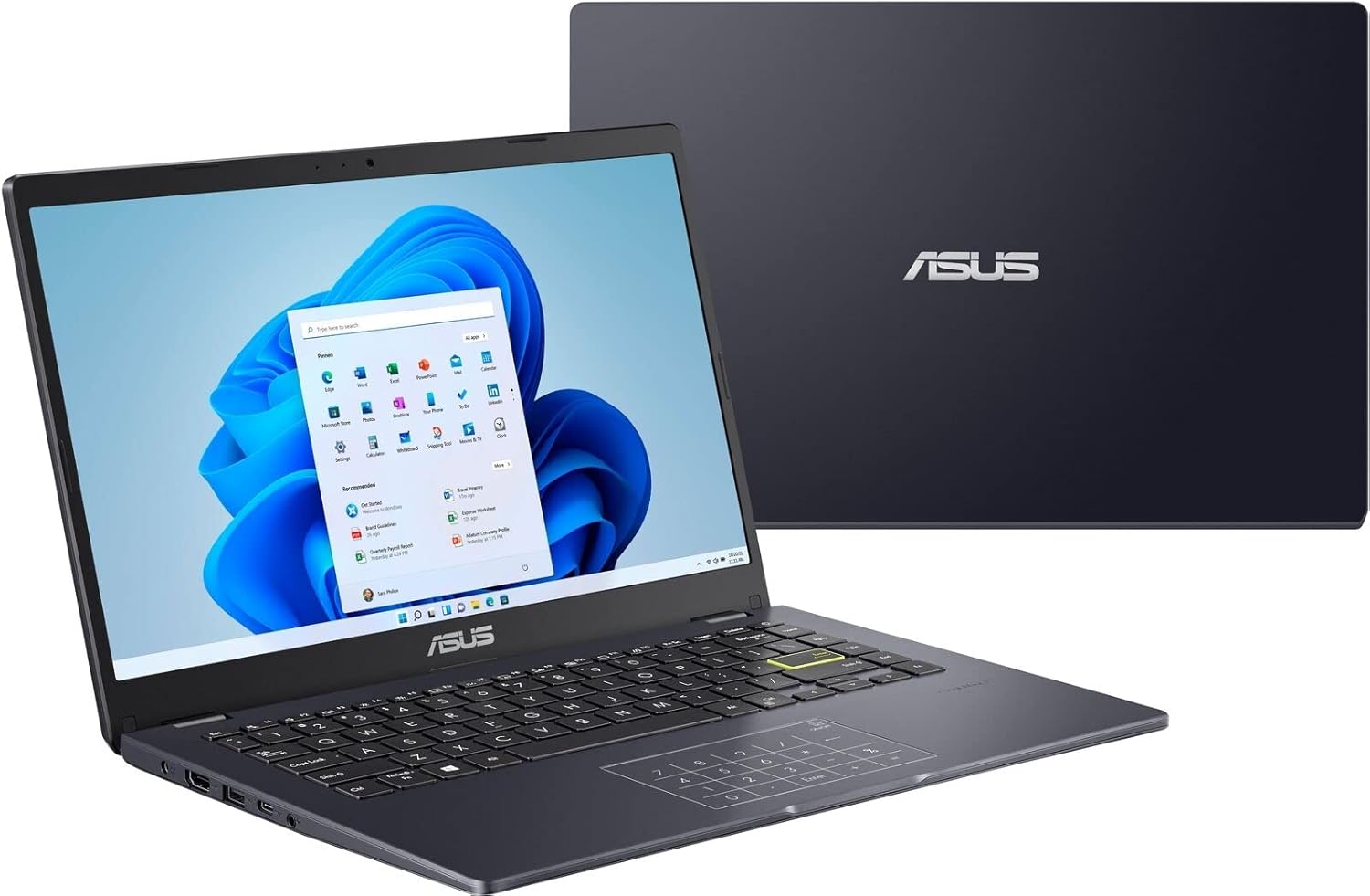
Imaxe 3.6: A composite view showing the ASUS E410MA laptop in an open, operational state in the foreground, with a closed unit visible in the background.
4. Configuración
Follow these steps to set up your ASUS E410MA laptop for the first time.
4.1 Carga da batería
- Connect the AC power adapter to the laptop's power input port.
- Conecte o cable de alimentación a unha toma de parede.
- Allow the battery to charge fully before initial use. The battery indicator light will change to show charging status.
4.2 Encendido inicial
- Abre a tapa do portátil.
- Preme o botón de acendido e apagado, que normalmente se atopa na parte superior dereita do teclado ou no lateral.
- The laptop will boot up and guide you through the Windows 11 initial setup process.
4.3 Configuración de Windows 11
Follow the on-screen instructions to complete the Windows 11 setup, which includes:
- Seleccionando a túa rexión e a disposición do teclado.
- Conectando a unha rede wifi.
- Iniciar sesión cunha conta de Microsoft ou crear unha.
- Setting up privacy settings.
5. Manexo do portátil
This section covers basic operations and features of your ASUS E410MA laptop.
5.1 Uso do teclado e do panel táctil
- Teclado: The laptop features a full-sized keyboard. Use the Function (Fn) key in combination with the F-keys (F1-F12) for special functions like adjusting brightness, volume, or enabling/disabling Wi-Fi.
- Touchpad: The touchpad supports multi-touch gestures for navigation. Refer to Windows settings for customizing touchpad gestures.
- Teclado numérico: Your laptop's touchpad integrates an ASUS NumberPad. To activate or deactivate it, press and hold the NumberPad icon on the top-right corner of the touchpad.
5.2 Conexión de periféricos
O teu portátil está equipado con varios portos para conectar dispositivos externos:
- Portos USB: Conecta dispositivos USB como discos duros externos, ratos ou teclados.
- Porto HDMI: Connect to an external monitor or TV for video output.
- Conector de audio: Conecte auriculares ou altofalantes externos.
5.3 Xestión de enerxía
To conserve battery life and manage performance:
- Axusta o brillo da pantalla.
- Utilize Windows power modes (e.g., Balanced, Power Saver).
- Pecha as aplicacións non utilizadas.
6. Mantemento
Un mantemento axeitado garante a lonxevidade e o rendemento óptimo do teu portátil.
6.1 Limpeza do portátil
- Use un pano suave e sen pelusa lixeiramente dampened with water or a specialized screen cleaner for the display.
- Para o teclado e o chasis, use un pano suave. Evite produtos químicos agresivos ou materiais abrasivos.
- Asegúrate de que o portátil estea apagado e desconectado antes de limpalo.
6.2 Coidado coa batería
- Evite descargar completamente a batería con frecuencia.
- Garda o portátil nun lugar fresco e seco se non o vas usar durante períodos prolongados.
- Non expoña a batería a temperaturas extremas.
6.3 Actualizacións de software
Regularly update your operating system and drivers to ensure security and performance:
- Actualizacións de Windows: Ir a Configuración > Actualización de Windows para comprobar e instalar actualizacións.
- Actualizacións de controladores: Visita o soporte oficial de ASUS website for the latest drivers for your model.
6.4 Xestión do almacenamento
With 64GB eMMC storage, efficient management is crucial:
- Eliminar regularmente o innecesario files e aplicacións.
- Utilize cloud storage services (e.g., OneDrive, Google Drive) for documents and media.
- Consider an external hard drive or USB flash drive for additional storage.
7 Solución de problemas
This section addresses common issues you might encounter with your ASUS E410MA laptop.
7.1 Laptop Will Not Turn On
- Asegúrate de que o adaptador de CA estea conectado correctamente tanto ao portátil como a unha toma de corrente que funcione.
- Verifica que a toma de corrente funcione conectando outro dispositivo.
- Se a batería está completamente descargada, o portátil pode tardar uns minutos en cargarse antes de que se poida acender.
7.2 Rendemento lento
- Pecha as aplicacións innecesarias que se executan en segundo plano.
- Comprobe e instale as actualizacións pendentes de Windows.
- Ensure you have sufficient free storage space on your eMMC drive.
- Executar unha análise de virus e software malicioso.
7.3 Problemas de conectividade Wi-Fi
- Ensure Wi-Fi is enabled on your laptop (check Function key shortcuts).
- Reinicia o teu enrutador e o módem.
- Forget the Wi-Fi network in Windows settings and reconnect.
- Update your wireless network adapter drivers from the ASUS support websitio.
7.4 Problemas de visualización
- Adjust screen brightness using the keyboard function keys.
- If connected to an external monitor, ensure the display output settings are correct (e.g., duplicate, extend).
- Update your Intel UHD Graphics 600 drivers.
8. Especificacións
Detailed technical specifications for the ASUS E410MA-TB.CL464 laptop.
| Característica | Especificación |
|---|---|
| Nome do modelo | E410MA-TB.CL464 |
| Tamaño da pantalla | 14 polgadas |
| Resolución de pantalla | 1366 x 768 píxeles |
| Procesador | Intel Celeron N4020 (1.1GHz, up to 2.8GHz burst) |
| RAM | 4 GB DDR4 (Onboard) |
| Velocidade da memoria | 2400 MHz |
| Almacenamento | 64 GB eMMC |
| Coprocesador gráfico | Gráficos Intel UHD 600 (integrados) |
| Sistema Operativo | Windows 11 |
| Tipo sen fíos | Bluetooth, Wi-Fi (specific standard not detailed, typically 802.11ac or newer) |
| Portos USB 2.0 | 1 |
| Portos USB 3.0 | 1 |
| Porto HDMI | 1 |
| Peso do elemento | 4.64 libras (aprox. 2.1 kg) |
| Dimensións do produto | 9 x 14 x 0.78 polgadas (aprox. 22.86 x 35.56 x 1.98 cm) |
| Cor | Negro |
| Característica especial | Revestimento antirreflexo |
9. Garantía e soporte
Your ASUS E410MA laptop comes with a limited warranty. Please refer to the warranty card included in your package for specific terms and conditions, including coverage duration and limitations.
9.1 Soporte técnico
For technical assistance, driver downloads, or further information, please visit the official ASUS support website. You can typically find support resources by searching for your specific model number (E410MA-TB.CL464).
Before contacting support, ensure you have:
- Your laptop's serial number.
- A clear description of the issue.
- Any troubleshooting steps you have already performed.