
1. Introdución
The AZDOME M300 is a compact, monitor-less dash cam designed for easy installation and discreet operation. It features 1296P high-resolution recording, WiFi connectivity for smartphone control, and a super capacitor for enhanced durability and safety across a wide temperature range. This manual provides detailed instructions for installation, operation, and maintenance to ensure optimal performance of your device.

Figure 1: AZDOME M300 Dash Cam Overview
2. Características clave
- 1296P High-Resolution Recording: Captura comida claratage of license plates and road signs.
- Conectividade WiFi: Connects to your smartphone via the dedicated AZDOME app for viewing, playback, downloading, and managing recordings.
- Supercondensador: Replaces traditional batteries for improved safety, rapid charging, and reliable operation in extreme temperatures (-20°C to 70°C).
- Sensor G: Automatically detects impacts and locks the current recording file to prevent overwriting, preserving critical accident evidence.
- Gravación en bucle: Rexistra continuamente sobrescribindo o máis antigo files when the memory card is full, ensuring uninterrupted recording.
- Vixilancia de estacionamento as 24 horas: Provides surveillance when your vehicle is parked (requires a separately purchased hardwire kit).
- Amplio rango dinámico (WDR): Enhances video quality in varying light conditions, ensuring clear images in both bright and dark areas.
- Visión nocturna: Equipped with an F1.8 aperture 6-layer lens for clear recording in low-light conditions.
- Deseño compacto e discreto: Monitor-less design minimizes obstruction to the driver's view and is inconspicuous in the vehicle.
- Fácil instalación: Mounts securely with double-sided tape, suitable for front or rear installation.
3. Configuración
3.1 Contido do paquete
Antes da instalación, comproba que estean presentes todos os compoñentes:
- Cámara de salpicadero AZDOME M300
- Car Mount (with adhesive tape)
- Cargador de coche (USB)
- Manual de usuario
- Wiring Tool Kit
- Película electrostática

Figure 2: AZDOME M300 Package Contents and Easy Installation
3.2 Inserción da tarxeta MicroSD
Insert a MicroSD card (Class 10+ or U3, A2 speed, up to 128GB, not included) into the designated slot on the dash cam. Ensure the card is inserted correctly until it clicks into place.
3.3 Instalación física
- Limpa a zona do parabrisas onde pretendes montar a cámara do salpicadero.
- Apply the electrostatic film to the cleaned area on the windshield. This helps protect your windshield and makes removal easier.
- Attach the dash cam mount with the double-sided tape to the electrostatic film. Ensure it is positioned to provide a clear view of the road without obstructing your driving vision. The camera's view can be adjusted by 90 degrees.
- Connect the car charger to the dash cam and route the cable neatly along the windshield and dashboard to the car's power outlet (cigarette lighter socket). Use the provided wiring tool to tuck the cable.
- The dash cam can be installed on either the front or rear windshield.

Figure 3: Flexible Installation for Front or Rear View
3.4 Conexión WiFi e configuración da aplicación
The AZDOME M300 uses WiFi for smartphone connectivity via the AZDOME app. This allows you to control the device and manage recordings without a built-in monitor.
- Descarga o AZDOME aplicación desde a App Store (iOS) ou Google Play Store (Android).
- Ensure the dash cam is powered on and the WiFi indicator light is blue. If not, press and hold the WiFi button for 3 seconds to activate/deactivate WiFi.
- No teu teléfono intelixente, vai a Configuración > WLAN (Wi-Fi) and connect to the WiFi network named "M300-****". The initial password is "12345678".
- Once connected, open the AZDOME app. The main screen should display "M300".
- Toca "Real-time Screen" a view vivir footage da cámara de trazo.
Important Notes for WiFi Connection:
- Keep your smartphone within 3 meters of the dash cam for a stable connection.
- For iPhone users, ensure your system language is set to Japanese if experiencing connection issues.
- Grant "Location Information Permissions" to the AZDOME app during installation. If already installed, check app permissions in your phone settings.
- If connection issues persist, try turning off your smartphone's mobile data communication (Settings > AZDOME > Mobile Data Communication > OFF) or check your wireless data settings (Settings > Wireless Data > WLAN).

Figure 4: Connecting to the AZDOME App via WiFi
4. Funcionamento
4.1 Gravación automática
The dash cam automatically starts recording when the vehicle's engine is turned on and stops when the engine is turned off. Recordings are saved in segments (e.g., a few minutes per file).
4.2 Gravación en bucle
When the MicroSD card is full, the loop recording function automatically overwrites the oldest unlocked video files para facer espazo para novas gravacións. Isto garante a gravación continua sen intervención manual.
4.3 Gravación de emerxencia (sensor G)
The built-in G-sensor detects sudden shakes or impacts. When an event is detected, the dash cam automatically locks the current video file, evitando que sexa sobrescrito pola gravación en bucle. Estes bloqueados files are crucial evidence in case of an accident.
4.4 Gravación de voz
The dash cam supports voice recording. This feature can be enabled or disabled via the AZDOME app settings. Voice recordings can provide additional context for accident situations.
4.5 Vixilancia do aparcamento
For 24-hour parking monitoring, a separate hardwire kit (e.g., JYX04 Buck Line, ASIN: B09KPSBZNY) is required. When connected, the dash cam can monitor your vehicle for impacts or motion even when parked, providing protection against hit-and-runs or vandalism.
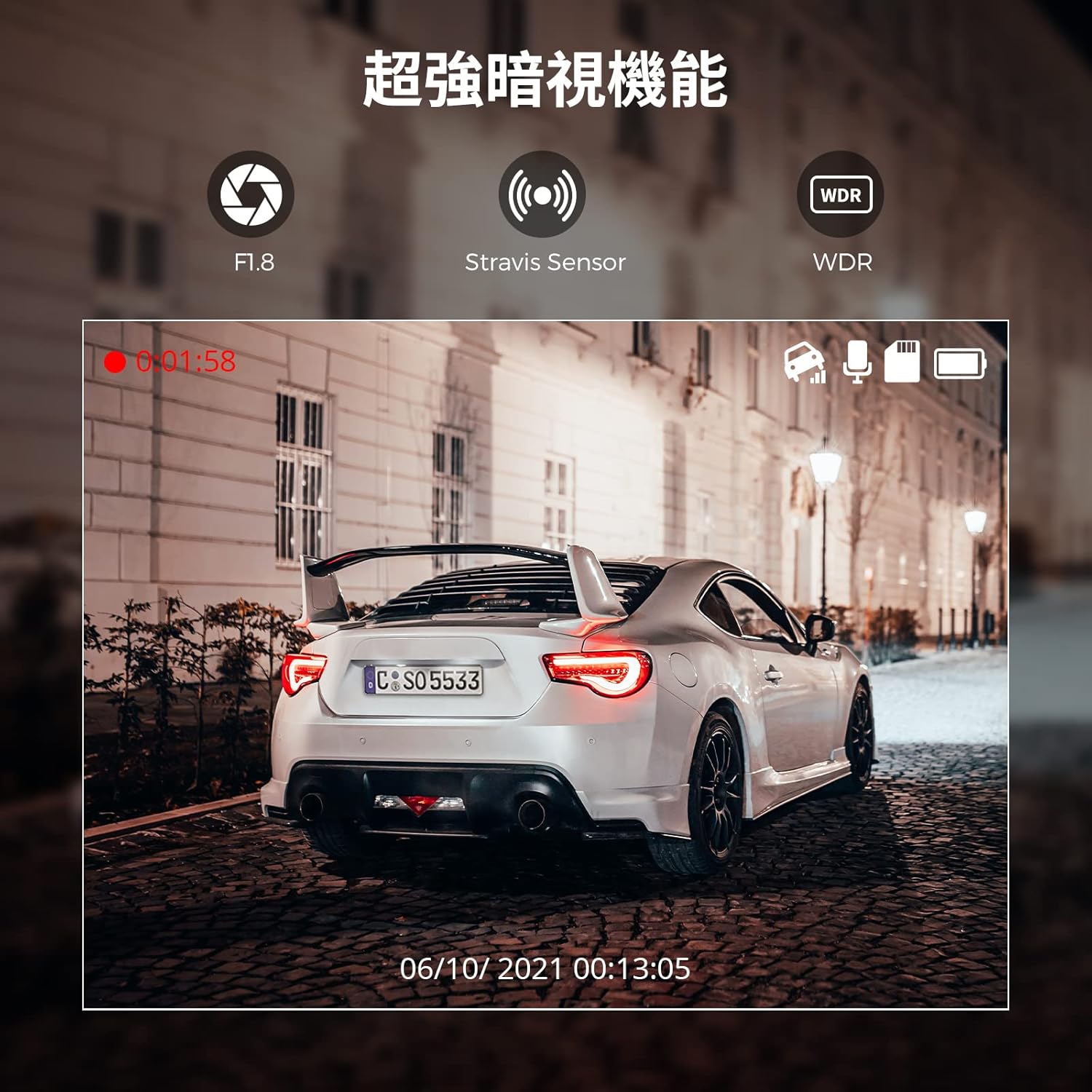
Figure 5: 24-Hour Parking Monitoring
4.6 App Functions (View, Playback, Download, Share)
Using the AZDOME app connected via WiFi:
- En tempo real View: See what the dash cam is recording live on your smartphone.
- Reprodución: Access and play recorded video files directly from the dash cam.
- Descargar: Save important video files from the dash cam to your smartphone.
- Compartir: Easily share downloaded videos with family and friends via social media.
Video 1: AZDOME M300 Dash Cam Features Overview. This video demonstrates the compact design, easy installation, WiFi connectivity, 1296P recording, loop recording, and G-sensor functionality.
5. Mantemento
5.1 Xestión da tarxeta MicroSD
To ensure optimal performance and prevent recording errors, it is recommended to format the MicroSD card regularly (e.g., once a month) using the AZDOME app. This helps maintain the card's health and prevents data corruption.
5.2 Limpeza do dispositivo
Wipe the dash cam lens and body with a soft, dry cloth to remove dust and smudges. Avoid using abrasive cleaners or solvents that could damage the device.
6 Solución de problemas
6.1 Problemas de conexión wifi
- Cannot connect to M300-**** WiFi: Ensure the dash cam's WiFi indicator is blue. If not, long-press the WiFi button for 3 seconds. Keep your phone within 3 meters of the dash cam.
- App not displaying real-time screen: For iPhones, ensure the system language is set to Japanese. Verify that the AZDOME app has "Location Information Permissions" enabled. Try reinstalling the app. In phone settings, try turning off "Mobile Data Communication" for the AZDOME app or check "Wireless Data" settings.
6.2 Recording Errors or Poor Quality
- Recording misses or corrupted files: Ensure you are using a genuine MicroSD card with a write speed of Class 10+ or U3, A2. Lower quality or slower cards can cause issues. Try formatting the SD card.
- Image quality not as expected: The dash cam records in 1296P. If you changed the resolution to 1080P, revert it to 1296P for higher quality.
6.3 Problemas de reprodución
- Slow playback or freezing: Try turning off Bluetooth on your smartphone during playback to avoid potential interference.
6.4 Power Cable Length
The included power cable is designed for front installation. If installing the dash cam in the rear, you may need to purchase a longer USB power cable or an extension.
7. Especificacións
| Especificación | Valor |
|---|---|
| Marca | AZDOME |
| Nome do modelo | AZDOME M300 |
| Resolución de captura de vídeo | 1296p (also supports 1080p) |
| Tecnoloxía de conectividade | Wi-Fi |
| Características especiais | Multi-functional (G-Sensor, Loop Recording, WDR, Night Vision, Parking Monitoring) |
| Tipo de montaxe | Monte adhesivo |
| Cor | Negro |
| View Ángulo | 170 graos |
| Método de control | Aplicación |
| Tamaño da pantalla | 1.5 inches (IPS Display) |
| Dimensións do artigo (D x W x H) | 3 x 9.8 x 4.5 cm |
| Peso do elemento | 0.34 kg |
| Max MicroSD Card Support | 128 GB |
8. Garantía e soporte
8.1 Garantía do produto
The AZDOME M300 comes with a 1 ano de garantía from the date of purchase. This warranty covers manufacturing defects and ensures reliable operation of your device.
8.2 Atención ao cliente
For any questions, concerns, or technical assistance regarding your AZDOME M300 dash cam, please do not hesitate to contact us. Our support team is available to provide prompt assistance.
Métodos de contacto:
- Via Amazon messaging service.
- Via Email (refer to product packaging or official AZDOME website for email address).
Note: LINE support has been discontinued. Please use Amazon or email for all inquiries.