
1. Produto rematadoview
The UOGIC Magic Keyboard Case transforms your iPad into a versatile workstation, offering a comfortable typing experience, a precision trackpad, and robust protection. Its floating magnetic design allows for easy attachment and adjustment, making it ideal for various tasks and environments.

Figure 1: UOGIC Magic Keyboard Case with iPad in typing position.

Figure 2: Versatile usage scenarios of the keyboard case.
2. Compatibilidade
This keyboard case is designed for specific iPad models. Please confirm your iPad model before use.
- iPad Pro 11" (1st, 2nd, 3rd, 4th Generation): A1980, A2013, A1934, A1979, A2228, A2068, A2230, A2231, A2301, A2459, A2460, A2377, A2759, A2435, A2761, A2762
- iPad Air 10.9" (4th, 5th Generation): A2316, A2324, A2325, A2072, A2589, A2591, A2588
Note: This product is NOT compatible with iPad 10th Generation 10.9".

Figure 3: Visual guide for compatible iPad models.
3. Instrucións de configuración
3.1. Cargar o teclado
- Locate the USB-C charging port on the side of the keyboard case.
- Connect the provided USB-C cable to the charging port and plug the other end into a power source (e.g., wall adapter, computer USB port).
- A luz indicadora de carga acenderase. Unha carga completa adoita tardar aproximadamente 3 horas.
A fully charged keyboard provides up to 70 hours of continuous use or 90 days of standby time.
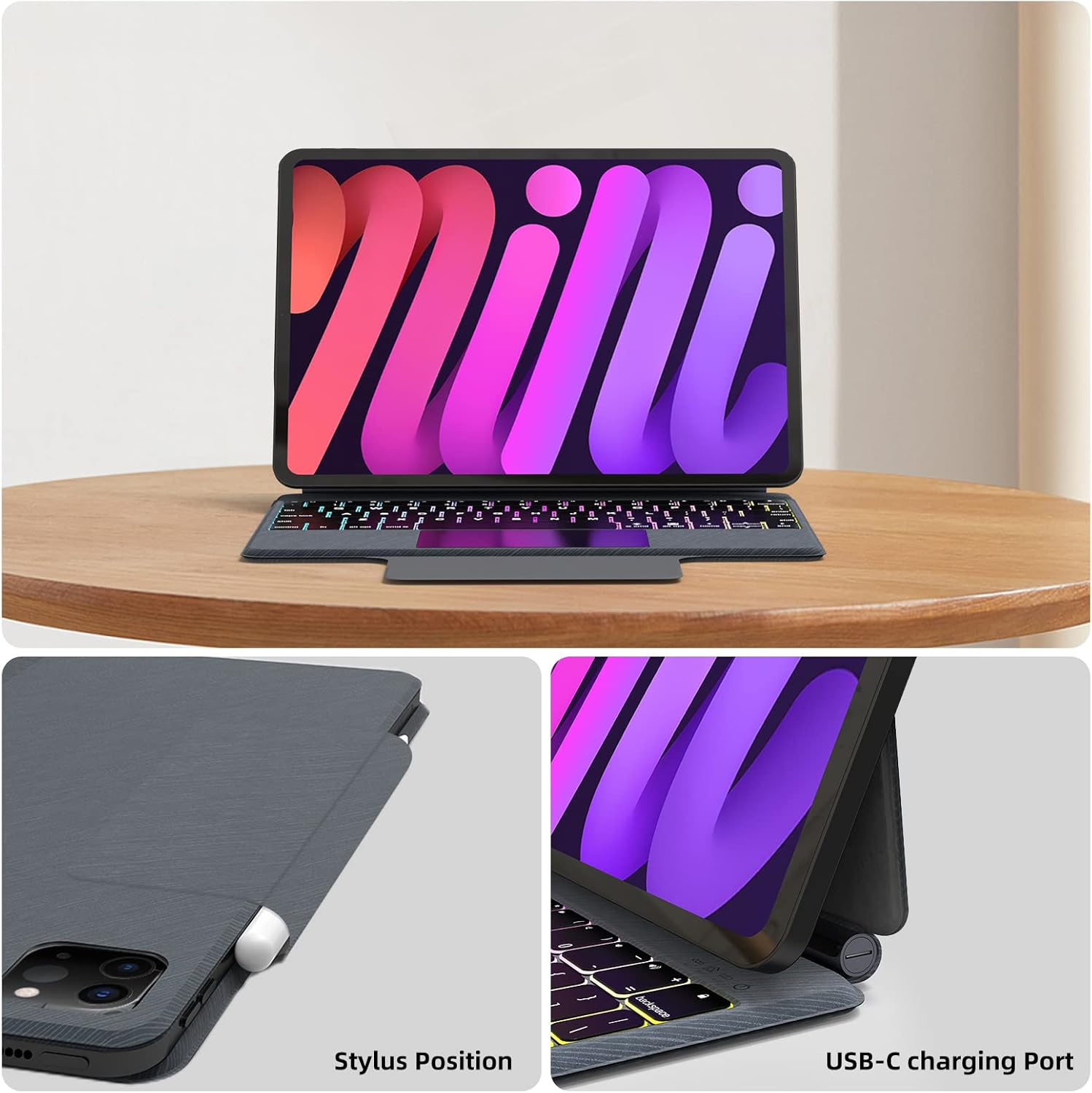
Figure 4: USB-C charging port location.
3.2. Conectar o teu iPad
- Abre a funda do teclado.
- Align your compatible iPad with the magnetic back panel of the case. The iPad will magnetically snap into place.
- Adjust the iPad to your desired viewing angle. The floating cantilever stand allows for flexible positioning.
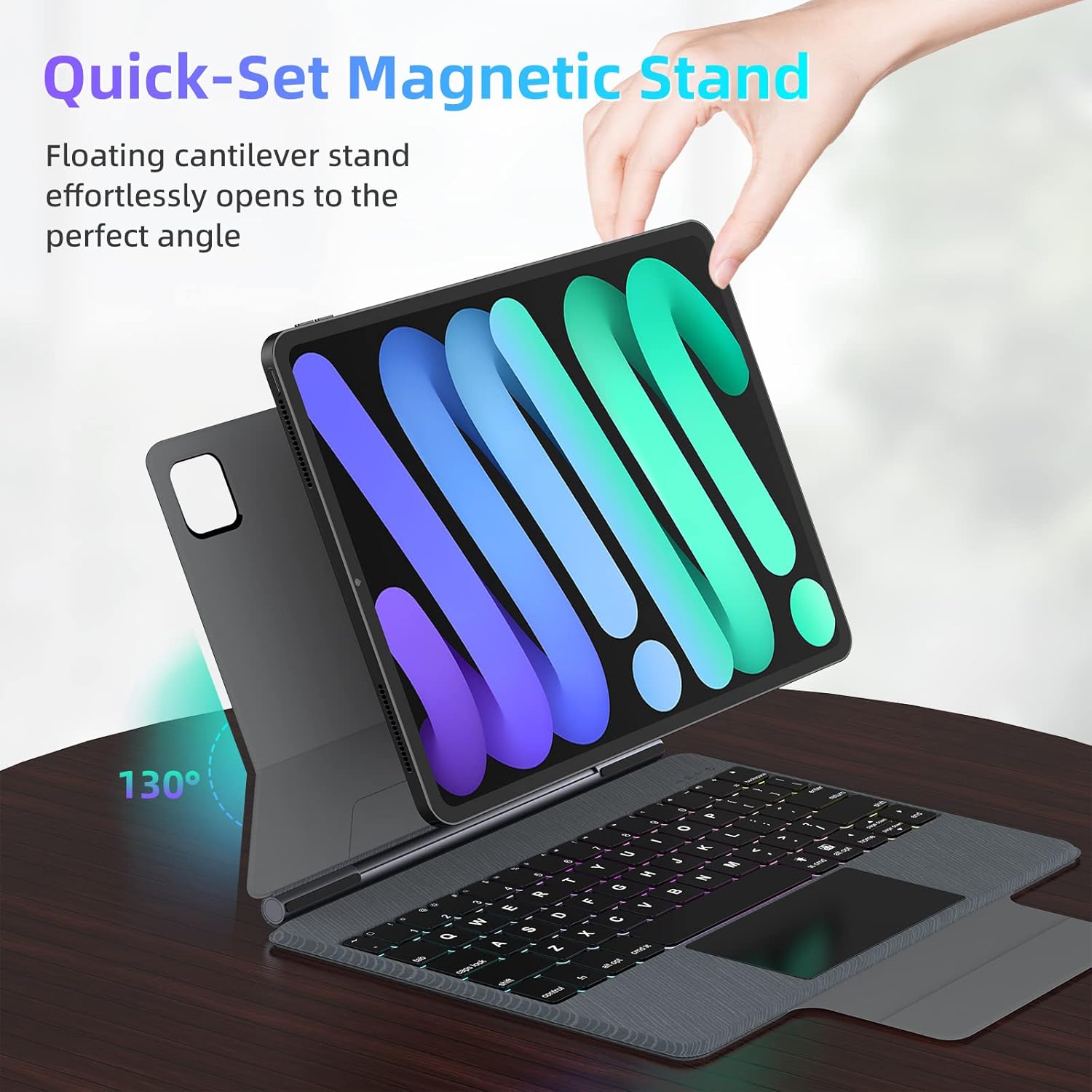
Figure 5: Floating magnetic design and adjustable stand.

Figure 6: Quick-set and folding stand mechanism.
3.3. Emparellamento Bluetooth
- Asegúrate de que o teclado estea cargado e acendido.
- No teu iPad, vai a Configuración > Bluetooth.
- Turn on Bluetooth. Your iPad will search for nearby devices.
- Select "UOGIC Keyboard" (or similar name) from the list of available devices.
- Siga as indicacións en pantalla para completar o proceso de vinculación.
4. Instrucións de funcionamento
4.1. Funcións do teclado
- Retroiluminación: The keyboard features 7 customizable backlight modes and 3 adjustable brightness levels. Use the dedicated backlight key (often Fn + Light icon) to cycle through modes and adjust brightness.
- Ergonomic Keys: The keys are designed for comfortable and efficient typing.
- Teclas de atallo: Utilize the top row of keys for quick access to iPadOS functions such as brightness, volume, and media controls.
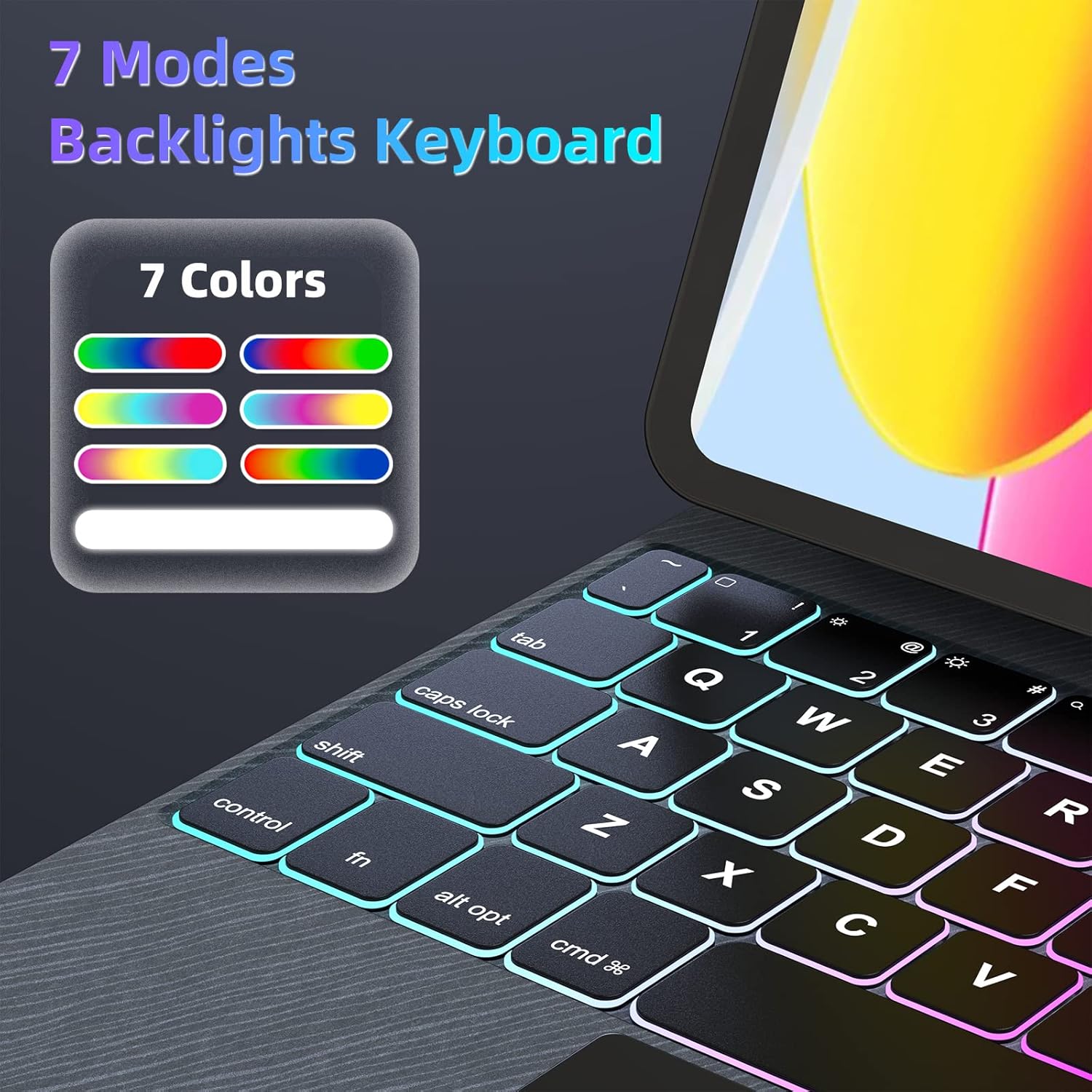
Figure 7: 7-Mode Backlight Keyboard.
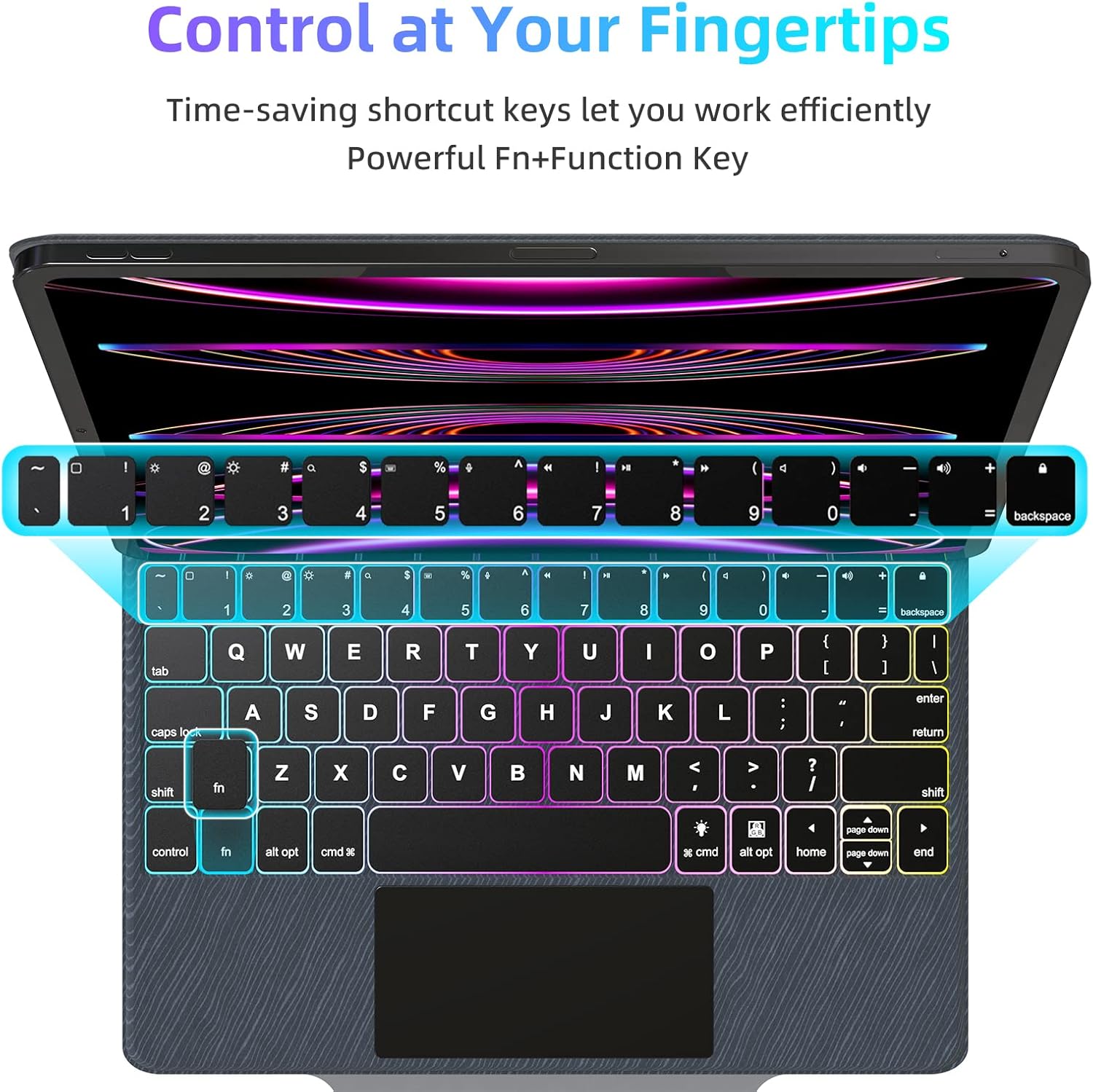
Figure 8: Keyboard shortcut keys for efficient control.

Figure 9: Scissor structure button key for tactile feedback.
4.2. Trackpad Functions
The precision trackpad supports full multi-touch gestures, enhancing navigation and productivity on your iPad.
- Toque cun só dedo: Click/select.
- Desprazamento con dous dedos: Desprazarse cara arriba/abaixo ou cara á esquerda/dereita.
- Pinzar para ampliar: Achegar/afastar o contido.
- Three-Finger Swipe Up: Vaia á pantalla de inicio.
- Three-Finger Swipe Up and Hold: Abre o conmutador de aplicacións.
- Three-Finger Swipe Left/Right: Cambia entre aplicacións abertas.
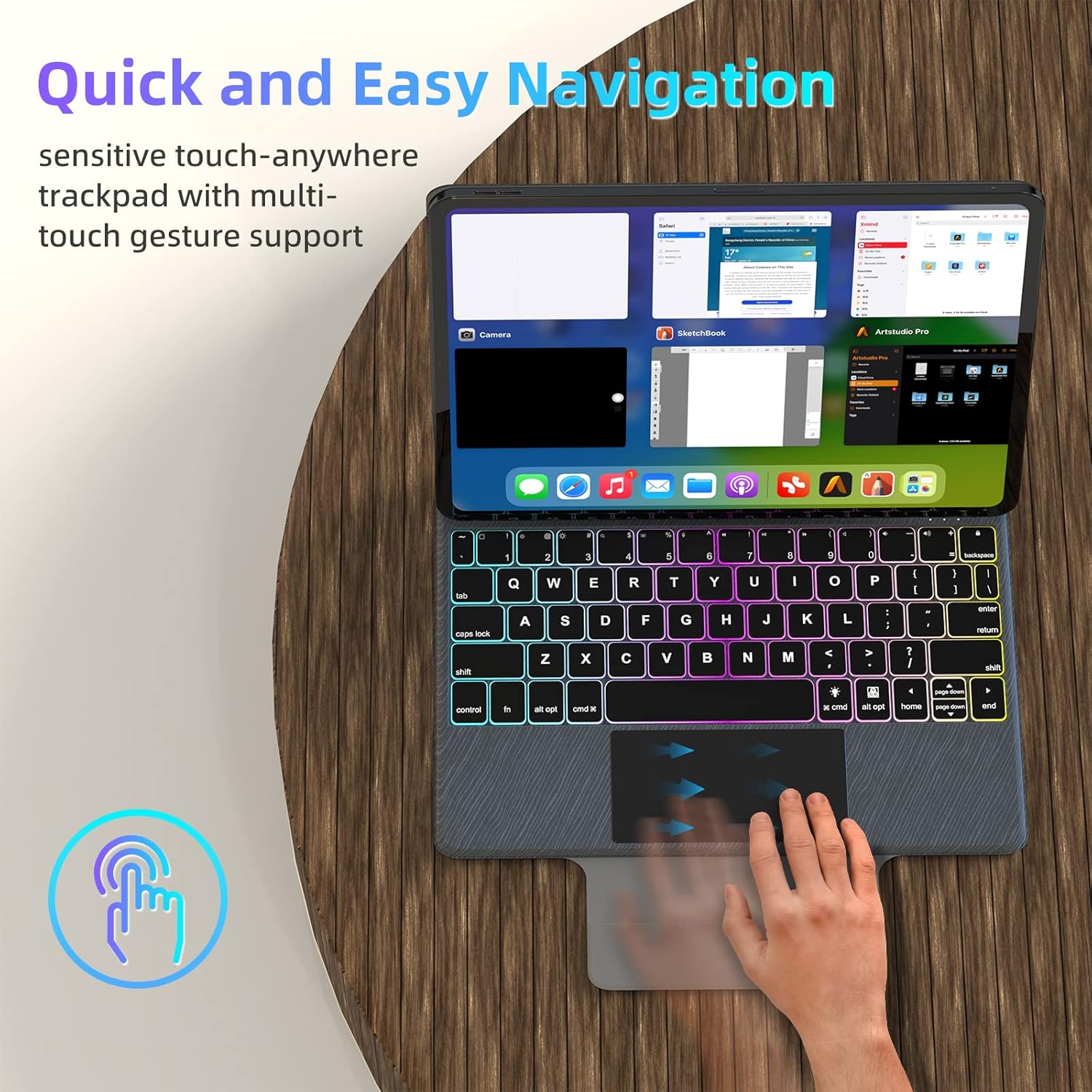
Figure 10: Multi-touch trackpad gestures.
4.3. Xestión de enerxía
To conserve battery life, the keyboard case automatically enters sleep mode after 10 minutes of inactivity. It will wake up when a key is pressed or the trackpad is used.

Figure 11: Auto Sleep/Wake feature.
4.4. Stylus Position
The case includes a designated area for securely holding your stylus, ensuring it is always accessible and protected.

Figure 12: Stylus storage position.
5. Mantemento
5.1. Limpeza
- Gently wipe the keyboard and trackpad surfaces with a soft, lint-free cloth.
- Para a sucidade persistente, d lixeiramenteampEnxágüe o pano con auga ou un limpador suave e non abrasivo. Evite a humidade excesiva.
- Do not spray cleaners directly onto the keyboard or trackpad.
5.2. Almacenamento
- When not in use, fold the case to protect both the iPad and the keyboard.
- Garda a caixa nun lugar fresco e seco, lonxe da luz solar directa e de temperaturas extremas.
6 Solución de problemas
6.1. O teclado non se conecta
- Asegúrate de que o teclado estea cargado e acendido.
- Check your iPad's Bluetooth settings to confirm Bluetooth is enabled and the keyboard is listed as 'Connected'. If not, try re-pairing.
- Reinicia tanto o teu iPad como o teclado.
6.2. As teclas non responden
- Verify the keyboard is connected via Bluetooth.
- Asegúrate de que o teclado teña a batería suficiente.
- Tenta desconectar e volver conectar a conexión Bluetooth.
6.3. Trackpad Issues
- Asegúrate de que a superficie do trackpad estea limpa e libre de residuos.
- Check iPadOS settings for trackpad sensitivity and gesture configurations.
- If the trackpad is unresponsive, try restarting the keyboard and iPad.
6.4. A luz de fondo non funciona
- Ensure the keyboard has sufficient battery charge, as backlighting consumes more power.
- Press the backlight key (often Fn + Light icon) to cycle through modes and brightness levels.
7. Especificacións
| Característica | Detalle |
|---|---|
| Marca | UOGIC |
| Dispositivos compatibles | iPad Pro 11" (1st/2nd/3rd/4th Gen), iPad Air 10.9" (4th/5th Gen) |
| Tecnoloxía de conectividade | Bluetooth, USB-C for charging |
| Descrición do teclado | Multi Functional, Scissor Structure Button Key |
| Características especiais | Backlit (7 modes, 3 brightness), Ergonomic, Rechargeable, Multi-Touch Trackpad, Floating Magnetic Design, Auto Sleep/Wake |
| Cor | Negro |
| Material | Estirreno Acrilonitrilo Butadieno |
| Peso do elemento | 2.46 libras |
| Batería | 1 batería de iones de litio (incluída) |
| Duración da batería | Up to 70 hours continuous use, 90 days standby |
| Tempo de carga | Aproximadamente 3 horas |
8. Garantía e soporte
UOGIC provides a 1-year warranty covering any quality-related issues with your Magic Keyboard Case.
For any questions or concerns, our 24/7 online customer support is available to assist you. Please refer to the product packaging or the official UOGIC websitio para os detalles de contacto.