
1. Introdución
The BOYI TD21 is a versatile 21-key mini numeric keypad designed for enhanced productivity and customization. Featuring hot-swappable mechanical switches, PBT keycaps, RGB backlighting, and triple-mode connectivity (Bluetooth 5.0, 2.4GHz wireless, and wired Type-C), this numpad offers flexibility for various computing environments. It is fully programmable via dedicated software, allowing users to remap keys and customize lighting effects.
2. Contido do paquete
Verifique que todos os elementos que se indican a continuación estean incluídos no seu paquete:
- BOYI TD21 Numpad
- Tirador de chaves
- Cable USB tipo C
- 2.4GHz Wireless Dongle (Adaptor)
- Interruptores Gateron adicionais
- Manual de usuario
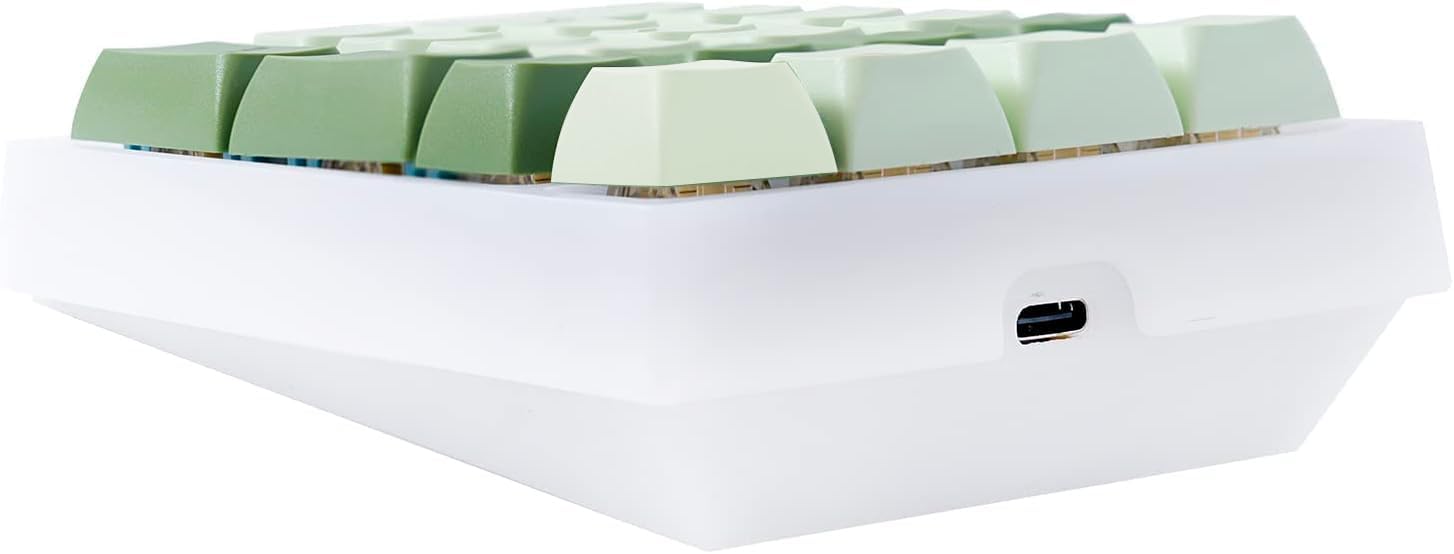
Image: Contents of the BOYI TD21 Numpad package, showing the numpad, keycap puller, USB-C cable, extra Gateron switches, and the user manual.
3. Produto rematadoview
The BOYI TD21 Numpad features a compact 21-key layout with a translucent case that enhances its RGB backlighting. It is designed for ergonomic comfort and includes durable PBT keycaps.
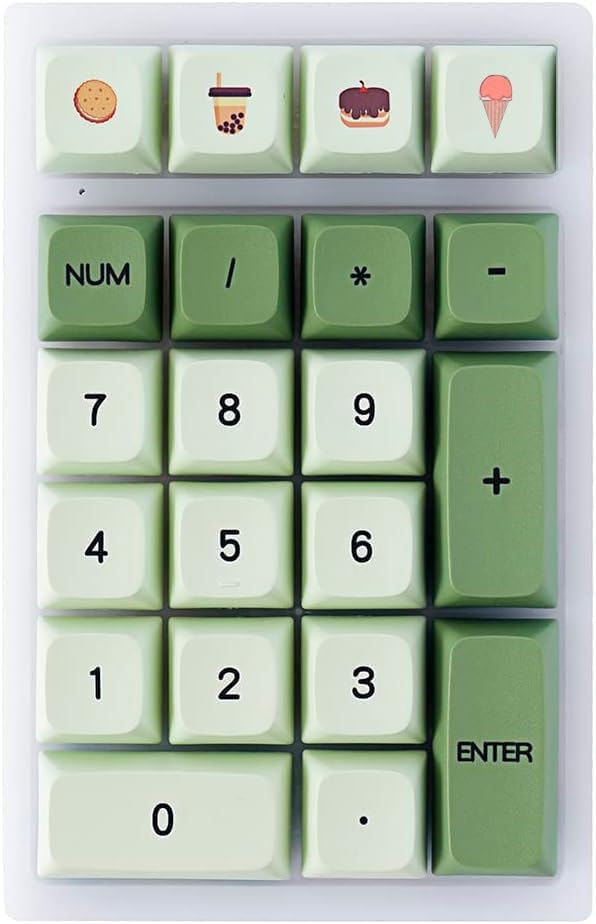
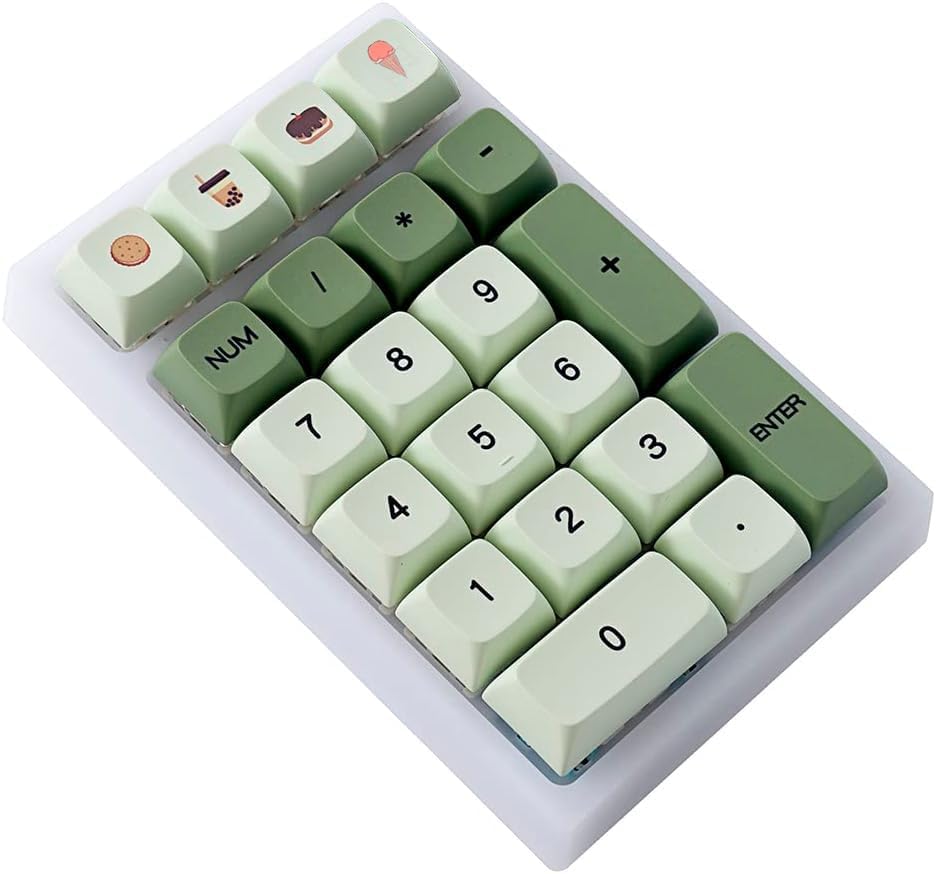
Imaxe: De arriba abaixo view of the BOYI TD21 Numpad, showcasing its 21-key layout and Matcha Green XDA Keycaps.
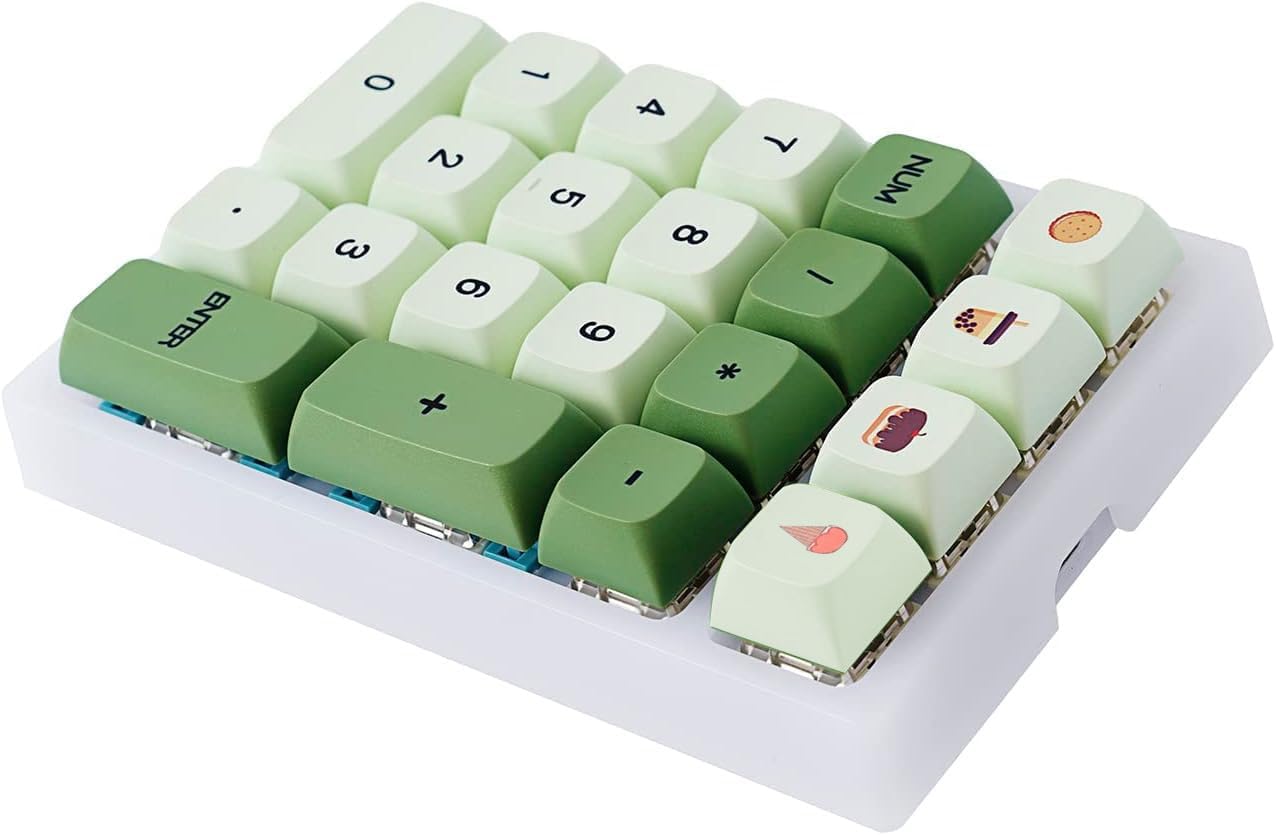
Imaxe: En ángulo view of the numpad, providing a clear look at the keycap profile and the overall compact design.
Imaxe: Lateral view of the numpad, illustrating the USB-C port for wired connection and charging, along with the physical switches for selecting connectivity modes.
4. Configuración e conectividade
4.1 Modo con cable
To use the numpad in wired mode, connect the provided USB Type-C cable to the numpad's port and the other end to your computer's USB port. Ensure the mode switch on the numpad is set to 'Wired'. The numpad is plug-and-play and supports N-key rollover (NKRO) in this mode.
4.2 Modo sen fíos de 2.4 GHz
For 2.4GHz wireless connectivity:
- Turn on the numpad using the switch on the back.
- Hold the 'Fn' key and the '+' key for 5 seconds to initiate pairing.
- Plug the 2.4GHz USB dongle into an available USB port on your computer. The numpad should connect automatically.
Video: Demonstration of the BOYI TD21 Numpad's triple-mode connectivity, including wired, 2.4GHz wireless, and Bluetooth pairing processes. This video shows how to connect the numpad to a computer using different methods.
4.3 Modo sen fíos Bluetooth
The numpad supports Bluetooth 5.0 and can connect to up to 2 devices simultaneously. To pair:
- Turn on the numpad.
- For the first pairing connection, hold 'Fn' and the '*' key for 5 seconds. The numpad's indicator light will flash.
- On your device (computer, tablet, etc.), search for Bluetooth devices and select 'BT5.0 K21' to connect.
- For a second pairing connection, hold 'Fn' and the '/' key for 5 seconds and repeat the device pairing process.
4.4 Cambio entre dispositivos conectados
If you have multiple devices connected via Bluetooth, you can switch between them by briefly pressing the corresponding key combination (e.g., 'Fn' + '*' or 'Fn' + '/').
5. Customization & Lighting
5.1 RGB Backlight Effects
The TD21 Numpad features multiple stunning RGB backlight effects. You can cycle through these effects by pressing 'Fn' + '5'.
- Fn + 5: Percorrer os diferentes efectos de retroiluminación.
- Fn + 8: Aumentar o brillo da retroiluminación.
- Fn + 2: Reducir o brillo da retroiluminación.
- Fn + 0: Switch surround backlight effects.

Image: The BOYI TD21 Numpad displaying dynamic RGB lighting effects, with an overlay indicating macro and software customization capabilities.
Video: A short demonstration highlighting the aesthetic appeal of the BOYI TD21 Numpad, focusing on its RGB lighting and keycap design.
5.2 Personalización do software
The TD21 Numpad is fully programmable using the dedicated BOYI software driver. This software allows you to remap keys, create macros, and customize vibrant lighting effects to suit your preferences.
- Paso 1: Visit the official BOYI websitio: www.boyikeyboard.com/Download.html
- Paso 2: Download the BOYI TD21 Software Driver.
6. Interruptores intercambiables en quente
The TD21 Numpad features hot-swappable mechanical switches, allowing you to easily replace them without soldering. This enables customization of your typing experience with various 3-pin and 5-pin mechanical switches available in the market.

Imaxe: Primeiro plano view demonstrating the hot-swappable capability, with a switch being removed from the numpad's PCB using a switch puller.
7. Keycap Information
The numpad comes with high-quality PBT (Polybutylene Terephthalate) keycaps. PBT is known for its durability, resistance to oil (preventing shine over time), and long-lasting color integrity, offering a superior tactile experience compared to ABS keycaps.

Image: A display of the numpad's dye-sublimation PBT XDA profile keycaps, highlighting their vibrant colors and unique profile.
8. Especificacións
| Característica | Detalle |
|---|---|
| Número de modelo | TD21 |
| Conectividade | Bluetooth 5.0, 2.4GHz Wireless, Wired (USB Type-C) |
| Chaves | 21 (Fully Programmable) |
| Interruptores | Hot-swappable (compatible with 3-pin and 5-pin mechanical switches) |
| Chaves | PBT (Dye-sublimation, XDA Profile) |
| Retroiluminación | RGB (Customizable effects, brightness, speed) |
| Batería | 1 batería de iones de litio (incluída) |
| Peso do elemento | 1.01 libras |
| Dimensións do paquete | 5.79 x 5.04 x 1.81 polgadas |
| Material | Policarbonato |
9 Solución de problemas
- Numpad not connecting in wireless mode: Ensure the numpad is turned on and the mode switch is set correctly (2.4GHz or Bluetooth). For 2.4GHz, verify the dongle is securely plugged in. For Bluetooth, ensure your device's Bluetooth is enabled and the numpad is in pairing mode (indicator light flashing). Try re-pairing the device.
- As teclas non responden: Check the cable connection in wired mode. If using wireless, ensure the battery is charged. Test with different switches if you have replaced them, as a faulty switch might be the cause.
- RGB lights not working/changing: Ensure the numpad is powered on. Use the 'Fn' + '5' key combination to cycle through effects and 'Fn' + '8'/'Fn' + '2' to adjust brightness. If using software, verify settings are applied correctly.
- Software not detecting numpad: Ensure the numpad is connected via wired mode when attempting to use the customization software. Download the latest driver from the official BOYI websitio.
10. Garantía e soporte
For any product inquiries, technical support, or warranty claims, please contact BOYI customer service:
- Correo electrónico: boyiservice2020@163.com
You can also visit the official BOYI store on Amazon for more information and to contact support directly.