
Introdución
This manual provides detailed instructions for the installation, operation, and maintenance of your EZoneTronics PCD001 Portable Wireless Car Stereo. Please read this manual thoroughly before using the device to ensure proper functionality and to prevent damage.
Produto rematadoview
Características clave
- 7-Inch Touchscreen Display: Provides a clear and responsive interface for navigation and media control.
- Apple CarPlay e Android Auto sen fíos: Seamlessly integrates with Apple and Android smartphones for navigation, music, and communication.
- Transmisor FM: Connects to your vehicle's original radio system via AUX Out or FM Out for audio output.
- Instalación Plug and Play: Designed for easy setup without modifying existing car equipment.
- Opcións de montaxe versátiles: Can be mounted on the dashboard or windshield using a suction cup holder.
- Funcións adicionais: Supports Bluetooth connectivity, hands-free calling, voice control (Siri/Google Assistant), video playback, and music streaming.
- Compatibilidade multimedia: Supports SD card and USB devices for media playback.
O que hai na caixa
Verifique que estean presentes todos os compoñentes ao desembalar:
- 1 x EZoneTronics PCD001 Portable Wireless Car Stereo Unit
- 1 x Mounting Bracket (for dash or windshield)
- 1 x Car Charger (power adapter)
- 1 x Driving Recorder (if included in your package)
- 1 x SD Card (if included in your package)
- 1 x Webcam (if included in your package)
Note: The inclusion of the Driving Recorder, SD Card, and Webcam may vary by package.
Configuración e instalación
Montaxe do dispositivo
The device can be mounted on your car's dashboard or windshield. Choose a location that does not obstruct your view ou interferir cos controis do vehículo.
- Limpar a superficie: Ensure the chosen mounting surface (dashboard or windshield) is clean and dry.
- Coloque a ventosa: Press the suction cup firmly onto the surface and engage the locking mechanism to secure it.
- Axustar o ángulo: Use the adjustable arm and swivel joint to position the screen for optimal viewing. The mount allows for 360-degree rotation and 180-degree angle adjustment.
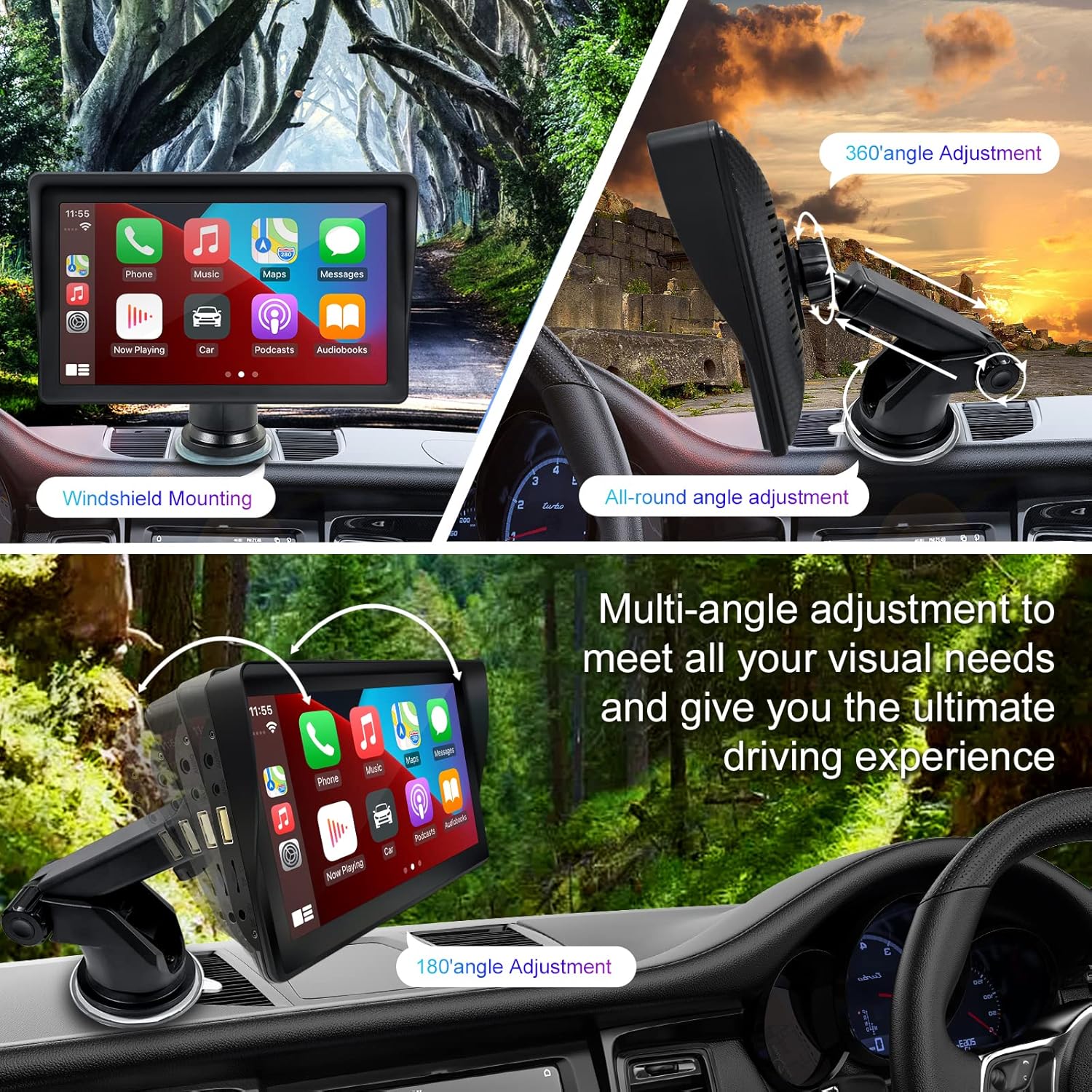
Figure 1: Mounting options and angle adjustments for the portable car stereo.
Conexión de alimentación
Connect the provided car charger to the device's power input port and then into your vehicle's 12V power outlet (cigarette lighter socket). The device supports 12-24V power input.
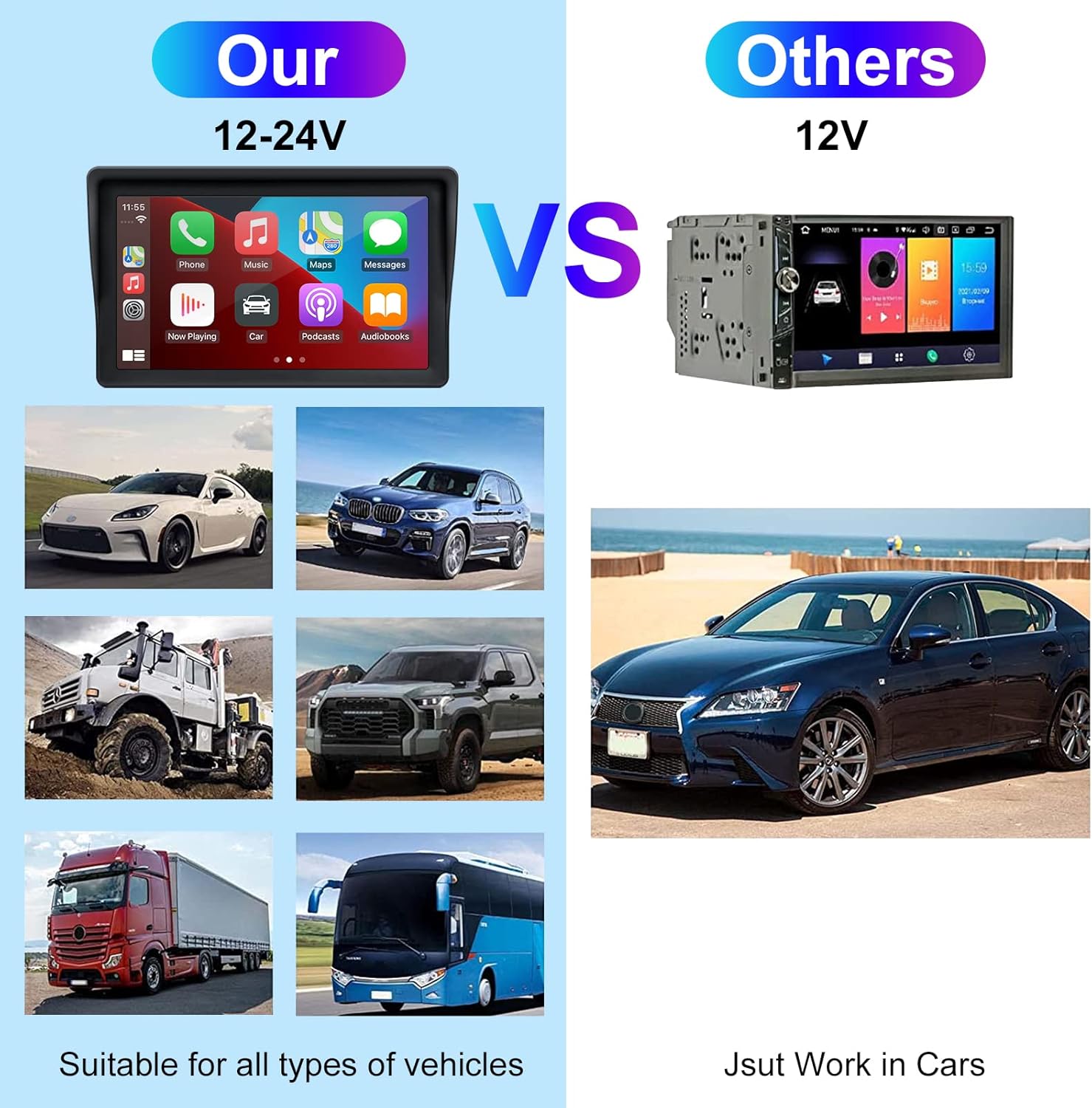
Figure 2: The EZoneTronics unit is compatible with 12-24V vehicle power systems.
Instrucións de funcionamento
Initial Power On and Interface
Once powered, the device will boot up and display the main interface. This interface provides access to Apple CarPlay, Android Auto, and other functions.

Figure 3: Main interface displaying Apple CarPlay.
Connecting to Apple CarPlay or Android Auto
The device supports wireless connection for both Apple CarPlay and Android Auto.
- Enable Bluetooth and Wi-Fi: On your smartphone, ensure both Bluetooth and Wi-Fi are enabled.
- Parear dispositivo: On the car stereo, navigate to the Bluetooth settings and pair with your smartphone.
- Conexión automática: Once paired, the device should automatically prompt you to connect to Apple CarPlay or Android Auto. Follow the on-screen instructions on both the car stereo and your phone to complete the setup.
- Ligazón espello: For devices not supporting CarPlay or Android Auto, or if you prefer, you can use the Mirror Link function to display your phone's screen on the unit.

Figure 4: Wireless connection for Apple CarPlay and Android Auto.
Audio Output (FM Transmitter / AUX Out)
To output audio from the car stereo to your vehicle's sound system, you have two primary options:
- Transmisor FM:
- On the EZoneTronics unit, select the FM Transmitter function.
- Choose an unused FM frequency.
- Tune your vehicle's FM radio to the same frequency. Audio from the portable stereo will now play through your car's speakers.
- Saída AUX:
- Connect an AUX cable from the AUX Out port on the EZoneTronics unit to your vehicle's AUX In port.
- Select AUX input on your vehicle's audio system.


Figure 5: FM Transmitter and other core functions.
Voice Control (Siri / Google Assistant)
Once connected to Apple CarPlay or Android Auto, you can activate your smartphone's voice assistant (Siri or Google Assistant) for hands-free control. This allows you to make calls, send messages, get directions, and play music using voice commands.
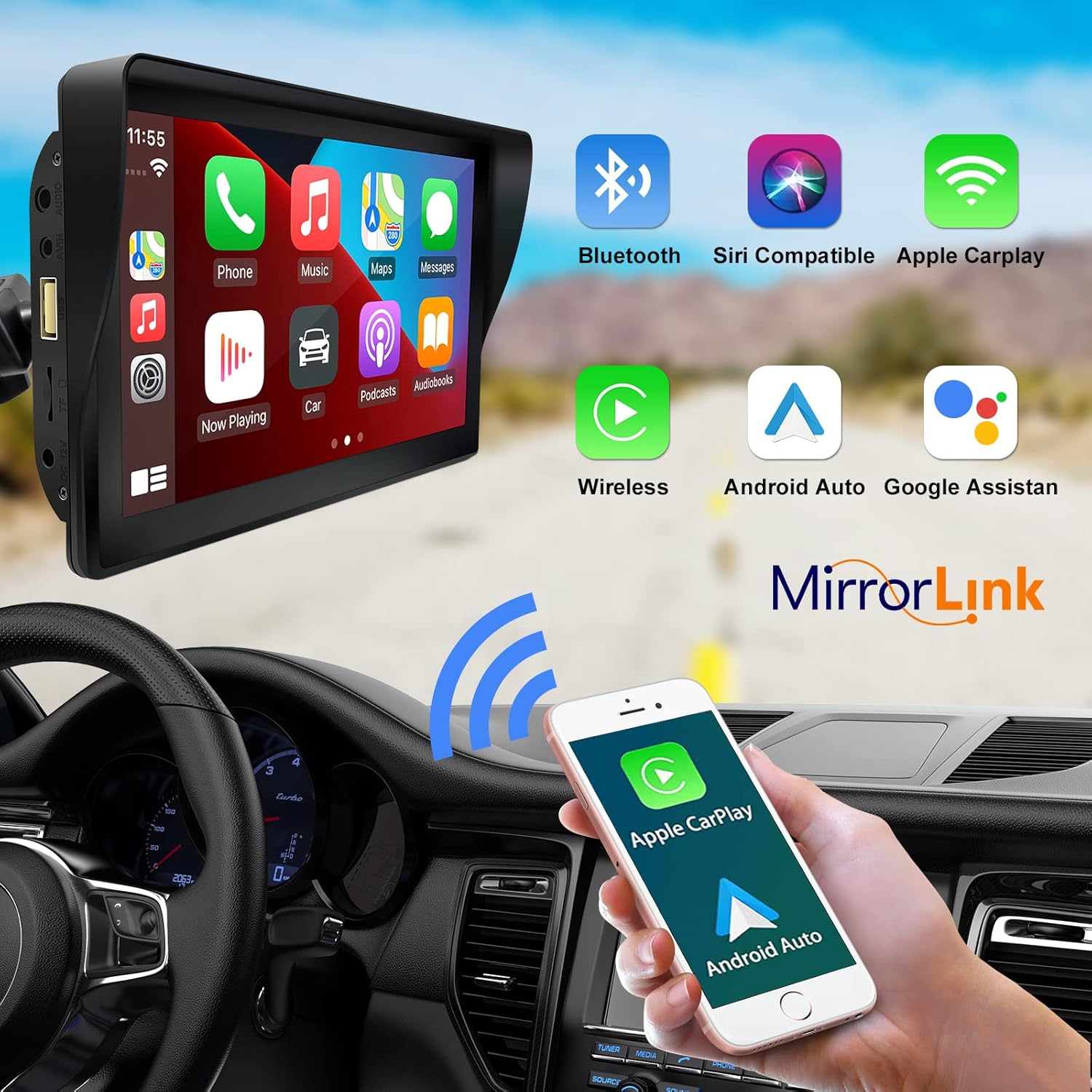
Figure 6: Voice control and connectivity features.
Media Playback (SD Card / USB)
The unit supports media playback from SD cards and USB devices.
- Insert an SD card into the designated slot or a USB drive into the USB port.
- Navigate to the media player application on the car stereo.
- Select the desired audio or video files para a reprodución.


Figure 7: USB and SD card media playback options.
Resolución de problemas
If you encounter issues with your EZoneTronics PCD001, refer to the following common problems and solutions:
| Problema | Posible causa/solución |
|---|---|
| O dispositivo non se acende. |
|
| Cannot connect to Apple CarPlay / Android Auto wirelessly. |
|
| No audio output from car speakers. |
|
| A pantalla táctil non responde. |
|
| GPS navigation is inaccurate or not working. |
|
Especificacións
| Característica | Detalle |
|---|---|
| Nome do modelo | PCD001 |
| Marca | EZoneTronics |
| Tamaño da pantalla | 7 polgadas |
| Tipo de visualización | IPS |
| Tipo de pantalla táctil | Capacitiva |
| Sistema Operativo | Android (Internal OS for unit functions, supports CarPlay/Android Auto) |
| Tecnoloxía de conectividade | Wireless CarPlay, Wireless Android Auto, Bluetooth, FM Transmitter, AUX Out |
| Modo de saída de audio | AUX, Stereo |
| Sistema de navegación por satélite compatible | GPS (via connected smartphone) |
| Tipo de montaxe | Soporte para o taboleiro, soporte para o parabrisas |
| Dispositivos compatibles | Smartphones (Apple iOS and Android) |
| Tipo de servizo do vehículo | Car (Universal 12-24V compatibility) |
Mantemento
Proper maintenance ensures the longevity and optimal performance of your EZoneTronics PCD001.
- Limpeza da pantalla: Usa un pano suave e sen pelusa para limpar a pantalla con suavidade. Para manchas difíciles, limpa lixeiramenteampEnxugue o pano con auga ou un limpador de pantallas. Evite produtos químicos agresivos ou materiais abrasivos.
- Xestión de cables Ensure all cables are neatly routed and secured to prevent entanglement or damage.
- Temperatura: Evite expoñer o dispositivo a temperaturas extremas, tanto calor como frío, durante períodos prolongados.
- Actualizacións de software: Comprobe periodicamente o fabricante website or device settings for any available software updates to improve performance and add features.
Garantía e Soporte
Información da garantía
The EZoneTronics PCD001 Portable Wireless Car Stereo comes with a garantía dun ano desde a data de compra. Esta garantía cobre defectos de fabricación e avarías en condicións de uso normal. Non cobre danos causados por mal uso, accidentes, modificacións non autorizadas ou instalación incorrecta.
Conserve o comprobante de compra para reclamacións de garantía.
Atención ao cliente
For technical assistance, warranty claims, or further inquiries, please contact EZoneTronics customer support:
- Websitio: www.ezonetronics.com
- Correo electrónico: support@ezonetronics.com
When contacting support, please provide your product model (PCD001) and a detailed description of the issue.