
1. Introdución
This manual provides essential information for the setup, operation, and maintenance of your HP Envy 6452e Wireless Inkjet All-in-One Printer. This device is designed for printing, copying, and scanning functions, featuring wireless connectivity and automatic two-sided printing capabilities.
2. Que hai na caixa
Verifique que estean presentes todos os compoñentes ao desembalar:
- HP ENVY 6452e All-in-One Printer
- Original HP 67 Black Ink Cartridge
- Original HP 67 Tri-color Ink Cartridge
- Instant Ink flyer
- Volante regulamentario
- Guía de configuración
- Guía de referencia
- Cable de alimentación
- Cable de impresora (USB)
3. Configuración
3.1 Configuración física
- Desembalar a impresora: Carefully remove the printer from its packaging and remove all protective tapes and packing materials.
- Conectar enerxía: Conecte o cable de alimentación á impresora e despois a unha toma de corrente.
- Cargar papel: Open the input tray and load plain paper. Adjust the paper guides to fit the paper size. The input tray has a capacity of up to 100 sheets.
- Instalación de cartuchos de tinta: Open the ink cartridge access door. Insert the black and tri-color HP 67 cartridges into their respective slots until they click into place.

Imaxe: Fronte view of the HP Envy 6452e printer, highlighting its compact design and the output tray.
3.2 Instalación do software e conexión sen fíos
The HP Smart app is required for easy setup and mobile printing. It guides you through connecting your printer to a wireless network.
- Download HP Smart App: On your computer or mobile device (iOS compatible), download the HP Smart app from your device's app store or HP's official websitio.
- Siga as instrucións en pantalla: Open the HP Smart app and follow the guided steps to connect your printer to your Wi-Fi network. The printer features self-healing dual-band Wi-Fi to help maintain a stable connection.
- Alternative Connectivity: For direct connection, use a USB cable. Bluetooth connectivity is also available.
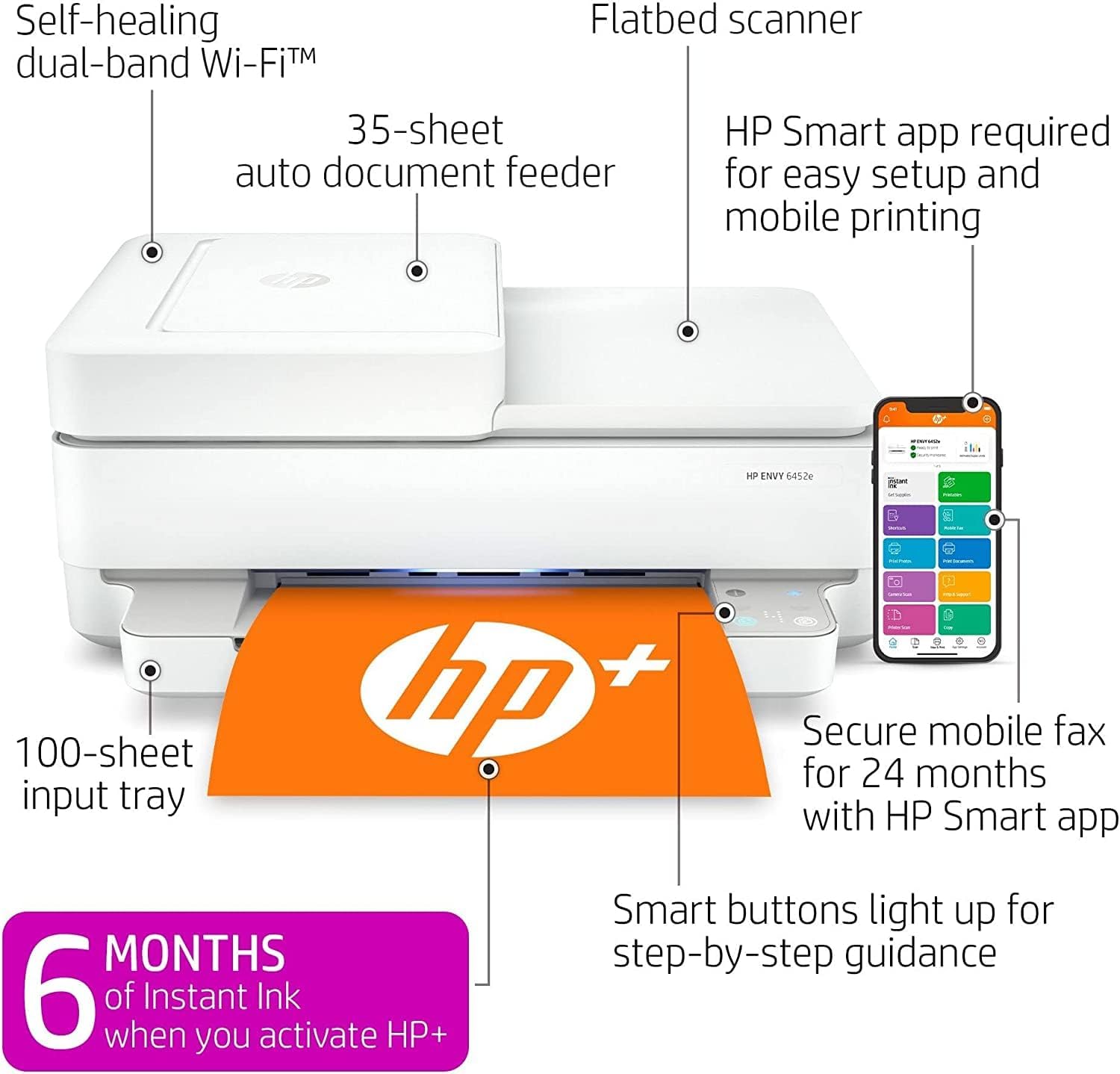
Image: Diagram illustrating key features of the HP Envy 6452e, including the 35-sheet auto document feeder, flatbed scanner, and the HP Smart app interface.
4. Instrucións de funcionamento
4.1 Impresión
Para imprimir documentos ou fotos:
- Asegúrate de que a impresora estea acendida e conectada ao teu dispositivo.
- Abre o documento ou a imaxe que queres imprimir no teu ordenador ou dispositivo móbil.
- Seleccione a opción de impresión desde a aplicación.
- Choose the HP Envy 6452e from the list of available printers.
- Axusta a configuración de impresión como o tamaño do papel, a calidade de impresión e o número de copias.
- Fai clic en "Imprimir".
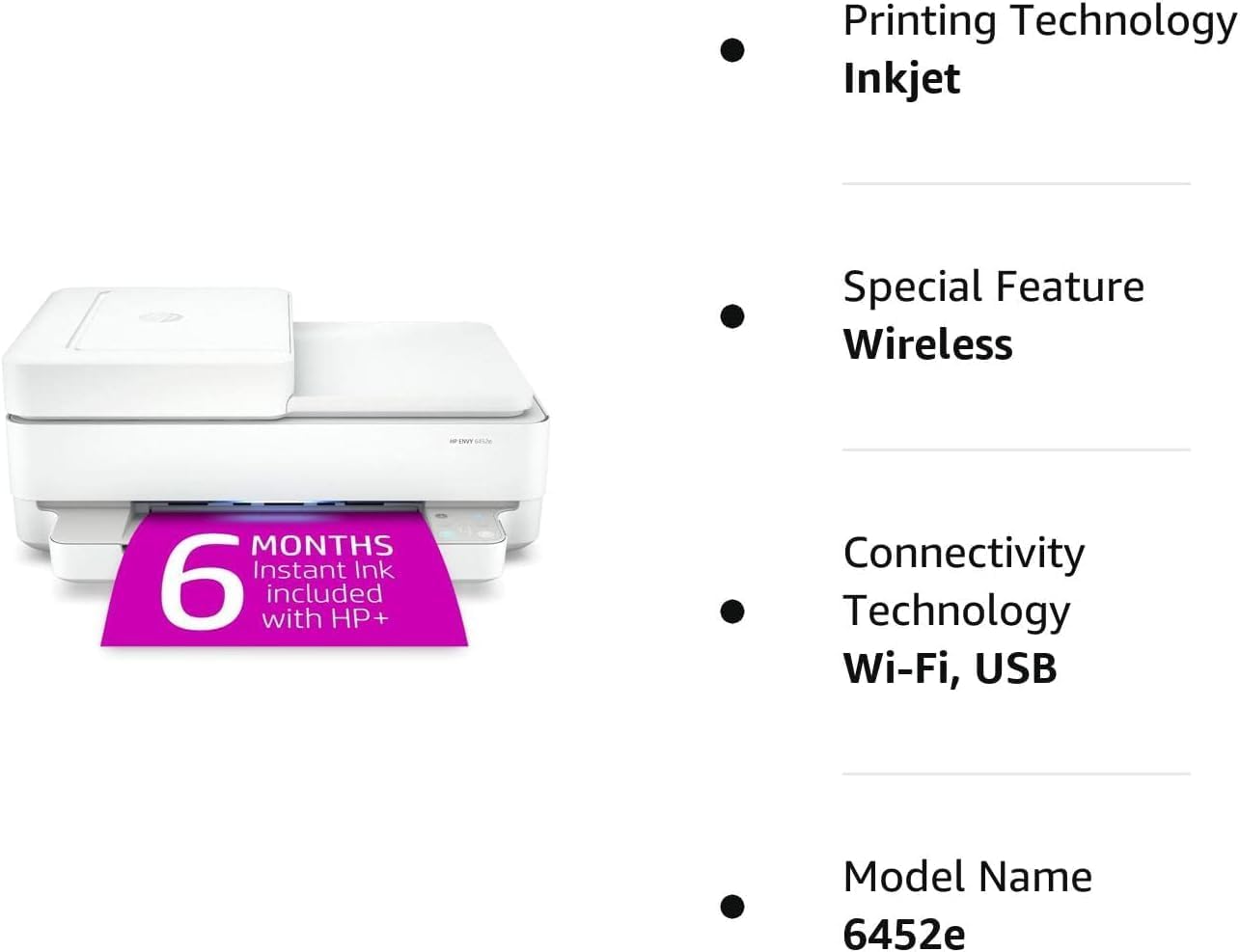
Image: The HP Envy 6452e printer in operation, with a document being printed from the output tray.
4.2 Copia
Para facer unha copia:
- Coloque o documento orixinal cara abaixo no cristal do escáner ou cara arriba no alimentador automático de documentos (ADF).
- Use the HP Smart app or the printer's control panel to select the copy function.
- Adjust settings like number of copies, color/black & white, and size.
- Initiate the copy process.
4.3 Escaneado
Para dixitalizar documentos ou fotos:
- Coloque o documento orixinal cara abaixo no cristal do escáner ou cara arriba no alimentador automático de documentos (ADF).
- Open the HP Smart app on your computer or mobile device.
- Select the scan function.
- Choose scan settings such as resolution, file type, and destination.
- Iniciar a dixitalización.
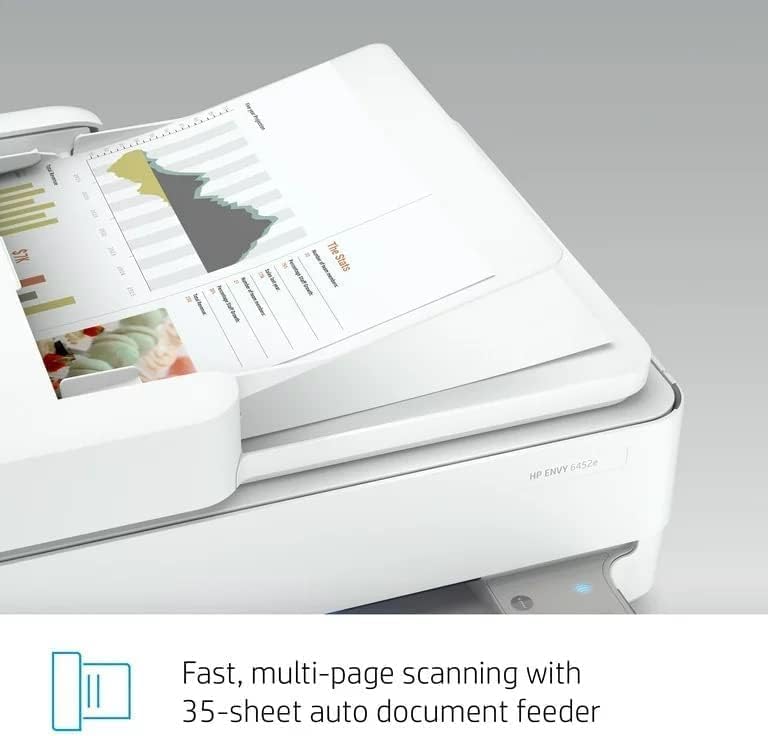
Image: The Automatic Document Feeder (ADF) of the HP Envy 6452e, showing its capability for multi-page scanning.
4.4 Automatic Document Feeder (ADF)
The 35-sheet ADF allows for quick scanning or copying of multiple pages without manual placement. Load documents face-up into the ADF tray.
4.5 Impresión dúplex
The printer supports automatic two-sided (duplex) printing. Select the duplex printing option in your print settings to save paper.
4.6 Impresión móbil
Utilize the HP Smart app to print directly from your smartphone or tablet. The app also supports mobile fax for 24 months.
5. Mantemento
5.1 Substitución do cartucho de tinta
When ink levels are low, the printer will indicate a need for replacement. Only use Original HP 67 Black and Tri-color Ink Cartridges for optimal performance and to maintain warranty validity.
- Asegúrate de que a impresora estea acendida.
- Abra a porta de acceso ao cartucho de tinta.
- Prema o cartucho baleiro para liberalo e, a seguir, tíreo cara a fóra.
- Remove the new cartridge from its packaging, being careful not to touch the copper contacts or ink nozzles.
- Insert the new cartridge into its color-coded slot until it clicks into place.
- Pecha a porta de acceso ao cartucho de tinta.
5.2 Carga de papel
Regularly check the paper input tray and replenish paper as needed. Ensure paper guides are snug against the paper stack to prevent misfeeds.
6 Solución de problemas
If you encounter issues with your HP Envy 6452e printer, consider the following:
- Sen enerxía: Verify the power cord is securely connected to both the printer and a working electrical outlet.
- Problemas de conectividade: Ensure your printer is connected to the correct Wi-Fi network. Restarting your router, printer, and computer/mobile device can often resolve connection problems.
- Printing Blank Pages: Check ink cartridge levels. Ensure the protective tape has been removed from new cartridges.
- Atascos de papel: Carefully remove any jammed paper from the input tray, output tray, or inside the printer. Refer to the HP Smart app for specific instructions on clearing jams.
- Mala calidade de impresión: Check ink levels. Perform a printhead cleaning or alignment through the HP Smart app. Ensure you are using appropriate paper for your print job.
- O escáner non funciona: Ensure the scanner lid is fully closed. Check connections if using USB.
For more detailed troubleshooting, refer to the HP Smart app or HP's official support websitio.
7. Especificacións
| Característica | Especificación |
|---|---|
| Nome do modelo | 6452e |
| Dimensións do produto (P x A x A) | 7.64" x 14" x 17" |
| Peso do elemento | 13.6 libras |
| Tecnoloxía de impresión | Inxección de tinta |
| Saída da impresora | Cor |
| Velocidade máxima de impresión (monocromo) | 10 páxinas por minuto |
| Velocidade máxima de impresión (cor) | 7 páxinas por minuto |
| Tecnoloxía de conectividade | USB, Wi-Fi, Bluetooth |
| Característica especial | Wireless, Automatic Duplex Printing |
| Tipo de escáner | Cama plana |
| Capacidade máxima da folla de entrada | 35 (ADF) |
| Compatibilidade co tamaño da folla | Letter, 4x6 in, 5x7 in, 8x10 in, No. 10 envelopes |
| Cartucho compatible | Original HP 67 Black and Tri-color Ink Cartridge |
| Método de control | App (HP Smart) |
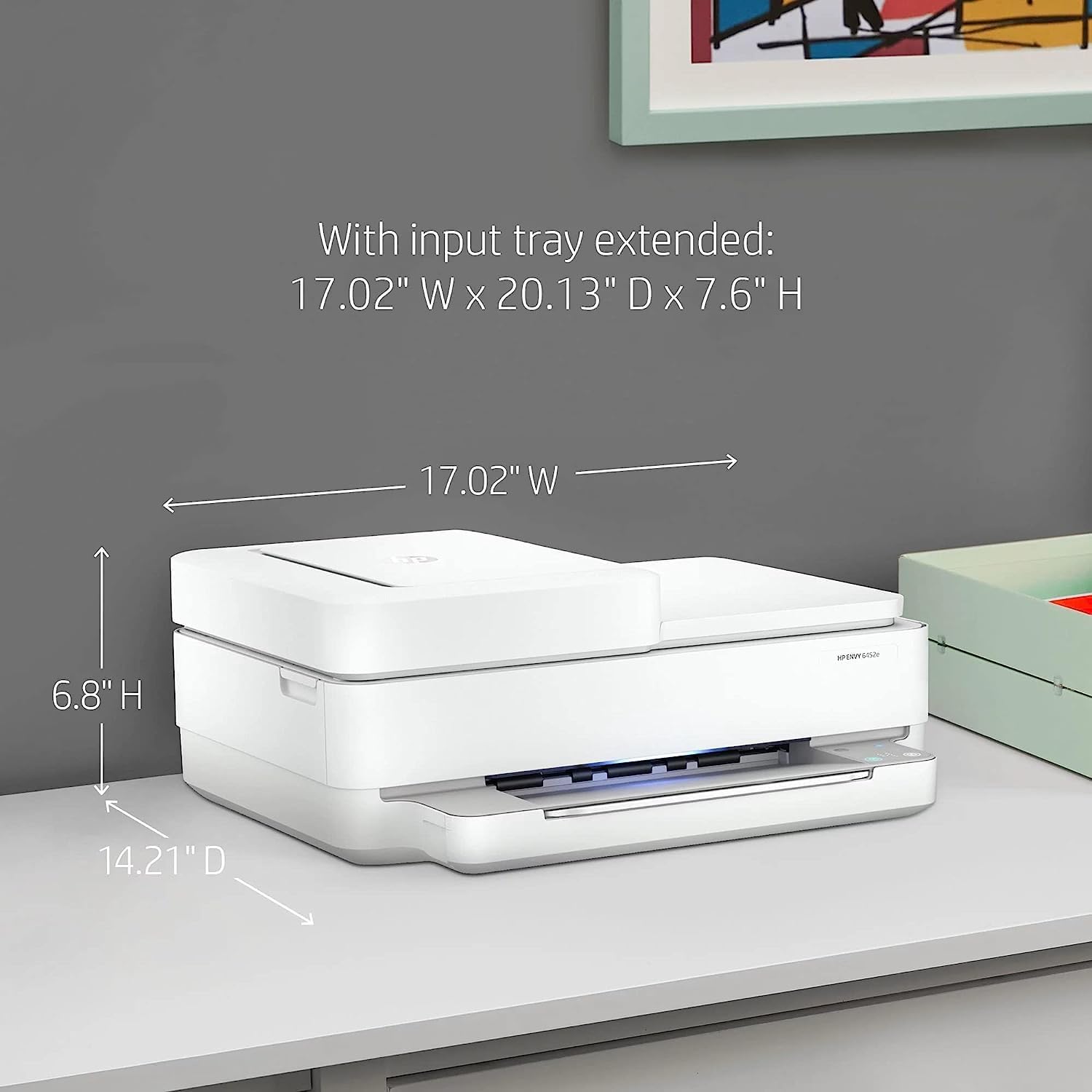
Imaxe: Dimensional ao finalview of the HP Envy 6452e printer, indicating height, width, and depth for placement considerations.
8. Garantía e soporte
8.1 Información da garantía
This HP Envy 6452e printer comes with a 90-day limited warranty. Please retain your proof of purchase for warranty claims.
8.2 Atención ao cliente
For further assistance, technical support, or warranty inquiries, please visit the official HP support website or contact HP customer service. The HP Smart app also provides access to support resources and guides.