

Introdución
This manual provides comprehensive instructions for the Xtrfy M8 Wireless Gaming Mouse. Designed for professional gamers, the M8 offers an ultra-lightweight design, symmetrical shape, and lag-free 2.4 GHz wireless connectivity.
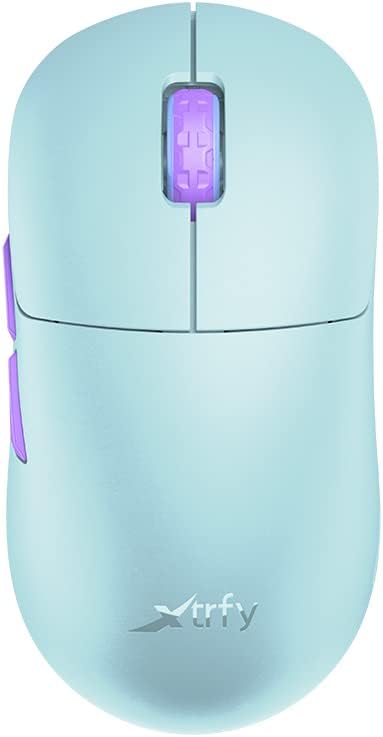
Image: The Xtrfy M8 Wireless Gaming Mouse in Frosty Mint, showcasino seu deseño ergonómico.
A key design feature is its ultra-low front, measuring just 4mm, which allows for a unique grip style.

Imaxe: Primeiro plano view of the Xtrfy M8 mouse's front, highlighting its low profile de 4 mm.
Contido do paquete
Verifica que todos os elementos estean presentes no teu paquete:
- Xtrfy M8 Wireless Gaming Mouse
- Cable de carga USB-C
- Receptor sen fíos USB (dongle)
- USB-A to USB-C Adapter (for receiver extension)
- Manual de instrucións (este documento)

Image: The USB-C charging cable and the USB wireless receiver (dongle) for the Xtrfy M8 mouse.
Configuración
- Carga o rato: Before first use, connect the USB-C charging cable to the mouse and a powered USB port. The mouse has an internal Lithium Ion battery.
- Connect the USB Wireless Receiver:
- Insert the USB wireless receiver directly into an available USB-A port on your computer.
- For optimal signal strength or if your computer's USB port is not easily accessible, use the provided USB-A to USB-C adapter with the charging cable to extend the receiver closer to the mouse.
- Acender o rato: Locate the power switch on the underside of the mouse. Slide the switch to the "ON" position.
- Conexión automática: The mouse should automatically connect to the receiver. No additional pairing software is typically required for 2.4 GHz wireless operation.

Image: The underside of the Xtrfy M8 mouse, displaying the power switch, optical sensor, and hardware adjustment buttons.
Instrucións de funcionamento
The Xtrfy M8 mouse features standard left and right click buttons, a scroll wheel, and two side buttons. All functions are plug-and-play compatible with most operating systems.
Hardware Adjustments
The Xtrfy M8 allows for on-the-fly adjustment of key performance settings directly from the mouse hardware, without the need for software. These settings are typically located on the underside of the mouse.
- DPI/CPI (Dots Per Inch / Counts Per Inch): Adjusts mouse sensitivity. Use the dedicated button on the mouse bottom to cycle through preset DPI levels. An indicator light may change color to show the current setting.
- Polling Rate (PR): Determines how often the mouse reports its position to the computer. Higher polling rates (e.g., 1000 Hz) provide smoother tracking but consume more battery.
- Lift-off Distance (LOD): Controls how high the mouse can be lifted before tracking stops. A lower LOD prevents unwanted cursor movement when repositioning the mouse.
Refer to the markings near the buttons on the mouse's underside for specific adjustment procedures.

Imaxe: Lateral view of the Xtrfy M8 mouse, highlighting the main click buttons, scroll wheel, and two programmable side buttons.
Carga e batería
The Xtrfy M8 Wireless Gaming Mouse is equipped with a rechargeable Lithium Ion battery. To charge the mouse, connect the supplied USB-C cable to the front port of the mouse and the other end to a powered USB port on your computer or a USB wall adapter.
- A small LED indicator on the mouse will typically show charging status (e.g., solid light for charging, off or different color for fully charged).
- The mouse can be used while charging, though the cable connection point may feel unusual during active use.
- Battery life varies based on usage and polling rate settings.
Mantemento
Proper maintenance ensures the longevity and performance of your Xtrfy M8 mouse.
- Limpeza: Usa un pano suave e seco para limpar a superficie do rato. Para a sucidade persistente, limpa lixeiramenteampEnxágüe o pano con auga. Evite produtos químicos agresivos ou materiais abrasivos.
- Sensor: Manteña o sensor óptico da parte inferior do rato limpo e libre de po ou residuos. Use un hisopo de algodón ou aire comprimido se é necesario.
- Almacenamento: When not in use for extended periods, store the mouse in a dry, cool place.
- Coidado do cable: Avoid sharp bends or excessive pulling on the USB-C charging cable to prevent damage.
Resolución de problemas
If you encounter issues with your Xtrfy M8 mouse, refer to the following common solutions:
- O rato non responde:
- Asegúrese de que o rato estea acendido.
- Check if the USB wireless receiver is securely plugged into a working USB port.
- Verify the mouse battery is charged. Connect the charging cable and observe the indicator light.
- Tenta conectar o receptor a un porto USB diferente.
- Latencia ou desconexións:
- Ensure the receiver is close to the mouse and not obstructed by metal objects.
- Avoid placing the receiver near other wireless devices that may cause interference (e.g., Wi-Fi routers, other wireless peripherals).
- Lower the polling rate setting on the mouse if experiencing frequent disconnections in a crowded wireless environment.
- Seguimento impreciso:
- Limpa o sensor óptico da parte inferior do rato.
- Asegúrate de usar o rato sobre unha superficie axeitada (recoméndase unha alfombrilla de rato).
- Adjust the DPI/CPI settings to a comfortable level.
- Scroll Wheel Issues (e.g., jumping):
- Ensure the mouse firmware is up to date (check the Xtrfy official website for any available updates).
- If the issue persists, contact Xtrfy customer support.
Especificacións
| Número de modelo | M8 |
| Marca | Xtrfy |
| Tecnoloxía de conectividade | Radio Frequency (2.4 GHz), USB (for charging/wired mode) |
| Tecnoloxía de detección de movemento | Óptica |
| Características especiais | Lightweight, Wireless |
| Peso do elemento | 1.94 onzas (aprox. 55 gramos) |
| Baterías | 1 batería de iones de litio (incluída) |
| Dimensións do paquete | 7.32 x 4.06 x 2.44 polgadas |
| ASIN | B0BMLF5FMT |
| Data de primeira dispoñibilidade | 16 de novembro de 2022 |
Garantía e Soporte
The Xtrfy M8 Wireless Gaming Mouse typically comes with a 1-year manufacturer's warranty. For specific warranty details, claims, or technical support, please contact Xtrfy directly through their official websitio.
Xtrfy Official Websitio: www.xtrfy.com
Always refer to the manufacturer's official resources for the most current support information and firmware updates.