
TECWARE TWKB-P87PZT-WBR
TECWARE Phantom+ 87 Key Mechanical Gaming Keyboard User Manual
Model: TWKB-P87PZT-WBR
Introdución
This manual provides detailed instructions for the setup, operation, maintenance, and troubleshooting of your TECWARE Phantom+ 87 Key Mechanical Gaming Keyboard. Designed for a premium typing experience, this keyboard features customizable RGB lighting, durable PBT keycaps, and hot-swappable switches.

Que está incluído
Verify that all the following items are present in your package:
- TECWARE Phantom+ 87 Key Mechanical Gaming Keyboard
- Detachable 1.8m Braided USB-C Cable
- Ferramenta de extracción de interruptores
- Ferramenta de extracción de teclas
- 4 Spare Switches

Configuración
Follow these steps to set up your TECWARE Phantom+ keyboard:
- Conecta o cable USB-C: Insert the USB-C end of the braided cable into the port located on the back of the keyboard.
- Conectar ao ordenador: Conecte o extremo USB-A do cable a un porto USB dispoñible no seu ordenador.
- Axustar as patas do teclado: Abra os pés axustables da parte inferior do teclado para conseguir o ángulo de escritura que prefira.
- Instalación de controladores: The keyboard is plug-and-play. Your operating system (Windows 10 or later recommended) will automatically detect and install the necessary drivers.

Instrucións de funcionamento
Operación básica
The TECWARE Phantom+ functions as a standard 87-key keyboard for typing and gaming. It features N-Key Rollover, ensuring all keystrokes are registered accurately, even during rapid input.
Control de iluminación RGB
The keyboard features 16.8 million color RGB lighting with 18 pre-set lighting modes. These modes can be cycled through directly on the keyboard using function key combinations (refer to the keyboard's printed legends for specific shortcuts). You can also adjust brightness and speed.

Características do software
For advanced customization, the Phantom+ supports dedicated software. This software allows for:
- Macro Recording and Assignment
- Ata 3 usuarios profesionaisfiles
- Customizable Per-Key RGB Lighting
- Adjustable USB Report Rate (up to 1000Hz)

Funcións principaisview
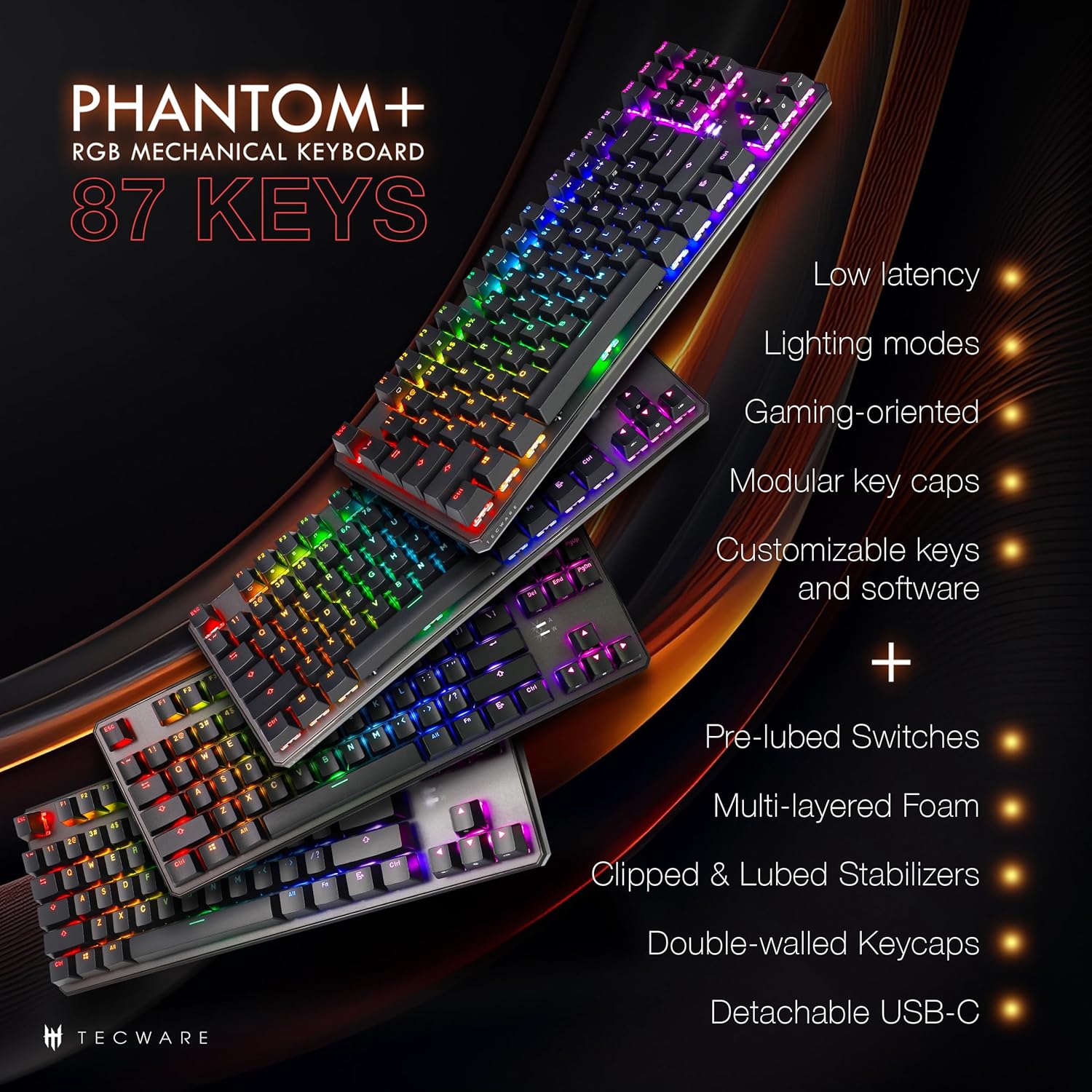
The Phantom+ keyboard incorporates several design and engineering features for enhanced performance and durability:
- Teclas PBT de dobre disparo: Resistant to wear and fading, providing long-lasting legends.
- V3 Stabilizers: Clipped and lubed for enhanced stability and smoother keystrokes on larger keys.
- Son Dampening Technology: Reduces keyboard noise for a more pleasant typing experience.
- Taxa de sondaxe de 1000 Hz: Ensures rapid response times for gaming.
- Función de bloqueo de Windows: Prevents accidental presses of the Windows key during gaming.

Mantemento
Limpeza
To clean your keyboard, disconnect it from your computer. Use a soft, dry cloth to wipe down the keycaps and chassis. For deeper cleaning, you may carefully remove keycaps using the provided keycap puller and use compressed air to clear debris from underneath.
Substitución do interruptor (intercambiable en quente)
The TECWARE Phantom+ features hot-swappable switches, allowing you to replace individual switches without soldering. This is useful for customizing your typing feel or replacing a faulty switch.
- Eliminar a tapa das teclas: Use the keycap puller to gently remove the keycap from the switch you wish to replace.
- Eliminar interruptor: Use the switch puller tool to grasp the top and bottom clips of the switch. Apply gentle pressure and pull the switch straight up to remove it from the PCB.
- Inserir novo interruptor: Aliña os pines do novo interruptor cos orificios da placa de circuíto impreso. Empurra suavemente o interruptor cara abaixo ata que encaixe no seu lugar. Asegúrate de que os pines non estean dobrados.
- Substituír a tapa das teclas: Press the keycap onto the new switch until it is firmly seated.

Resolución de problemas
If you encounter issues with your TECWARE Phantom+ keyboard, refer to the table below for common problems and solutions:
| Problema | Causa posible | Solución |
|---|---|---|
| O teclado non responde | Conexión USB solta, cable defectuoso, problema co controlador. | Ensure USB cable is securely connected. Try a different USB port or cable. Restart your computer. |
| A iluminación RGB non funciona ou é inconsistente | Lighting mode disabled, software conflict, power issue. | Check keyboard lighting controls (Fn + keys). Ensure software is running correctly. Try reconnecting the keyboard. |
| Teclas específicas que non funcionan | Interruptor defectuoso, residuos debaixo da tapa da tecla. | Remove keycap and check for debris. If hot-swappable, try replacing the switch with a spare. |
| O software non detecta o teclado | Software not installed correctly, USB connection issue. | Reinstall the TECWARE software. Ensure the keyboard is directly connected to a USB port (avoiding hubs if possible). Run software as administrator. |
Especificacións
| Característica | Detalle |
|---|---|
| Modelo | TWKB-P87PZT-WBR |
| Chaves | 87-Key (Tenkeyless) |
| Tipo de cambio | Wraith Brown (Tactile) - Hot-swappable |
| Chaves | Double-Shot PBT |
| Iluminación | RGB (16.8 millóns de cores, 18 modos predefinidos) |
| Conectividade | Detachable USB-C |
| Taxa de votación | Ata 1000 Hz |
| Rollover de tecla N | Soportado |
| Estabilizadores | V3 (Clipped & Lubed) |
| Dimensións (LxWxH) | 14.21 x 5.2 x 1.65 polgadas |
| Peso | 2.71 libras |
| OS compatible | Windows 10 (PC, Laptop, Tablet) |
Wraith Switch Specifications
The Phantom+ keyboard comes pre-installed with TECWARE Wraith switches. The specifications for various Wraith switch types are detailed below:

Garantía e Soporte
For warranty information, technical support, or to access the latest software and drivers for your TECWARE Phantom+ keyboard, please visit the official TECWARE websitio ou póñase en contacto co seu servizo de atención ao cliente.
Podes atopar máis información e recursos de apoio visitando o Official TECWARE Store on Amazon.
Ask a question about this manual
Ask about setup, troubleshooting, compatibility, parts, safety, or missing instructions. Manuals+ will review the question and use this page’s manual context to help answer it.