
Introdución
This manual provides essential information for the setup, operation, maintenance, and troubleshooting of your Bmax X15 Plus 15.6-inch laptop. Please read this guide thoroughly to ensure proper use and to maximize the lifespan of your device.
Configuración
1. Desembalaxe e Inspección Inicial
Retire con coidado todos os compoñentes da embalaxe. Comprobe que estean incluídos os seguintes elementos:
- Bmax X15 Plus Laptop
- Adaptador de alimentación/cargador
- Manual de usuario (este documento)
Inspect the laptop for any physical damage. If any components are missing or damaged, contact customer support immediately.
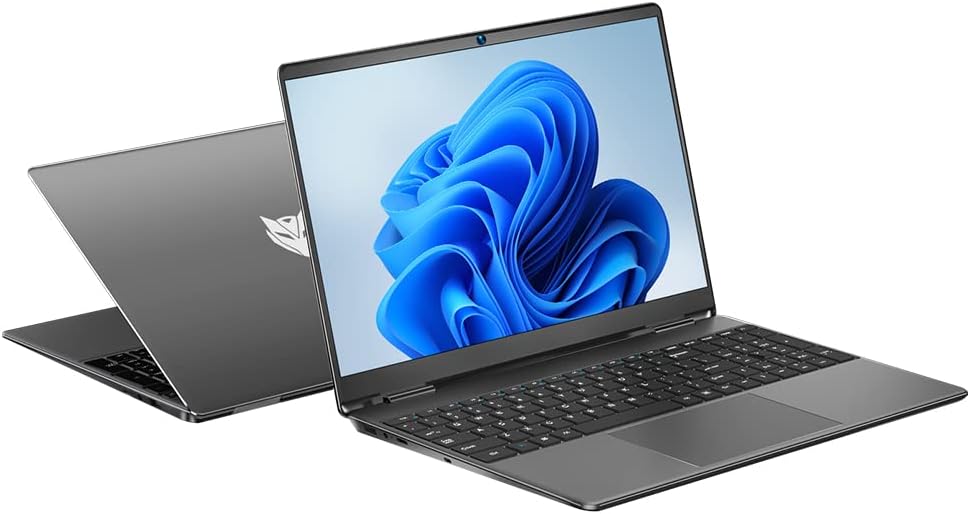
Image: The Bmax X15 Plus laptop displayed open, showing the screen and keyboard.
2. Conexión do adaptador de corrente
Before first use, connect the power adapter to the laptop's charging port and then to a power outlet. It is recommended to fully charge the battery before initial operation.
Imaxe: Primeiro plano view of the laptop's side ports, highlighting the power input, USB 3.0, mini HDMI, and security lock slot.
3. Acendido inicial e configuración do sistema operativo
Press the power button to turn on the laptop. Follow the on-screen instructions to complete the operating system (OS 11) setup, including language selection, network connection, and user account creation.
Manexo do portátil
1. Teclado e panel táctil
The Bmax X15 Plus features a full-sized keyboard with a numeric keypad and a large trackpad for comfortable navigation and input.

Imaxe: De arriba abaixo view of the Bmax X15 Plus laptop, showcasing the full keyboard with numeric pad and large touchpad.
2. Características da pantalla
Your laptop is equipped with a 15.6-inch Full HD (1920x1080) IPS display, offering wide viewing angles and vibrant colors. The narrow bezel design maximizes screen space.
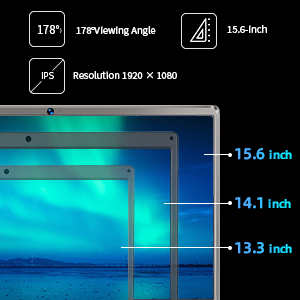
Image: A diagram illustrating the 15.6-inch display size in comparison to smaller screens, emphasizing the IPS technology and 1920x1080 resolution.
3. Rendemento e almacenamento
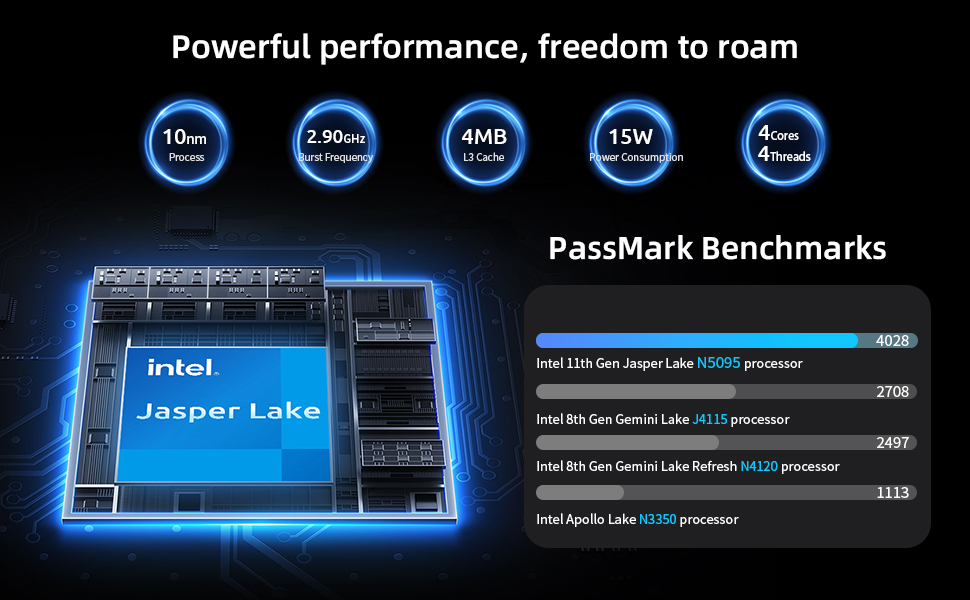
The laptop features an Intel 11th Gen Celeron N5095 Quad-Core Processor (up to 2.9GHz), 12GB DDR4 RAM, and a 512GB SSD for efficient multitasking and fast data access.
4. Conectividade
Connect to networks using 2.4GHz/5GHz Dual Band Wi-Fi. Peripheral connectivity includes two USB 3.0 ports, a Micro SD card reader, and a mini HDMI port.
Mantemento
1. Limpeza do portátil
To maintain optimal performance and appearance, regularly clean your laptop. Use a soft, lint-free cloth for the screen and exterior. For stubborn marks, a slightly dampened cloth with water or a specialized electronics cleaner can be used. Avoid harsh chemicals.
2. Storage Upgrade
The Bmax X15 Plus includes an M.2 2280 expandable slot, allowing for easy SSD upgrades up to 1TB to suit your storage needs. Refer to the diagram below for the location of the M.2 slot. It is recommended to consult a professional for hardware upgrades if you are unsure.
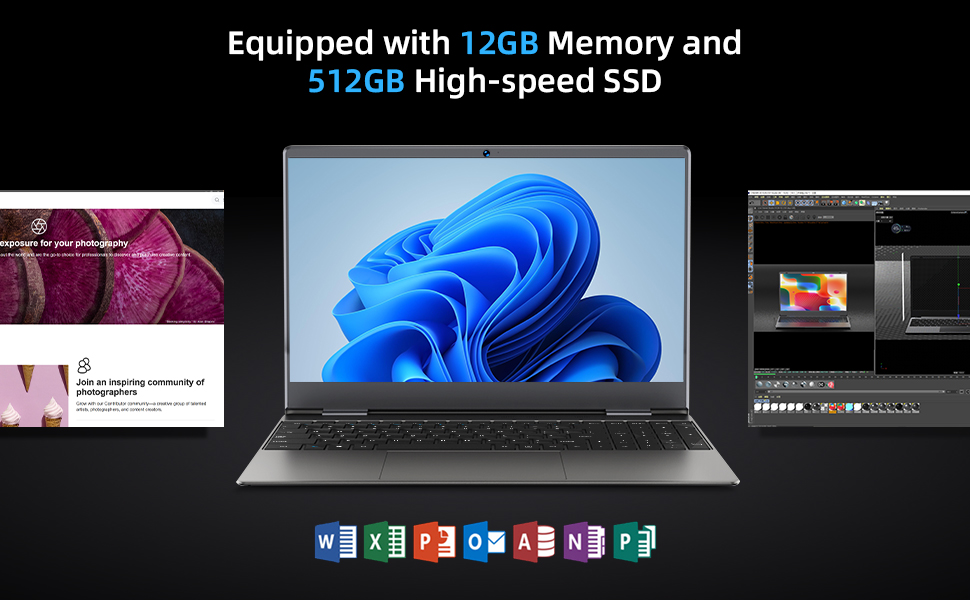
Image: Diagram indicating the M.2 2280 expandable slot on the bottom of the laptop for storage upgrades.
Resolución de problemas
If you encounter issues with your Bmax X15 Plus laptop, refer to the following common troubleshooting steps:
- O portátil non se acende: Ensure the power adapter is securely connected to both the laptop and a working power outlet. Verify the power outlet is functional. If the battery is completely drained, allow it to charge for at least 30 minutes before attempting to power on again.
- Screen remains black after power on: Try connecting an external monitor to the mini HDMI port to check if the display output is working. If an external monitor works, the laptop's internal display may have an issue. If no display on external monitor, try restarting the laptop.
- System is slow or unresponsive: Close unnecessary applications. Check for available system updates and install them. Ensure sufficient free space on the SSD. Consider running a system diagnostic or antivirus scan.
- Problemas de conectividade Wi-Fi: Verify that Wi-Fi is enabled in the operating system settings. Restart your router and modem. Ensure you are within range of a Wi-Fi signal.
- O panel táctil non responde: Check if the touchpad has been accidentally disabled via a function key (often Fn + F-key combination). Restart the laptop.
For persistent issues, please contact Bmax customer support.
Especificacións
| Característica | Detalle |
|---|---|
| Marca | Bmáx |
| Nome do modelo | X15 Plus |
| Tamaño da pantalla | 15.6 polgadas |
| Resolución de pantalla | 1920 x 1080 píxeles (FHD IPS) |
| Procesador | Intel Celeron N5095 (ata 2.9 GHz, 4 núcleos) |
| RAM | 12 GB LPDDR4 |
| Disco duro | 512 GB SSD (Serial ATA-600) |
| Almacenamento ampliable | M.2 2280 slot (up to 1TB SSD) |
| Coprocesador gráfico | Gráficos Intel UHD |
| Sistema Operativo | OS 11 |
| Tipo sen fíos | 802.11a/b/g/n/ac (Wi-Fi de dobre banda) |
| Portos USB | 2 x portos USB 3.0 |
| Outros Portos | Mini HDMI, 3.5mm Headset Jack, Micro SD Card Reader |
| Peso do elemento | 3.52 libras (aprox. 1.6 kg) |
| Dimensións do produto (LxWxH) | 14.1 x 9.5 x 0.78 polgadas |
| Batería | 1 Lithium Polymer battery (38Wh) |
Información da garantía
The Bmax X15 Plus laptop comes with a 12 meses de garantía from the date of purchase. This warranty covers manufacturing defects and ensures the product functions as intended under normal use. Additionally, a Política de devolución de 30 días is offered for your peace of mind.
Please retain your proof of purchase for warranty claims. The warranty does not cover damage caused by misuse, accidents, unauthorized repairs, or normal wear and tear.
Atención ao cliente
For any questions, technical assistance, or warranty claims, please contact Bmax customer service. Our team is available to provide friendly support.
- Soporte en liña: Visit the official Bmax websitio web con preguntas frecuentes e recursos de asistencia.
- Soporte por correo electrónico: Refer to your product packaging or the official Bmax websitio para o enderezo de correo electrónico de soporte dedicado.
- Asistencia telefónica: Contact numbers may be available on the official Bmax websitio.
When contacting support, please have your laptop's model number (X15 Plus) and purchase information readily available.